

What a limit counts
Limits on the Teams plan are set in dollars and count the on-demand credits a member spends.
Each monthly window follows your subscription’s billing period. The next window starts at midnight GMT-8 on the day your subscription renews, and the member’s counted spend starts again from zero.
User limits are separate from the auto-reload and session spending settings in Settings > Usage & limits.
Set up usage tiers
A usage tier gives each of its members the same monthly spend allocation. The allocation applies to each member individually; it is not a pool shared by the tier. A Teams account can have up to three tiers. The bottom tier in the list is the default tier. Every member belongs to it unless you assign them to another tier, including members who join later. To change the default, click Edit > Edit priority and drag another tier to the bottom.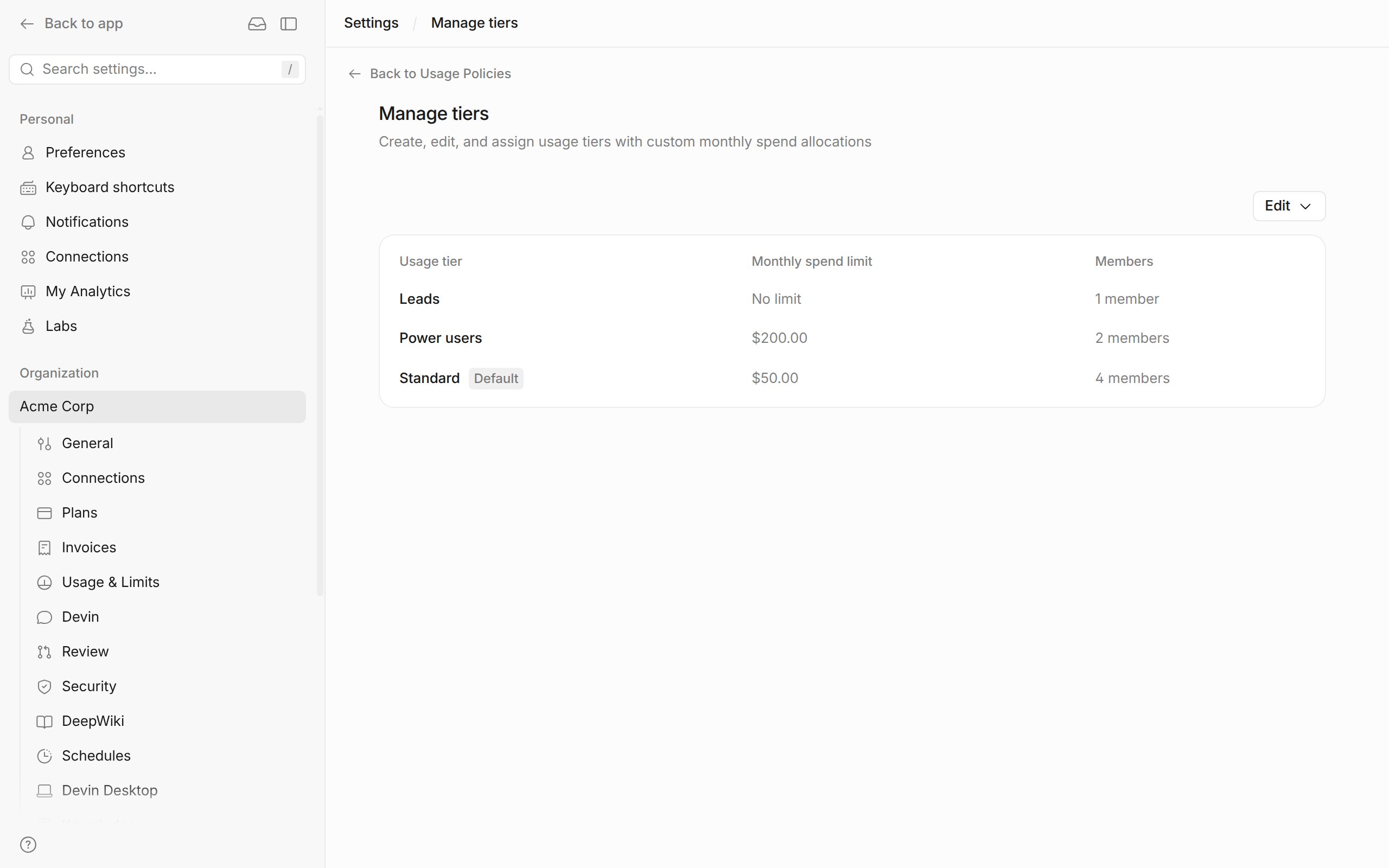
The tier list on a Teams account
- Go to Usage Policies > Usage tiers.
- Click Add tier. If you already have tiers, it’s under the Edit menu.
- Enter a name and a monthly allocation. Leave the allocation blank for no limit.
- Choose an approval policy.
- Click Create tier.
See how members are tracking
The Member list shows each member’s spend against their limit, ordered by utilization so the members closest to their limit come first. You can filter by tier and by status: Over limit or Request pending. Use the + button to add columns, such as the limit source.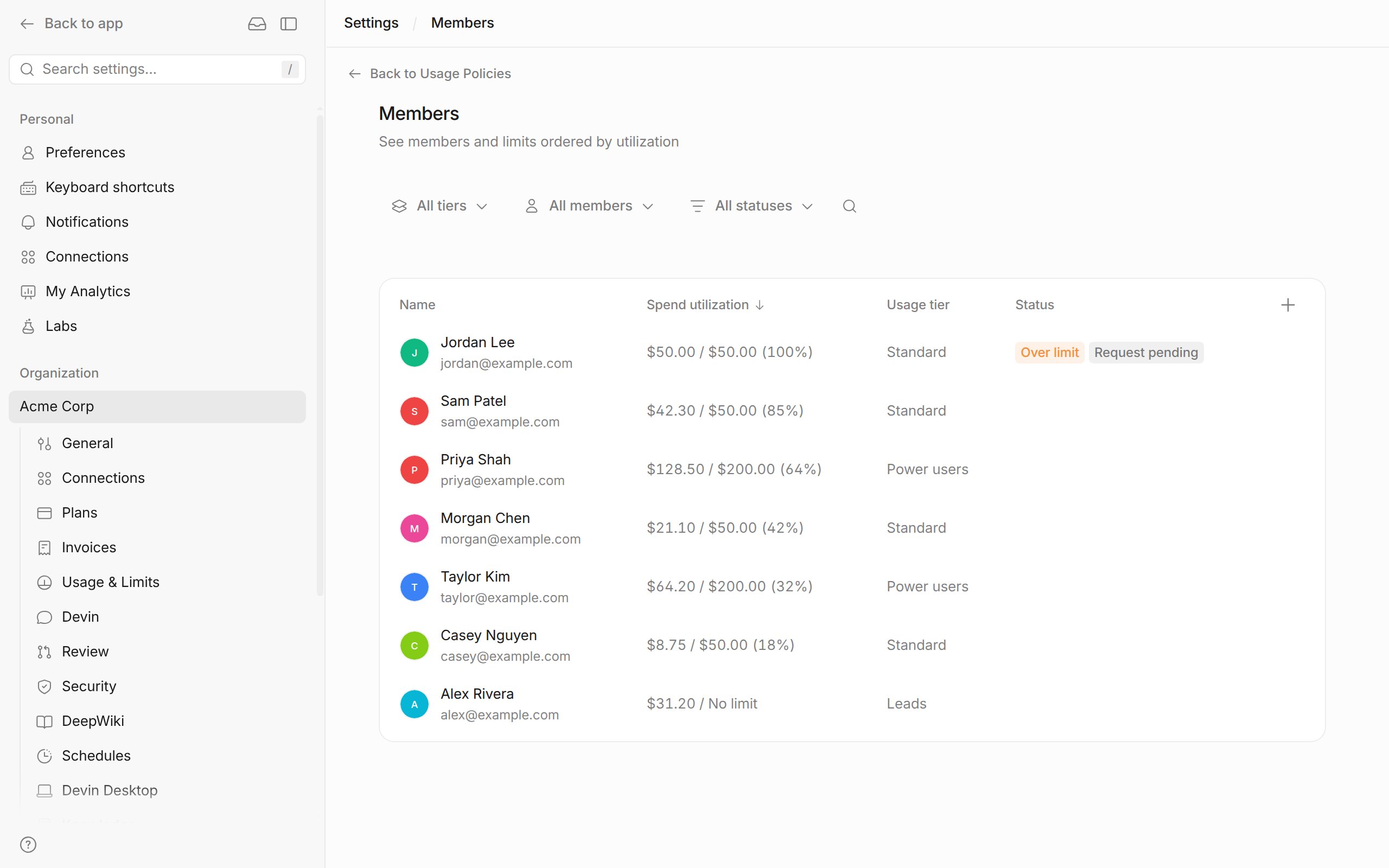
The Member list, ordered by utilization
Override one member’s limit
Click a member in the Member list and use the Manage tab to set an override without changing their tier:- A temporary override lasts until the end of the current monthly window. The member then returns to their permanent override if they have one, otherwise their tier’s allocation.
- A permanent override stays in place until you clear it.
What members see
My Analytics
Each member can track their own usage on My Analytics. The top of the page shows what they’ve spent against their limit, when the limit resets, and a Request more button. Below that, they can compare their spend in the current and previous billing cycles.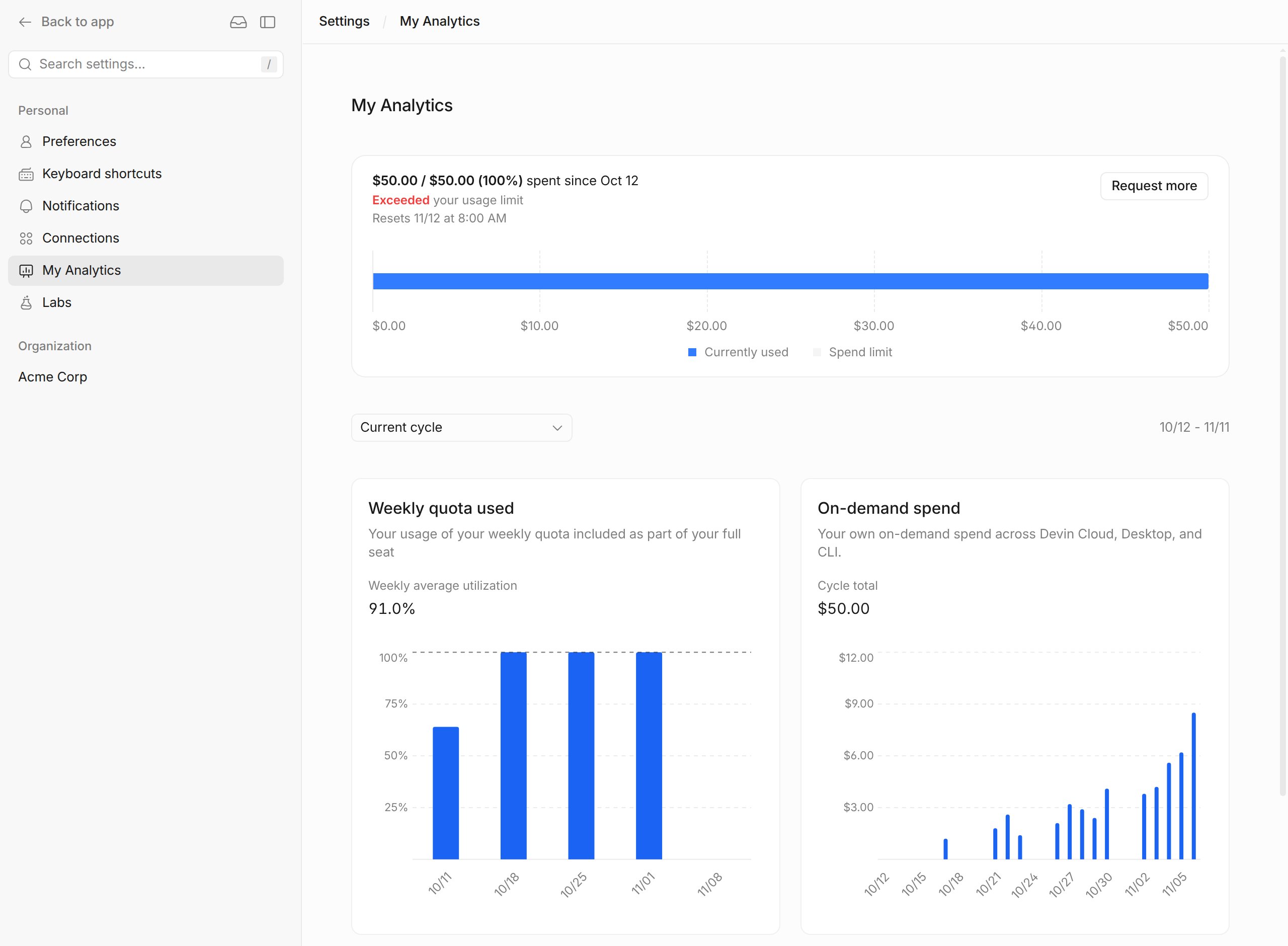
My Analytics for a member who has reached their limit
Warnings near the limit
A member gets a warning notification at 67% of their limit. From 83%, a notice with their usage and reset time stays on screen until they dismiss it.When a member reaches their limit
New work from that member is blocked. Other members keep working. The message box shows Increase your per-user usage limit with a Request more action.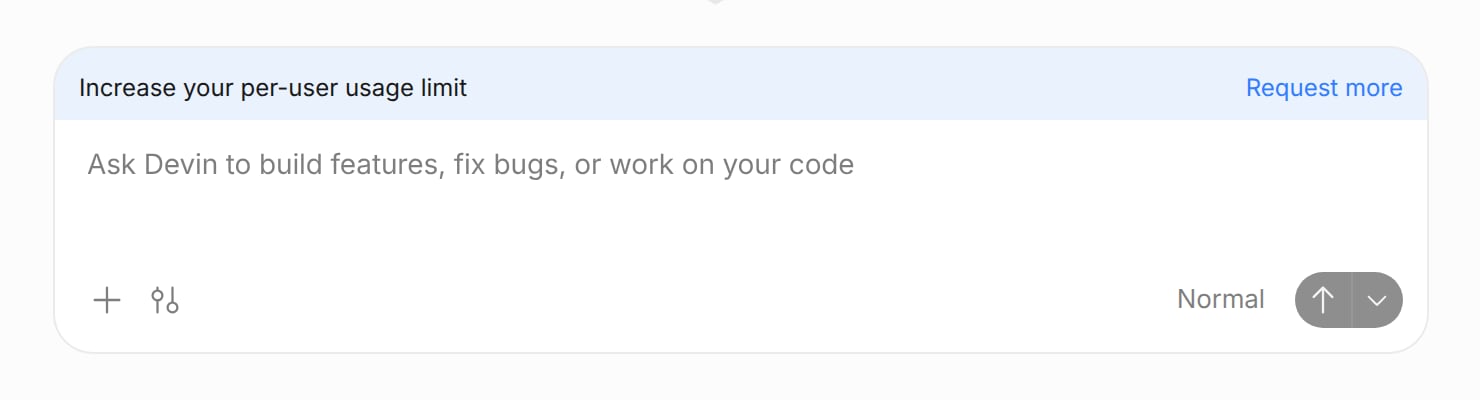
The message box for a member who has reached their limit
Requests for additional usage
Each tier’s approval policy decides what happens to a request:Make a request
A member can ask for more from the Request more action on My Analytics, in their limit warnings, or on the message box. They pick a suggested amount or enter a custom one, and can add a reason. The dialog shows their current limit, the limit they’re requesting, and their projected headroom for the window.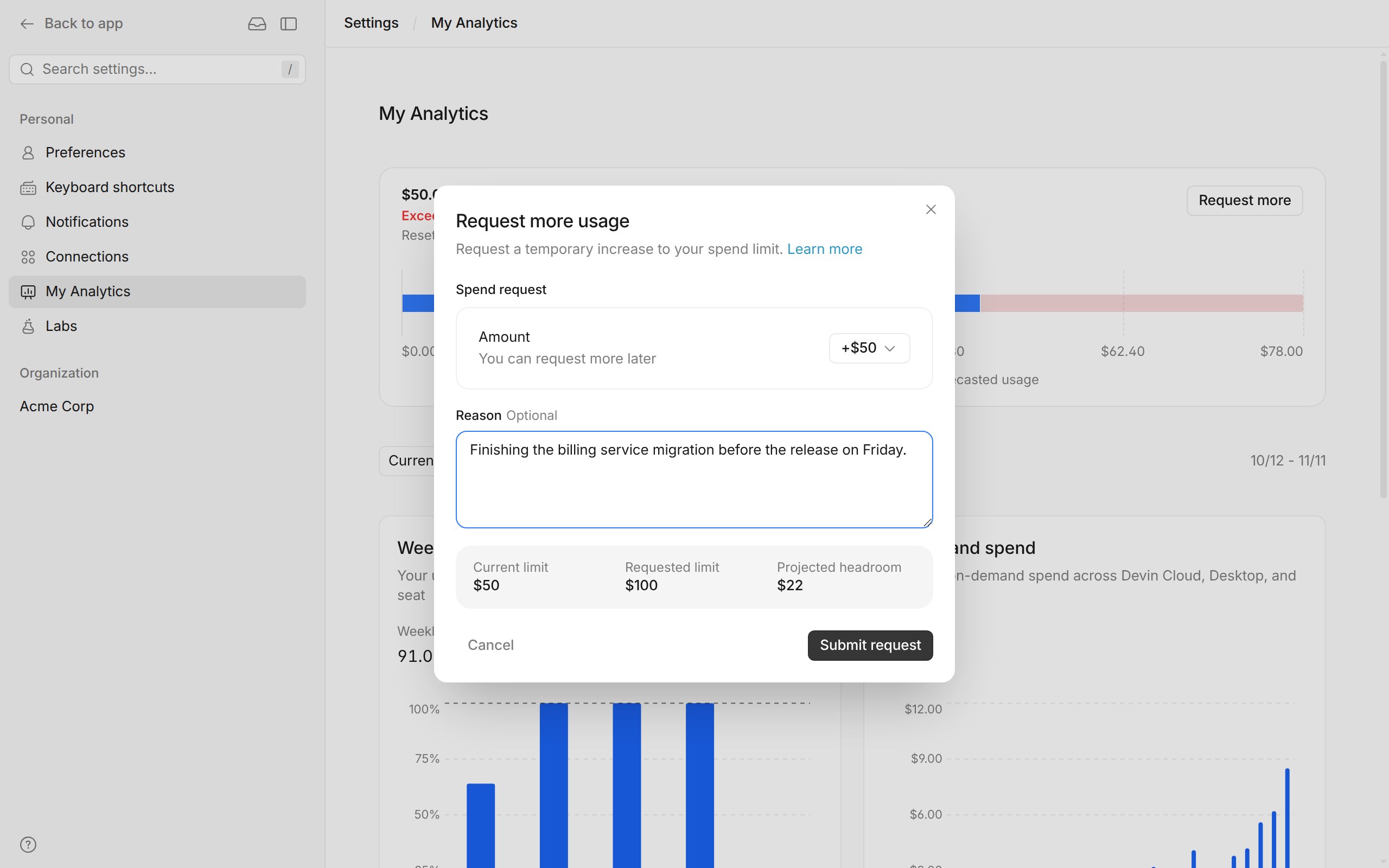
A member requesting more usage
Review a request
Admins review requests under Usage Policies > Additional Usage Requests, and are notified in the app and by email: immediately when the requester is blocked, and in a daily digest for other pending requests. Pending requests are labeled Blocked if the requester has reached their limit, or Proactive if they asked ahead of time. Click a request to see the member’s usage, tier, and message, then approve or deny it. To act on several at once, select them in the list.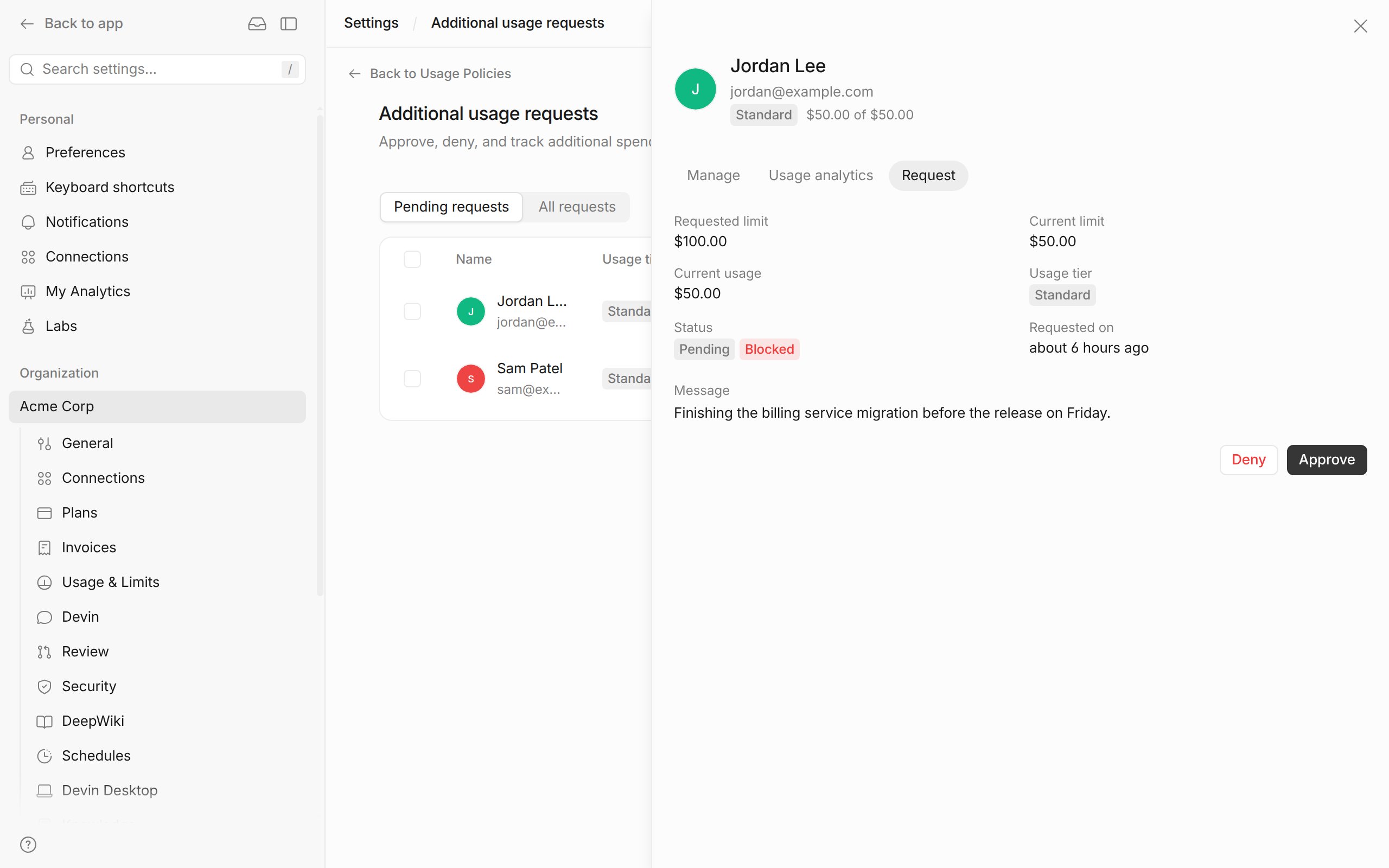
An admin reviewing a request
What is available only on Enterprise
These enterprise user limit and budget features are not available on the Teams plan:- Budgets and per-budget user limits
- IdP group mappings
- The Approve based on efficiency approval policy
- Request settings, such as a custom limit-warning action
- The usage policy API endpoints