December 24, 2024
Devin is now generally available!:Check out our announcement on X. All engineering teams can now tag Devin to fix frontend bugs, create first-draft PRs for backlog tasks, make refactors, and more. Subscriptions starts at $500/month and include:
  • Unlimited seats - Devin is built for engineering teams
  • Access to Devin’s API, integration for Slack, and IDE extension
  • Onboarding session & direct support from the Cognition engineering team
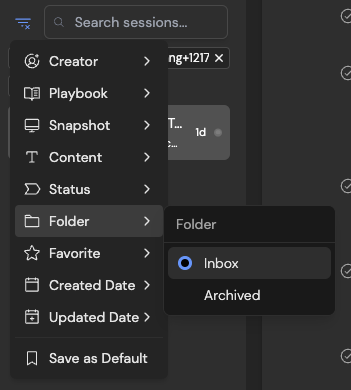
Devin is now faster and more cost-efficient:Over the last 2 weeks, we’ve made Devin ~10% faster and ~10% more cost-efficient, especially for tasks that require Devin to make many code edits. This means the same task will require fewer Agent Compute Units (ACUs).Fixes for crashing, stuck, and hanging Devins:If you’ve noticed Devin stuck on the same action or unable to sleep/wake up, please let us know via Slack Connect or support@cognition.ai. These issues should not happen again, and we’re happy to refund your ACUs if they do!More options to customize Devin:By default, sessions in your sidebar are filtered to non-archived sessions that you started. Change your default filters by clicking on the filter icon next to “Search sessions” > “Save as Default” at the bottom of your filters list.
Devin
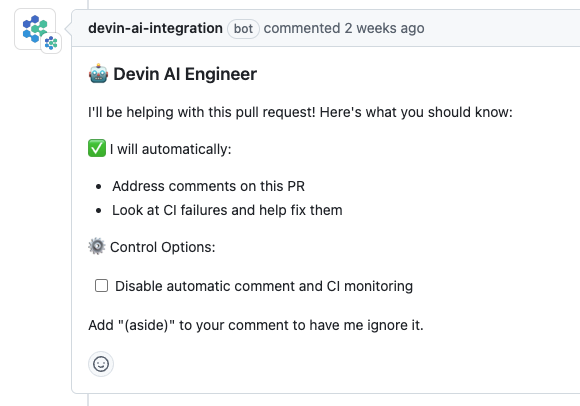
By default, Devin automatically responds to PR comments and CI failures. Change this using the “Control Options” section in Devin’s PR comment.
Devin
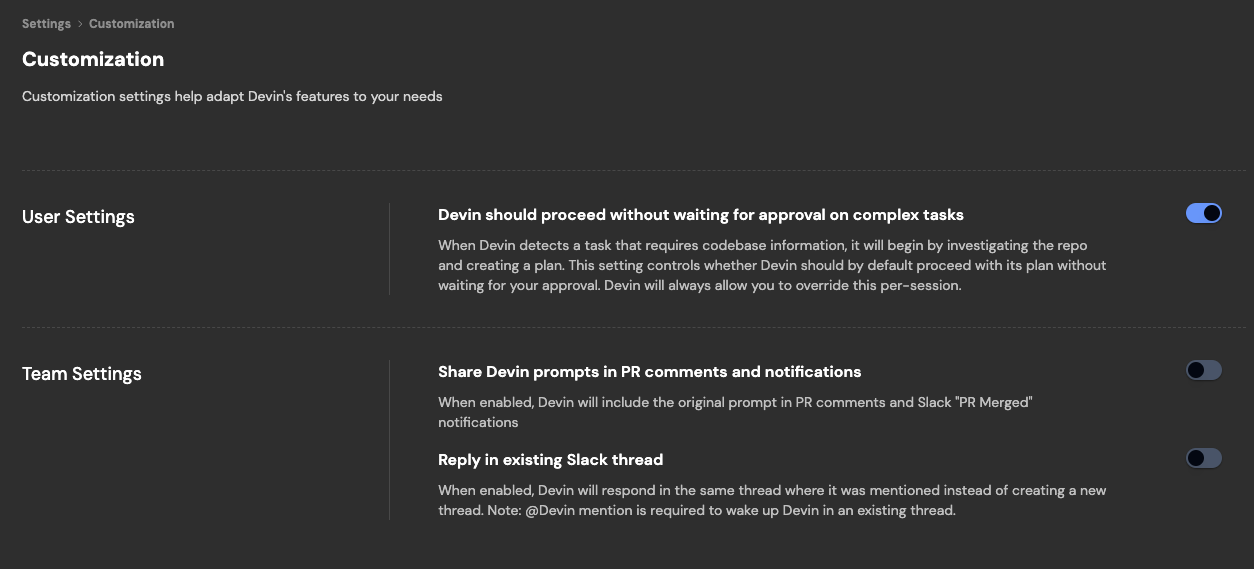
Always receive Slack notifications from Devin, even when you start sessions from the web app. Turn on Slack notifications in Settings > Profile.Customize whether Devin sessions start in existing or new Slack threads, whether Devin waits for you to approve its plan, and more in Settings > Customization.
Devin
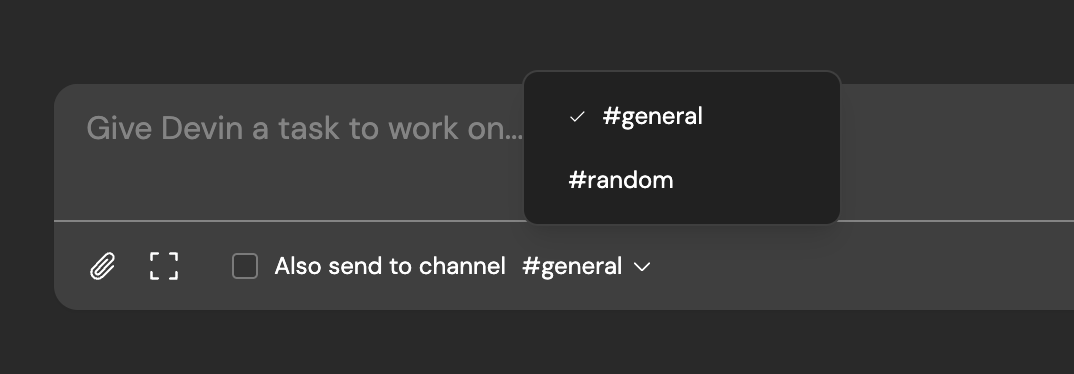
Devin can send Slack updates on its GitHub activity. Configure the channel these updates are sent to in Settings > Integrations.Share Devin sessions you start in the web app to Slack. You can now change the default channel.
Devin
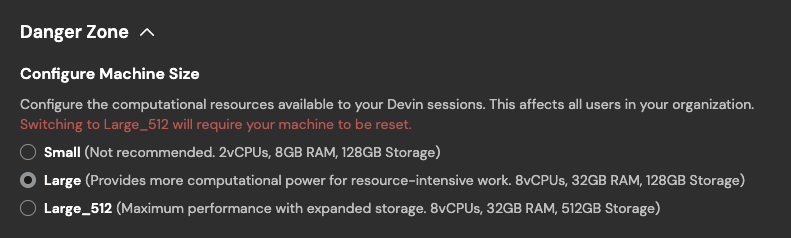
Configure + monitor Devin’s machine:If you need to increase Devin’s machine size (disk space, RAM, CPU), we’ve added additional options in Settings > Devin’s Workspace > Danger Zone.
Devin
You can always monitor Devin’s machine utilization during a session, in the top right corner of the session page.
Devin
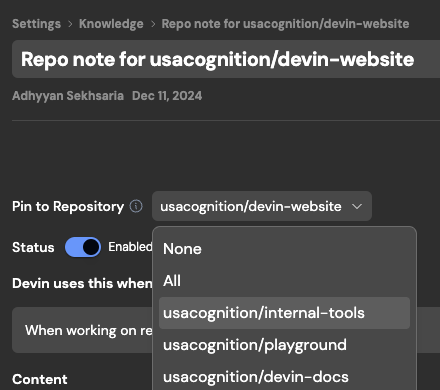
Pinned and auto-updated Knowledge:Knowledge Devin should always remember when working in a repository can now be pinned.
Devin
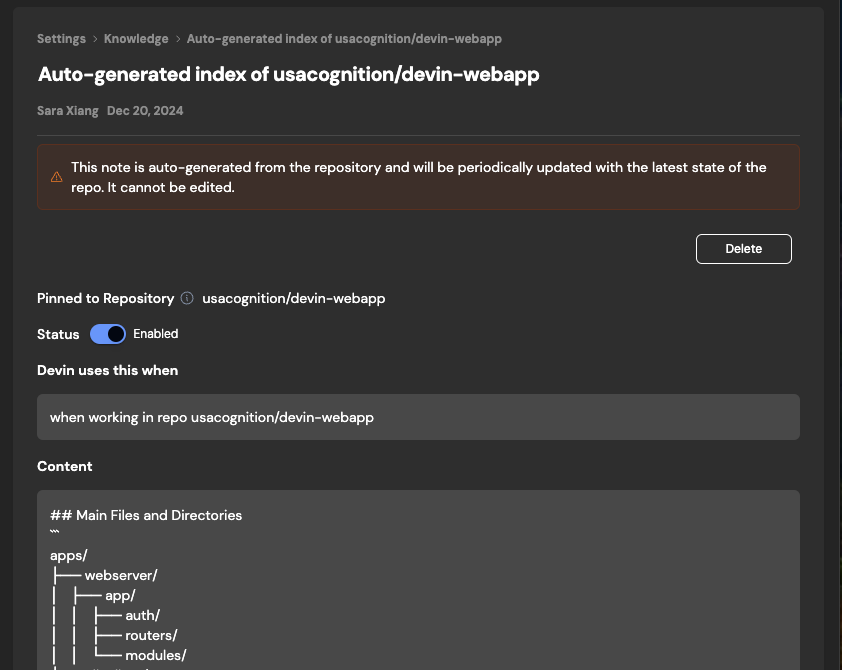
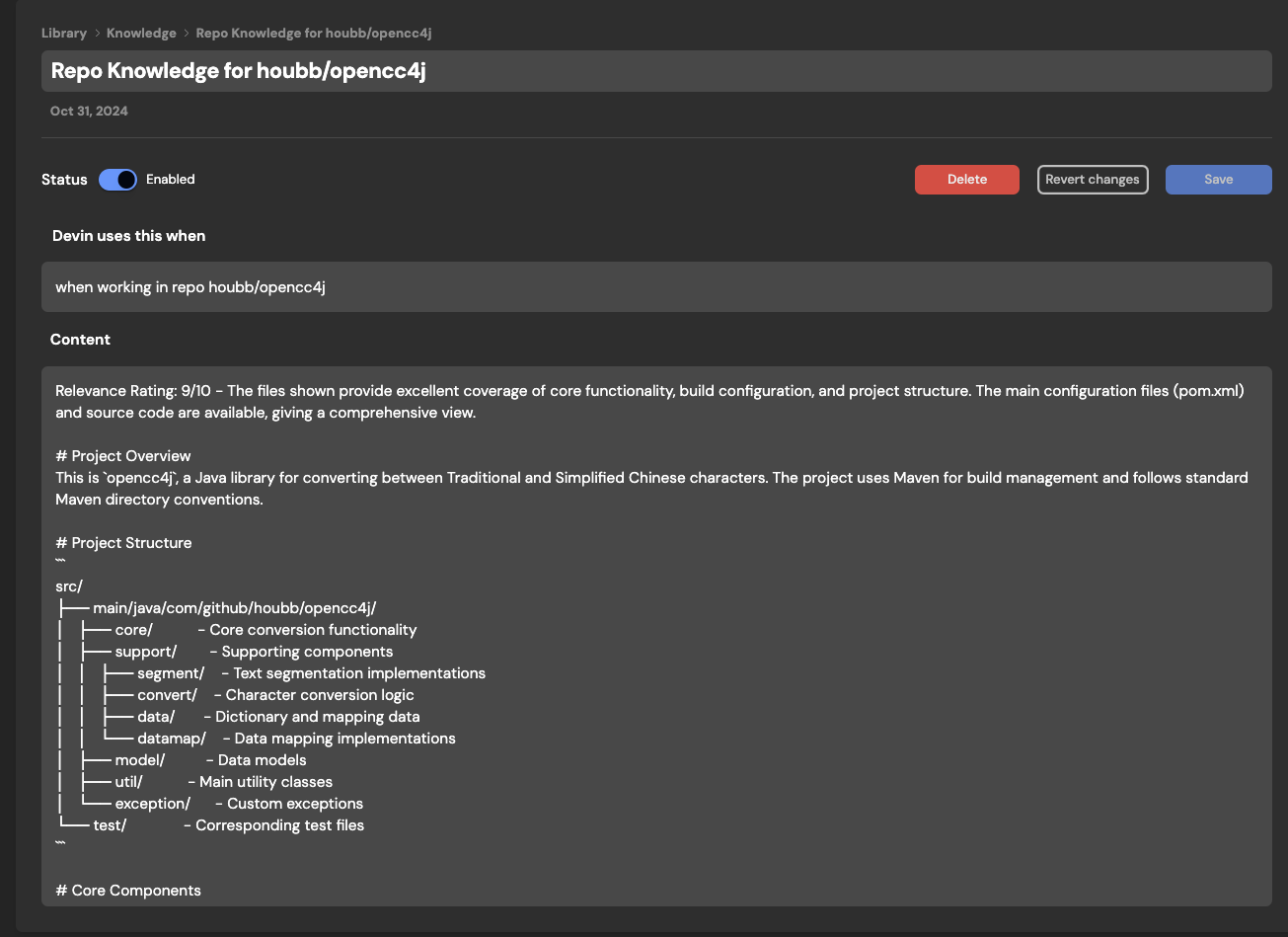
Devin also auto-generates and auto-updates its own Knowledge on repo structure and components. Find auto-generated notes under Knowledge > Repo Knowledge.
Devin
November 22, 2024
Bring Devin into conversations just as you would with human teammates:Tag @Devin on bug reports and feature requests directly on Slack:
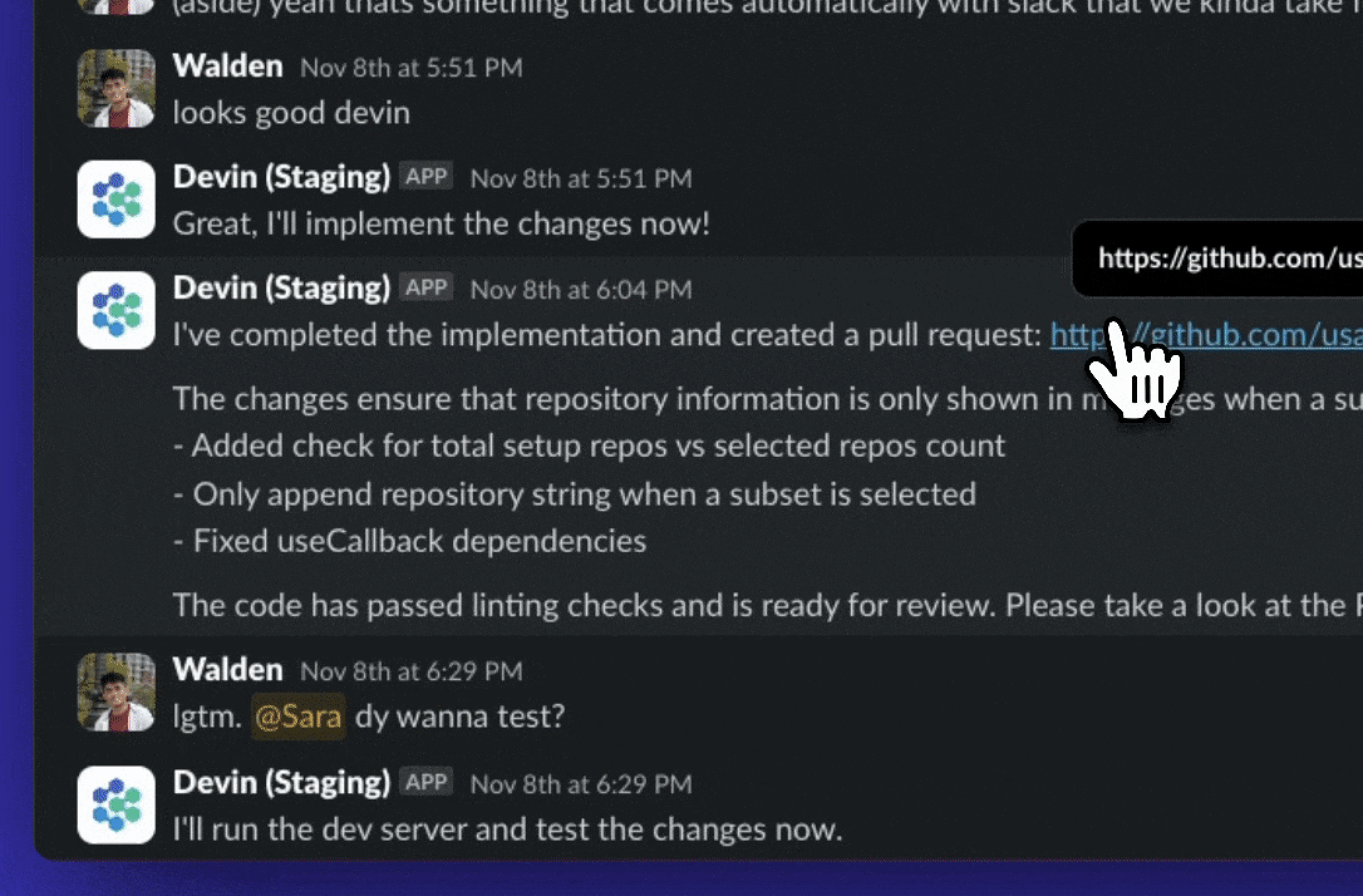
  • Devin pulls in context automatically
  • Message Devin from your phone
  • All Slack sessions also link to a webapp session
Recent improvements to our integration for Slack:
  • Say “sleep” to put Devin to sleep. Devin only wakes up again when you tag @Devin in thread
  • Say “archive” to put Devin to sleep + archive the session
  • Turn on Slack notifications in sessions started from the webapp, you’re now able to (1) interact with Devin in Slack (2) receive updates in the Threads section of Slack
Devin
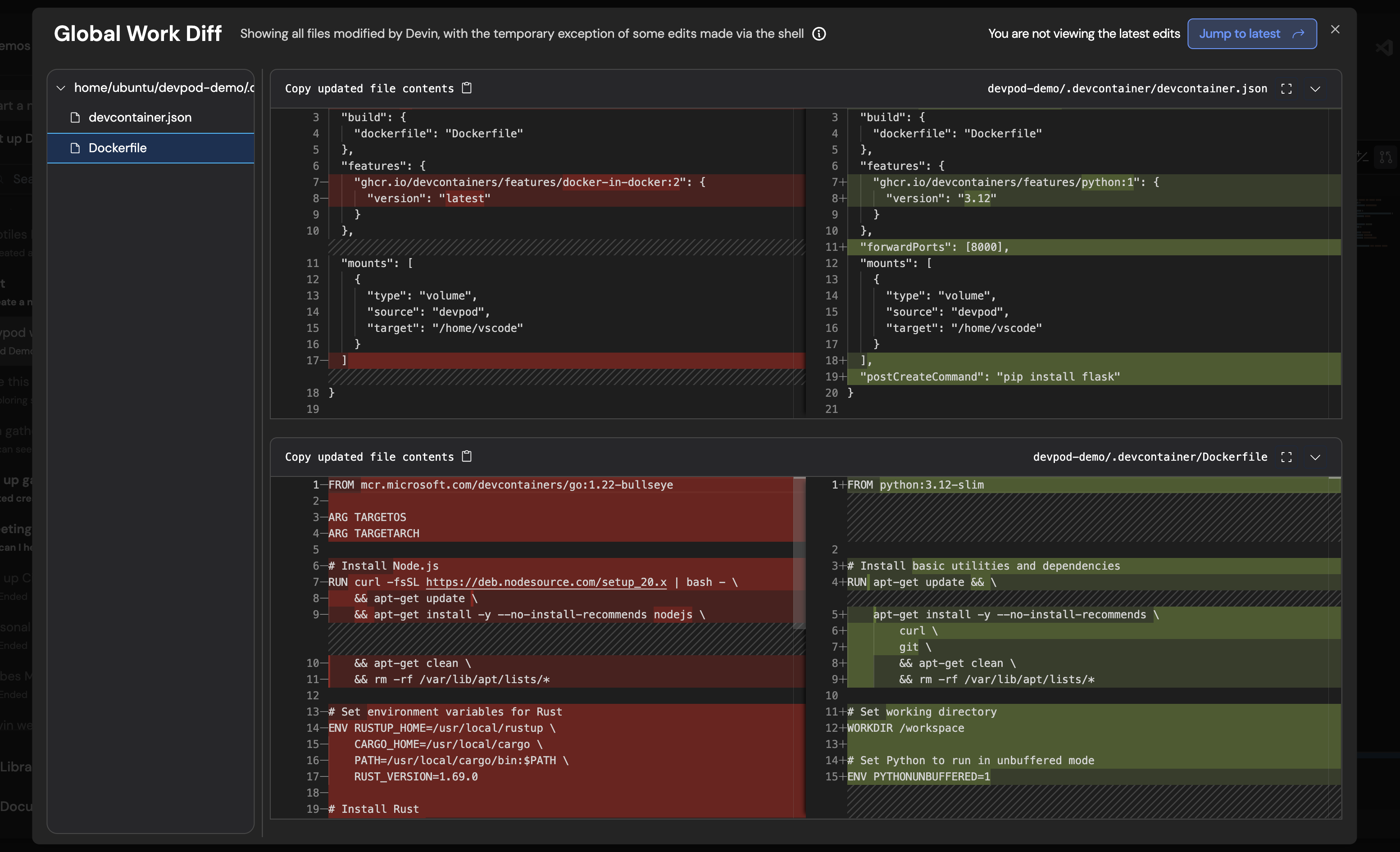
Devin responds to PR comments and lint errors automatically:Ask Devin to create a PR! Recent improvements to our PR workflow:
  • When the PR receives comments or fails lint, Devin will automatically wake up to address it if it’s sleeping
  • Click “PR Preview” under the session title to see the changes Devin has made before a PR has been created. If Devin makes edits, you’ll see a “Jump to Latest” button appear in the top right
Devin
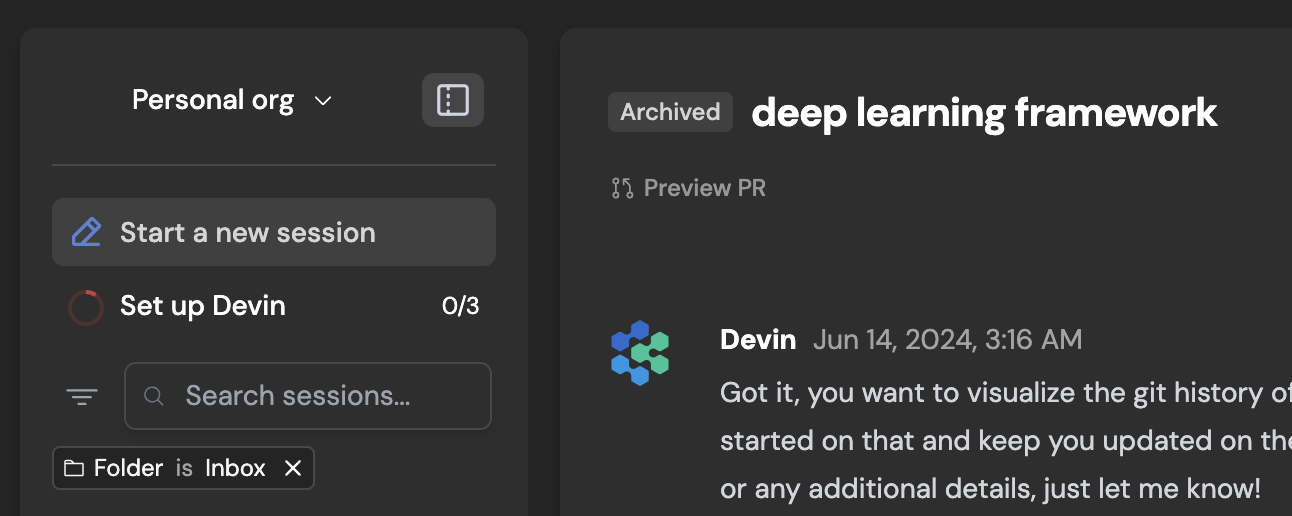
Use Devin as your todo list:Try sending tasks to Devin as they come up, instead of adding them to your todo list. Hide completed sessions with the new archive button next to the session title.Archived sessions show up under Folder > Archived in the left sidebar.
Devin
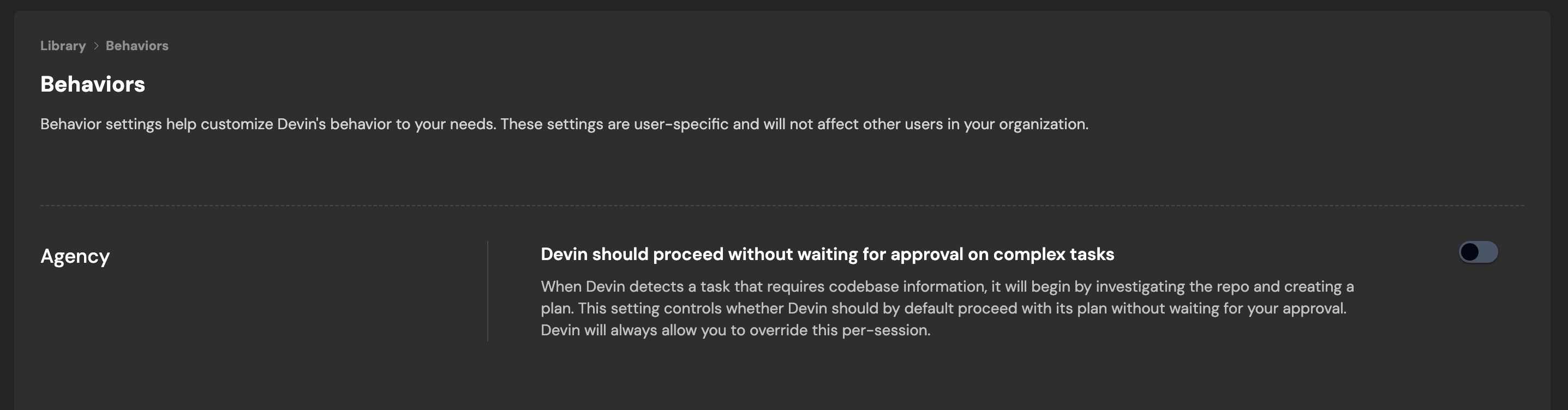
Configure Devin’s Behaviors:Configure Behavior in Settings to customize Devin’s behavior to your needs. These settings are user-specific and will not affect other users in your organization.The first behavior you can now configure is Agency.When Devin detects a task that requires codebase information, it will begin by investigating the repo and creating a plan. When Agency is turned on, Devin will proceed with its plan without waiting for your approval. Devin will always ask you whether you want to override this per-session.
Devin
Configure Devin’s Workspace:Devin’s Workspace resets to a saved machine state at the start of every session. By default this machine state includes all the repositories you’ve added and set up at app.devin.ai/workspace.
Tip: Setting up Devin’s Workspace significantly improves Devin’s performance on your codebase. Imagine if every time you started a task, your laptop and part of your memory were wiped - that’s what happens to Devin without setup!
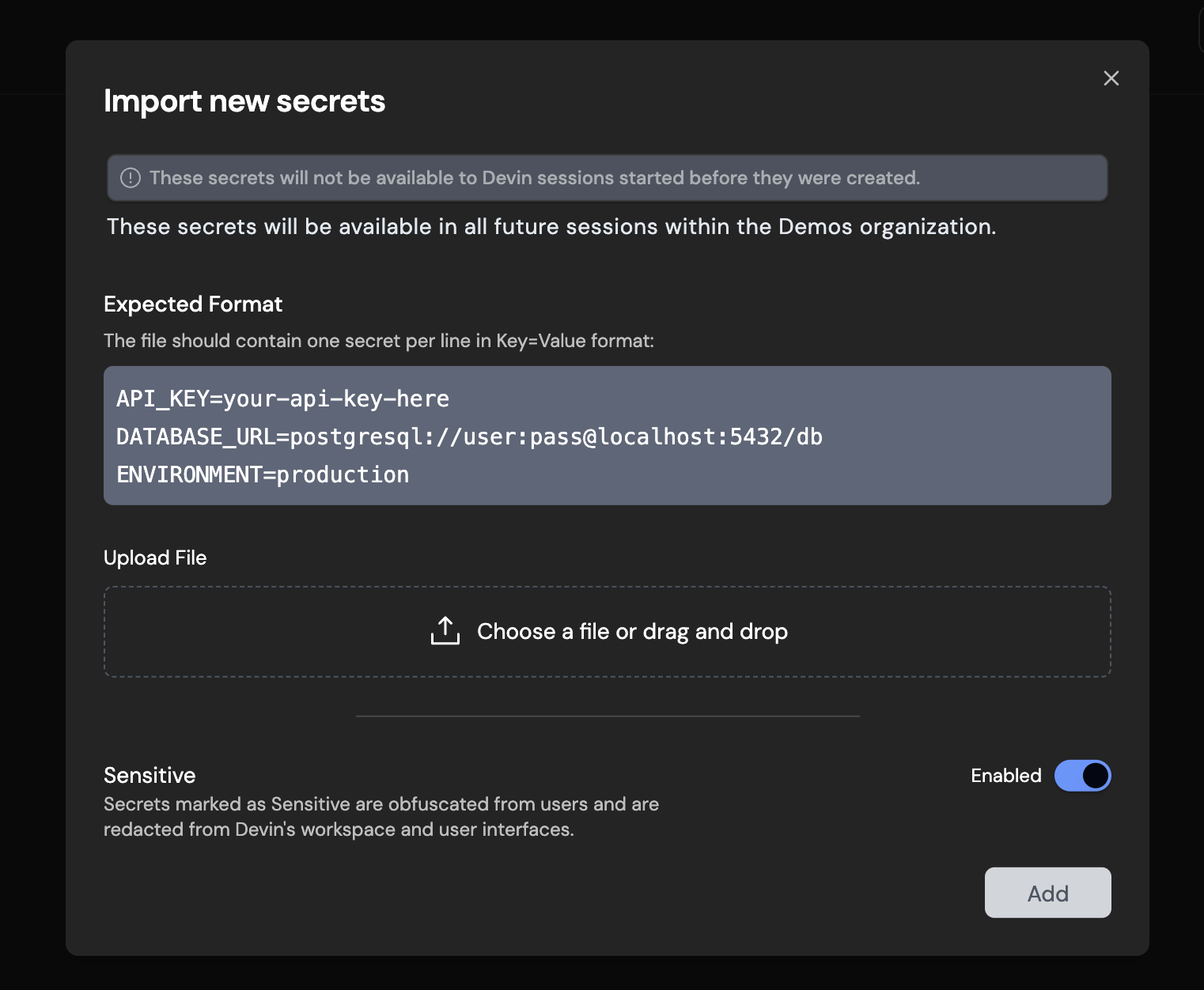
Behind the scenes, all repositories you set up co-exist on the same (default) machine state at the start of every session.Bulk import secrets:If your repo requires many secrets, share them with Devin in bulk in the Secrets section of settings — coming soon to the repo onboarding workflow.
Devin
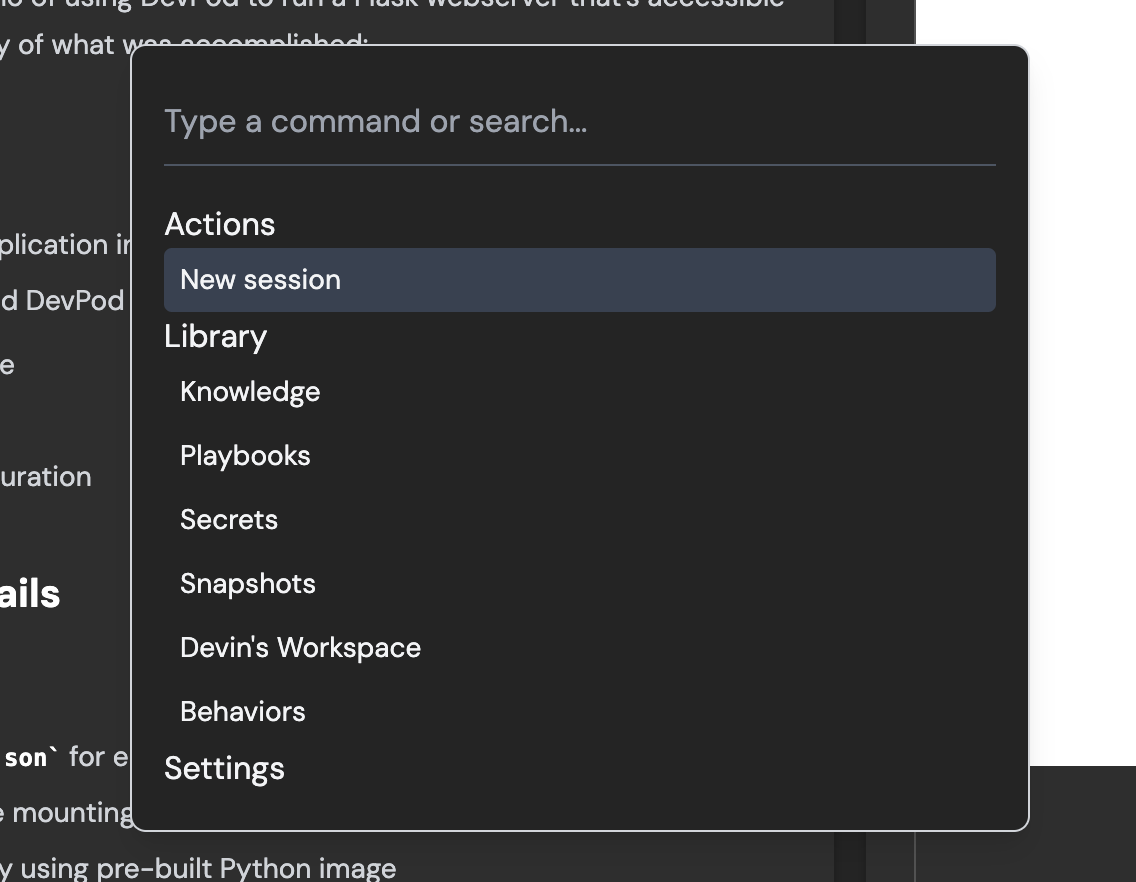
Faster navigation with cmd-k:Use cmd-k to quickly start a new session and navigate the web applications
Devin
Talk to Devin from your IDE (Beta Access):Handoff async work to Devin while you focus on your primary task. Review when convenient.
  • Works in conjunction with Copilot and Cursor
  • Devin’s just a shortcut away (Cmd+G)
  • Keep track of your active Devins
  • Review and accept code directly in your local IDE
Install the Devin Extension to get started.Use macros to easily attach Playbooks (from Slack, Devin IDE, or webapp):A macro is a shortcut (e.g. !macro) that can be used to quickly attach a Playbook to your initial prompt to Devin. Navigate to your Playbook in your Library and click “Edit” to set the macro for each Playbook.
November 5, 2024
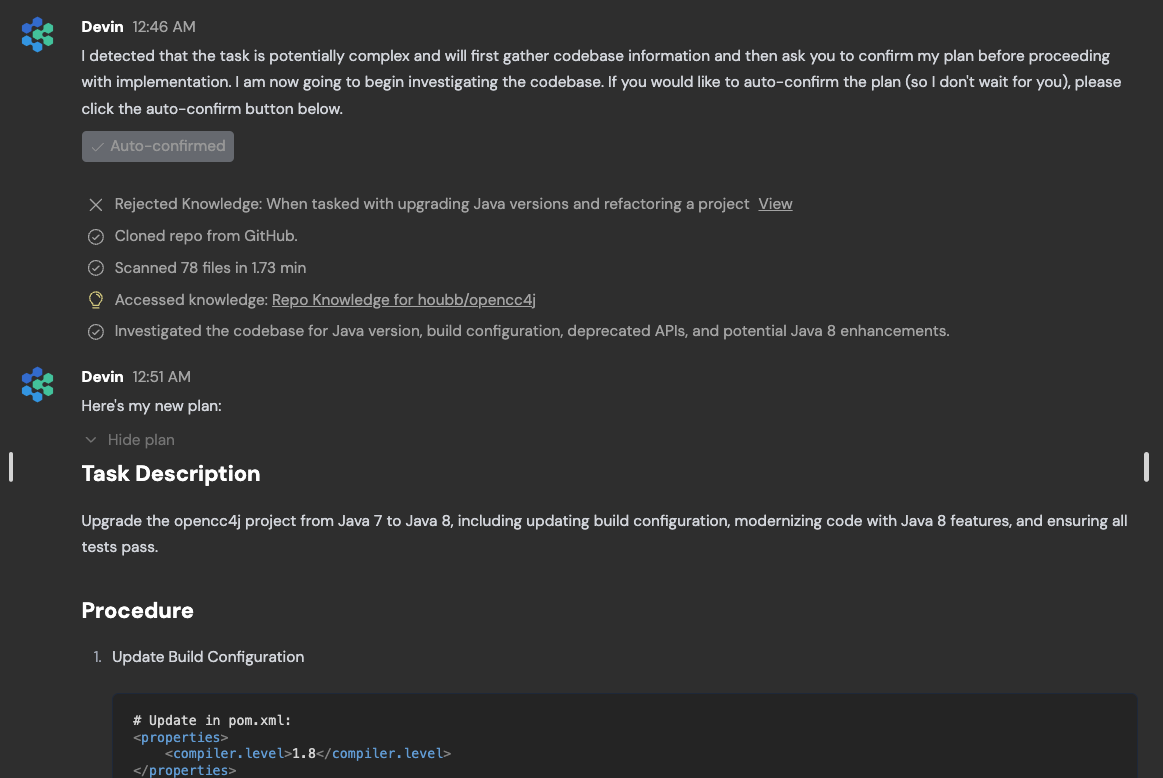
Planning mode:For certain tasks, much of the work needed is figuring out what should be done and aligning on the approach. Devin will now automatically detect more complex tasks and spend time proposing a plan before beginning execution.You can always auto-approve the plan if you don’t want Devin to wait for your approval.
Devin
November 1, 2024
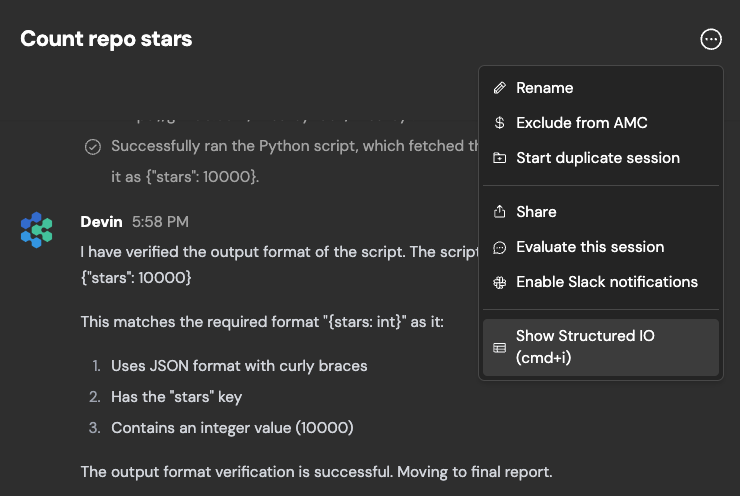
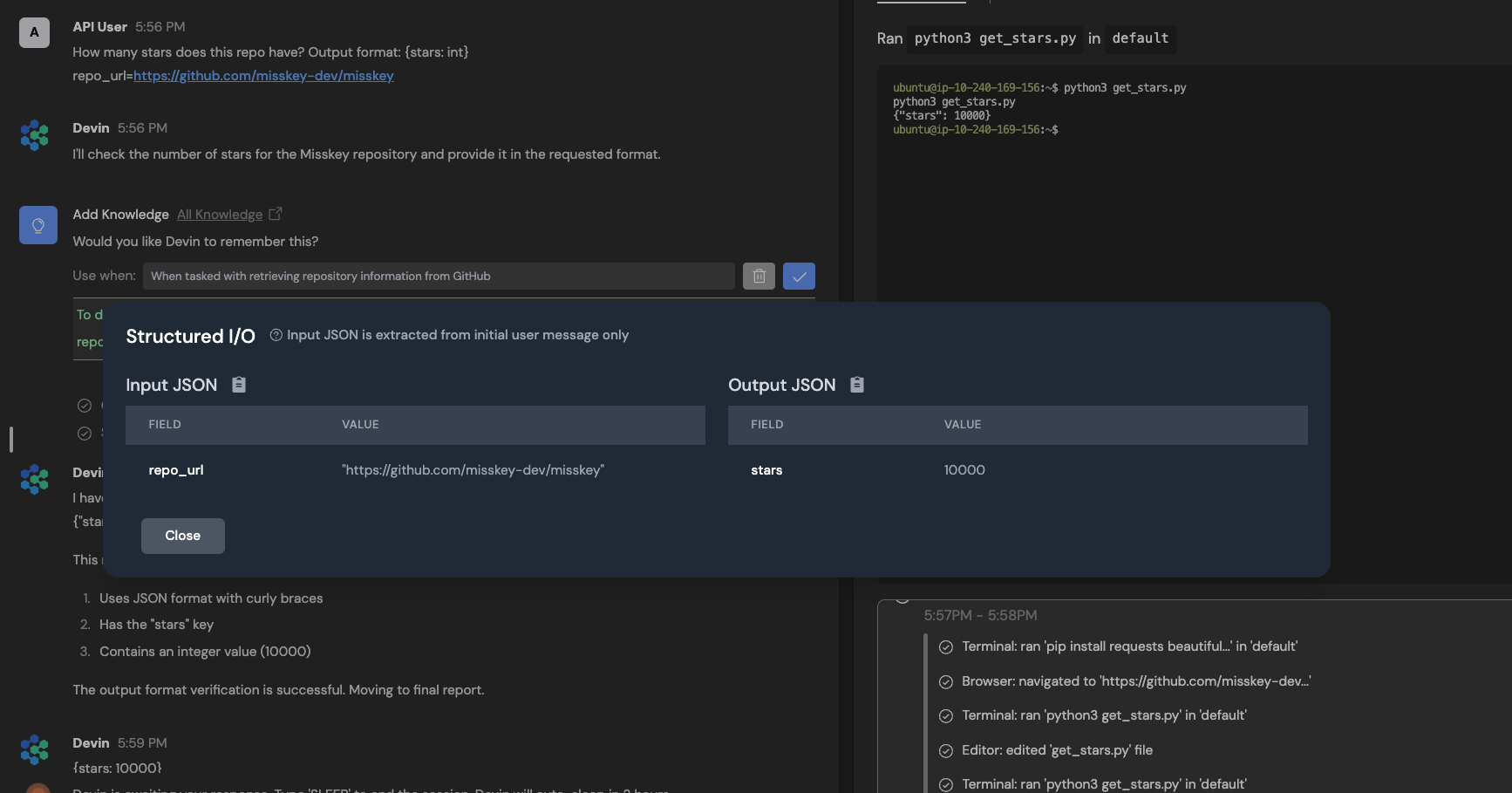
Programmatically create Devin sessions and retrieve results (including strutured output) using our new REST API:Our new RESTful API allows you to integrate Devin into your own applications, write scripts to kick off multiple sessions in parallel, and build powerful automation workflows on top of Devin.You’ll be able to specify a structured output format in your prompt, for example:
Devin, we're using auth0 instead of clerk - can you remove clerk support from the provided file? Output format: {lines_edited: int, success: bool}
View structured output in the web app on any session page with CMD+i, or click “Show structured IO” in the dropdown menu in the top right corner of your chat.
Devin
Devin
You can obtain an API key from your settings page.Read our API documentation to learn more and view an example of how to use the API.
Devin
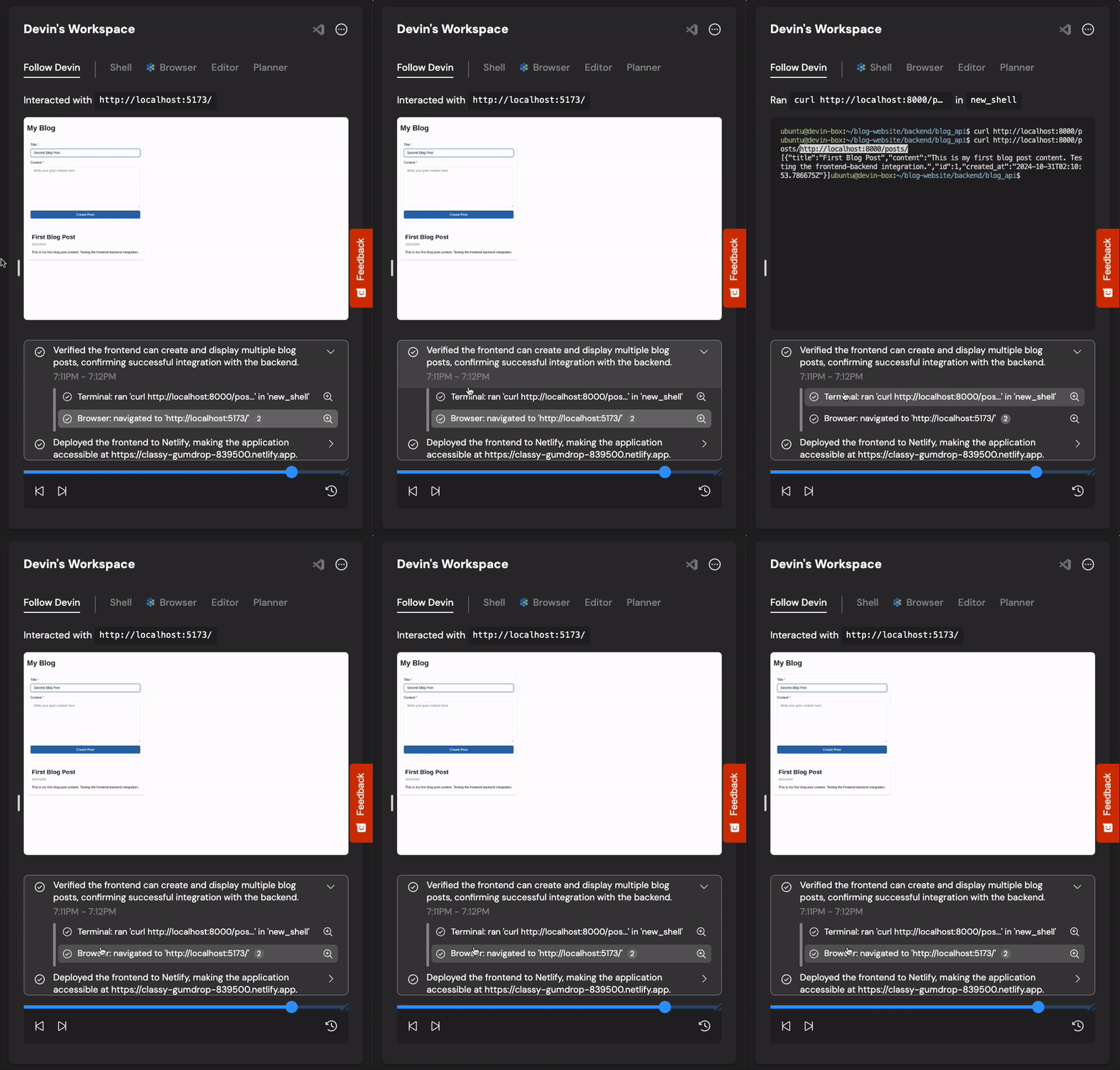
It’s now easier to understand what Devin’s been up to with the “Follow Devin” tab:The “Follow Devin” tab is designed to make it faster to understand what Devin’s been up to - it highlights Devin’s actions (file edits, shell commands, etc) as Devin works. Click on the magnifying glass icon to jump to the associated tool (editor, shell, browser, planner) for more information.
Devin
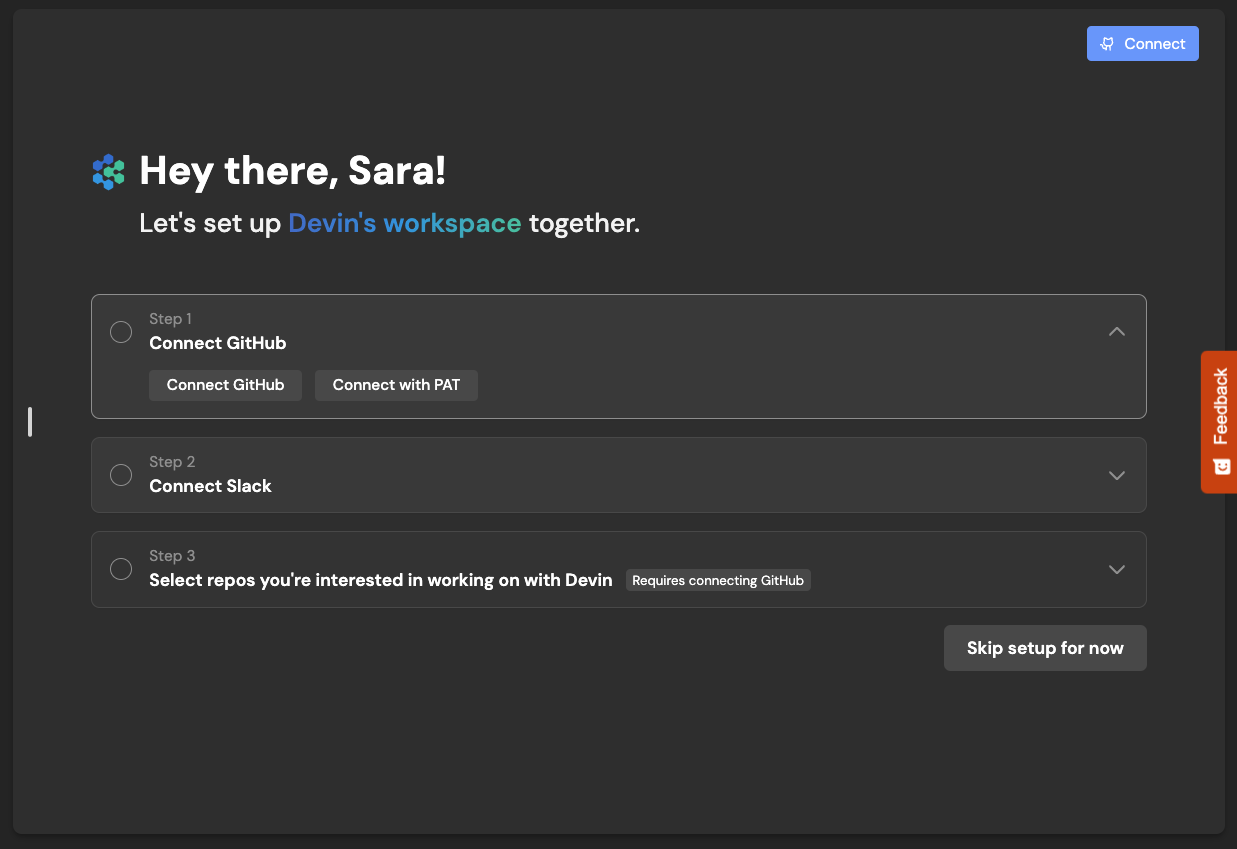
To be successful with Devin, upfront investment is usually required - our new Onboarding Flow walks you through the required steps:Onboarding steps include:
  • Connecting your GitHub organization - this enables Devin to scan your codebase and generate Repo Knowledge. GitHub also enables Devin create PRs and respond to your PR comments automatically!
  • Connecting your Slack organization allows you to kick off sessions and respond to Devin in the same place where you interact with your human teammates! Next time someone reports a frontend bug, try tagging @Devin in the channel to address it!
  • Manually setting up Devin’s machine. If your repository requires developers to have environment variables or dependencies installed, it’s important to set up Devin’s machine. Otherwise, Devin will spend its limited resources figuring out setup before it’s able to tackle the task you give it.
    Devin
You’ll receive warnings if Devin is about to sleep:Previously, users on our Personal and Team plans might’ve noticed that Devin may sleep unexpectedly. This is now fixed, and if Devin is about to sleep because it’s low on ACUs or close to per-session ACU limits (which reset with each new instruction and can be configured in Settings > Usage), you’ll receive a toast notification in the web app!Repo knowledge:Devin will now automatically scan your repositories and generate Repo Knowledge. This allows Devin to more quickly and successfully do real work for you in your repo. You can always add and edit your own Knowledge manually in Settings > Knowledge
Devin
Devin
Increased options for Enterprise users:Enterprise users now have more options to configure Devin to meet your organization’s needs, including:
  • Single sign-on with Okta
  • Auto-Join for Company Domains: Allow any user with a company email to join Devin without individual invites
  • Customized Onboarding: Tailor example sessions and suggested prompts to guide your organization’s users to Devin’s most valuable use cases
  • Usage Insights: Automated email alerts to track your usage over time
October 10, 2024
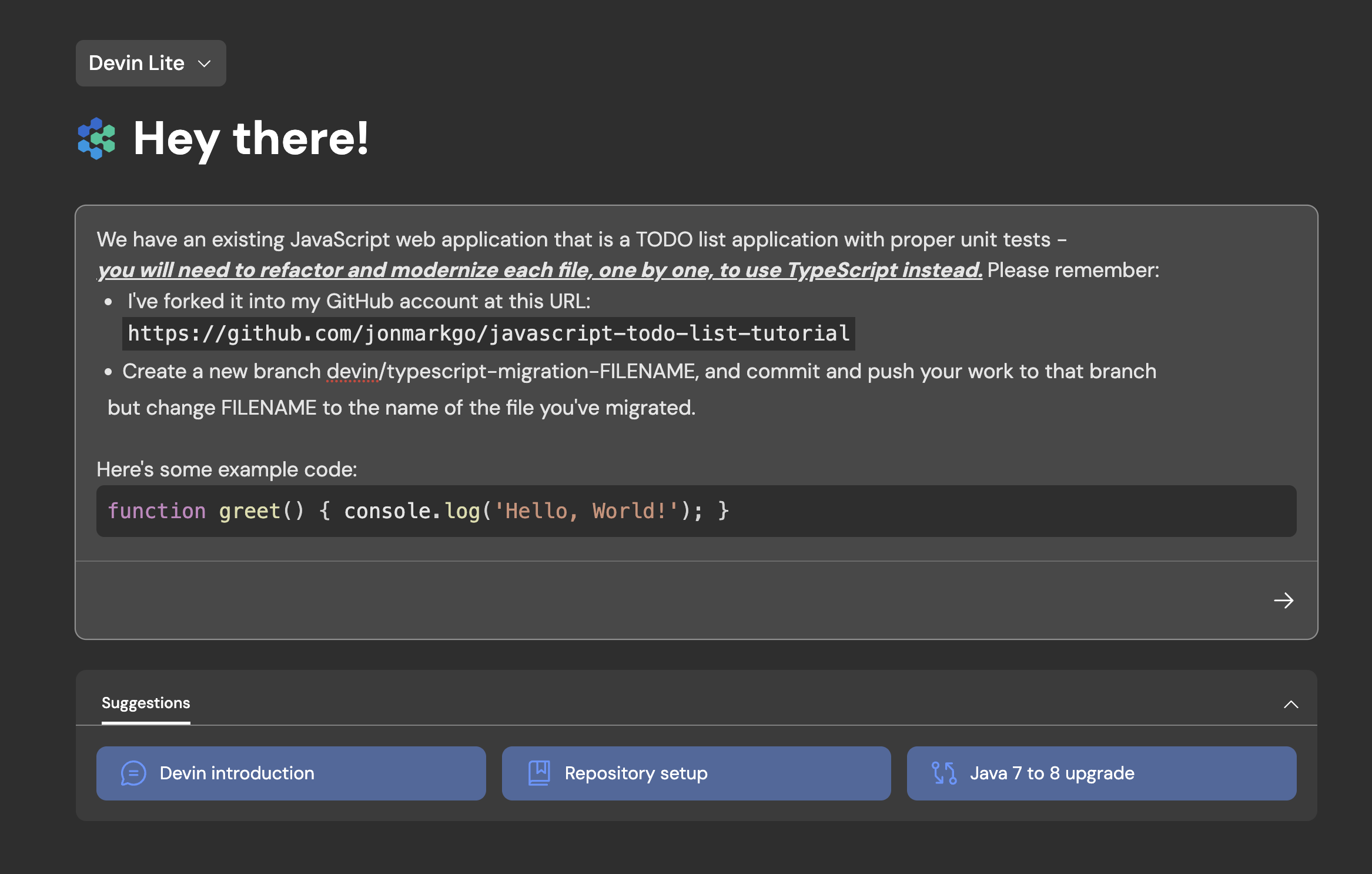
A new home page, designed for longer prompts and smaller screens:Devin often works best when you share detailed context and requirements upfront. With our redesigned home page, the input box expands as you type and feels more like a file editor:
  • press Enter for new lines
  • use Cmd + Enter (or Ctrl + Enter) to send your message
  • paste example code snippets or lists of requirements to try our rich text features
    Devin
[Beta] Devin API:The Devin API allows you to spin up Devin sessions programmatically. Use cases range from automatic PR reviews and lint error resolution to providing internal services for migrations. Currently available for our Enterprise users - contact us at support@cognition.ai to learn more!Faster session and workspace navigation:It’s now much faster to scrub Devin’s workspace, switch sessions, and start new sessions in the Devin web app.We’ve migrated our authentication system to Auth0:You’ll notice a new design on our login page, but you’ll be able to log in as normal using your email, Google, or GitHub credentials.
September 26, 2024
Introducing Devin for Teams:With our Team plan, your entire team can create, share and collaborate together in Devin sessions. The Team plan includes everything in the Personal plan, plus:
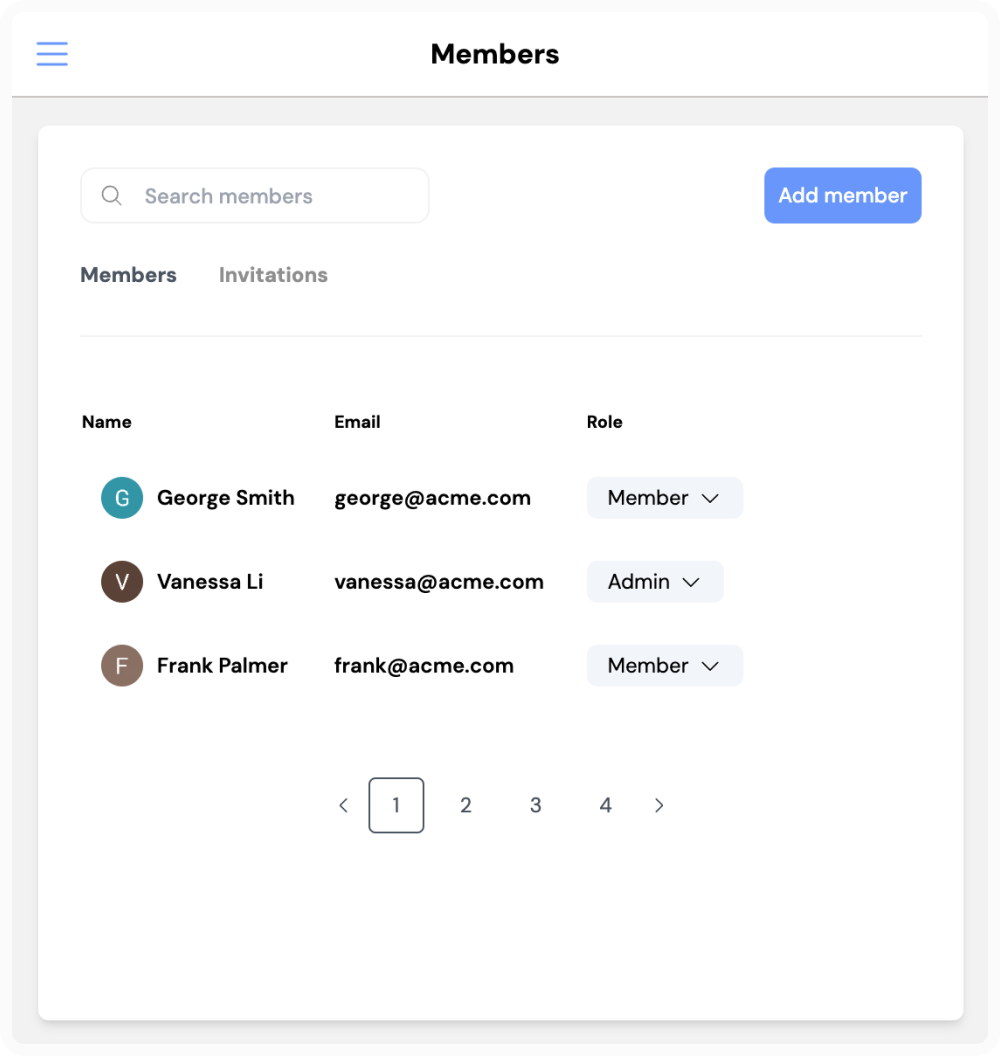
  • Unlimited seats
  • Access to our integration for Slack
  • A larger ACU (Agent Compute Unit) capacity included with your monthly subscription
  • A dedicated workspace for your team to create, share, and collaborate in Devin sessions together
Contact us at support@cognition.ai to learn more!
Devin
September 3, 2024
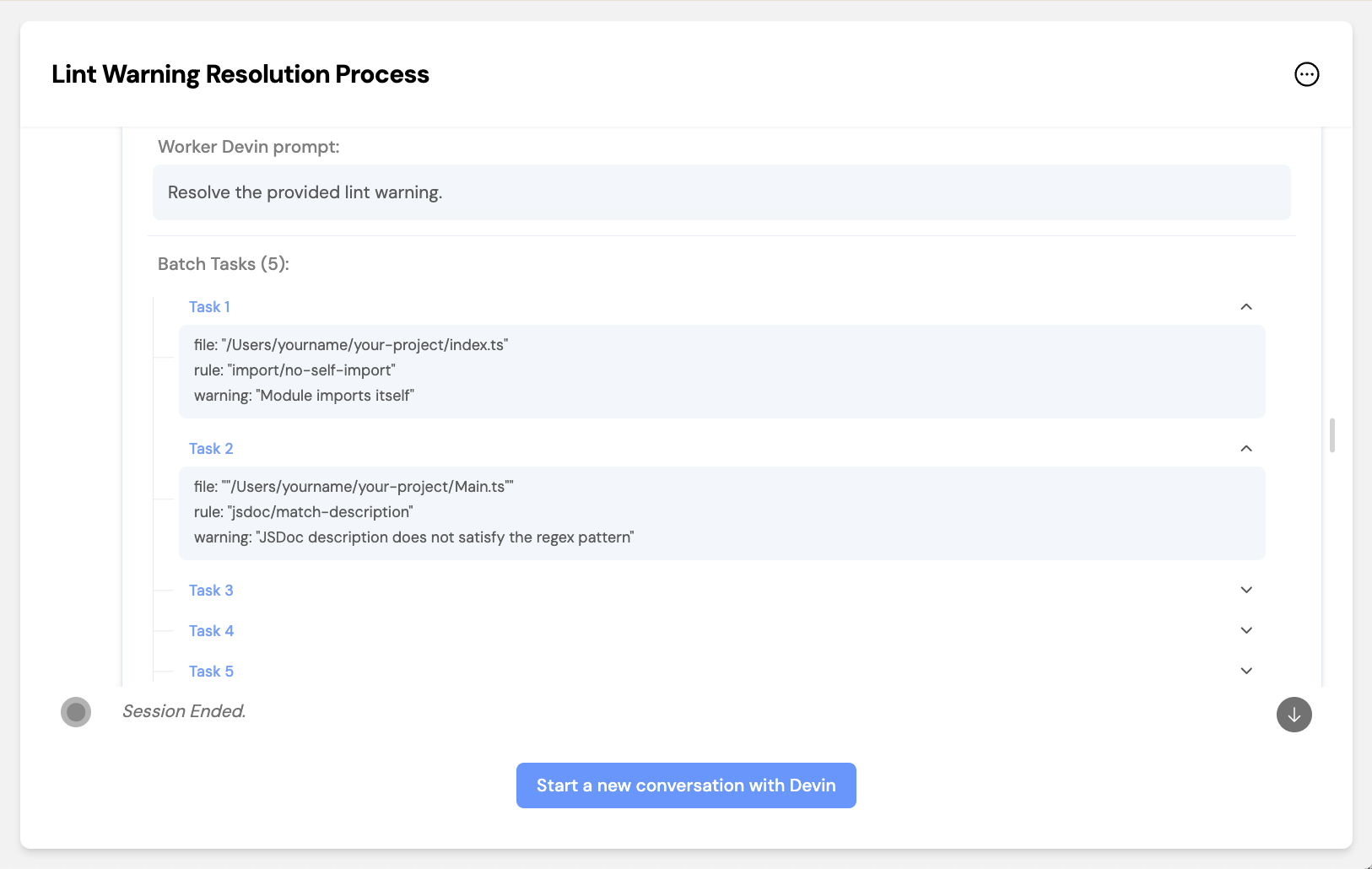
Devin responds to comments on PRs:Try reviewing Devin’s code via GitHub or GitHub Mobile - Devin will automatically respond as long as the session hasn’t ended and Devin isn’t sleeping.Devin suggests Knowledge:Try giving Devin feedback in chat! Devin will automatically suggest new additions to Knowledge if something seems useful for future sessions.Knowledge is a collection of tips, documentation, and instructions that Devin “knows” across all future sessions. Devin will automatically recall relevant Knowledge as necessary, and you can always manually add or review Knowledge in Settings & Library > Knowledge.Let Devin create Devins with MultiDevin:Tackle large backlogs of tasks by delegating to a team of Devins that work in parallel. MultiDevin consists of 1 “manager” Devin and up to 10 “worker” Devins.The manager Devin distributes a task to each worker Devin, then merges the changes from all successful worker Devins into one branch or pull request. MultiDevin is great for repeated, isolated tasks like lint errors, code clean-ups, migrations, refactors, and more!
Devin
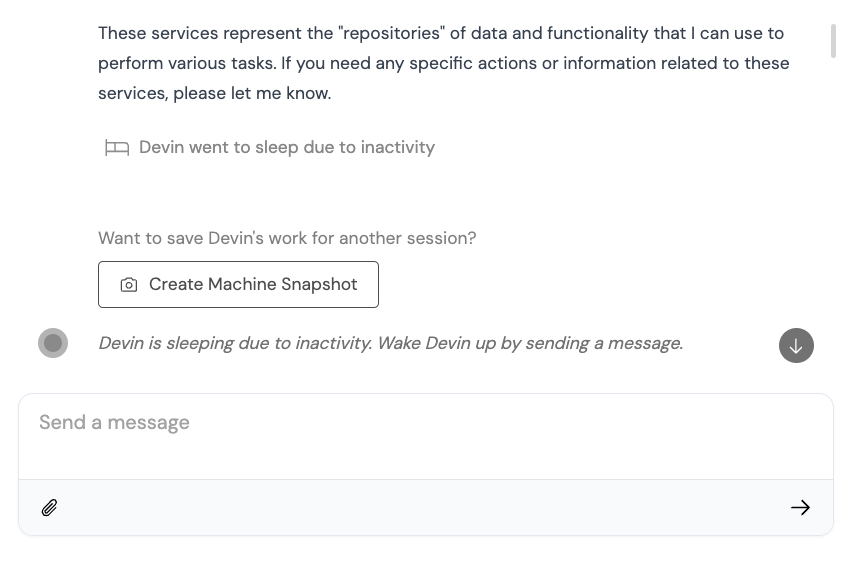
Enterprise VPC Deployment:Devin offers an enterprise deployment option tailored for organizations with stringent security and compliance requirements. Our cloud-agnostic solution allows Devin to deploy DevBoxes within your own Virtual Private Cloud (VPC) and to store data within your cloud, ensuring your data remains exclusively within your controlled environment.“Wake up” old Devin sessions:Previously, Devin sessions ended after long periods of inactivity. Now, most sessions will “sleep” instead, meaning that you can wake Devin up and resume the session at any point.You can still end sessions manually with the “stop” button at the top right corner of the chat.
Devin
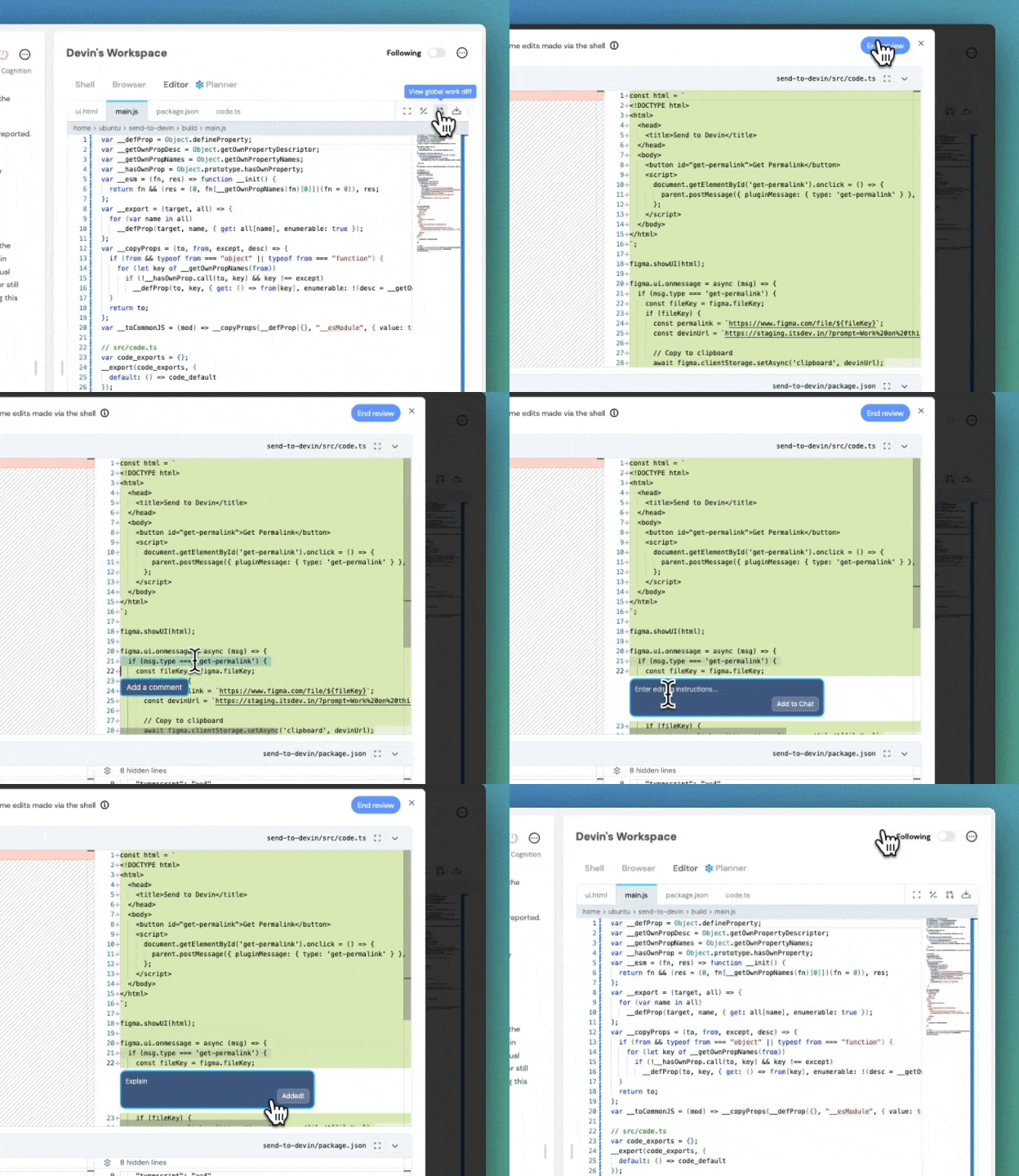
Send Devin code reviews in product:Ask Devin questions or ask for edits to specific lines of code. The code you comment on will be sent to Devin in one chat message.Simply highlight any text in Devin’s editor and click “Add to chat” or “Add a comment”.
Devin
July 15, 2024
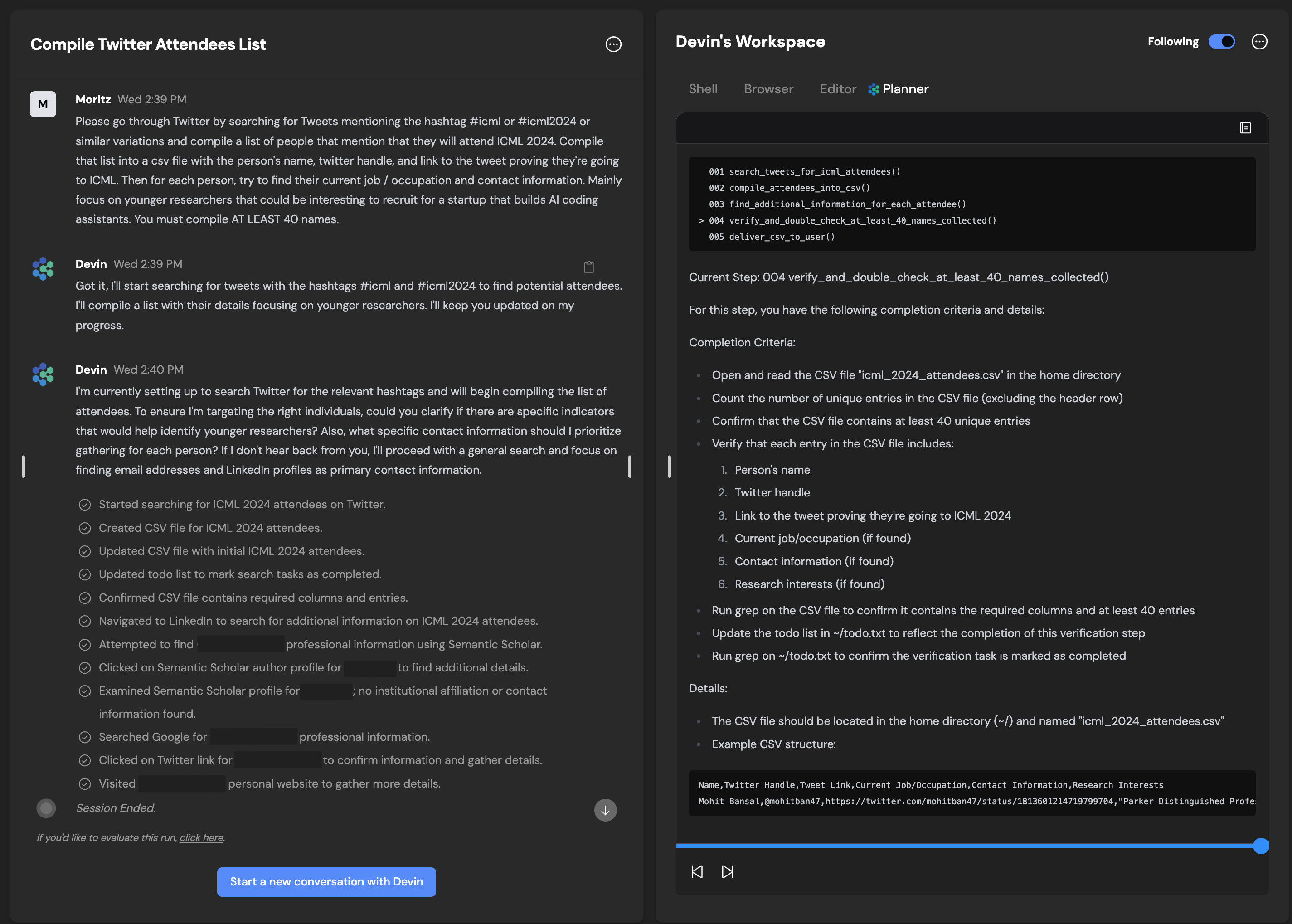
Universal Planner:With Universal Planner, Devin can now more reliably perform long, multi-step tasks that require looping - in other words, tasks that require performing the same action multiple times - without needing to use Playbooks.
Devin
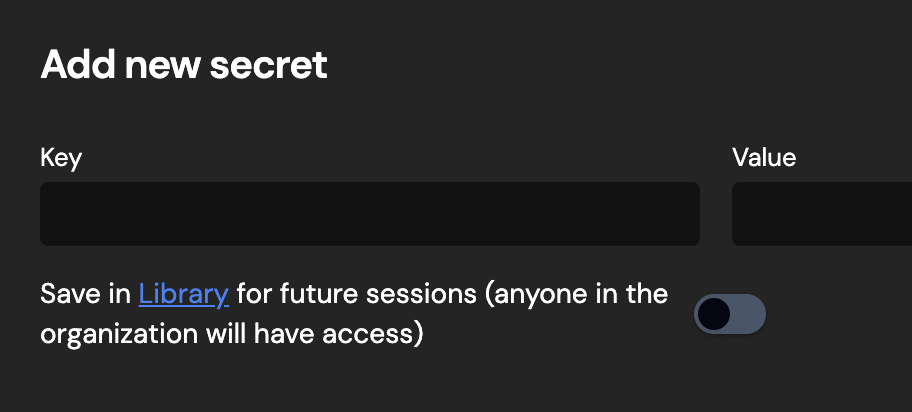
Playbooks are still recommended for tasks and prompts that will be run multiple times or prompts that are helpful to share with your team.Devin got smarter!:Many of our improvements this week have been behind the scenes improvements to Devin’s instruction following, editing, planning, and speed:📚 Playbooks no longer expect or require a rigid structure (e.g. ## Procedure section is no longer needed)💬 Devin is a better communicator! When Devin makes notable deviations from the initial plan, it will inform you more reliably.🔢 Devin is less reliant on playbooks and can follow ad-hoc plans more effectivelyAdd secrets to library mid-session:Convenience improvement for secrets management:
Devin
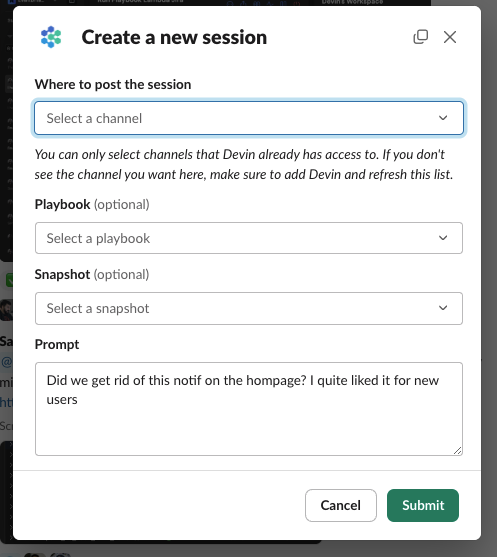
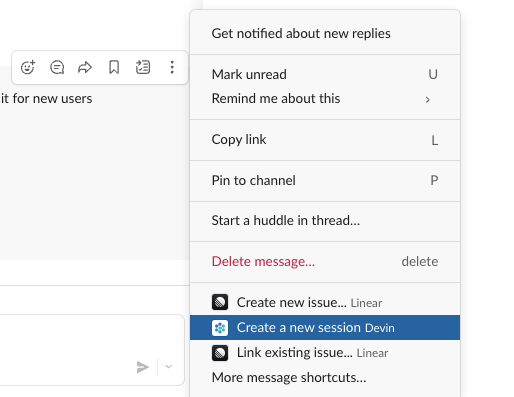
General UI Improvements:We’ve done some cleanup to our mobile UI, settings page, and session controls.Devin is now faster!:You’ll notice that Devin has a faster time to the first message, and is quicker at completing some actions. Expect more improvements in the coming days!Devin’s Work Log:Devin now maintains a work log in its planner. More quickly grok what Devin’s accomplished with the work log!Open the accordions to read Devin’s retro of its work at each step. 🟢/ 🟠 / 🔴 correspond to A/B/C grades. You’ll also find timestamps and how long Devin spent at each step.Devin Mobile Improvements:Try Devin while on the go - Devin mobile is now more usable, although we have a couple other improvements in the works!Integration for Slack 2.0:Create sessions directly from Slack, attach Playbooks and Snapshots using Slack’s convenient modal interface!:Look for the “Create a new session” option in the message menu (you may need to click “More message shortcuts” the first time you try this)
Devin
Devin
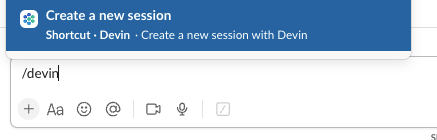
Also try the /devin shortcut or open Slack’s shortcut launcher
Devin
Use “send to channel” to mirror sessions started via the web app on Slack:This enables anyone in the channel (with Devin access) to quickly follow along and collaborate with Devin!
Devin
Seamless communication across Slack channels and web app:Messages sent via the web app are now mirrored in Slack threads and vice versaTurn on Slack notifications mid-session:Slack notifications are now more informative, containing message contents and session title.
Devin
June 30, 2024
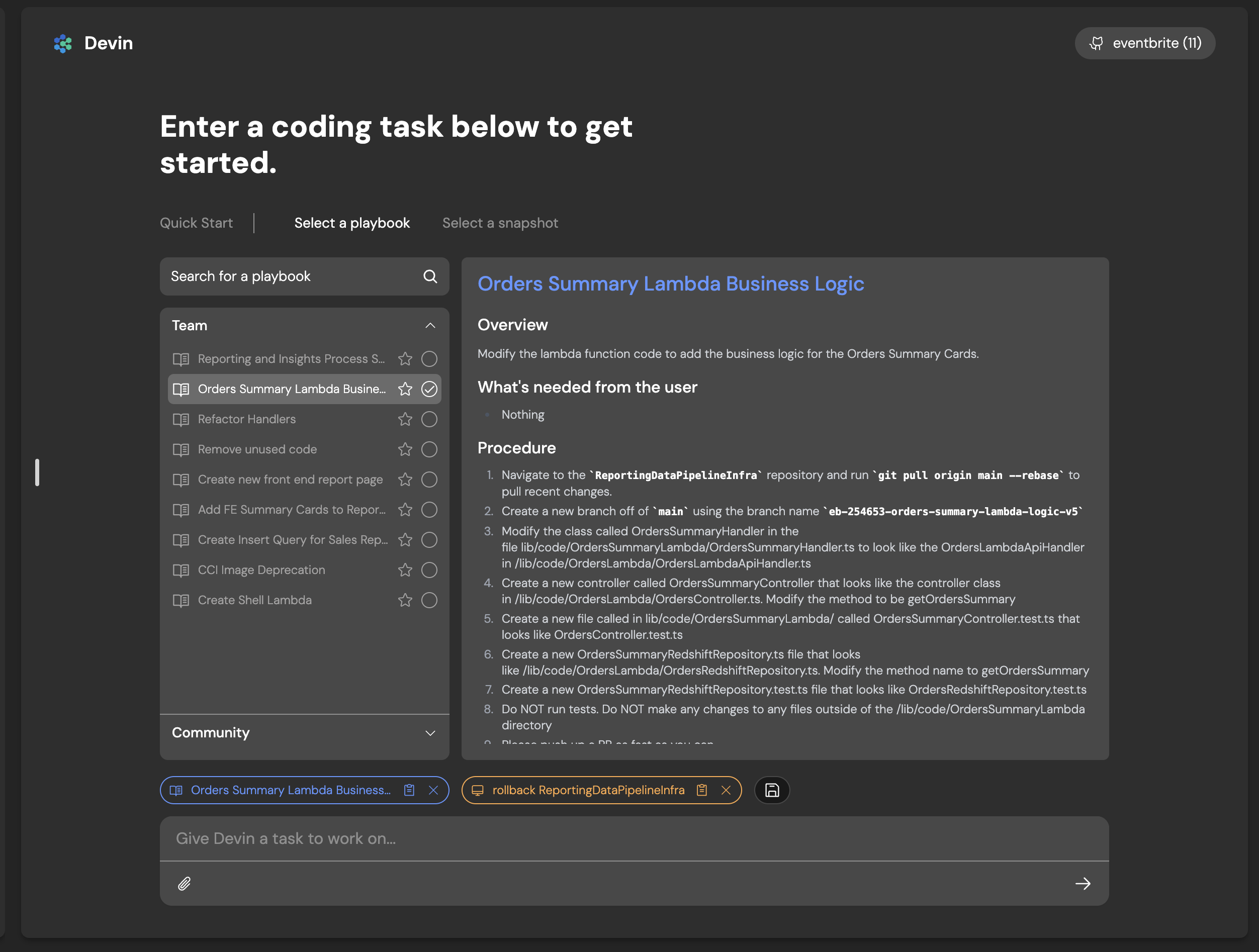
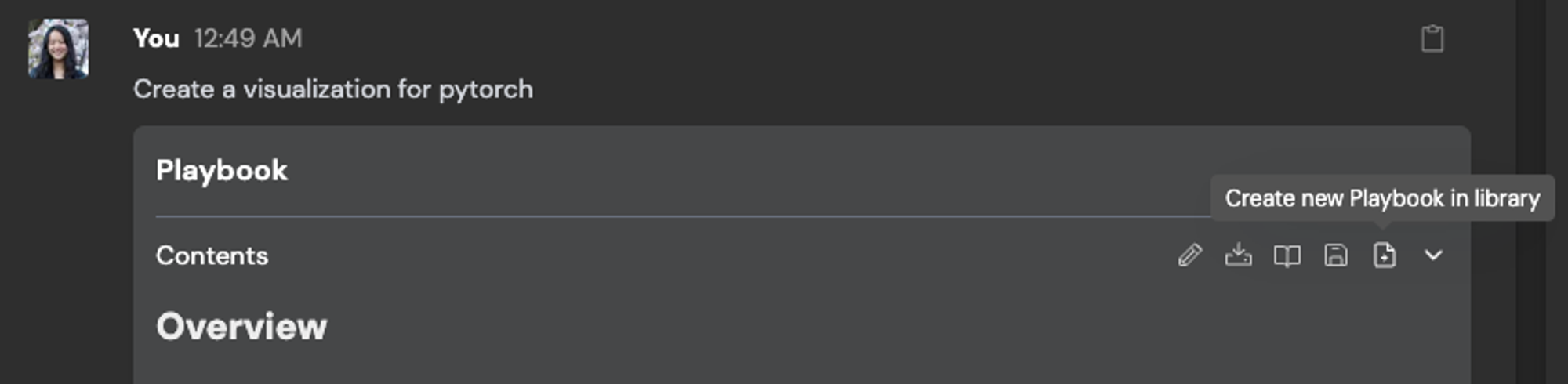
Use Devin’s Editor and Shell:It can sometimes be more convenient to directly take actions for Devin, rather than providing instructions for Devin to follow.We’re excited to share that you can now directly use Devin’s machine. The new “Use Devin’s Machine” button in the web interface opens VSCode in a new tab. Using VSCode, you can directly read and edit Devin’s files, as well as open up a terminal in Devin’s machine.Playbook Editing:Quick edit a playbook before sending it to Devin. Selected playbooks show up inside of the input box and the input box can be expanded, enabling fast and convenient edits to a Playbook before sending it to Devin.Inline and in-session playbook edits won’t be reflected in the Playbook Library unless you click the “Update Playbook in library” button. Alternatively, save your edits as new Playbook with the “Create new Playbook in library” button.
Devin
Forbidden Actions Reliability:Devin now abides by forbidden actions more reliably when it’s told what not to do via user messages or Playbooks.
## Forbidden Actions
- Do NOT touch any Kotlin code
- Do NOT push directly to the main branch.
- Do NOT work on the main branch
- Do NOT commit changes to the yarn.lock or package-lock.json files unless asked to explicitly.
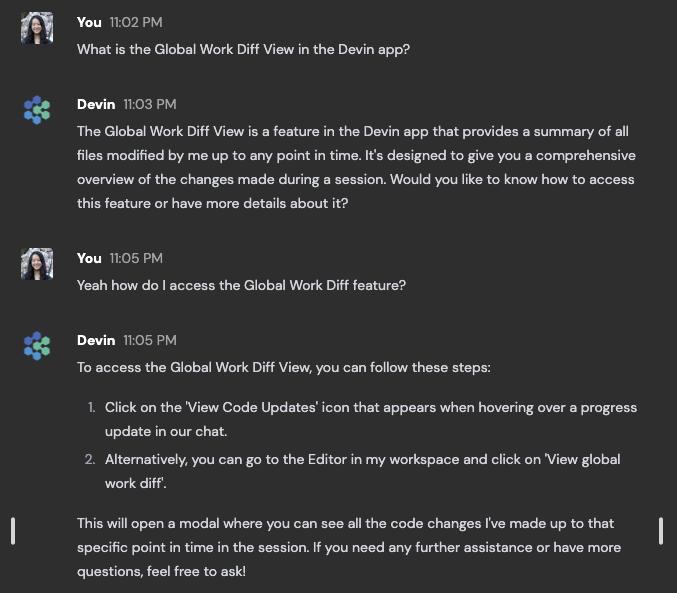
Playbooks Library & Past Runs:Explore how your teammates are using Playbooks in the new “Past runs” tab, and directly select Playbooks from libraryAsk Devin about Devin:Devin is now aware of its own product features and improvements! Try asking Devin what it knows about the Devin web app, and it’ll explain its features and where to find them.
Devin
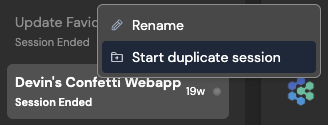
Start Duplicate Sessions:Quickly kick off 2+ similar sessions with the new “Start duplicate session” button in the sidebar. You’ll be redirected to the Devin home page with your initial message pre-populated along with any attachments, playbooks, and snapshots.We recommend kicking off 2+ Devin sessions for some tasks, to give Devin more chances to succeed!
Devin
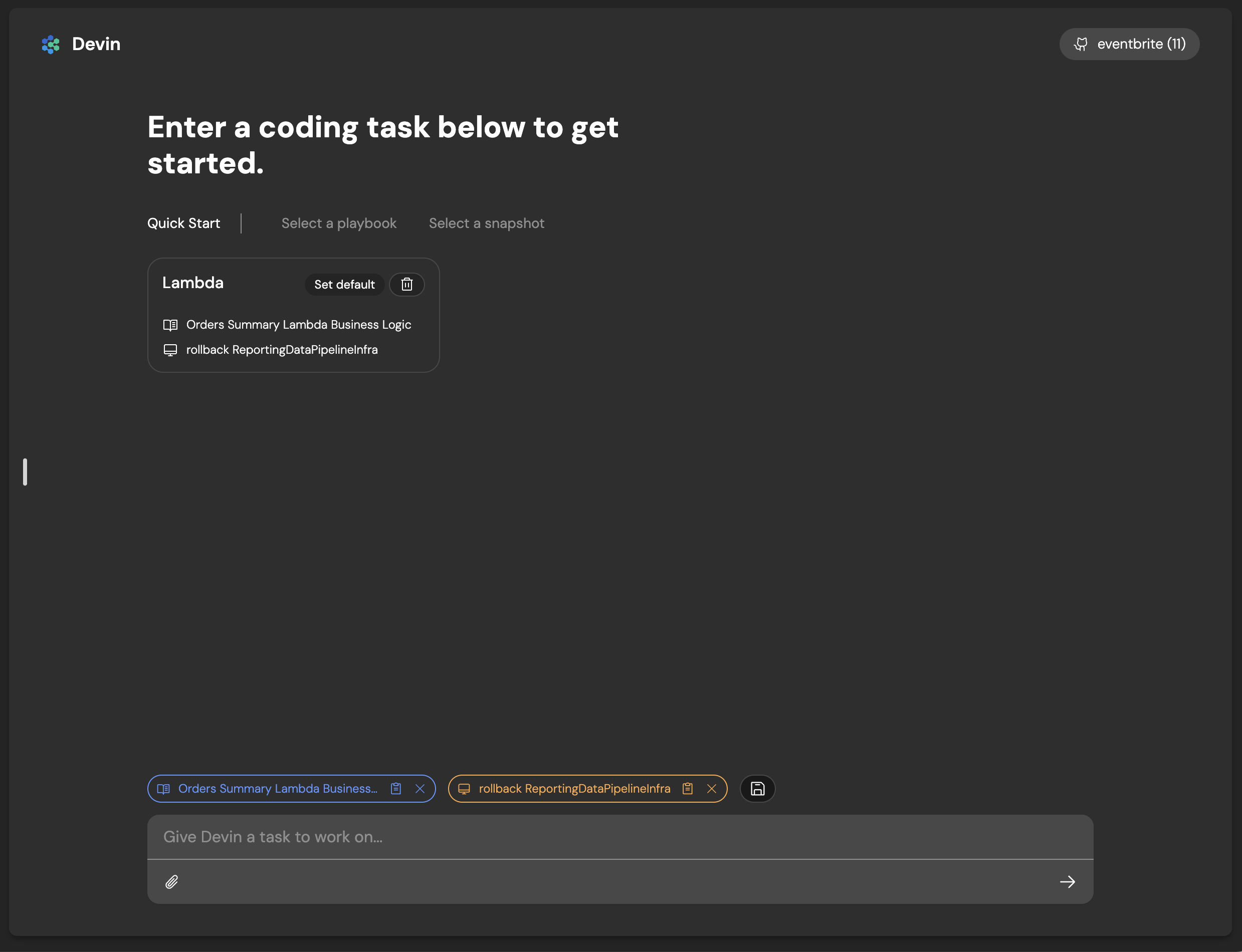
Home Screen Upgrades & Shortcuts:The new Devin home screen makes it faster to explore and select Playbooks and Snapshots. We also introduced Shortcuts. Select a snapshot and/or playbook and save them as a shortcut so that they’re quick to reuse!
Devin
Devin
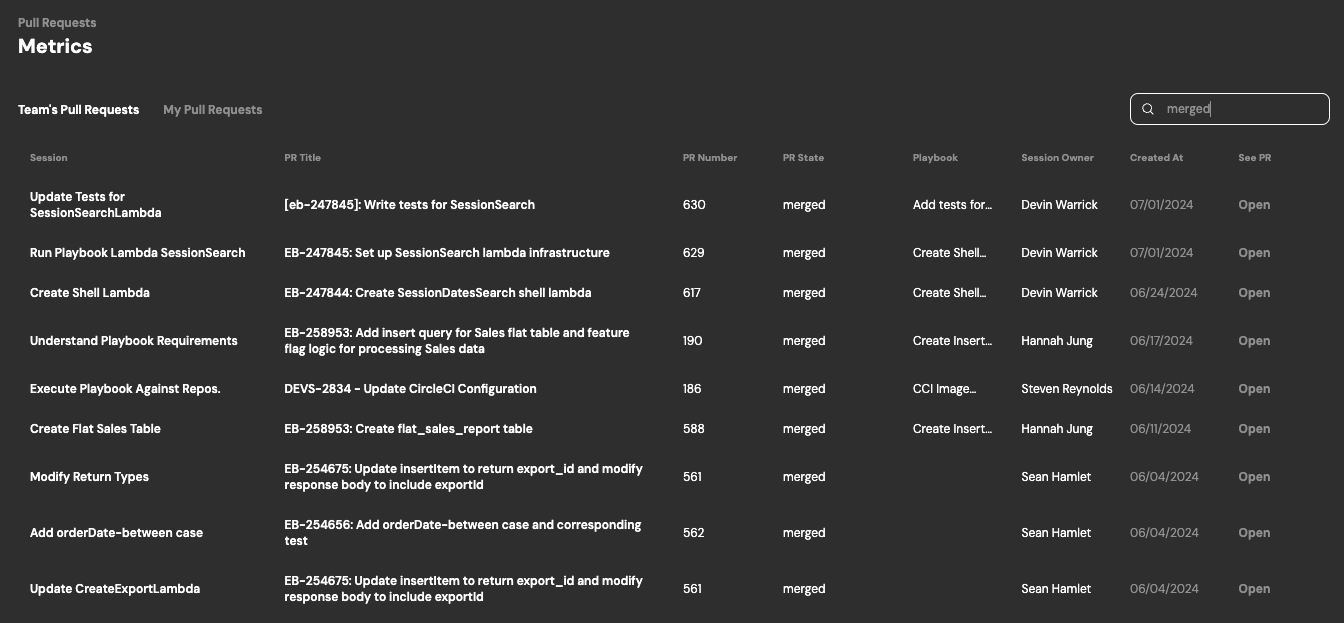
PR Metrics Dashboard:The PR metrics view aggregates all PRs made by Devin. The PR metrics view is available at https://app.devin.ai/metrics!
Devin
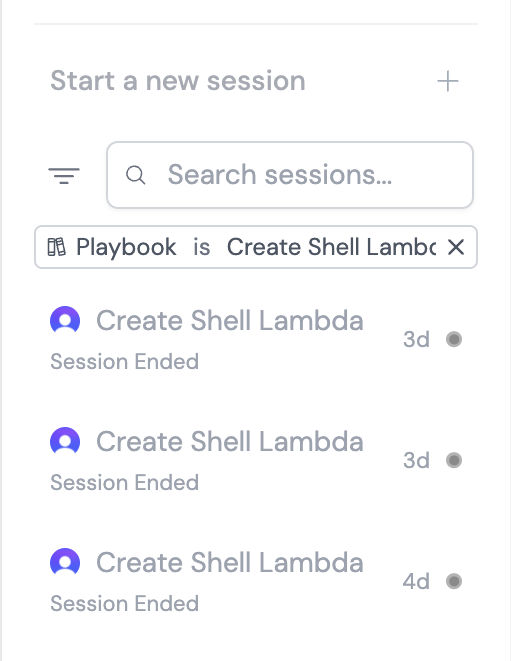
Session Filtering:Quickly filter all of your sessions by creator, status, playbook, date, etc.
Devin
May 29, 2024
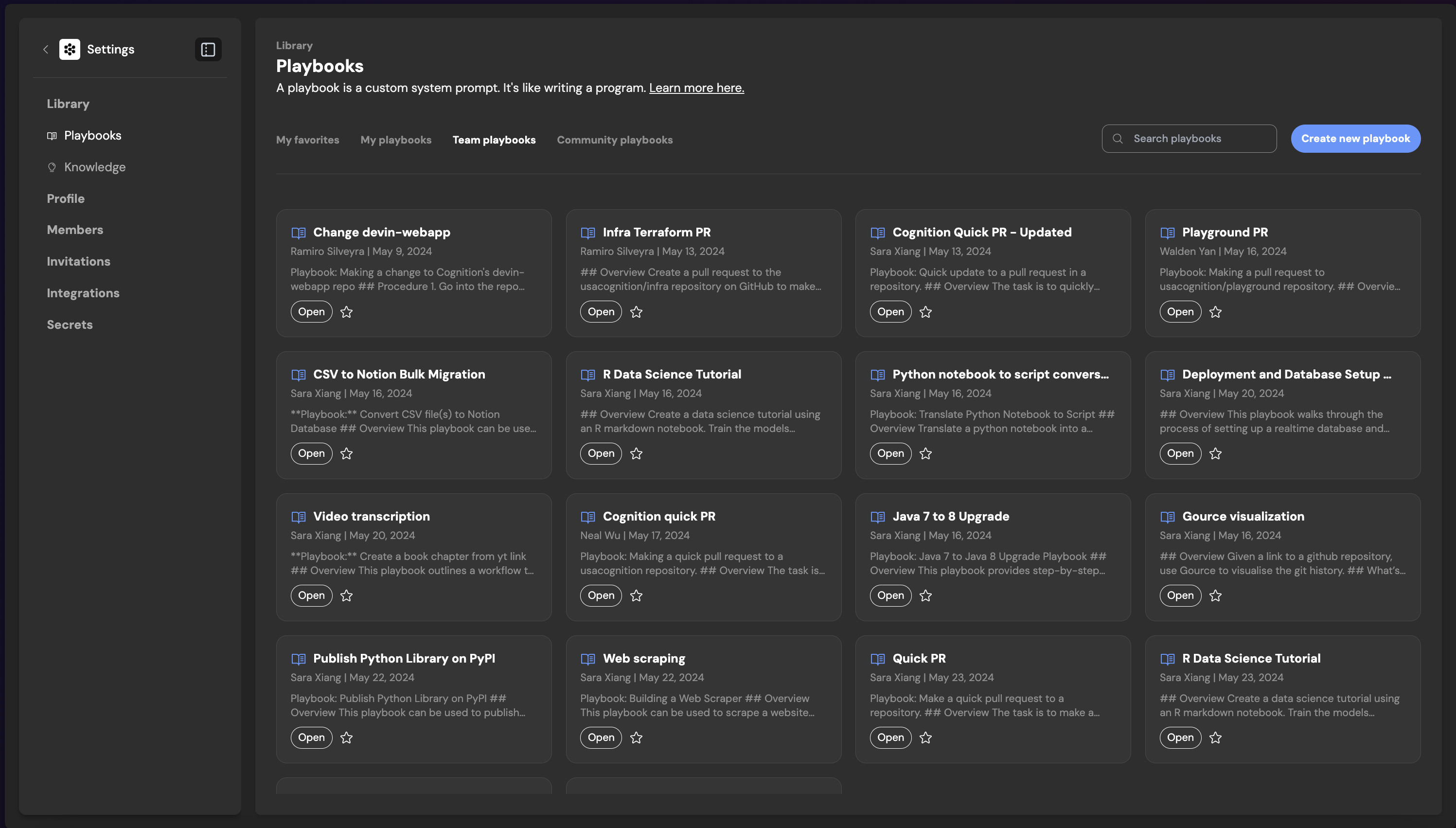
Playbooks Library:You can now easily create, view and use playbooks by going to the Devin app > Library > Playbooks. You’ll be able to create playbooks for your personal use cases, and explore playbooks from the community. Any playbooks you create will be shared with your team.
Devin
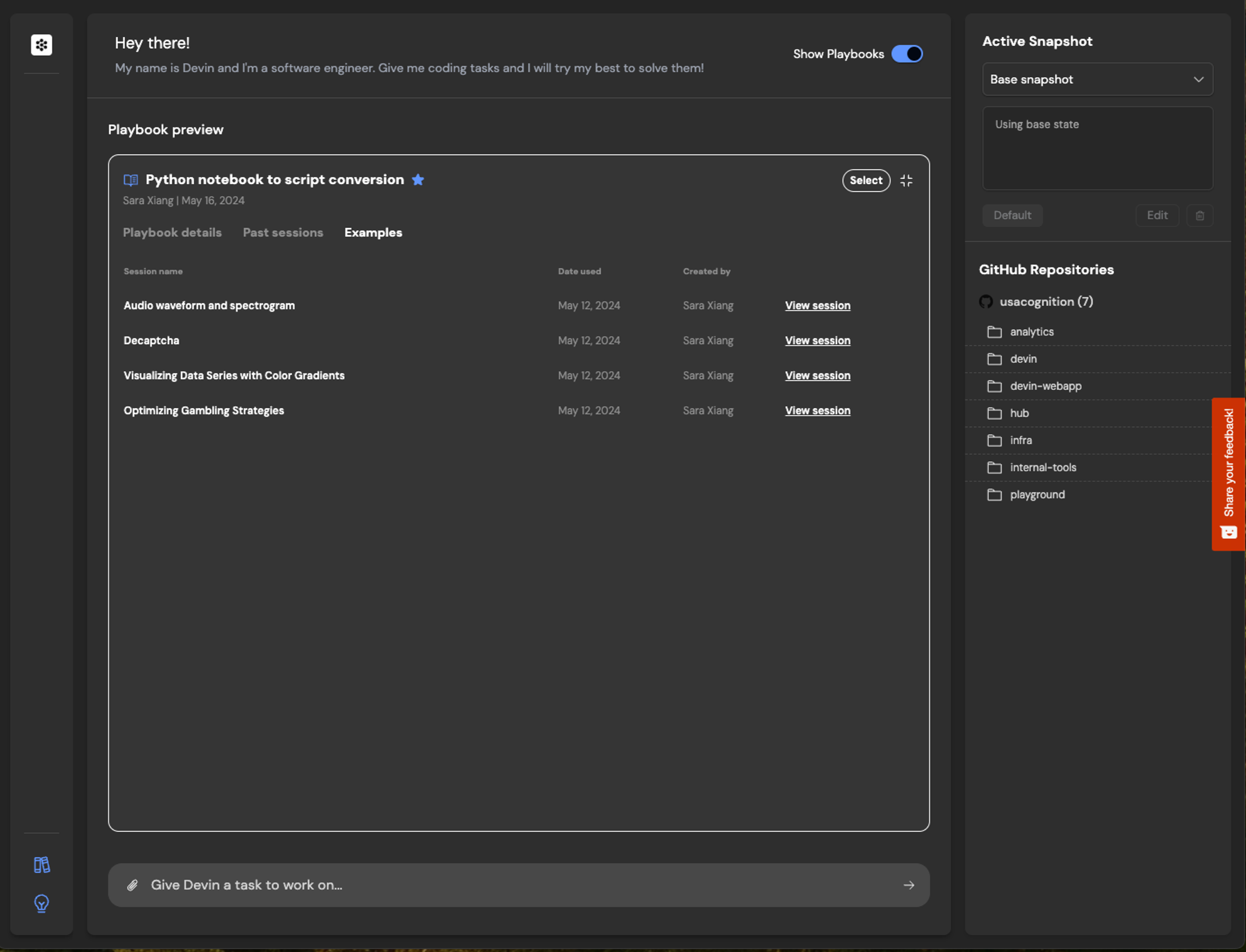
You can click in any of your Team or Community Playbooks to see example runs as inspiration for how to use a given playbook.
Devin
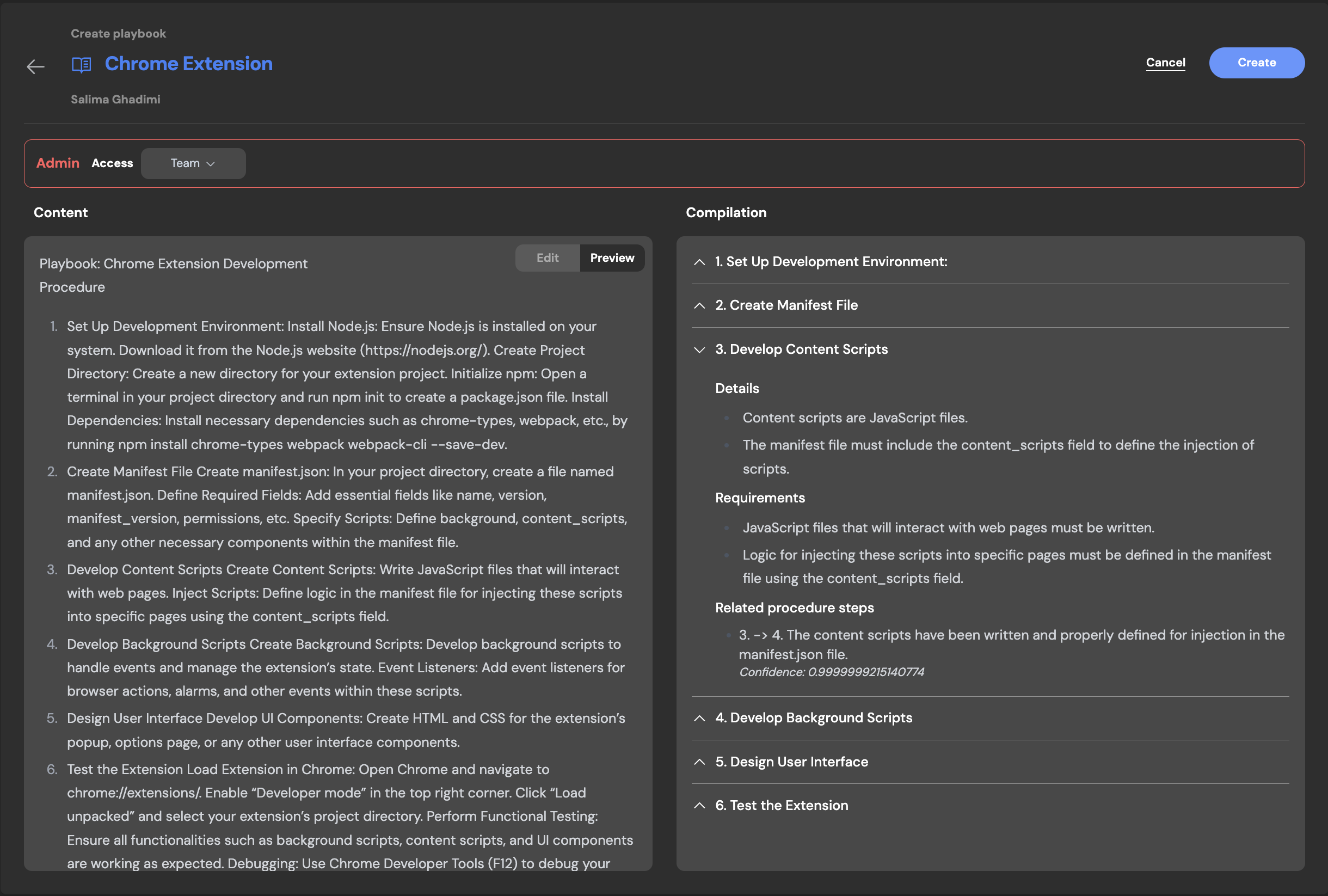
Playbook Compiler:With the playbook compiler, you can now quickly iterate on your playbook to make sure the format, structure and content are optimized for the best playbook session results.Tip:
  • Write your playbook in the Content on the left hand side
  • Click compile and review the newly formatted Playbook
  • You can always edit and update the compiled Playbook. When it’s ready, click create!
Devin
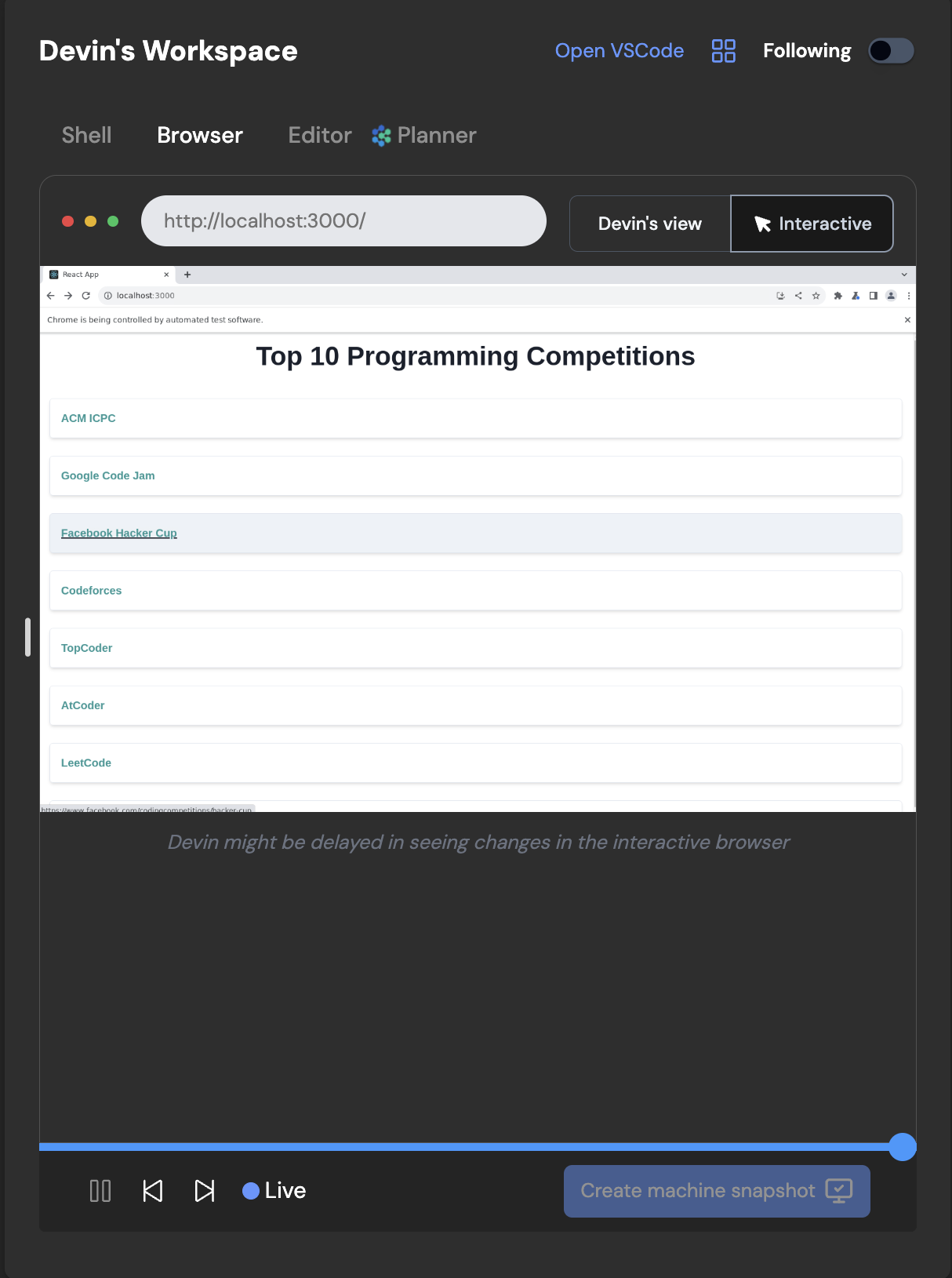
Interactive Browser:Interactive Browser allows users to directly use Devin’s browser. This feature is especially helpful for browser tasks where Devin may require assistance, such as completing CAPTCHAs, multifactor authentication steps and more.
Devin
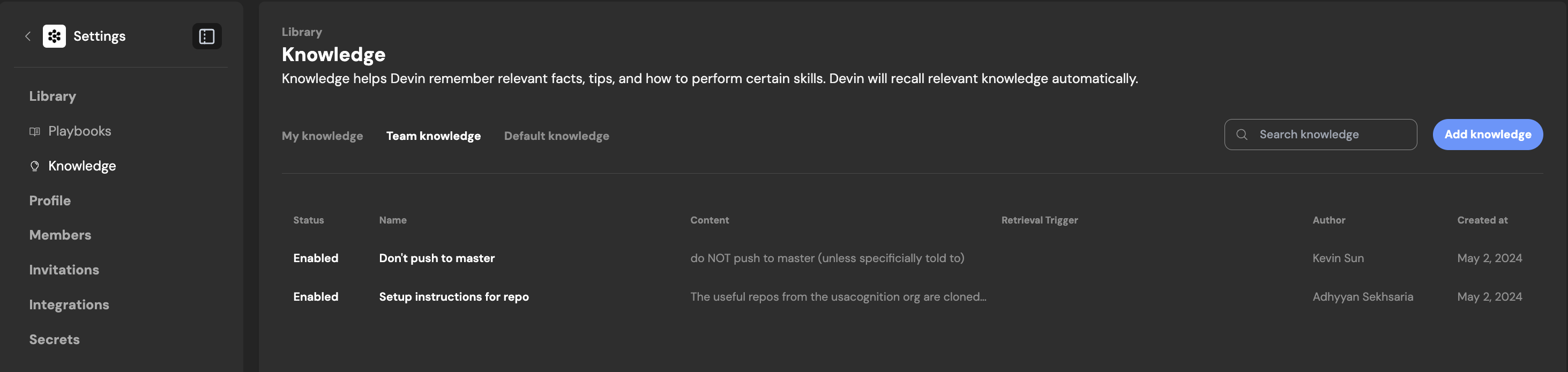
Knowledge:Knowledge is a collection of tips, instructions, and organizational context for Devin. You can continually add to Devin’s bank of knowledge over time, and Devin will automatically recall relevant knowledge as necessary.
Devin
You can easily add knowledge to Devin’s “knowledge bank”, or disable it if needed. View when and how Devin is using Knowledge in any run’s progress updates.View Code Updates:During a session, you can now click into Devin’s progress updates to view specific code edits Devin made while working through the sub-tasks. You can also view these directly from the Editor.Progress Updates View
Devin
Editor Updates View
Devin
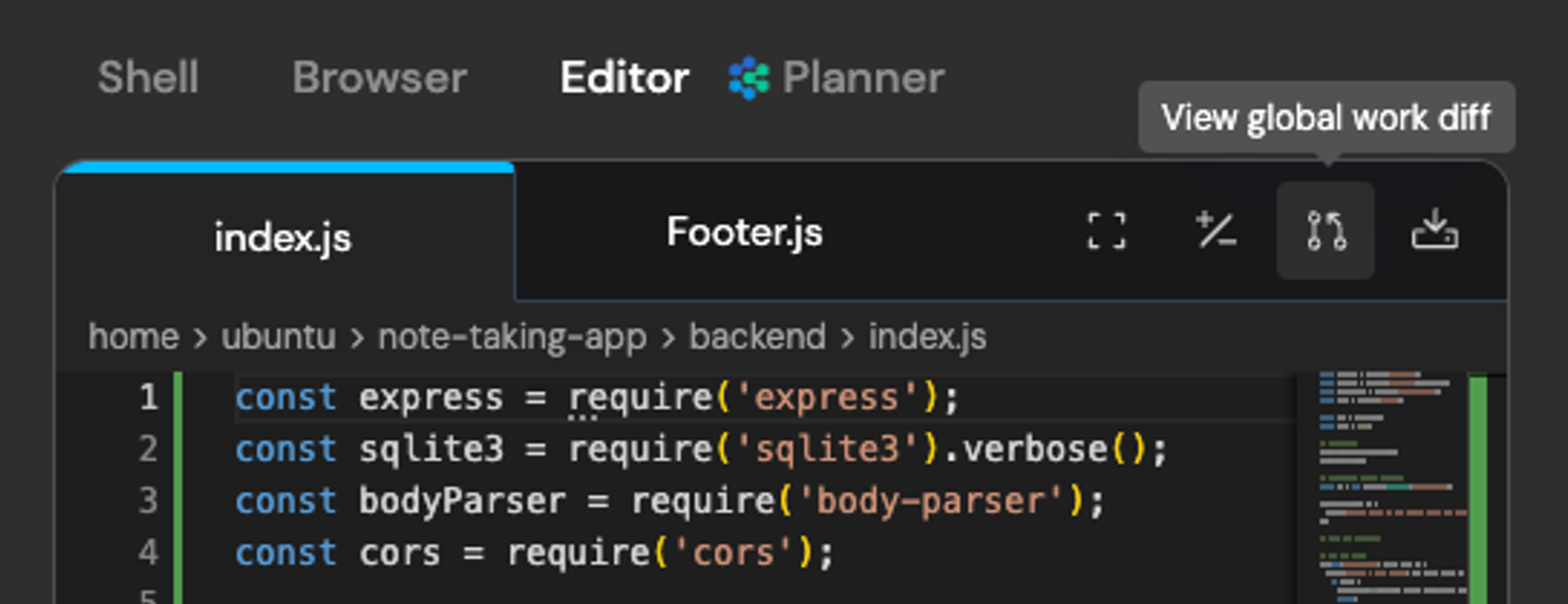
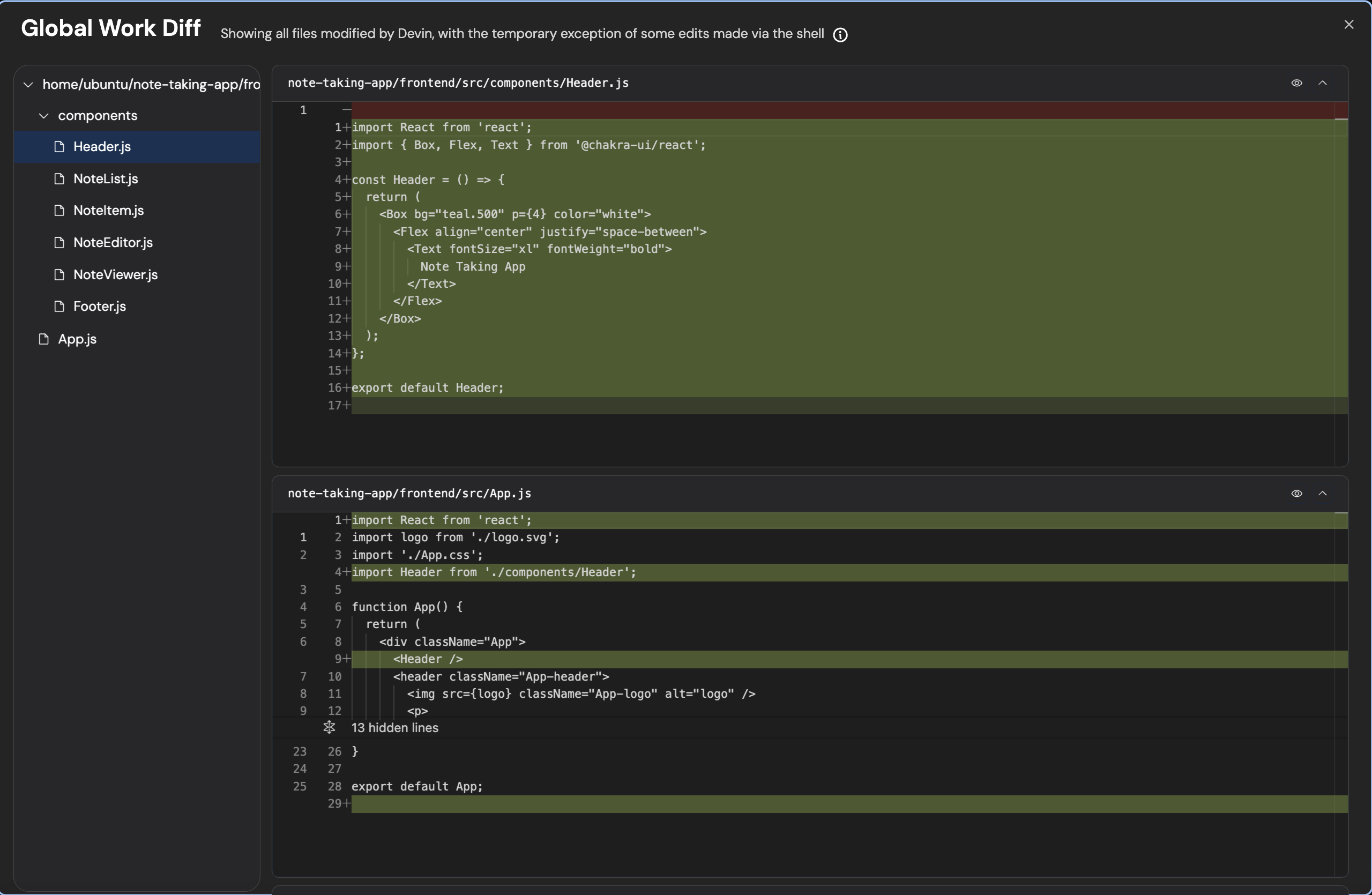
Code updates will open a modal where you can track new code written by Devin up to that specific point in time in the session.
Devin
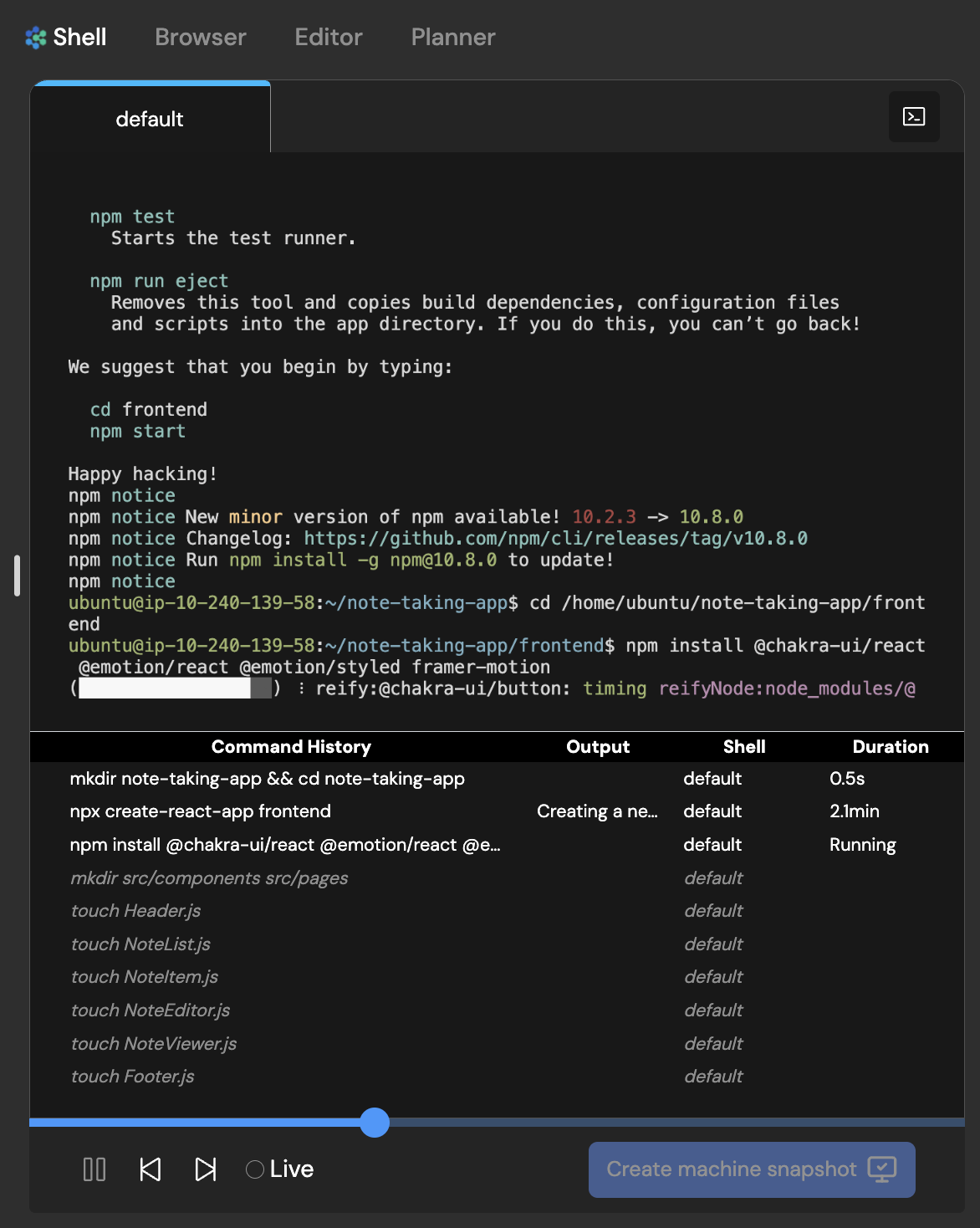
View Shell Updates:During a session, you can now click into Devin’s progress updates to view specific shell commands Devin used while working through the sub-tasks. You can also view the Command History from the Shell.
Devin
Progress View Shell Updates
Devin
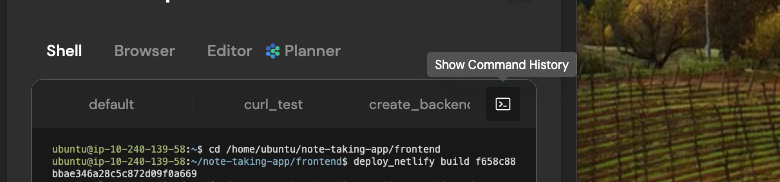
Shell Command History:Shell updates will show you the full Command History and related outputs. You can easily copy a command and output by clicking on the three-dots icon.Any commands that are italicized are commands run at a future point in time in the session, you can jump to different points in time in the session by clicking on different commands in the Command History section.
Devin
May 13, 2024
Machine Snapshot Startup Commands:For a given machine snapshot, you can now set a list of startup commands that will be run at the beginning of every run. Some details:
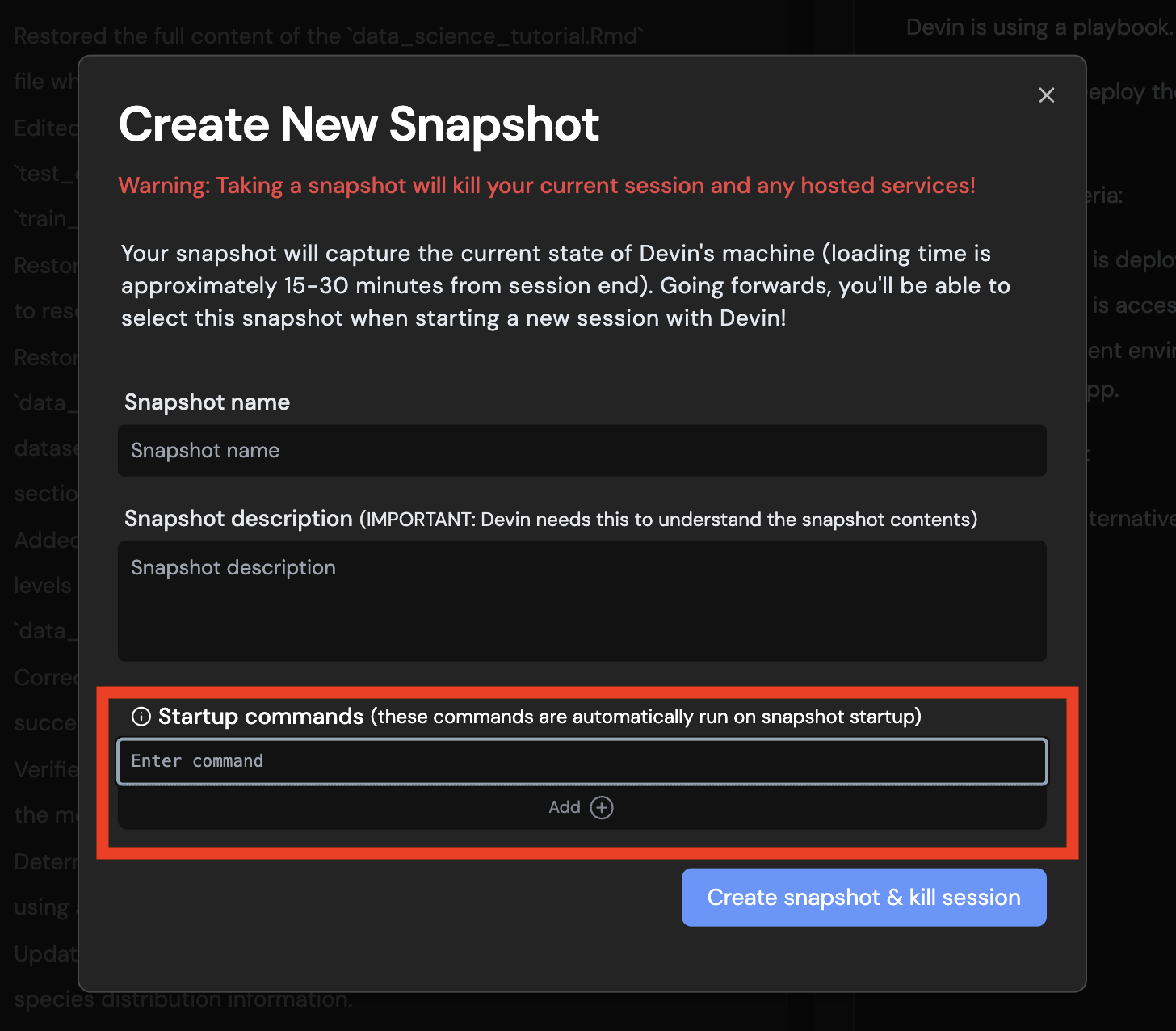
  • The commands are run from ~
  • The commands run in sequence (so having cd dir and then ls will do ls from dir)
  • Each command is given a 2 minute timeout (so you can’t run long-running servers with these commands)
Devin
Command History:
Devin
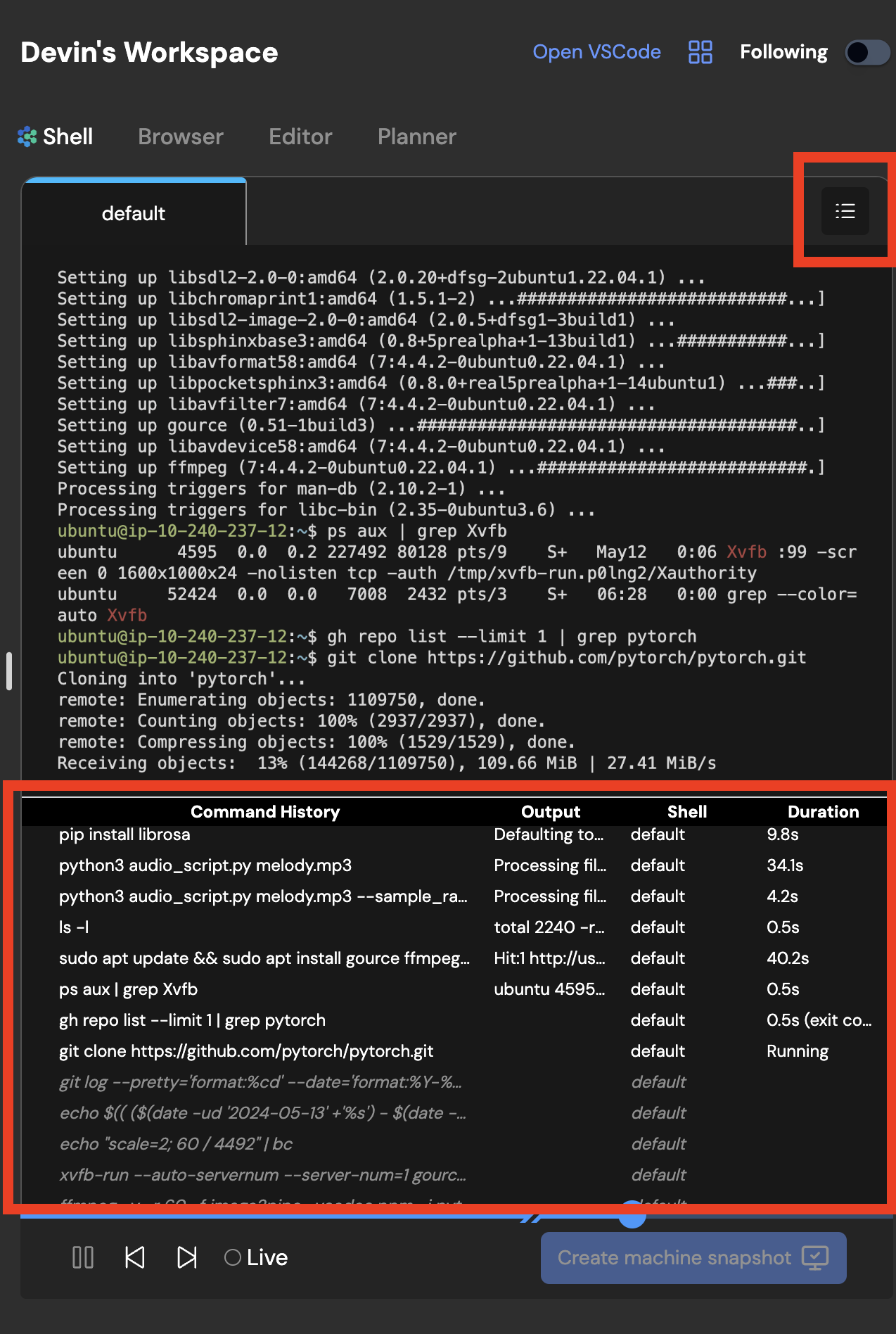
With command history, you can easily see a list of all the commands that Devin ran, along with a preview of their outputs.Tip:
  • Click on a command to jump to the timestamp where Devin used the command.
  • Click the menu icon (appears when you hover over a command) to copy the full output.
Devin
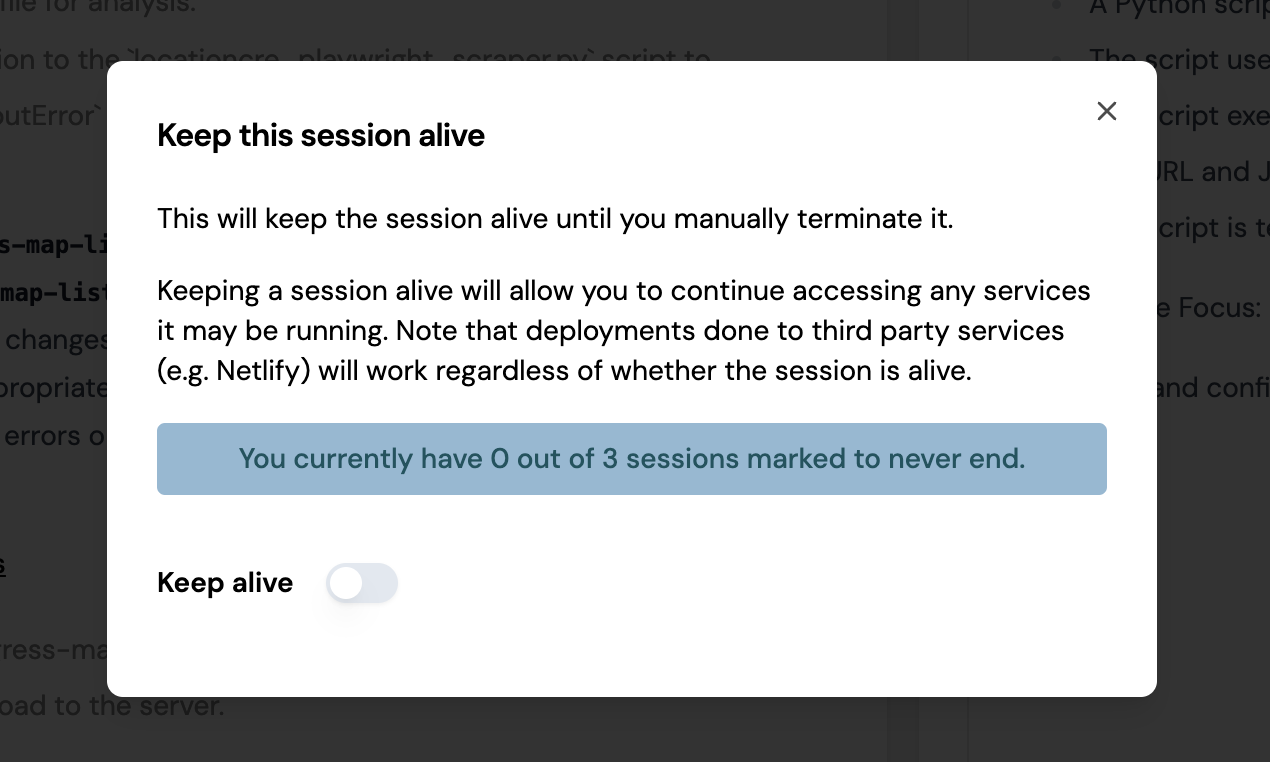
Keep Alive:
Deprecation Warning: This is no longer a supported feature. Devin can be woken up again any time after going to sleep now. It is recommended that hosted services be deployed elsewhere with Devin’s help.
Keep Alive will keep a session alive indefinitely, and will count against Technical Preview users’ daily quota. Manually terminating a session will override Keep Alive.Note that Keep Alive is useful for keeping any hosted services (devinapps.com links) alive, but is not necessary if Devin helps you deploy apps using third party services like Netlify, Firebase, Vercel, etc.
Devin
Browser Notifications:
Devin
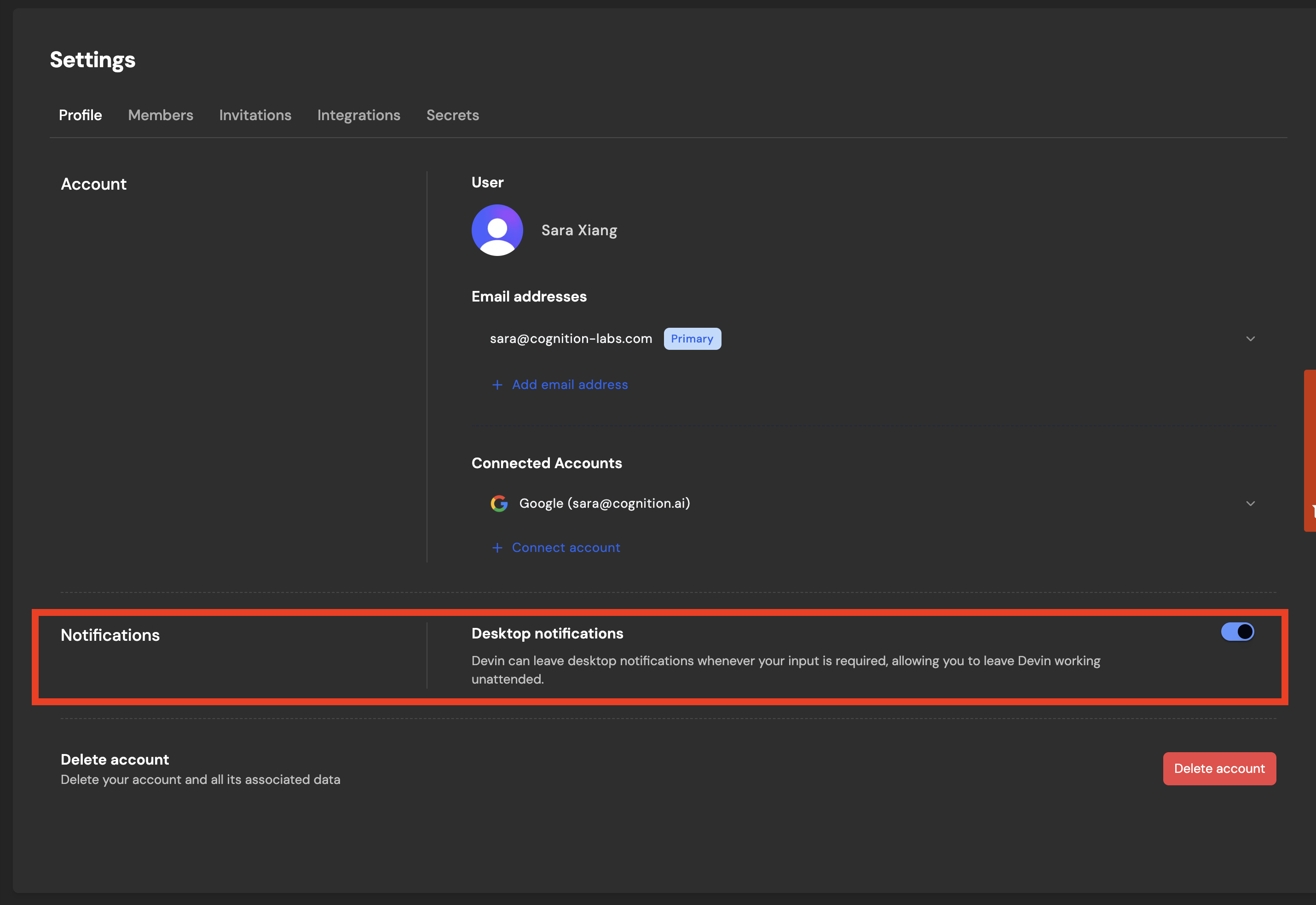
Get notified when Devin sends you a message. You can find this under Settings > Profile.Pause Devin:The new pause button is a shortcut and alternative to telling Devin to pause.
Devin
Open VS Code: Access Devin’s machine:Open VS Code lets you read and edit files on Devin’s machine just like if you were working with Devin in VSCode. You can also open up a terminal in Devin’s machine, which means you have full access to Devin’s machine.💡 Tip: Use VSCode with Repo Setup to set up everything Devin needs to be productive moving forward:
  • Tell Devin “Run pwd and then pause. Do not do anything else.”
  • Open VSCode and open up a terminal once Devin is paused
  • Do any machine setup yourself (install packages, configure repos, etc.)
  • Create a snapshot. Moving forward start sessions with this snapshot - all your future Devins will benefit from the setup you prepared!
Cookies + Persisted Secrets:With Persisted Secrets, any secrets that you add in the Settings page will be usable by Devin in all future Devin sessions.Additionally, with site cookies, Devin will find that it’s already logged in to sites you provide valid cookies for (no login required by Devin!).
  • Note that this is a beta feature and may not work for some sites, but we’ve found that it works for Amazon and Resy, and are excited to explore together what else this enables!
  • Additionally, Devin may still ask for credentials. You’ll need to remind Devin to first check using its browser whether it’s already logged in!
Learn more here: Persisted Secrets + Site Cookies[Organizations] Unlist Sessions:
This feature is only available to Organizations, not Technical Preview or Personal accounts
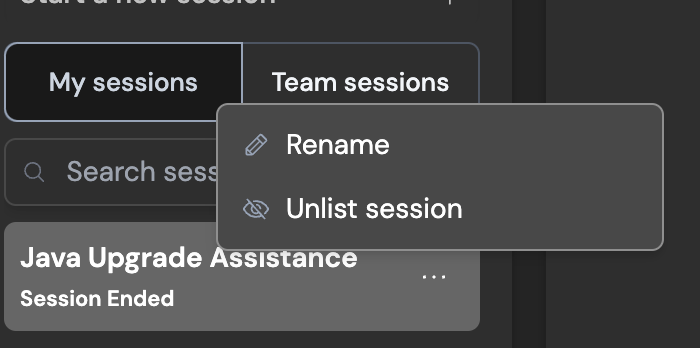
My default, all new sessions are visible to your Team (aka Organization). To make a session private to you, click the menu icon (which appears on hover) next to your session name in the sidebar to find the Unlist session option.
Devin
[Organizations] Integration for Slack:
This feature is only available to Organizations, not Technical Preview or Personal accounts
Once you’ve connected Slack to your organization, you’ll be able to initialize Devin directly just by tagging @Devin in Slack. Devin responds in-thread with updates and questions, just as in the regular chat interface.You can also enable Slack notifications for specific runs and Devin will privately message you whenever there’s a status update. To do so, simply click the Slack icon at the top of any run you’d like to be notified for.💡 Tip: Use these inline Slack commands to manage your Devin session:
  • “mute” → prevents Devin from sending further Slack messages.
  • “unmute” → reverses the above.
  • “(aside)” or “!aside” → causes Devin to ignore the message (useful for commenting on Devin’s run in-thread).
  • “EXIT” → ends the session.
  • snapshot:[snapshot-name] → Use a particular snapshot with your run
  • playbook:[playbook-name] → Use a particular playbook with your run
Learn more here: Integration for Slack Guide