Overview
Slash commands are shortcuts that expand into predefined text prompts when used in Devin’s chat interface. They help you quickly start common workflows without typing out full instructions each time. Slash commands are defined by your organization. If your organization hasn’t created any custom commands yet, the slash command menu will be empty.How Slash Commands Work
When you start typing/ in Devin’s chat input, a menu appears showing your organization’s available slash commands. You can:
- Continue typing to filter the list of commands
- Use arrow keys to navigate through options
- Click on a command or press Enter to select it
/deploy command will look like the below:
/deploy ×
Clicking on the chip will expand it into the full prompt template. You can then customize the template with your specific requirements before sending it to Devin.
Custom Slash Commands
Organizations can create custom slash commands tailored to their team’s unique workflows. For example, you might create:- A
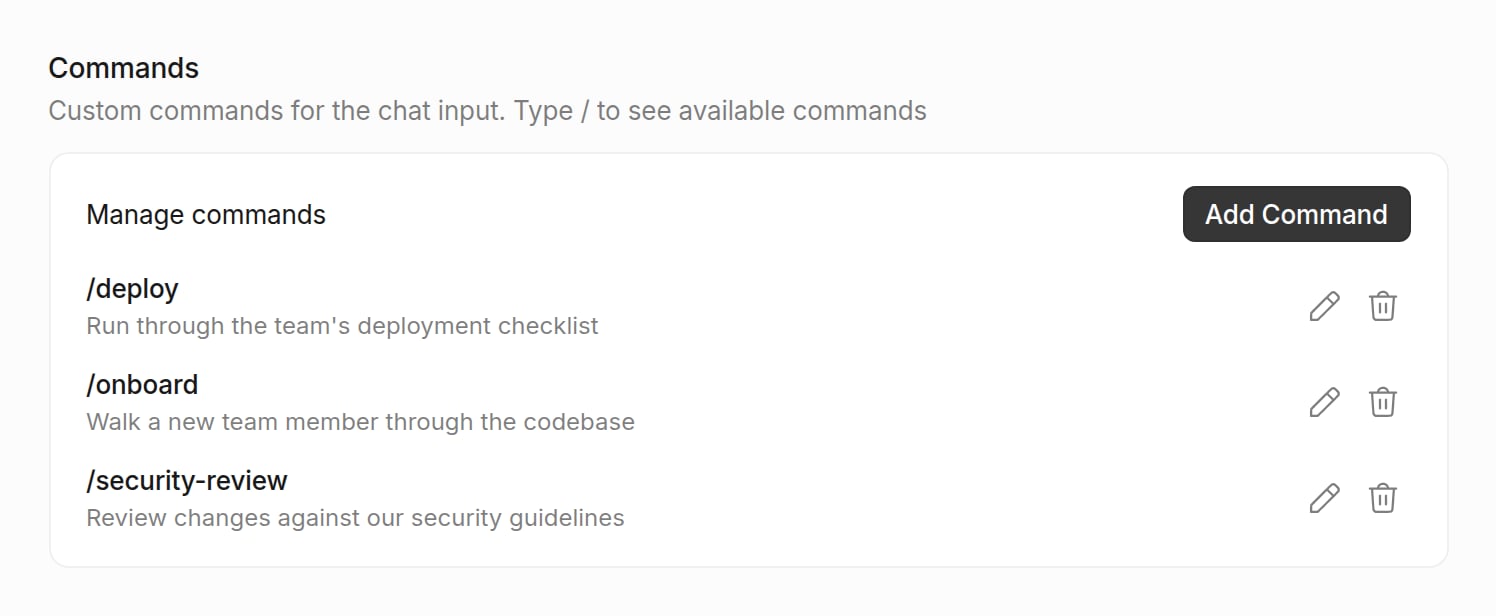
/deploycommand with your team’s deployment checklist - A
/security-reviewcommand with your organization’s security review guidelines - A
/onboardcommand to help new team members understand your codebase
Managing Custom Commands
Organization administrators can manage slash commands through Settings > Devin > Commands. This interface allows you to:- View all of your organization’s commands
- Create new custom commands with specific prompt templates
- Edit existing custom command templates
- Delete custom commands
Creating, editing, and deleting slash commands requires organization admin permissions (
ManageOrgSettings). All organization members can use custom commands.