

Overview
Devin connects to Azure DevOps through a Microsoft Entra service principal. Your admin approves the Cognition-published Cognition Azure DevOps Service Principal application in your tenant, which creates a service principal that you then add to your Azure DevOps organization with the permissions you choose.- Only
User.Readis requested during Entra approval — this establishes identity only - Entra approval alone does not grant access to repositories or code
- All repository access is controlled by permissions you assign in Azure DevOps
Prerequisites
Before setting up the Azure DevOps integration, ensure you have:- Enterprise Devin account with permission to manage connections
- Microsoft Entra admin who can grant admin consent for applications
- Azure DevOps organization admin who can add users and assign permissions
Setting Up the Integration
- Sign into your Devin account at app.devin.ai.
- In a separate browser or incognito window, sign into Azure DevOps (needed for step 6).
- In your Enterprise Devin account, navigate to Settings > Connections > Azure DevOps.
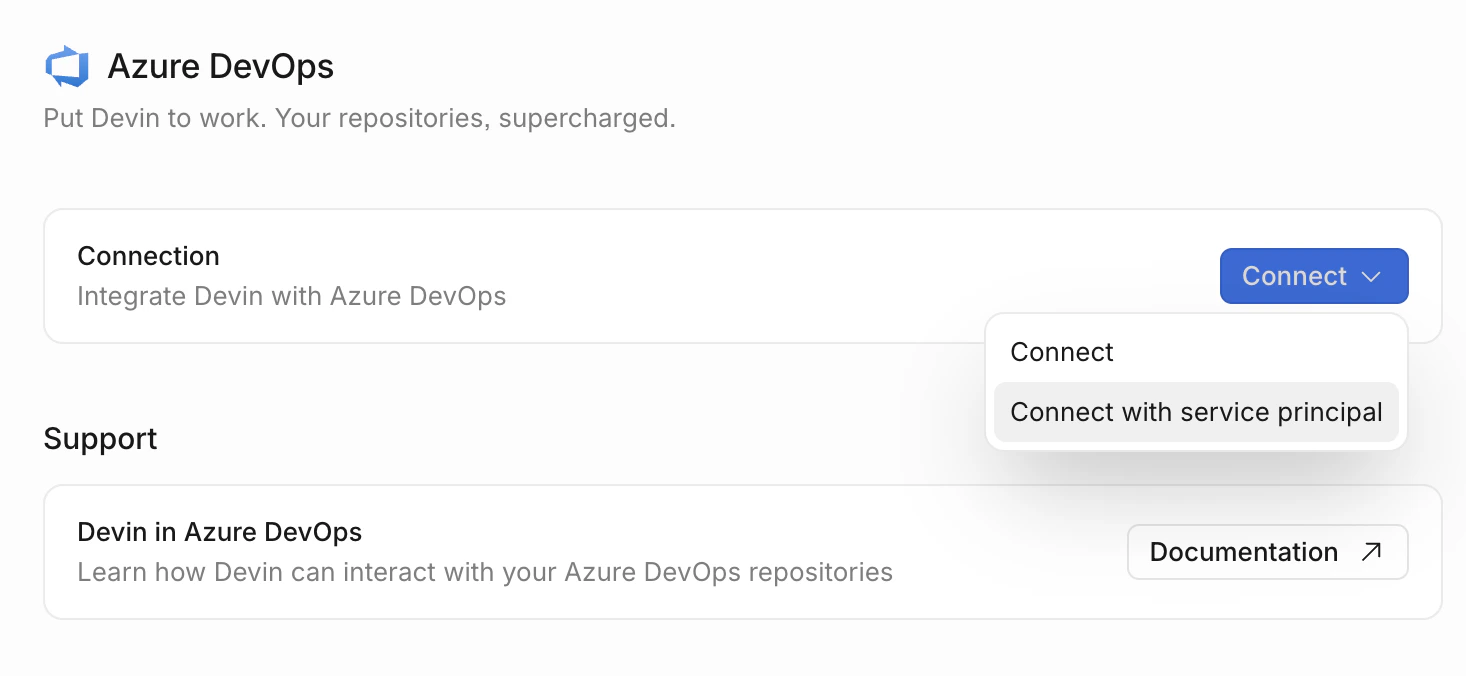
- Open the dropdown on the Connect button and select Connect with service principal.
-
You are redirected to Microsoft to grant Devin permission to your tenant. After approving, you are returned to the Azure DevOps connections page in Devin, which now shows an Add organization with service principal section.
- Approving creates a service principal in your Microsoft Entra tenant
- This step only requests
User.Read— it does not grant access to repositories
-
In Azure DevOps, navigate to Organization Settings > Users:
- Click Add Users and add the service principal (
Cognition Azure DevOps Service Principal) - Select Basic for the Access level (Stakeholder is not sufficient — APIs require Basic)
- Add to all projects you want Devin to have access to
- Assign the service principal to the relevant Azure DevOps Groups (typically Project Contributors)
- Click Add Users and add the service principal (
- Back in Devin, in the Add organization with service principal section of the Azure DevOps connections page, enter the Azure DevOps organization name from the previous step and click Add.
- Click the new connection to open its detail panel. The Repositories tab lists the repositories available through this connection, and the Manage access tab lets you allow users or roles to manage repository permissions for this connection.
- Grant organizations access to repositories: navigate to Settings > Repositories, choose an organization, click Manage permissions, and grant permissions either at the Organization/Project or Repository level. See Repository Permissions.
- For each organization that has been granted permissions, navigate to Settings > Environment > Blueprints in that organization, click Add in the Repositories section, and select the repositories to add to Devin’s environment. See Declarative environment configuration.
What Devin Can Access
Devin’s Azure DevOps integration is scoped to Git operations only:
Devin does not have access to work items, pipelines, builds, test plans, artifacts, wiki, or service connections.
If your organization requires Devin to support additional Azure DevOps areas in the future, please contact enterprise@cognition.ai to discuss your requirements.
Security Considerations
- Minimal Entra permissions — Only
User.Readis requested. No directory-wide read access, group membership visibility, or administrative control. - Explicit authorization — Entra approval alone grants no Azure DevOps access. All repository access must be explicitly assigned by your Azure DevOps admin.
- Encrypted credentials — All tokens are encrypted and securely stored.
- Scoped access — Permissions can be limited to specific projects, repositories, and operations via Devin’s Enterprise UI.
- Auditability — Activity is logged in Entra sign-in logs and Azure DevOps audit logs.
- Branch policies respected — Devin’s PRs are subject to the same branch policies and review requirements as any other contributor.
Best Practices
- Use repository-level permissions — Grant Devin access only to the specific repositories and projects it needs, rather than organization-wide access.
- Enable branch policies — Set up branch policies in Azure DevOps to ensure all changes go through proper review processes before being merged.
- Monitor audit logs — Regularly review Azure DevOps audit logs and Entra sign-in logs for the service principal’s activity.
Troubleshooting
Admin consent fails:- Verify the approving user has permission to grant admin consent for applications in your Entra tenant
- If your tenant restricts application consent, a Global Administrator or Cloud Application Administrator may need to grant consent
- Verify the admin consent completed successfully in your Entra portal under Enterprise Applications (look for
Cognition Azure DevOps Service Principal) - Ensure the service principal has been explicitly added to your Azure DevOps organization under Organization Settings > Users
- If the service principal is subject to Conditional Access policies enforcing MFA, token refresh will fail silently. Create a Conditional Access exclusion for the service principal against the Devin application.
- Verify that the service principal has been added to the Azure DevOps organization under Organization Settings > Users
- Confirm the access level is set to Basic (Stakeholder is insufficient for API access)
- Open the connection in Settings > Connections > Azure DevOps and confirm the repositories appear in the Repositories tab
- Check that repository permissions have been granted to the organization in Settings > Repositories
- Ensure the repositories have been added to the organization’s environment in Settings > Environment > Blueprints
- Confirm that the service principal has Contributor permissions on the target repository
- Check that branch policies are not blocking the PR creation
- Verify that the target branch exists and is accessible