

Overview
Custom roles and RBAC give you the ability to fine-tune access to the Devin application. Enterprise administrators can create custom roles with specific permissions and assign them to users or IdP groups, providing granular control over what actions users can perform within your Devin Enterprise deployment. Devin Enterprise implements a two-tier role system with distinct scopes and capabilities: organization-level roles and account-level roles.Creating and Assigning Custom Roles
Enterprise admins or users with the Manage Account Membership permission are the only users who can configure custom roles. In your enterprise settings, go to Membership and select the Roles tab (app.devin.ai/settings/membership?tab=roles) to manage both organization-level and account-level roles.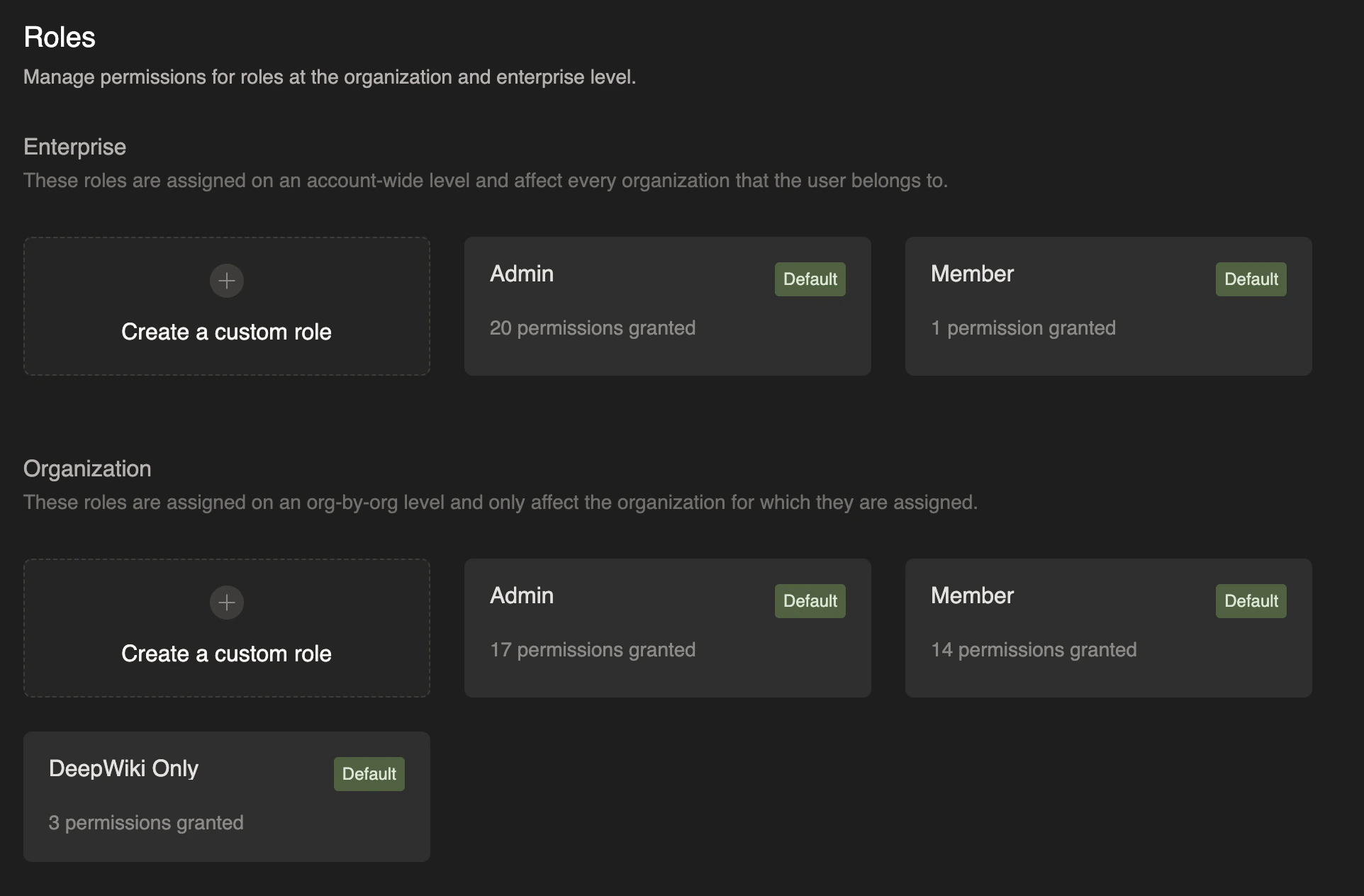
- Navigate to Enterprise Settings > Membership and select the Roles tab
- Click Create role, then select Create for enterprise or Create for organizations
- Provide a descriptive role name
- Select the specific permissions you want to grant
- Click Save changes
- Enterprise admins or users with the Manage Account Membership permission can go to Enterprise Settings > Membership, select the Members tab (or the Groups (IdP) tab for IdP groups), and assign account-level roles
- Please note that this is the same set of users who are able to create, edit, and delete custom roles
- Organization admins or users with the Manage Organization Membership permission can open that organization’s Settings > Membership page and assign organization-level roles
- Please note that these users are able to assign custom roles on the organization level, but creating, editing, or deleting custom roles requires Manage Account Membership (enterprise-level) permissions
Organization-Level Roles
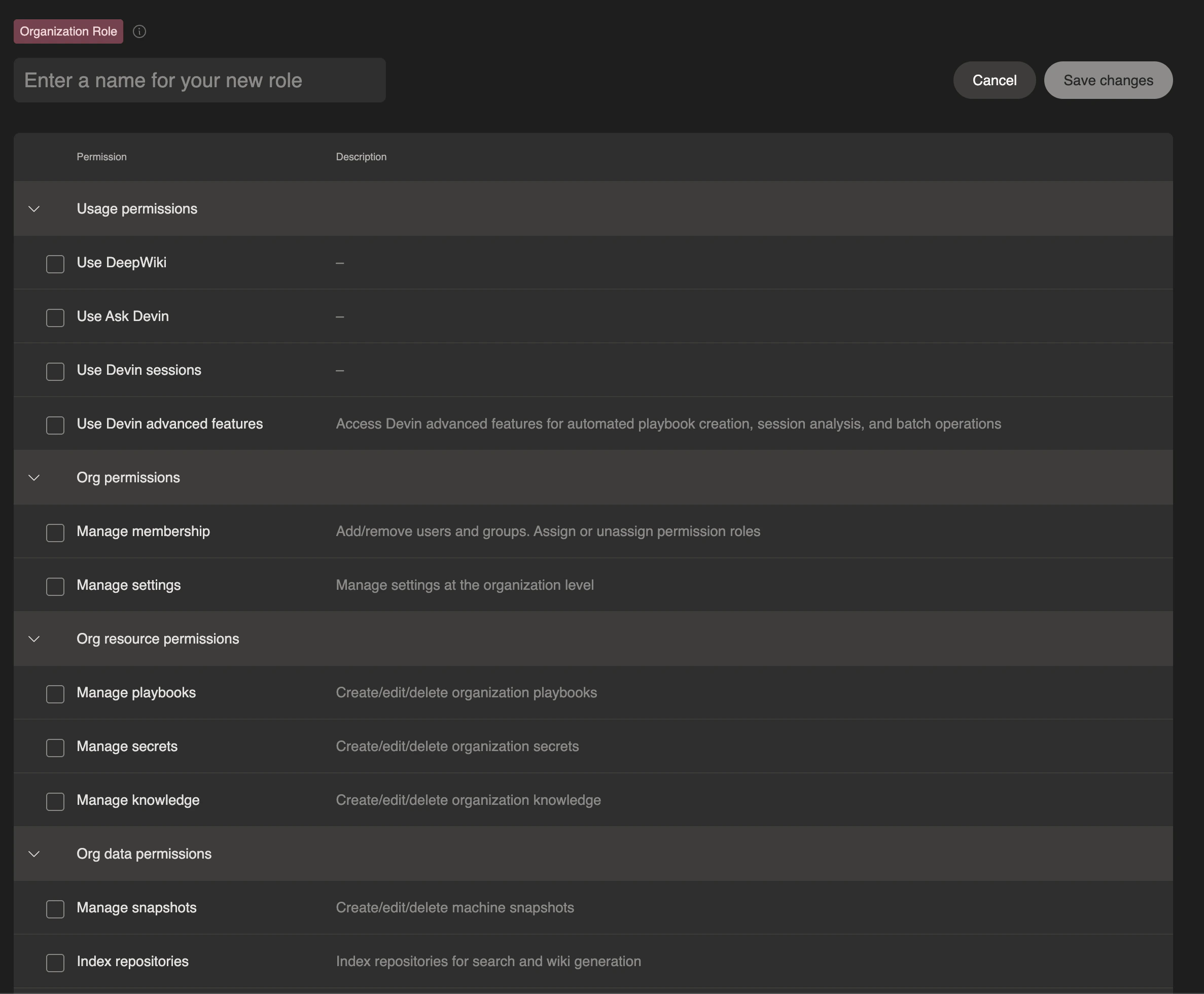
Organization-level roles are assigned on an organization-by-organization basis and do not apply outside of the assigned organization. These roles control access to resources and actions within a specific organization. Organization-level roles can be configured with permissions including the following:Permissions evolve as new features ship. The role editor in the Roles tab of Enterprise Settings > Membership always shows the current, complete list.
Users can either build their own custom roles with a specific set of permissions, or they can use one of our three default organization roles:
- Admin: Full administrative access within the organization
- Member: Can use Devin and manage most day-to-day organization resources (such as knowledge, playbooks, secrets, and snapshots), but not membership, organization settings, or other administrative configuration
- DeepWiki Only: Limited access restricted to DeepWiki and Ask Devin functionality
Account-Level Roles (Enterprise Roles)
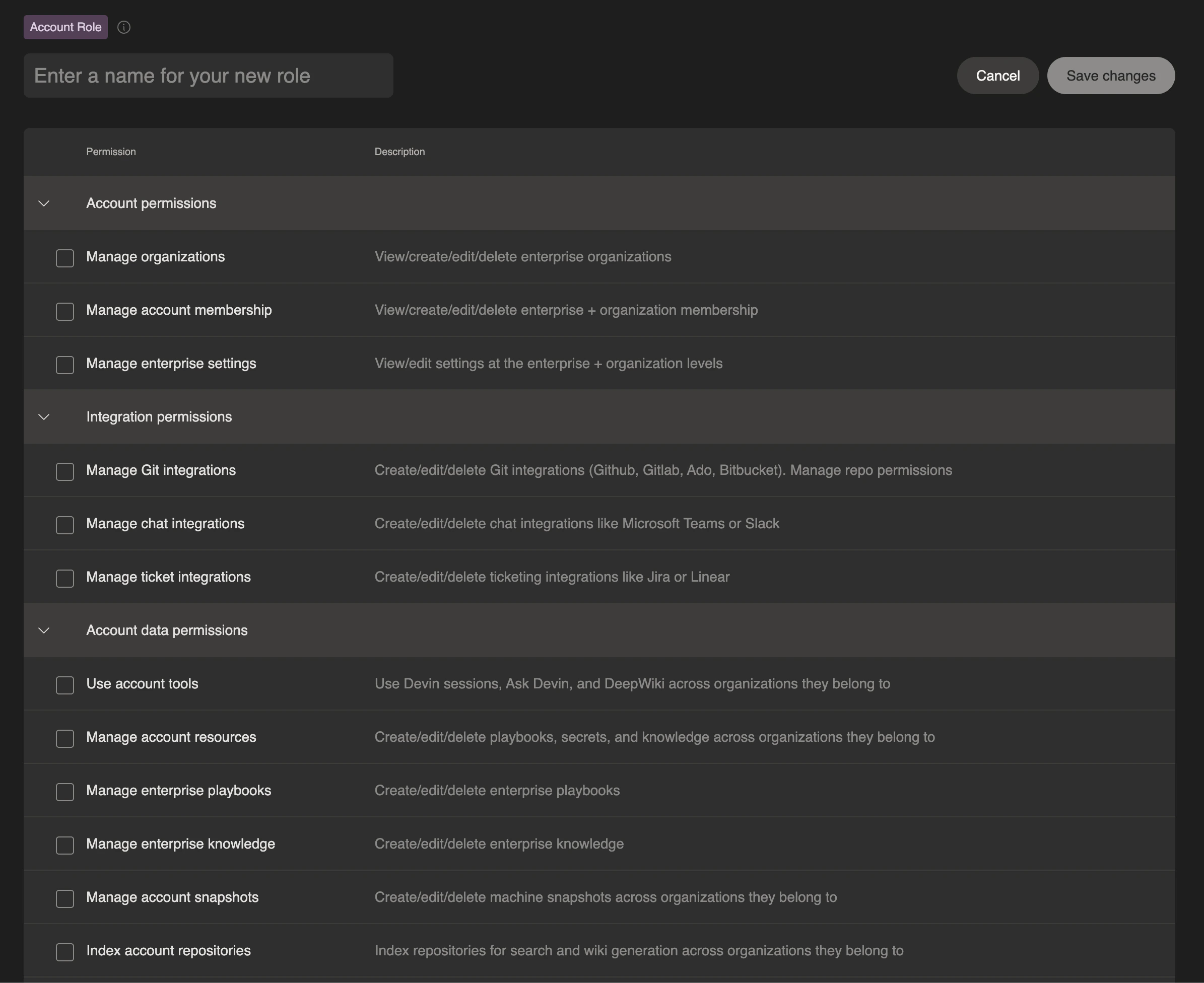
Account-level roles (also known as enterprise-level roles) are assigned across the entire enterprise and apply to every organization within the enterprise. Users with account-level roles automatically inherit corresponding organization-level permissions in all organizations that they are a member of. Account-level roles can be configured with permissions including the following:
Users can either build their own custom roles with a specific set of permissions, or they can use one of our two default account roles:
- Admin: Full administrative access across the entire enterprise
- Member: Standard user access across all organizations in the enterprise
Auto Assign a Role based on SSO IdP Group
You can automatically assign roles to users based on their Identity Provider (IdP) group membership. This streamlines user access management by ensuring users inherit the correct permissions upon authentication.- Navigate to Enterprise Settings > Membership and select the Groups (IdP) tab
- Configure IdP group mappings to associate group names with specific roles
- When users authenticate via SSO, they automatically receive the role assigned to their IdP group
Your SSO provider must send the
groups array in the SSO assertion. For detailed setup instructions, see IdP Group Integration.Best Practices
- Principle of Least Privilege: Grant users only the minimum permissions necessary for their role
- Use IdP Groups: Leverage IdP group integration for easier management of role assignments at scale
- Regular Audits: Periodically review role assignments and permissions to ensure they remain appropriate
- Descriptive Naming: Use clear, descriptive names for custom roles to make their purpose obvious
- Documentation: Maintain internal documentation of your custom roles and their intended use cases
Common Issues
If a user is not receiving the expected permission,- Verify the user is assigned to the correct role for that specific organization
- Ensure the role has the necessary permissions configured