

What SCIM Manages
SCIM-provisioned groups appear as IdP groups in Devin, so you can map them to enterprise roles and org access the same way as groups synced from SSO logins. Unlike login-synced groups, renaming a SCIM group in your IdP preserves its role and org mappings in Devin.
Step 1: Get Your SCIM Credentials
- In Devin, go to Settings → Enterprise → Membership and select the Members tab
- Scroll to the User and IdP group provisioning section at the bottom of the Members tab
- Copy the SCIM base URL
- Under SCIM bearer token, click Generate token and copy the bearer token
When you generate or rotate a token, Devin also tries to turn off just-in-time (JIT) provisioning so IdP group memberships are managed through SCIM only. This only happens if you have the Manage Enterprise Settings permission; without it, JIT is left on. If the JIT setting can’t be loaded or updated, JIT is also left on and Devin shows a warning. When JIT was turned off, the token dialog says so. After generating a token, confirm that the Just-in-time (JIT) provisioning toggle in the same section is off, and if you lack the permission, ask an admin who has it to turn JIT off.If you still want login-based group syncing, you can turn the toggle back on, though this is not recommended while SCIM is in use.
Step 2: Configure Your Identity Provider
- Okta
- Entra ID
- Other IdPs
SCIM is set up as a separate application from your existing Devin SSO app.Create the application
-
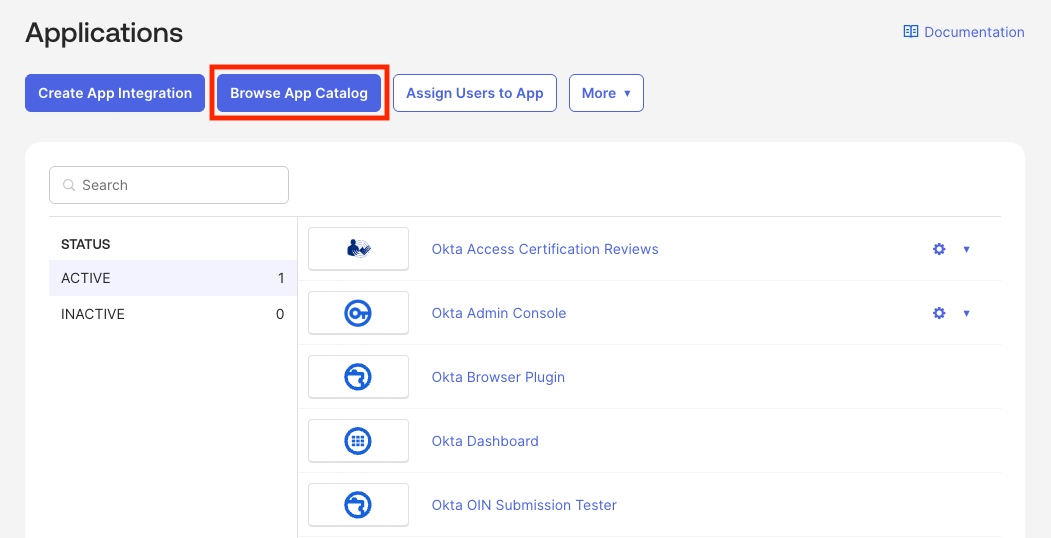
In the Okta Admin Console, go to Applications → Applications and click Browse App Catalog
-
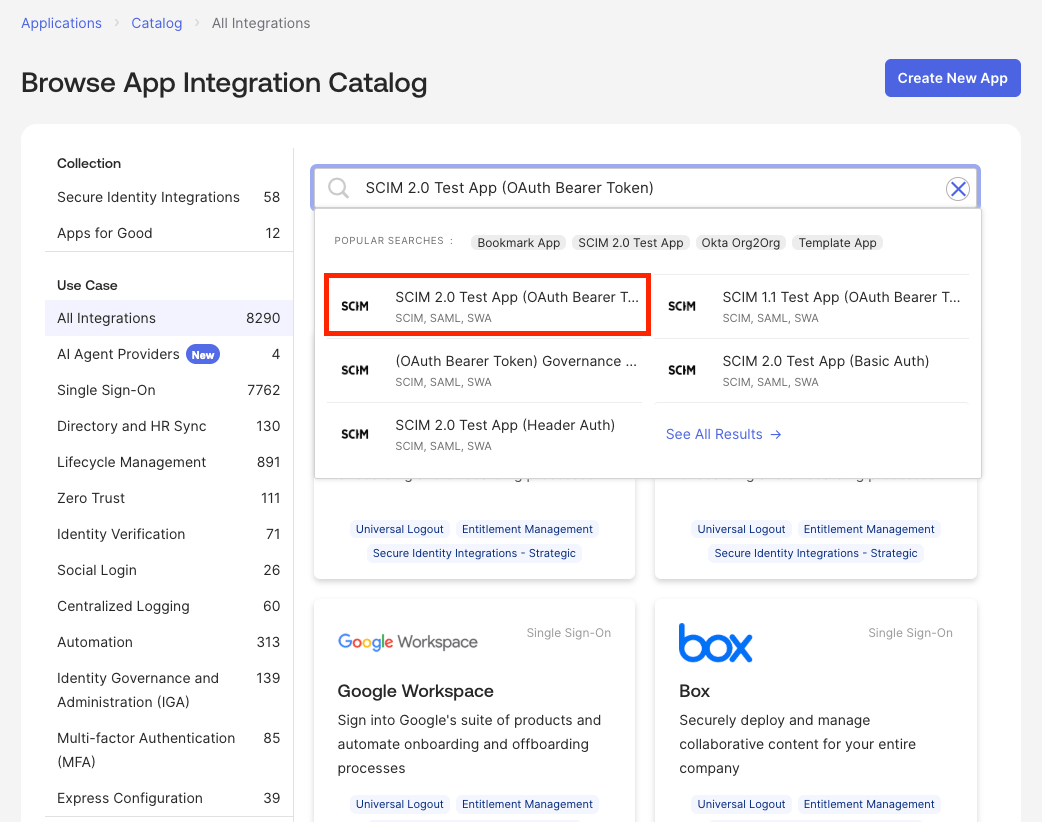
Search for SCIM 2.0 Test App (OAuth Bearer Token)
-
Click Add Integration and name it for easy reference (e.g.
Devin (SCIM))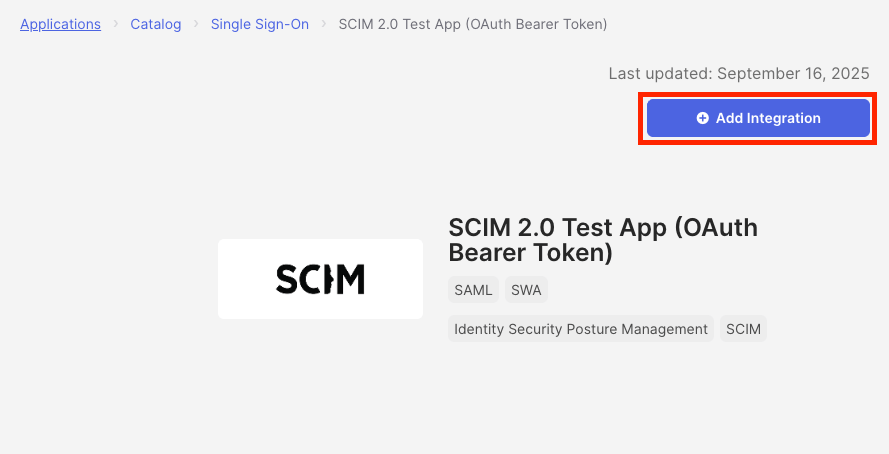
-
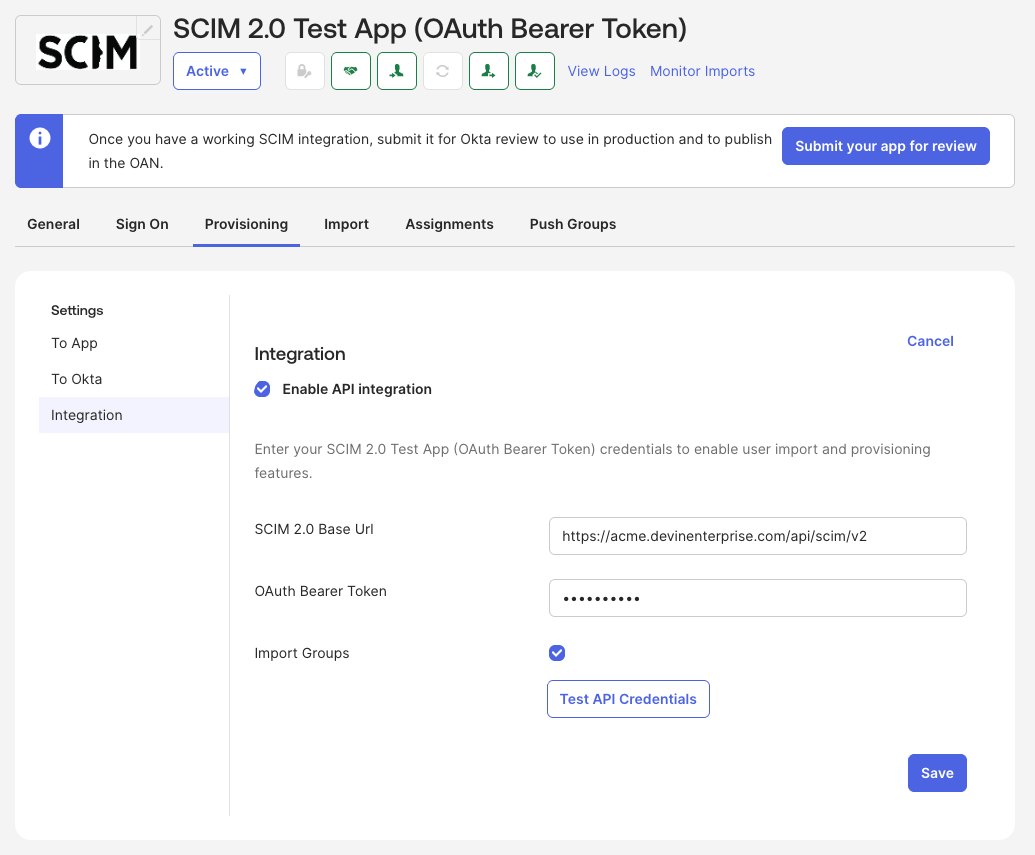
Open the app → Provisioning → Integration, click Configure API Integration, and check Enable API integration
- SCIM 2.0 Base Url: the SCIM base URL from Devin
- OAuth Bearer Token: the bearer token from Devin
- Click Test API Credentials — this should succeed — then Save
-
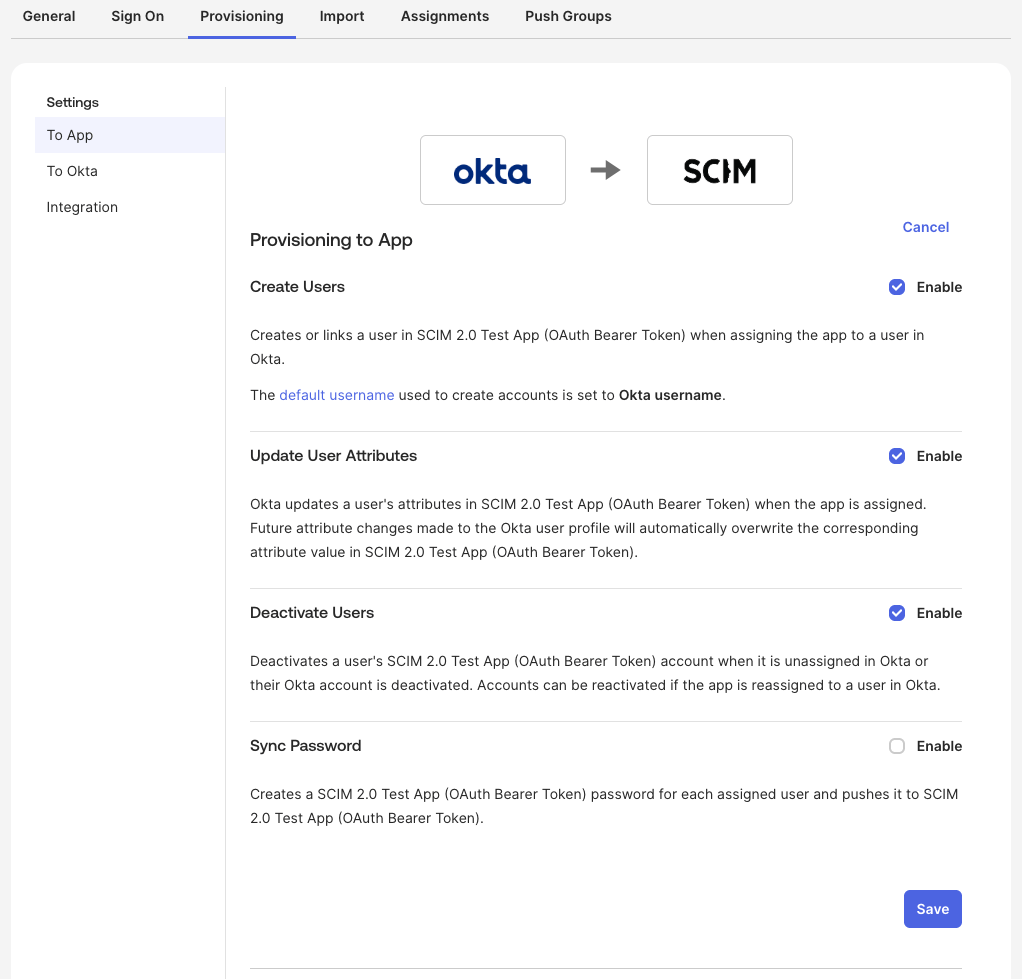
Open the app → Provisioning → To App, click Edit, enable Create Users, Update User Attributes, and Deactivate Users, then click Save
-
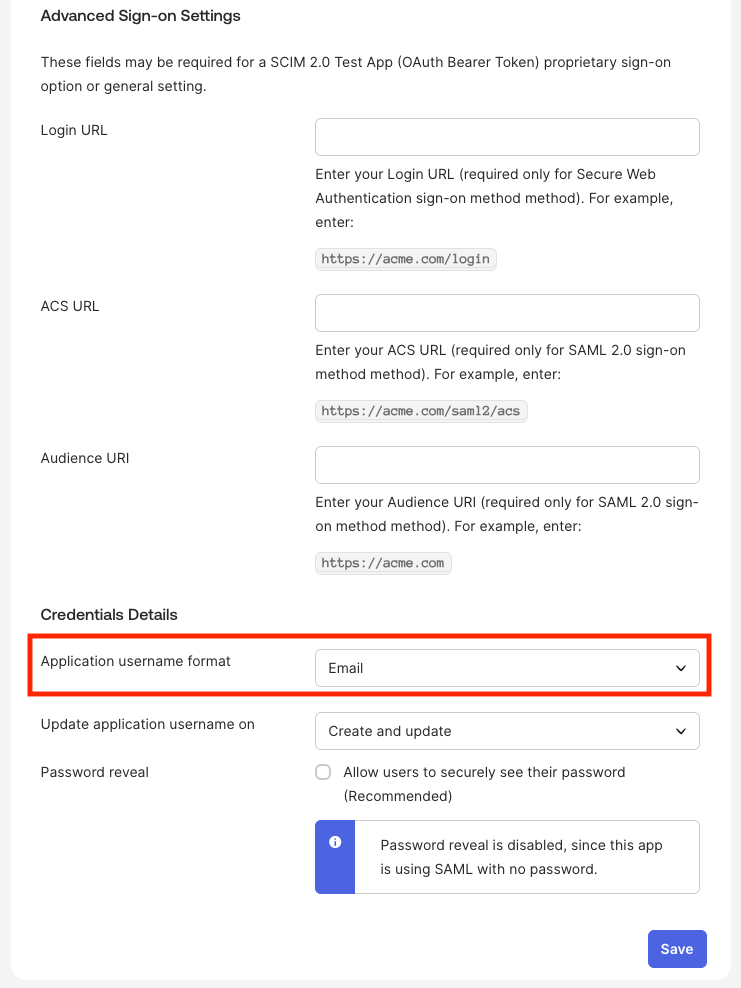
Open the app → Sign On, click Edit, set Application username format to Email, and click Save
-
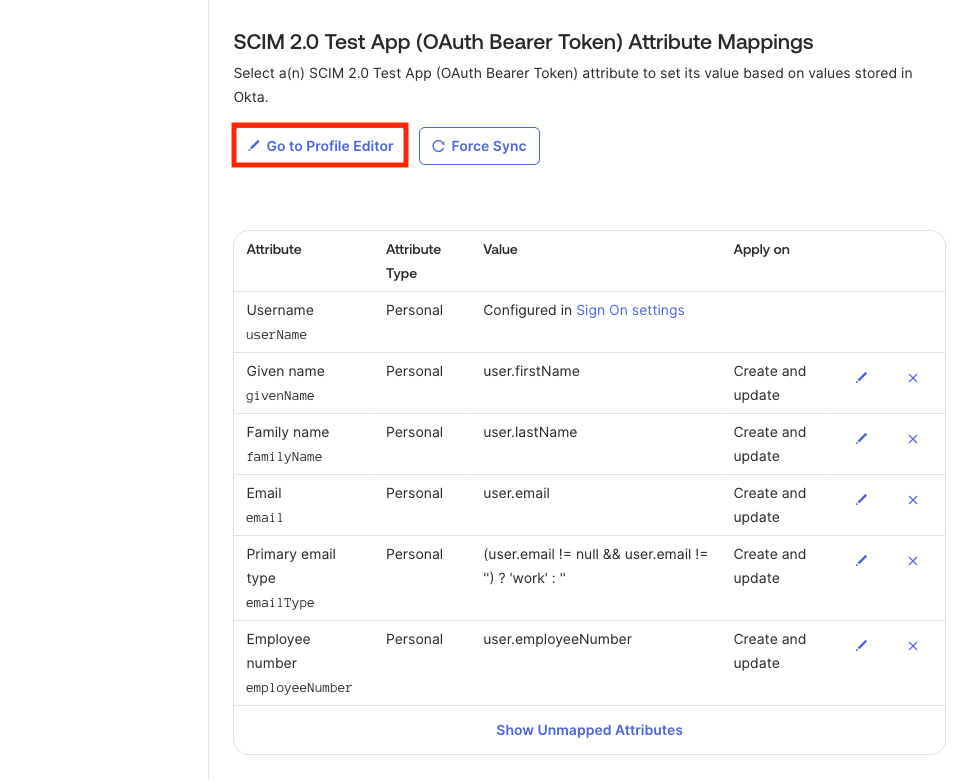
Open the app → Provisioning → To App, scroll to the attribute mappings, and click Go to Profile Editor
-
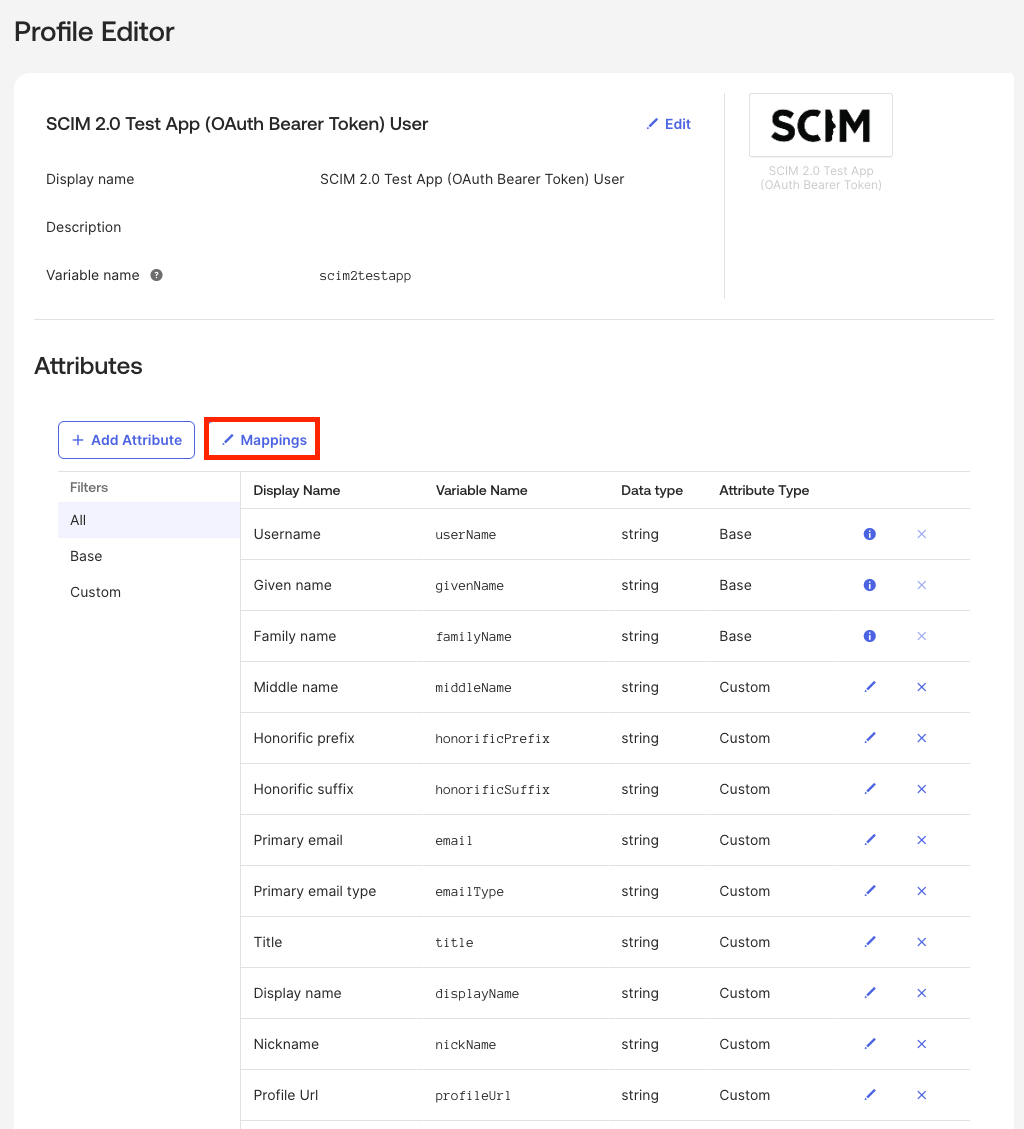
In the Profile Editor, click Mappings
-
On the first tab (Okta user to app), set all mappings to Do not map except
appuser.givenName → firstName,appuser.familyName → lastName, andappuser.email → email, then click Save Mappings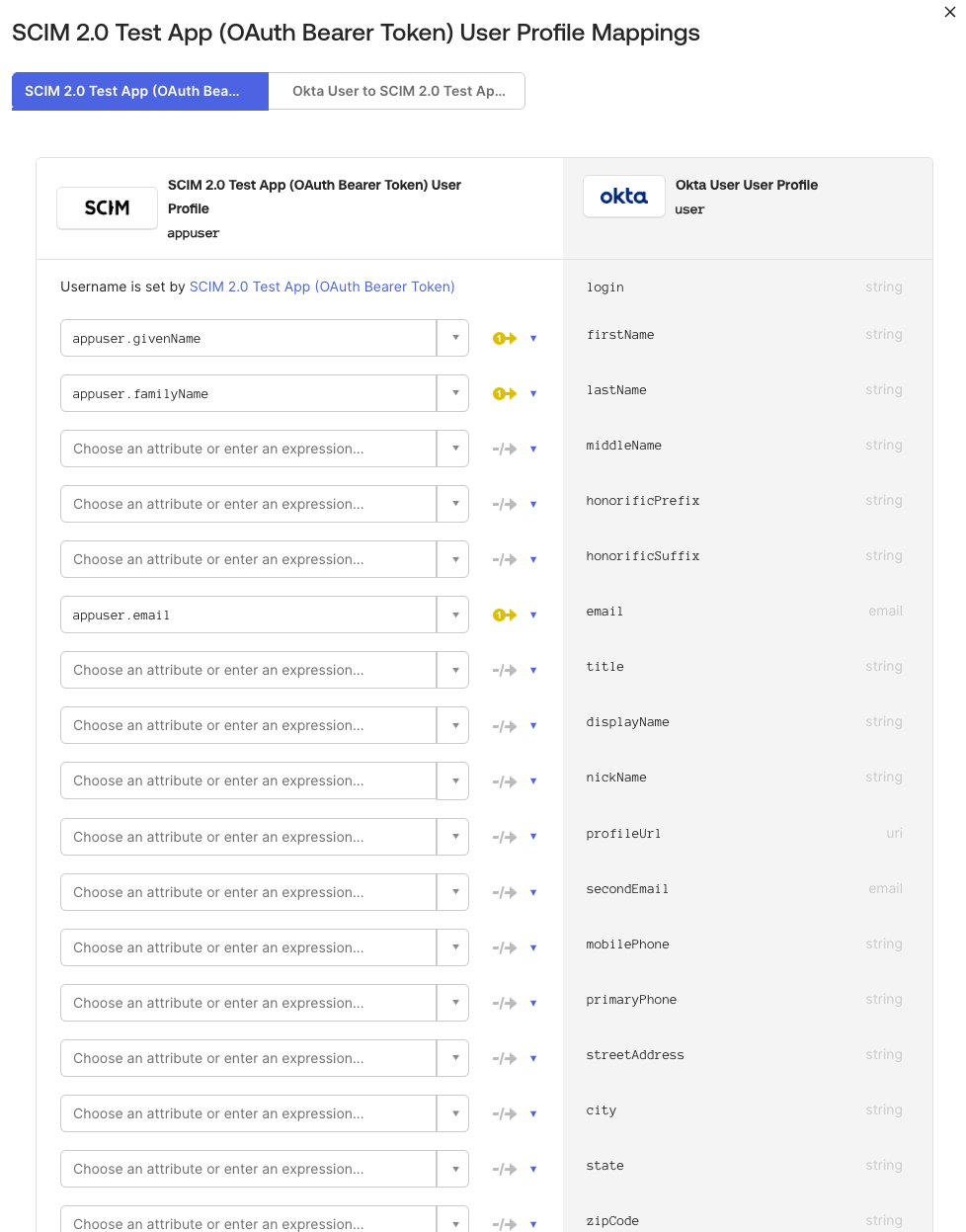
-
On the second tab (app to Okta user), set all mappings to Do not map except
user.firstName,user.lastName, anduser.email, then click Save Mappings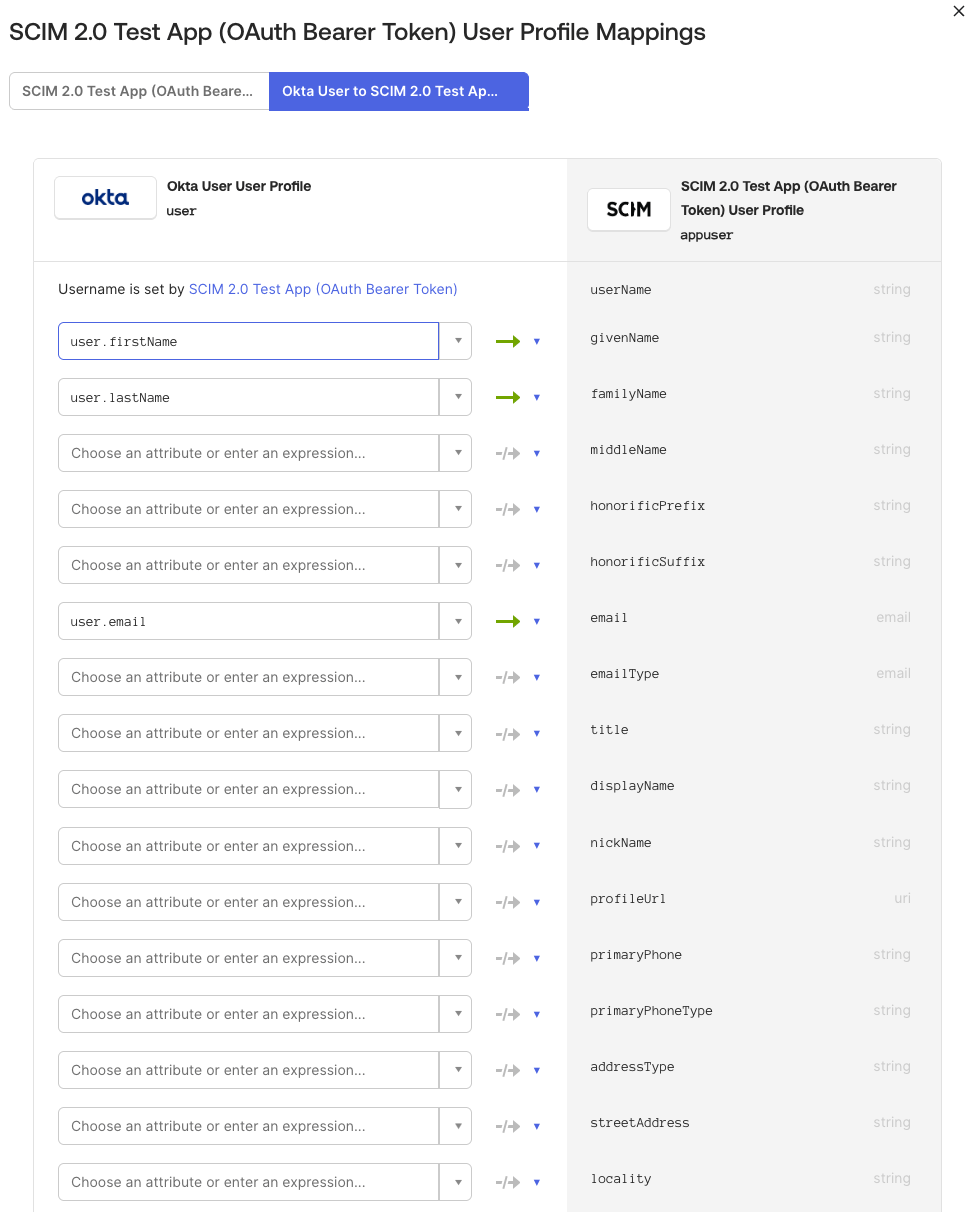
-
On the first tab (Okta user to app), set all mappings to Do not map except
- Assign users (and groups) under the Assignments tab
- To sync groups to Devin, also push them under the Push Groups tab
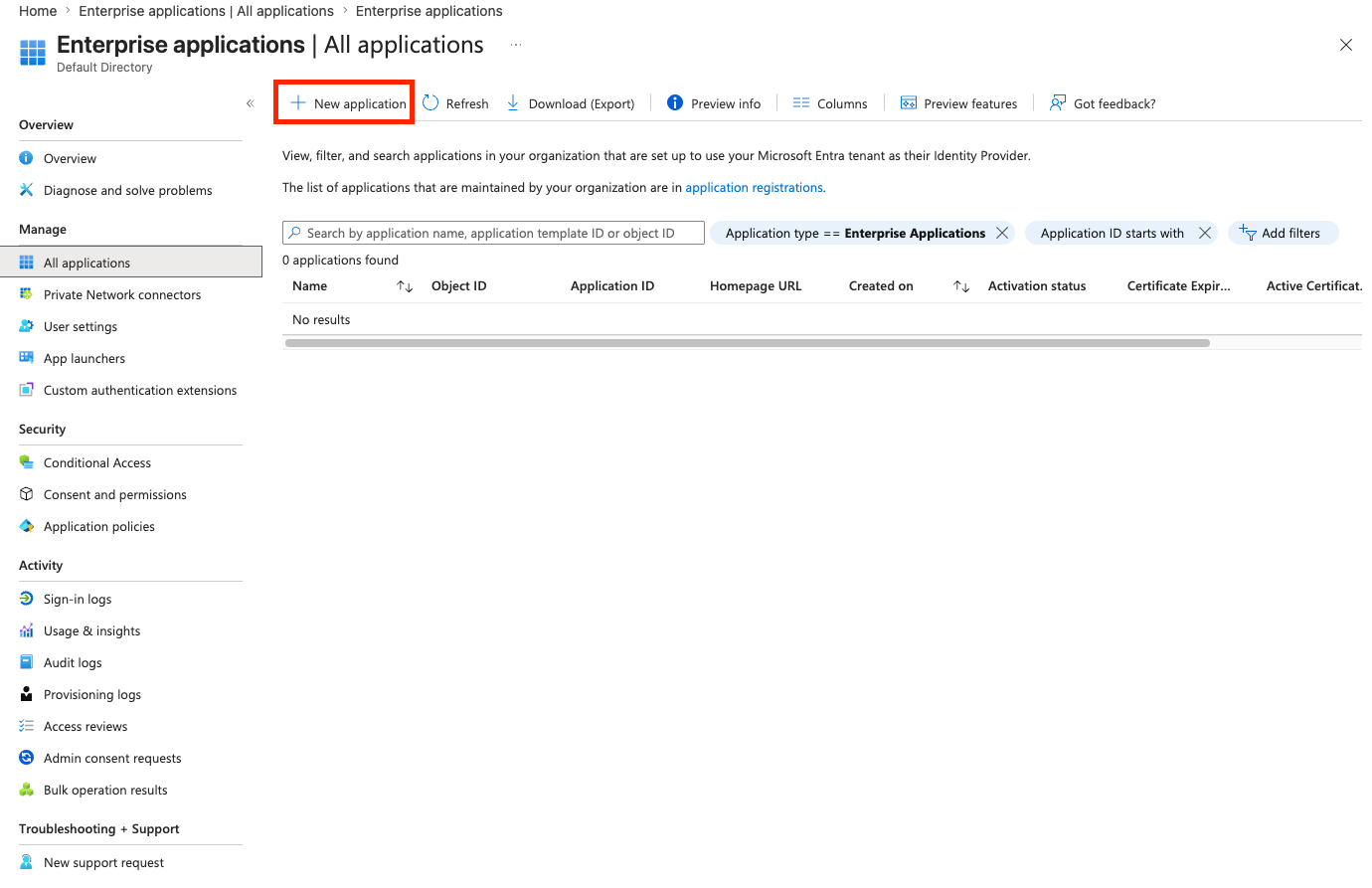
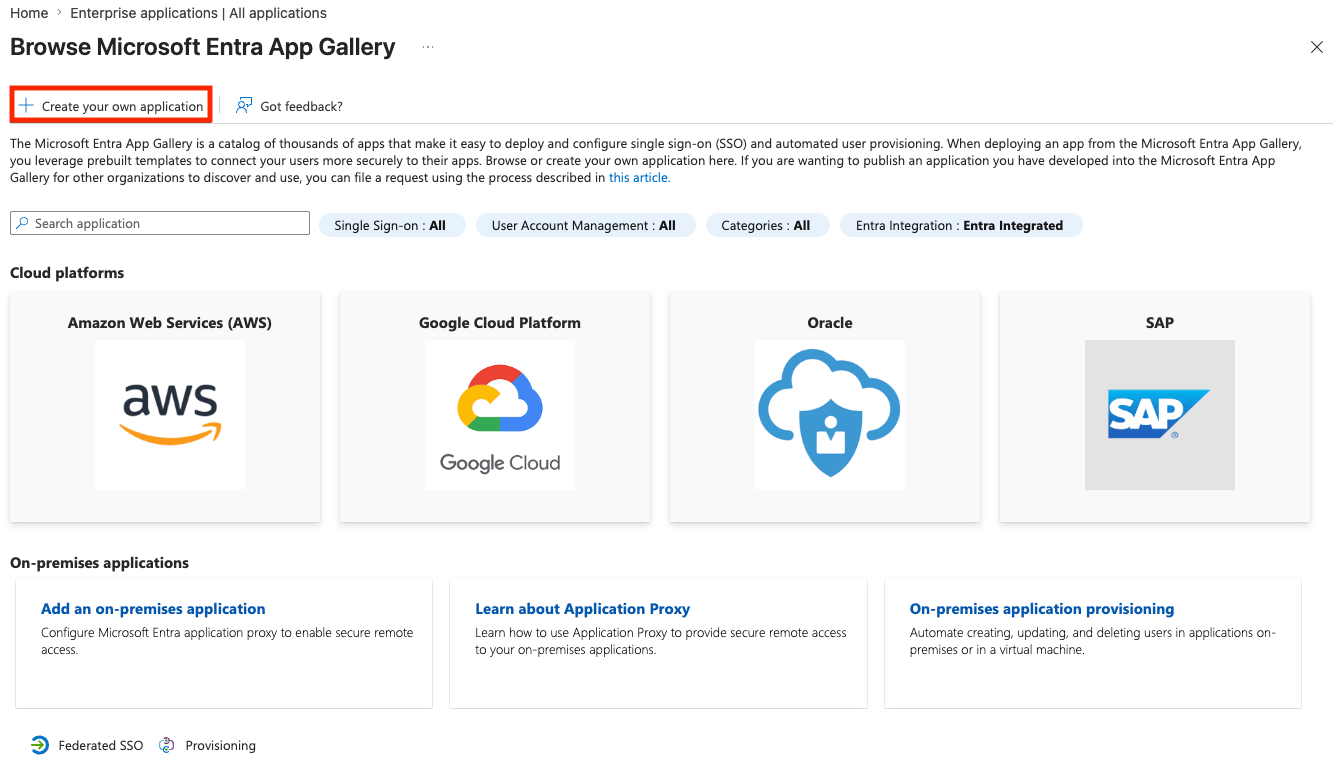
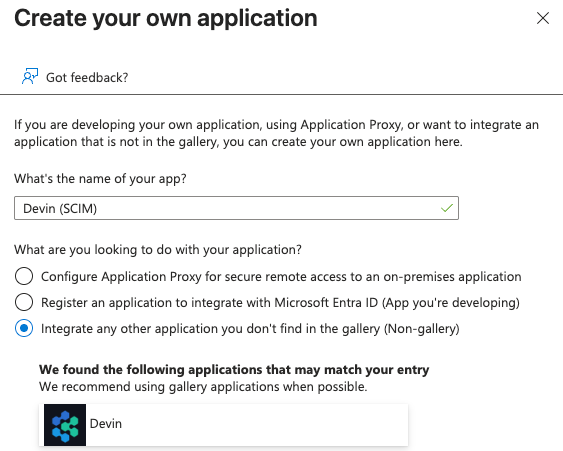
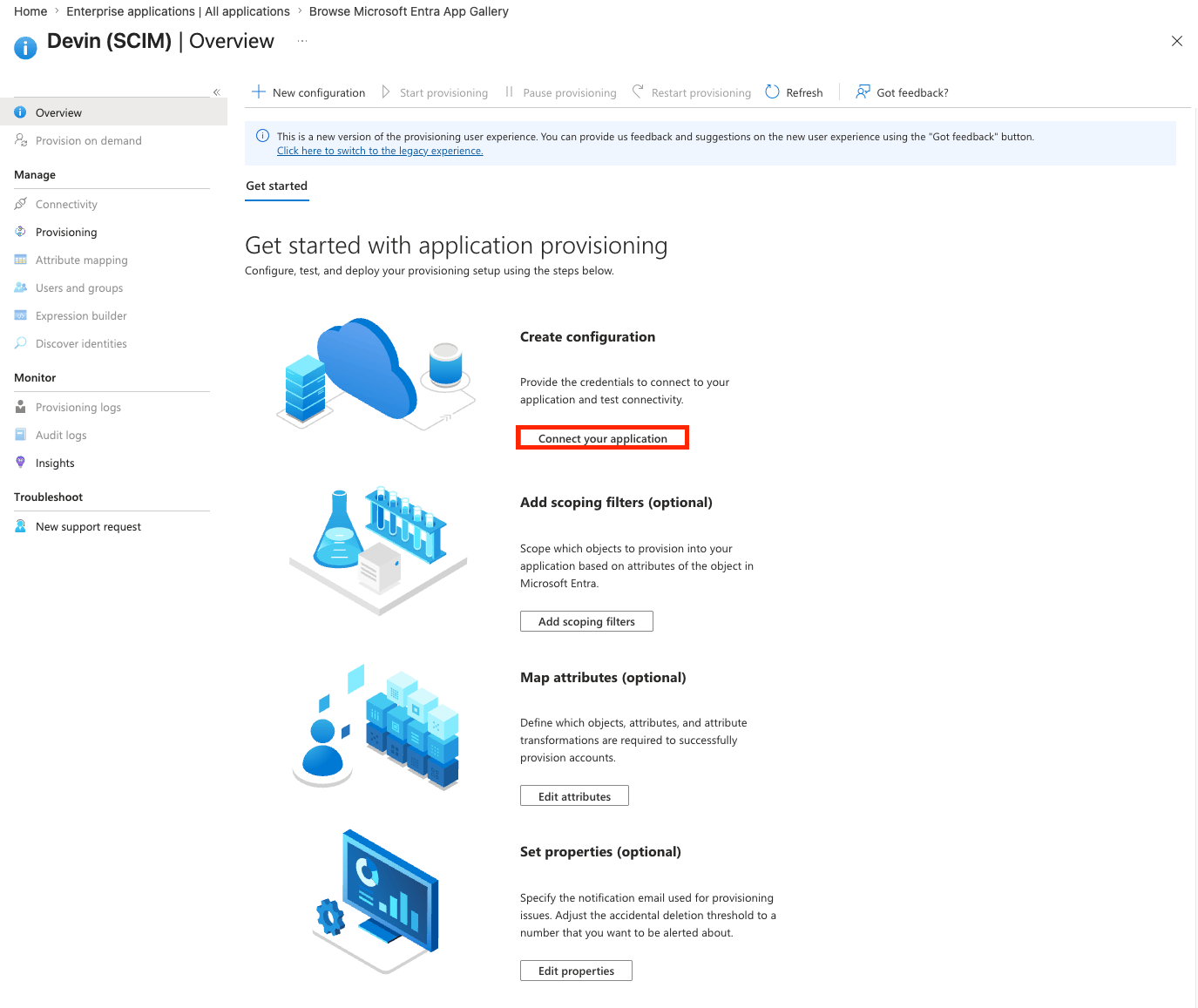
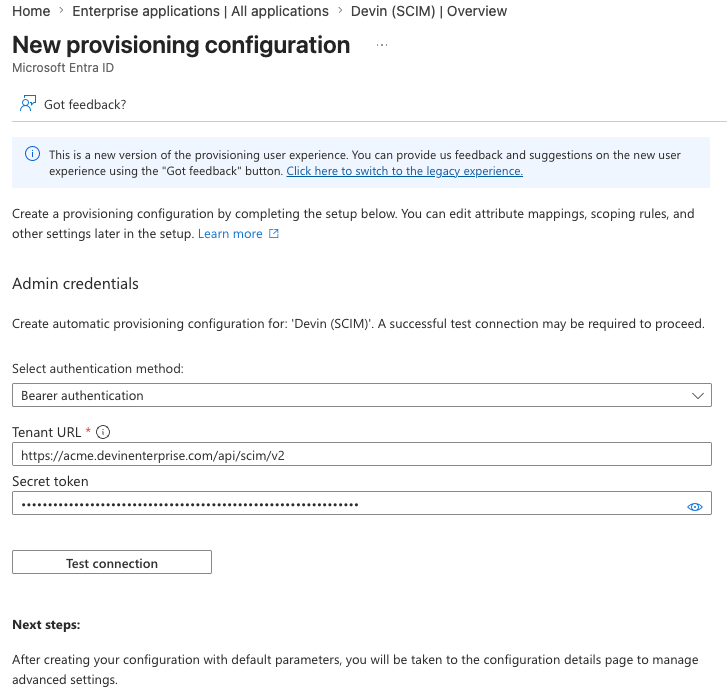
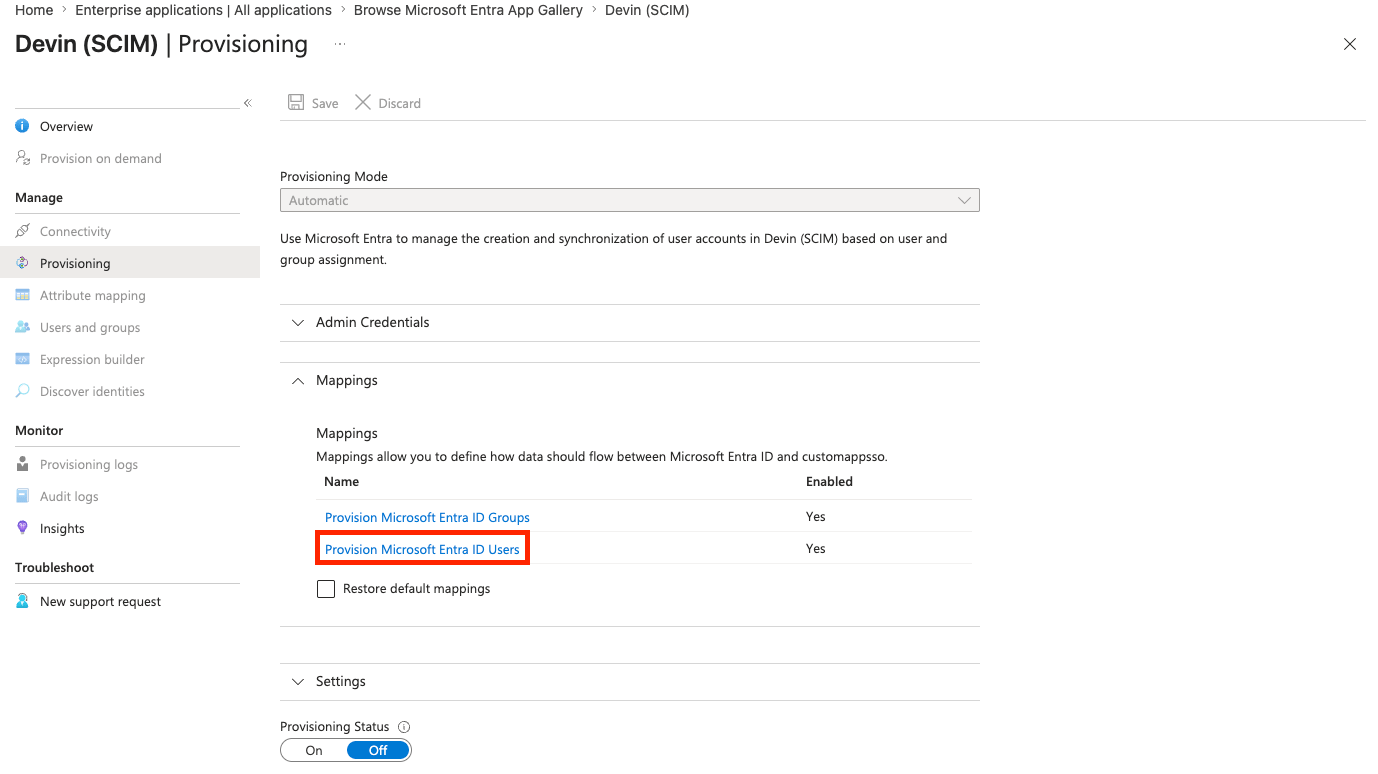
![userName and emails[type eq work].value both mapped to the same Entra attribute, with mappings trimmed to the supported set](https://mintcdn.com/cognitionai/AwSWeOv9n2_lDqJZ/images/enterprise/scim/entra/entra-attribute-mapping.png?fit=max&auto=format&n=AwSWeOv9n2_lDqJZ&q=85&s=13dc971580bc6e2fcc5631dd1cd2ebfc)
A user’s
userName must be their email address, and must match the work email that is provisioned. This is why the Okta application username format is set to Email, and why the Entra userName and emails[type eq "work"].value mappings must point to the same attribute. Mismatched values are rejected by Devin’s SCIM endpoints.Step 3: Map Groups to Roles
Assigned users are provisioned into your Devin enterprise with the default Enterprise Member role — before they ever log in. Map provisioned groups to roles and orgs under Settings → Enterprise → Membership, in the Groups (IdP) tab.How Provisioning Interacts with SSO Login
- Users provisioned via SCIM can log in via SSO immediately; no invite is needed
- Deactivating a user in your IdP removes their enterprise membership right away; reassigning them restores it
- Group memberships pushed via SCIM take effect immediately, without waiting for the user’s next login
- With just-in-time (JIT) provisioning off, SCIM is the only source of IdP group memberships
- Users created earlier by just-in-time provisioning or manual invites keep working; assign them in your IdP so SCIM manages them