
Click on any image to enlarge it.

Required Information

To enable Microsoft Entra ID login for Devin, you will need the following values:
  • Client ID
  • Tenant ID
  • Client Secret
  • Microsoft AD Domain
  • Identity Provider Domains (i.e. all company email domains you’d like to support)

Setup Instructions

To get the required information above, you will need to register an App Registration in Microsoft Entra ID.
The App Registration should be created by an admin in your organization with the Application Administrator or Cloud Application Administrator role. The Devin service account does not need any special privileges for this setup.
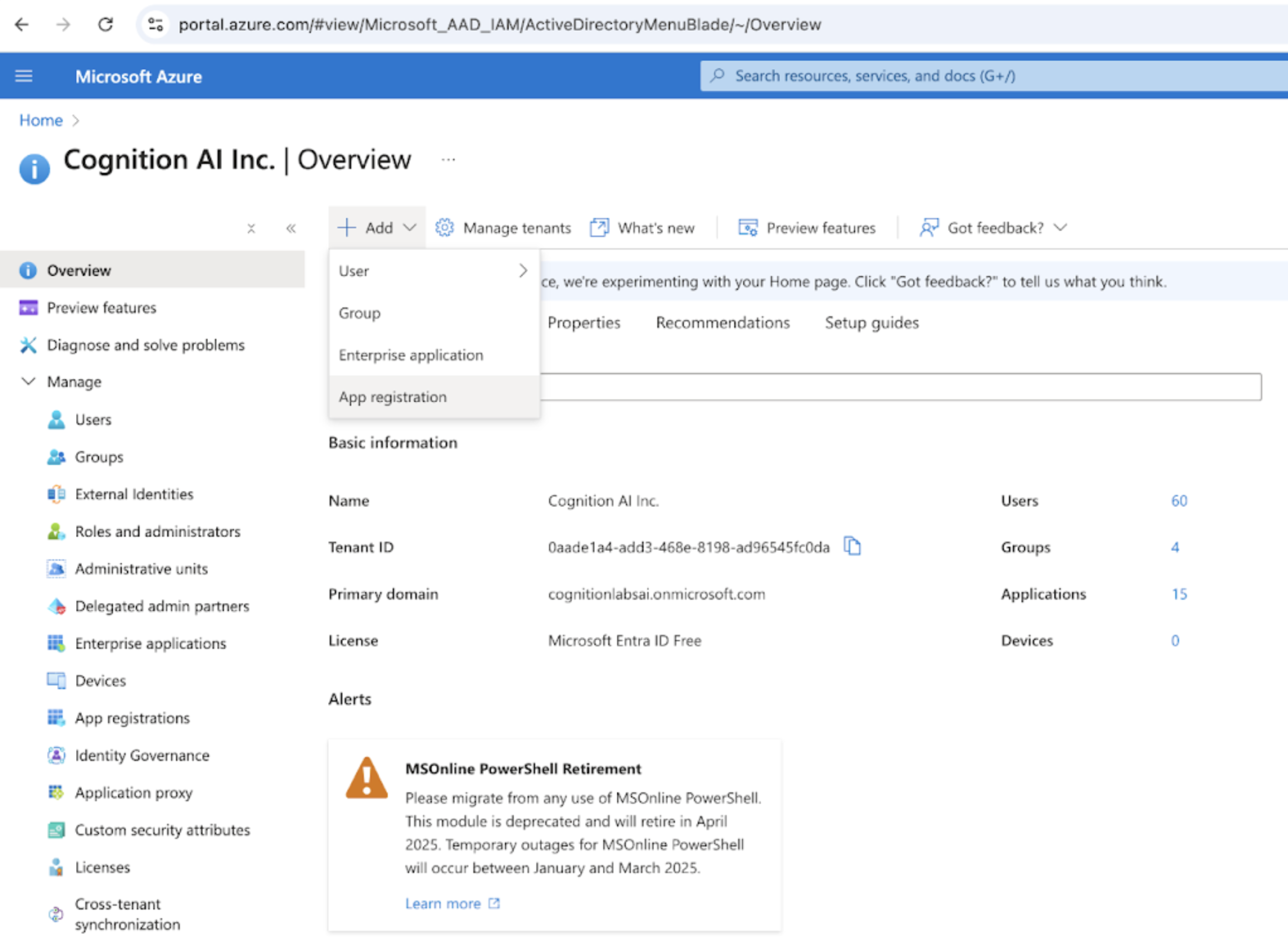
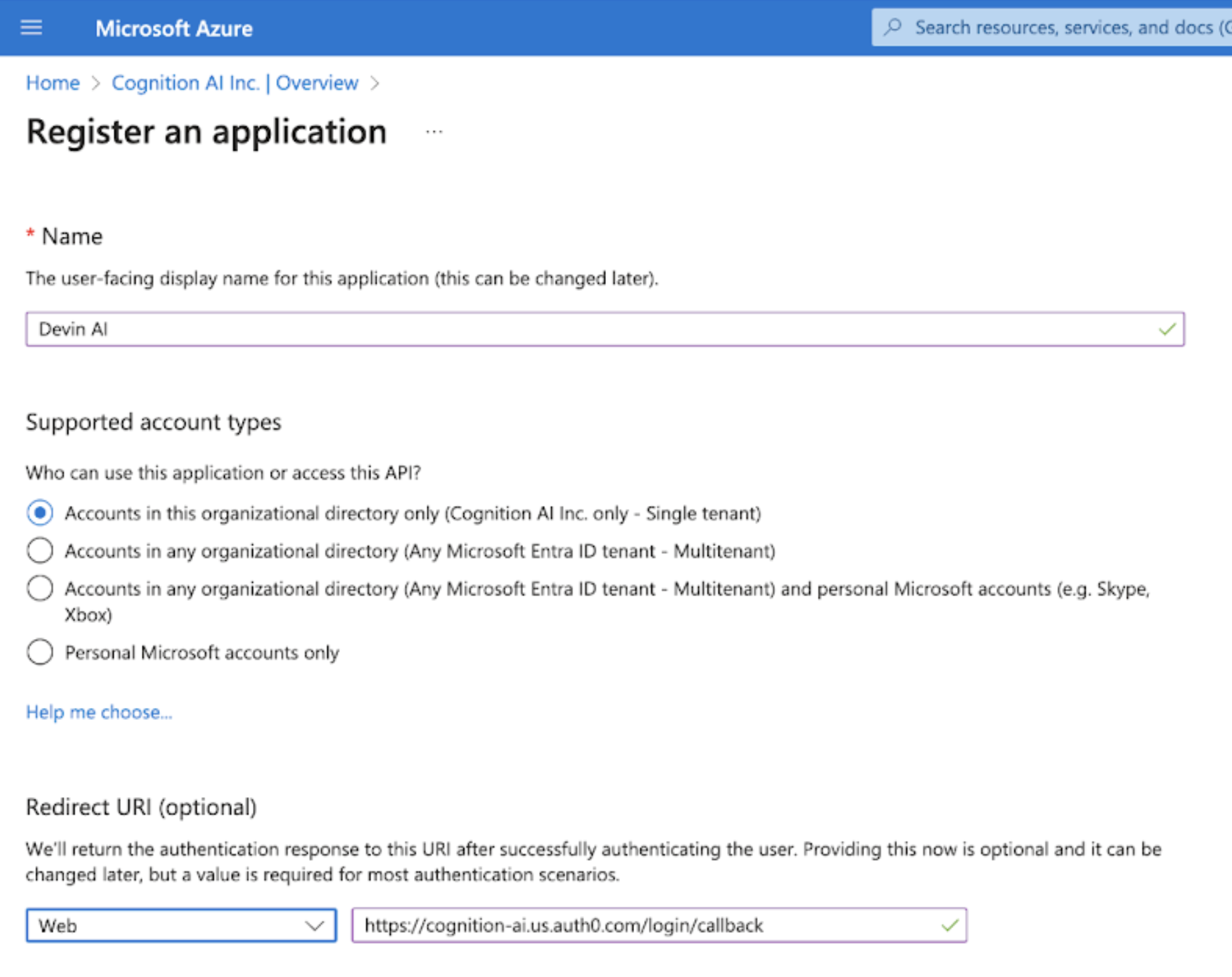
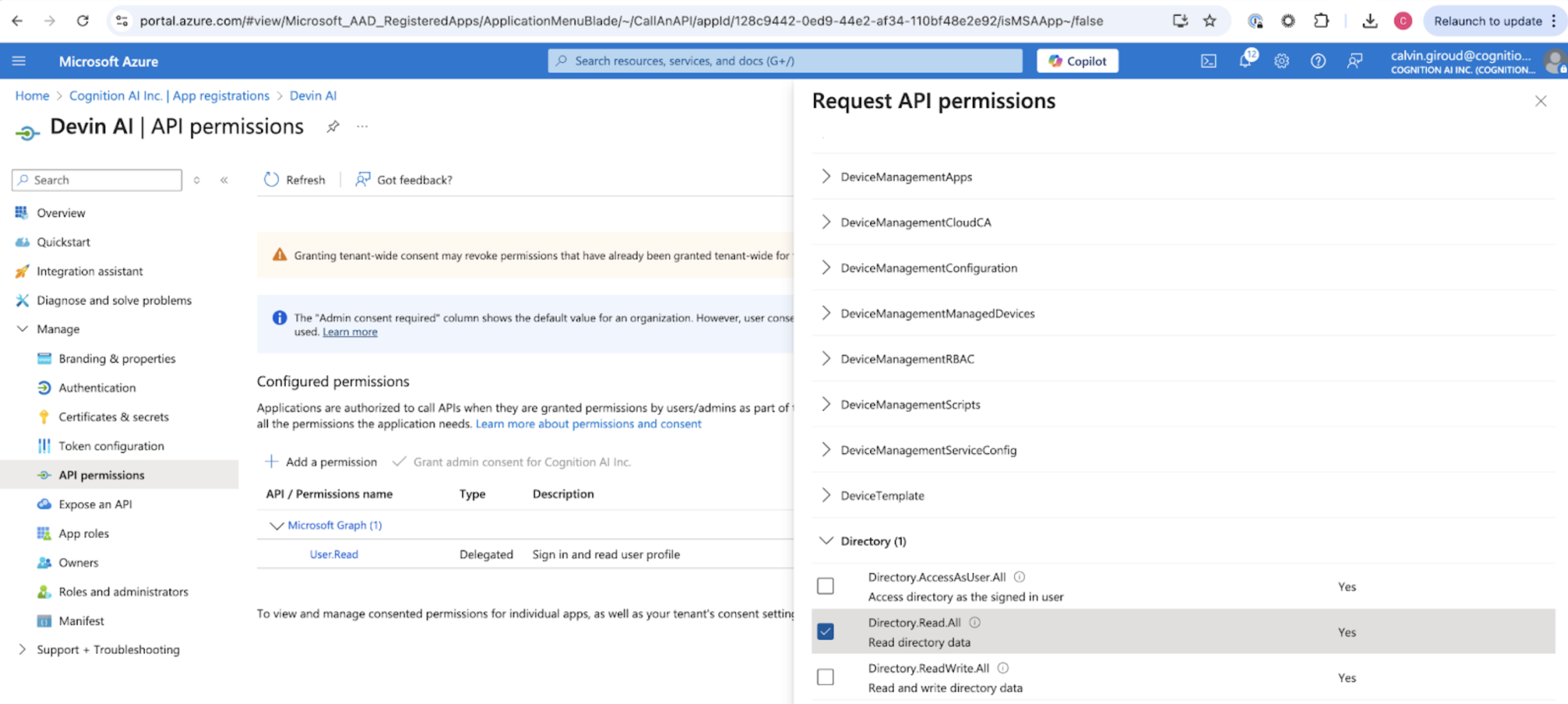
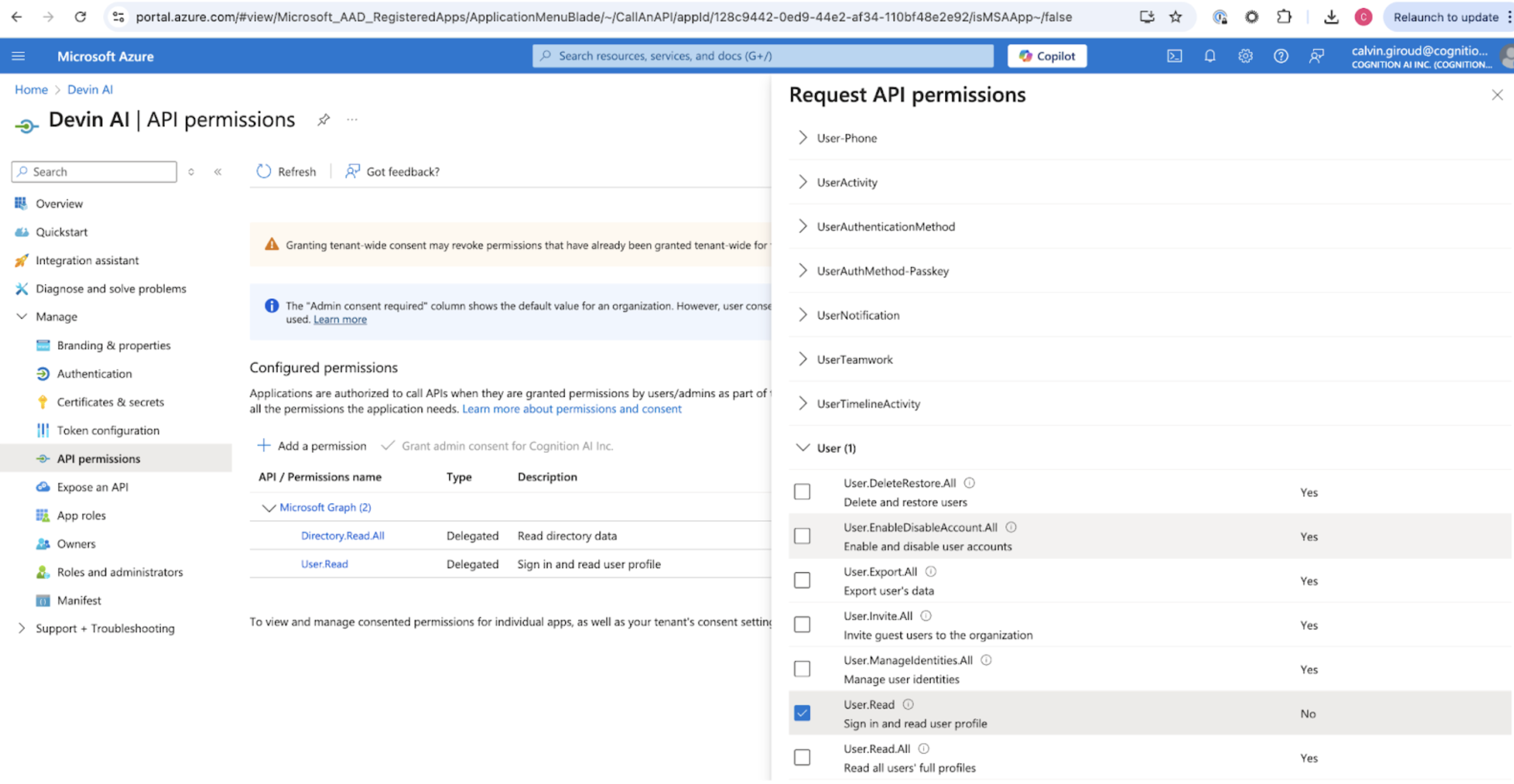
In the Microsoft Entra ID portal, click on Add registration Entra ID Registration Name the registration Devin AI. Select “Accounts in this organizational directory only”. Set the Redirect URI as “https://auth.devin.ai/login/callback” (this is the only Redirect URI needed) Entra ID App Settings Add the User.Read and Directory.Read.All permissions by selecting “API Permissions” and “Add a permission” to the Microsoft Graph API. Entra ID API Permissions Entra ID Graph Permissions After adding the permissions, click “Grant admin consent for [your organization]” on the same API Permissions page and confirm. Both permissions should show a green “Granted” status. Directory.Read.All requires admin consent; without this step, users can still sign in, but Devin cannot read their Entra groups, so IdP group-based organization mapping will not work.

Collecting the Required Values

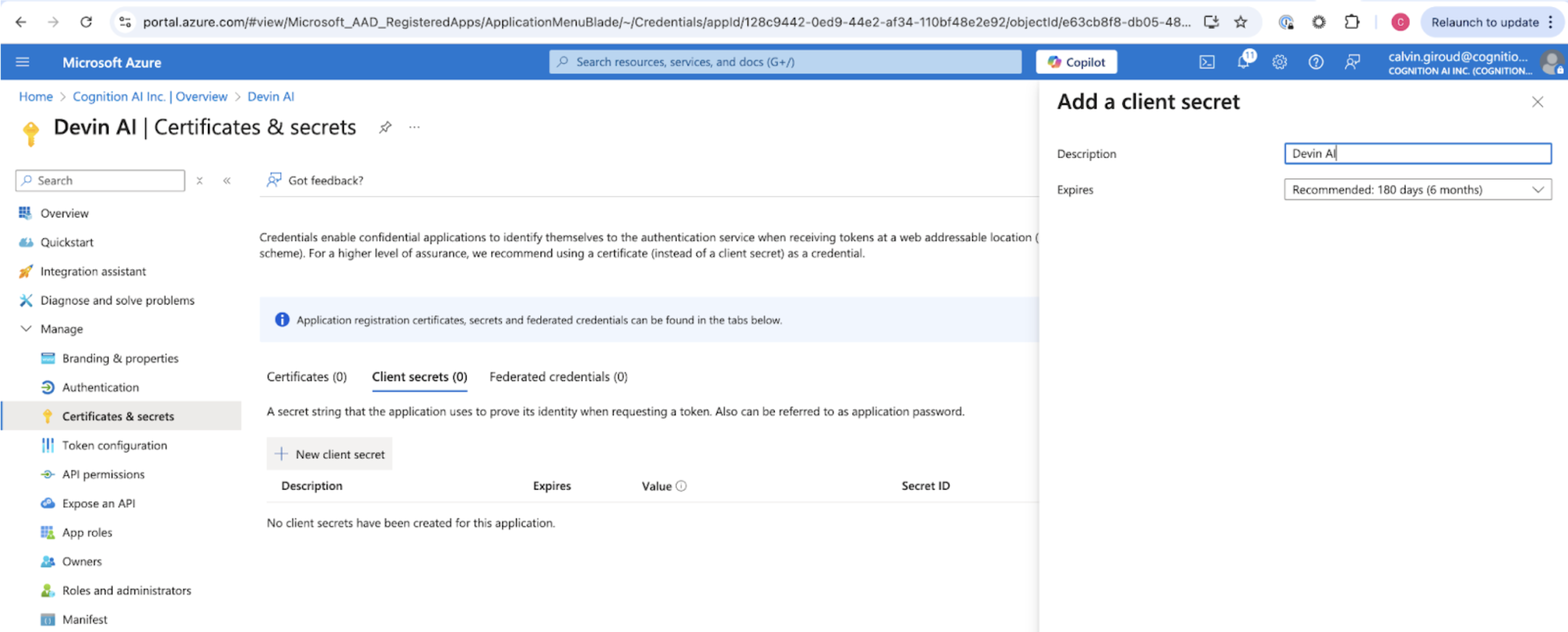
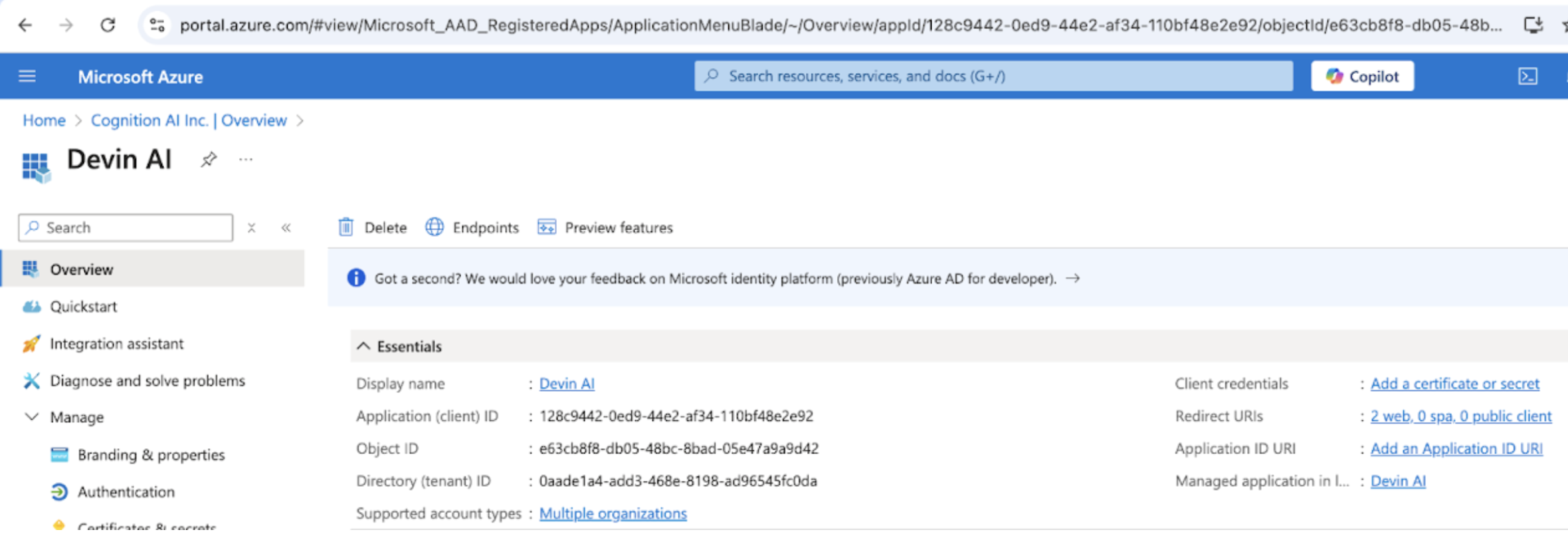
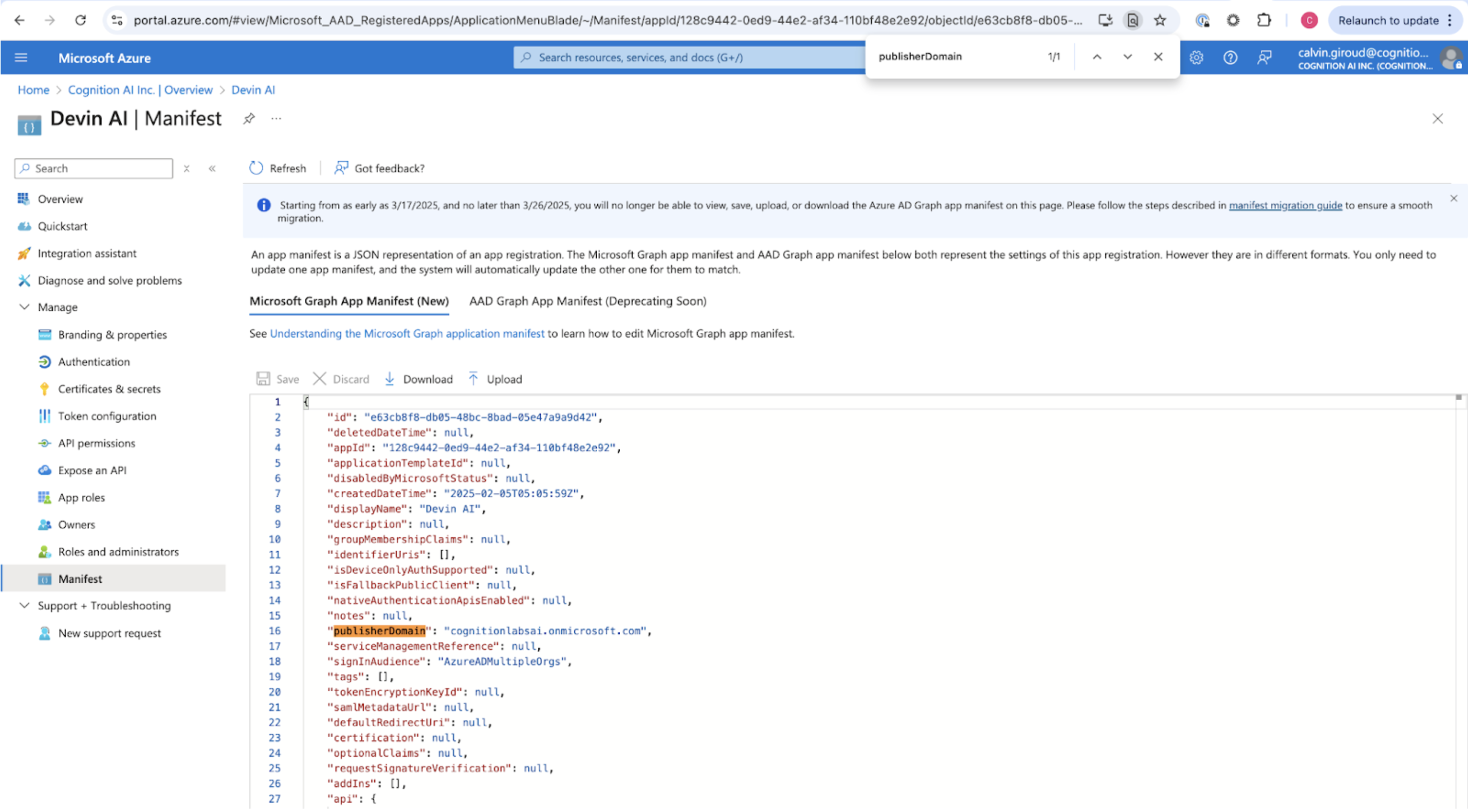
You can get the Client ID and Tenant ID from the Overview page. Entra ID Overview Page The Microsoft AD Domain can be found by selecting the “Manifest” page and looking for “publisherDomain” Entra ID Manifest Add a client secret by selecting “Certificates & secrets.” Select “New client secret” and copy the secret VALUE (not the secret ID) as Client Secret Entra ID Client Secret
Connect the Application to Devin

Collect the following information to add the connection:
  1. Client ID
  2. Client secret
  3. Tenant ID or Microsoft AD Domain (either one goes in the Entra tenant field)
  4. Email domains (all company email domains you’d like to support)
Verify your email domains and add a Microsoft Entra ID connection with these values under Settings → Authentication.