

Devin also supports connecting to Azure DevOps via a Microsoft Entra service principal, which does not require a dedicated service account with elevated directory admin privileges. Depending on your requirements, that flow may be a better fit — see Azure DevOps (Service Principal).
Why integrate Devin with Azure DevOps?
Integrating Devin with your Azure DevOps organization allows Devin to clone repositories, create pull requests, and collaborate effectively with your team. This integration enables Devin to work seamlessly within your existing development workflow. Unlike some other SCM integrations, Azure DevOps does not display third-party apps in the same way. Instead, all connection management is handled inside Devin under Settings > Connections > Azure DevOps.Prerequisites
Before setting up the Azure DevOps integration, you will need to:-
Create a dedicated Azure DevOps user for Devin - Create a new Azure DevOps account specifically for Devin (e.g.,
devin@yourcompany.com). This dedicated service account provides cleaner access management and audit trails. - Grant the Devin user a sufficient admin role - The new Devin service account must be able to grant admin consent for the tenant (Application Administrator, Cloud Application Administrator, or Global Administrator). Microsoft restricts third-party application access unless an admin with sufficient privileges grants tenant-level consent.
-
Prepare for the connection flow - To complete the integration, you will need to be:
- Signed into Devin with your personal account
- Signed into Azure DevOps with the Devin service account (the new account that can grant admin consent for your tenant)
Both browser sessions must be active during the integration setup process—your Devin account to initiate the connection, and the Devin service account in Azure DevOps to authorize the OAuth consent.
Authentication and Permissions
Devin uses OAuth 2.0 via Microsoft’s MSAL (Microsoft Authentication Library) to connect to Azure DevOps. The Devin service account must be able to grant admin consent for the tenant (Application Administrator, Cloud Application Administrator, or Global Administrator) to complete the OAuth flow. Azure DevOps works through service accounts, so Devin connects using the authorized Devin user identity rather than a registered app.RBAC and Permission Model
Devin’s integration with Azure DevOps is built with a strict Role-Based Access Control (RBAC) model that separates authentication and authorization. This ensures that Devin only accesses repositories explicitly allowed by enterprise admins. When you connect Azure DevOps to Devin:- A connection record is created with the encrypted refresh token, linked to the user identity
- Devin generates permissions records to define which organizations, projects, and repositories are accessible
- At runtime, checks are performed across all repos and compared to the permissions list to enforce boundaries
Azure DevOps Hierarchy
Azure DevOps uses a three-level hierarchy: Organization > Project > Repository. Devin handles this structure internally and can discover and interact with repositories at any level, as long as the connected user has access.Setting up the Integration
-
Sign into both accounts:
- Sign into your Devin account at app.devin.ai
- In a separate browser or incognito window, sign into Azure DevOps with the Devin service account (the account that can grant admin consent for your tenant)
- In your Enterprise Devin account, navigate to Settings > Connections > Azure DevOps.
-
Click the Connect button to start the OAuth flow. If Azure DevOps is already connected, the button reads Add connection.
- To connect with a Microsoft Entra service principal instead, open the dropdown on the Connect button and select Connect with service principal. See Azure DevOps (Service Principal).
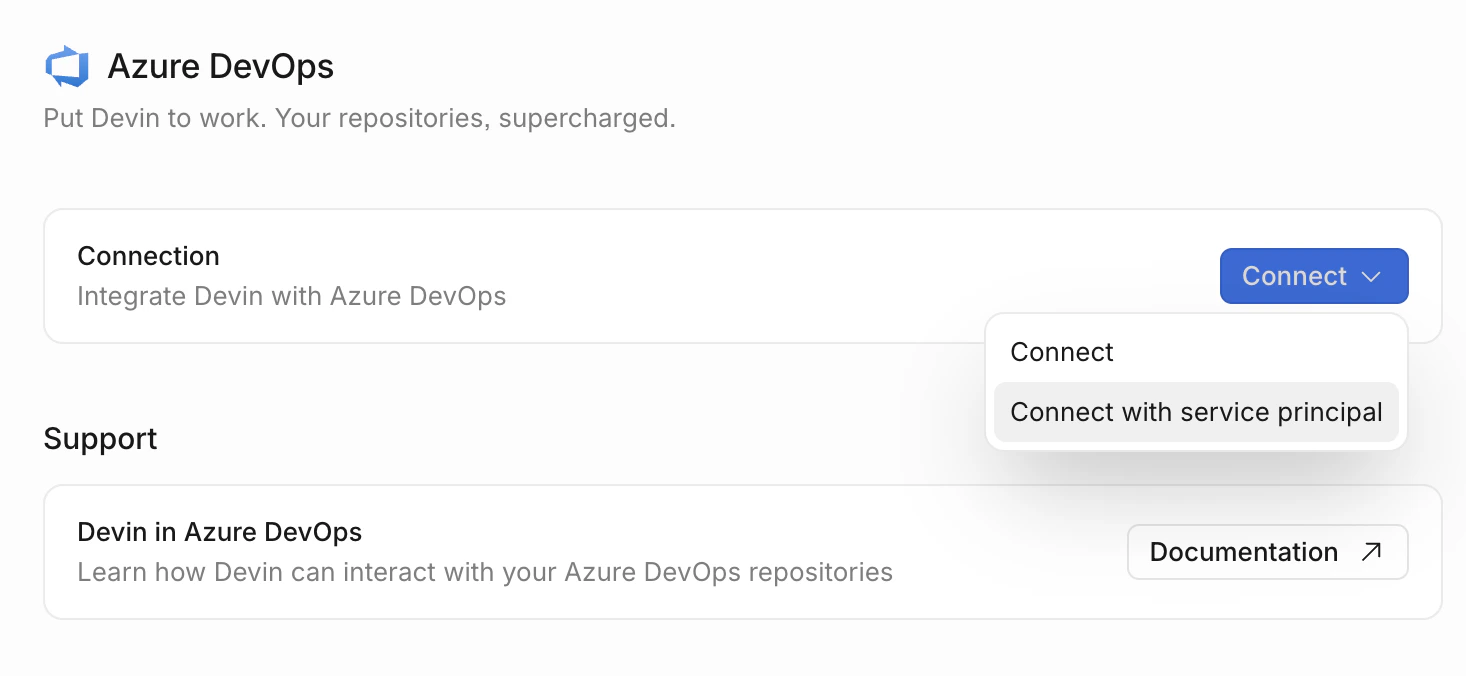
- This will open up a new browser tab, asking you to grant Devin permission to your Azure DevOps Organization. Ensure you are signed in with the Devin service account (the account that can grant admin consent for your tenant).
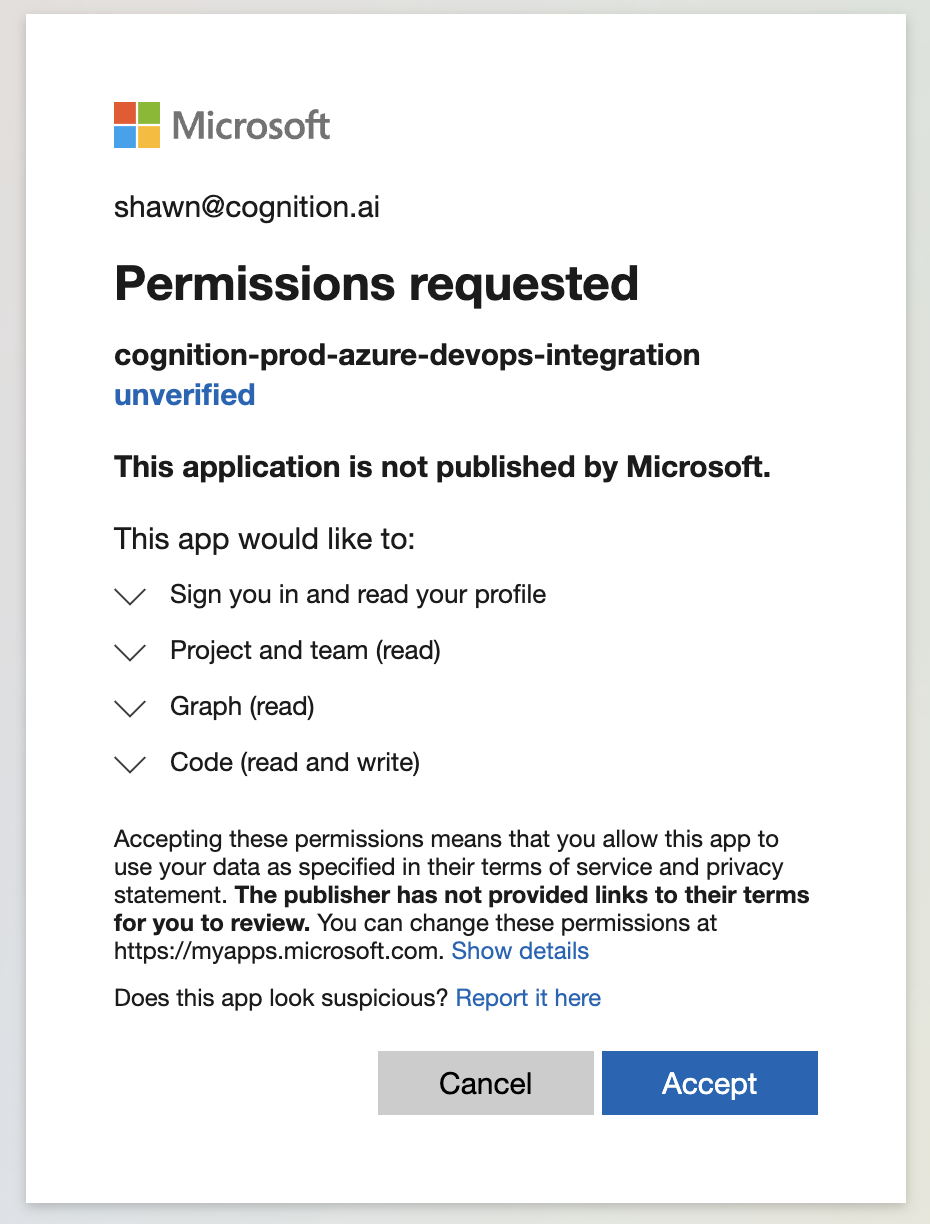
-
Once you have granted permissions, you are returned to the Azure DevOps connections page in Devin, which lists your new connection. Click the connection to open its detail panel:
- General: webhook setup, reconnect, and disconnect
- Manage access: allow users or roles to manage repository permissions for this connection
- Repositories: the repositories available through this connection
- Now that Devin has access to your Azure DevOps, you can grant permissions to any/all organizations within your Enterprise account. To do this, navigate to Settings > Repositories, choose an organization, click Manage permissions, and grant permissions either at the Organization/Project or Repository level. See Repository Permissions.
- For each organization that has been granted permissions, navigate to Settings > Environment > Blueprints in that organization, click Add in the Repositories section, and select the repositories to add to Devin’s environment. See Declarative environment configuration.
What Devin Can Access
Devin’s Azure DevOps integration is focused only on Git operations, including:What Devin Cannot Access
The integration is deliberately scoped to Git-only functionality. Devin does not have access to:- Work items (boards)
- Pipelines or builds
- Test plans
- Artifacts
- Wiki
- Service connections
If your organization requires Devin to support these additional areas in the future, that would require broader OAuth scopes and new provider logic. Please contact enterprise@cognition.ai to discuss your requirements.
Security Considerations
The system is designed around the principle of least privilege:- OAuth provides capability, RBAC enforces boundaries - OAuth grants the technical ability to access Azure DevOps, but an additional layer of git permissions enforces the actual access boundaries
- Explicit access only - Devin never accesses repos or projects that are not explicitly granted in the Enterprise UI
- Encrypted credentials - All refresh tokens are encrypted and securely stored
- Audit trail - Using a dedicated service account makes it easier to track Devin’s activity in your Azure DevOps audit logs
- Branch policies respected - Devin’s PRs are subject to the same branch policies and review requirements as any other contributor
Best Practices
- Use the dedicated Devin service account - Always use the dedicated Azure DevOps account created for Devin rather than connecting with a personal account
- Enable branch policies - Set up branch policies in Azure DevOps to ensure all changes go through proper review processes before being merged
- Use repository-level permissions - Grant Devin access only to the specific repositories it needs, rather than organization-wide access
- Monitor access logs - Regularly review Azure DevOps audit logs for Devin’s activity
- Document your setup - Keep internal documentation of which repositories Devin has access to and why
If your Microsoft Entra ID is integrated with your organization’s HRIS (Human Resources Information System), additional configuration steps may be required to complete the Azure DevOps integration. Please contact the Devin support team for assistance with advanced setup.
Troubleshooting
OAuth consent fails:- Verify that the Devin service account can grant admin consent for the tenant (requires Application Administrator, Cloud Application Administrator, or Global Administrator role)
- Check that your Microsoft Entra ID tenant allows third-party application consent
- Ensure you’re signed into Azure DevOps with the Devin service account (not your personal account) when completing the OAuth flow
- Verify that the Devin service account has access to the repositories in Azure DevOps
- Open the connection in Settings > Connections > Azure DevOps and confirm the repositories appear in the Repositories tab
- Check that repository permissions have been granted to the organization in Settings > Repositories
- Ensure the repositories have been added to the organization’s environment in Settings > Environment > Blueprints
- Confirm that the Devin service account has contributor permissions on the target repository
- Check that branch policies are not blocking the PR creation
- Verify that the target branch exists and is accessible