

Overview
Devin supports two methods for connecting to GitHub Enterprise Server (GHES) and GitHub Enterprise Cloud (GHEC) with Data Residency:- GitHub App (Recommended) — Register and install a dedicated GitHub App on your GHES or GHEC instance. This provides a streamlined setup experience and does not require managing personal access tokens.
- Personal Access Token (PAT) — Create a service account and generate a fine-grained personal access token. This method works for all GHES versions.
The GitHub App integration is currently available on a limited basis. To get started, please contact your Cognition representative.
GitHub App Setup
The GitHub App setup involves three steps:- App Registration — Register a GitHub App on your GHES or GHEC instance. You only need one App registration per instance.
- App Configuration — Configure the registered App on your GHES or GHEC instance (e.g., make it public and opt out of token expiration).
- App Installation — Install the registered App on each GitHub organization you want Devin to access. You need one installation per organization.
Prerequisites
- A Devin user with the Manage Git Integrations enterprise permission (see Custom Roles & RBAC)
- Owner or admin access to the GitHub organization where the App will be registered
Step 1: Register the GitHub App
- In your Devin account, navigate to Enterprise Settings → Connections → GitHub.
- Open the Advanced tab to reveal the GitHub Enterprise options.
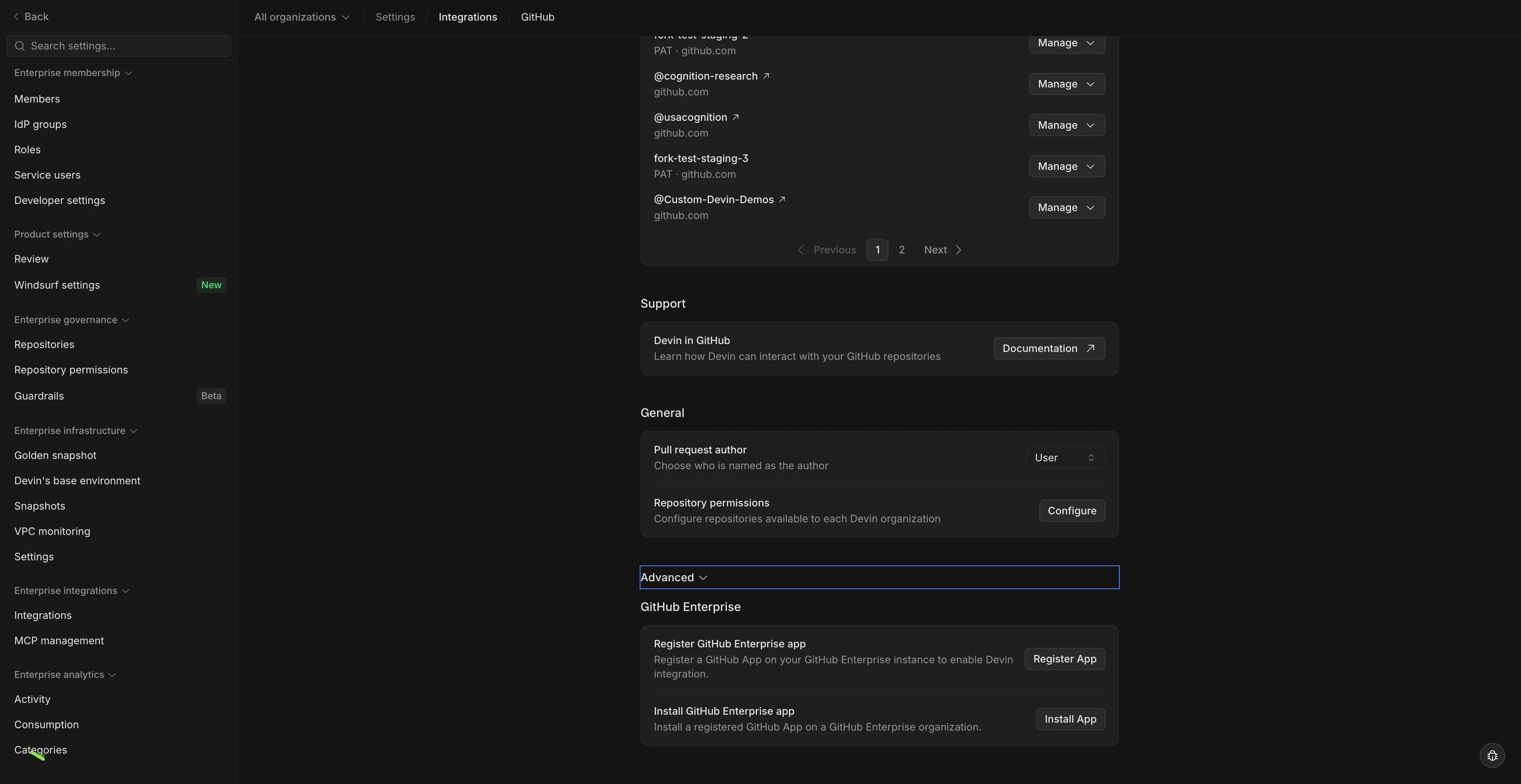
- Click Register App.
- In the modal that appears, enter the hostname of your GHES or GHEC instance and the organization where the App will be registered.
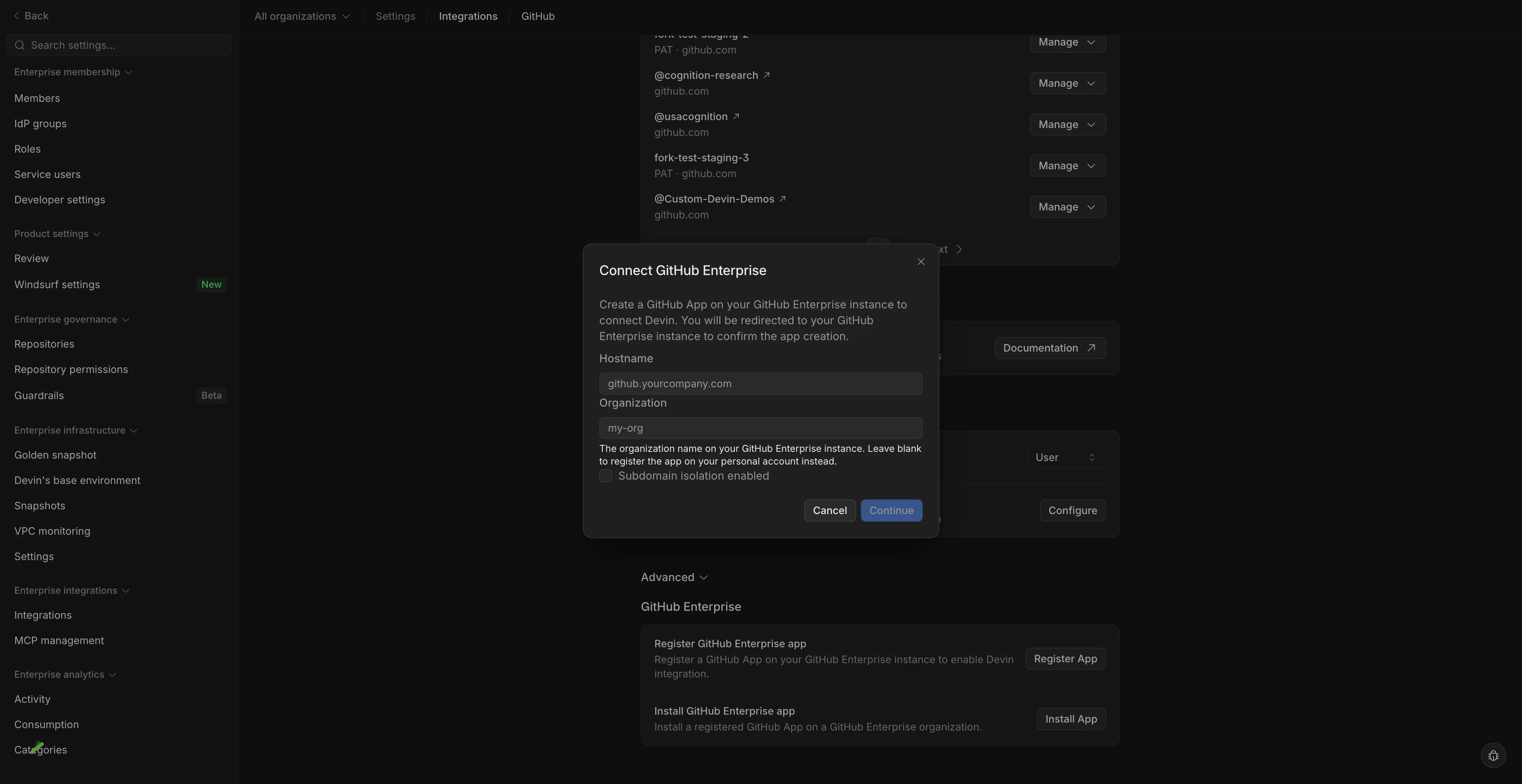
- You will be redirected to GitHub. Click Register App to complete the registration.
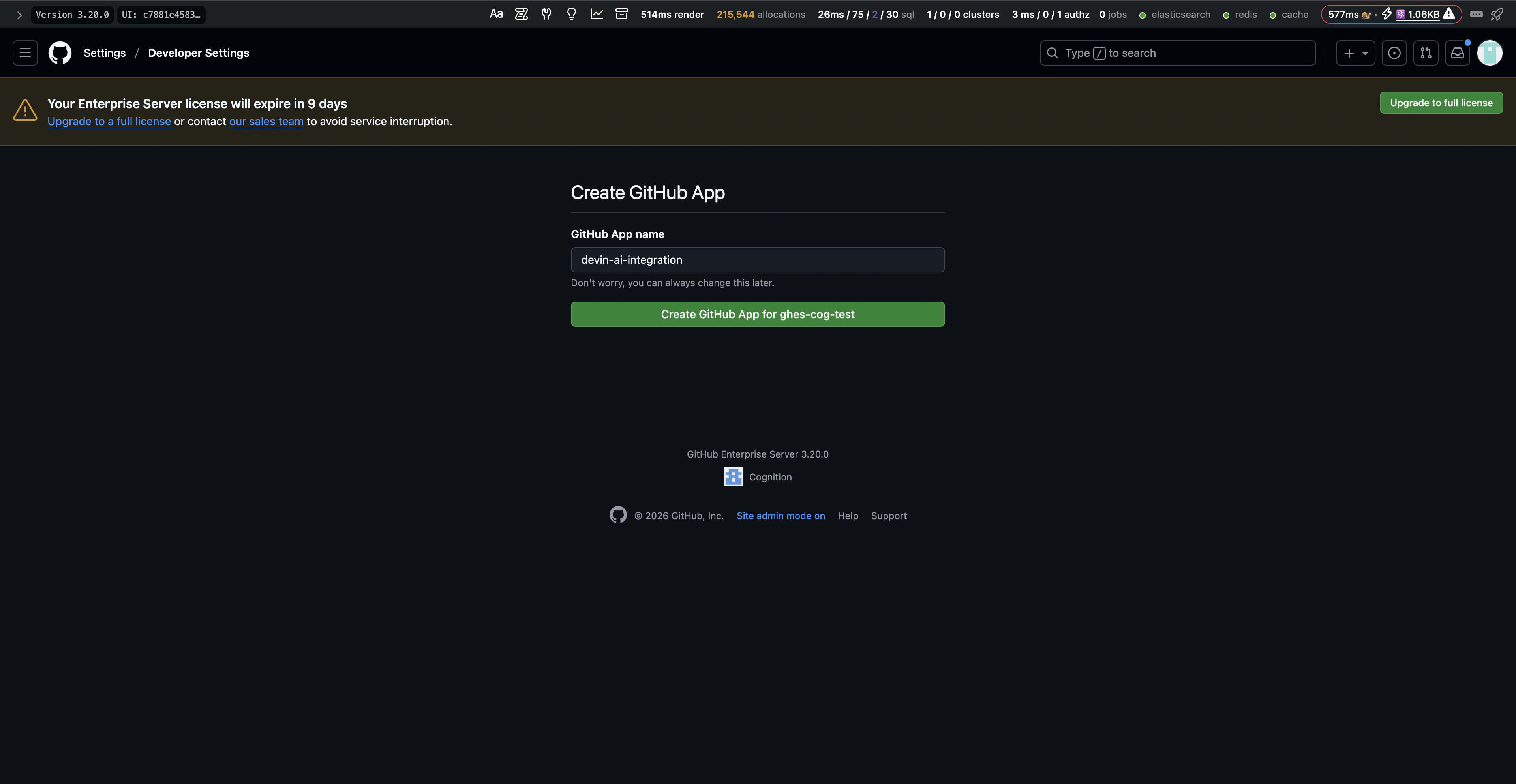
- After being redirected back to Devin, the GitHub App is now registered in your GitHub organization.
Step 2: Configure the GitHub App
After registration, configure the App on your GHES or GHEC instance:- On your GHES or GHEC instance, navigate to the GitHub organization specified during registration.
- Go to Settings → Developer Settings → GitHub Apps and select the Devin App.
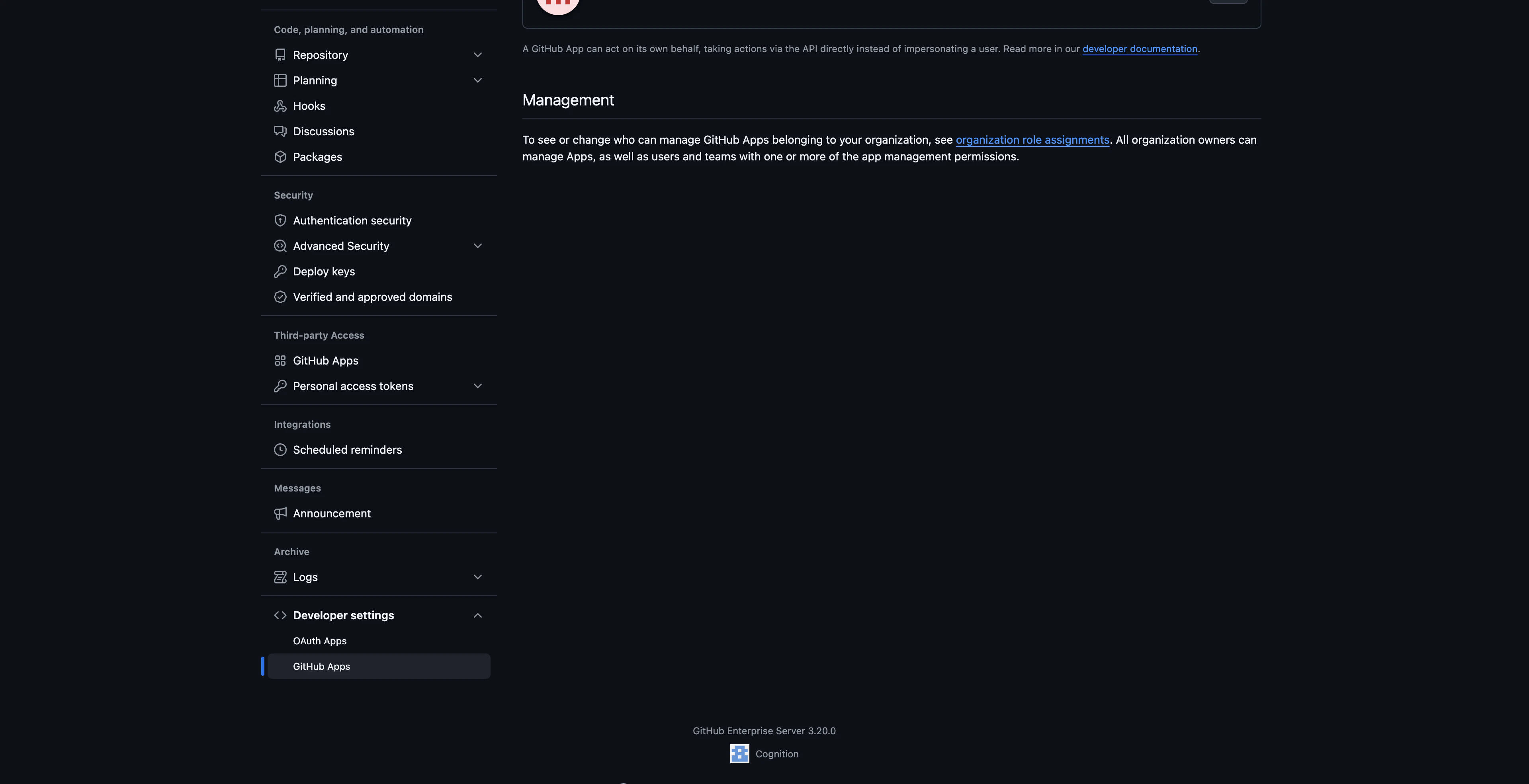
- In the Advanced section, under Danger zone, click Make public. This allows the App to be installed across other organizations on the same instance.
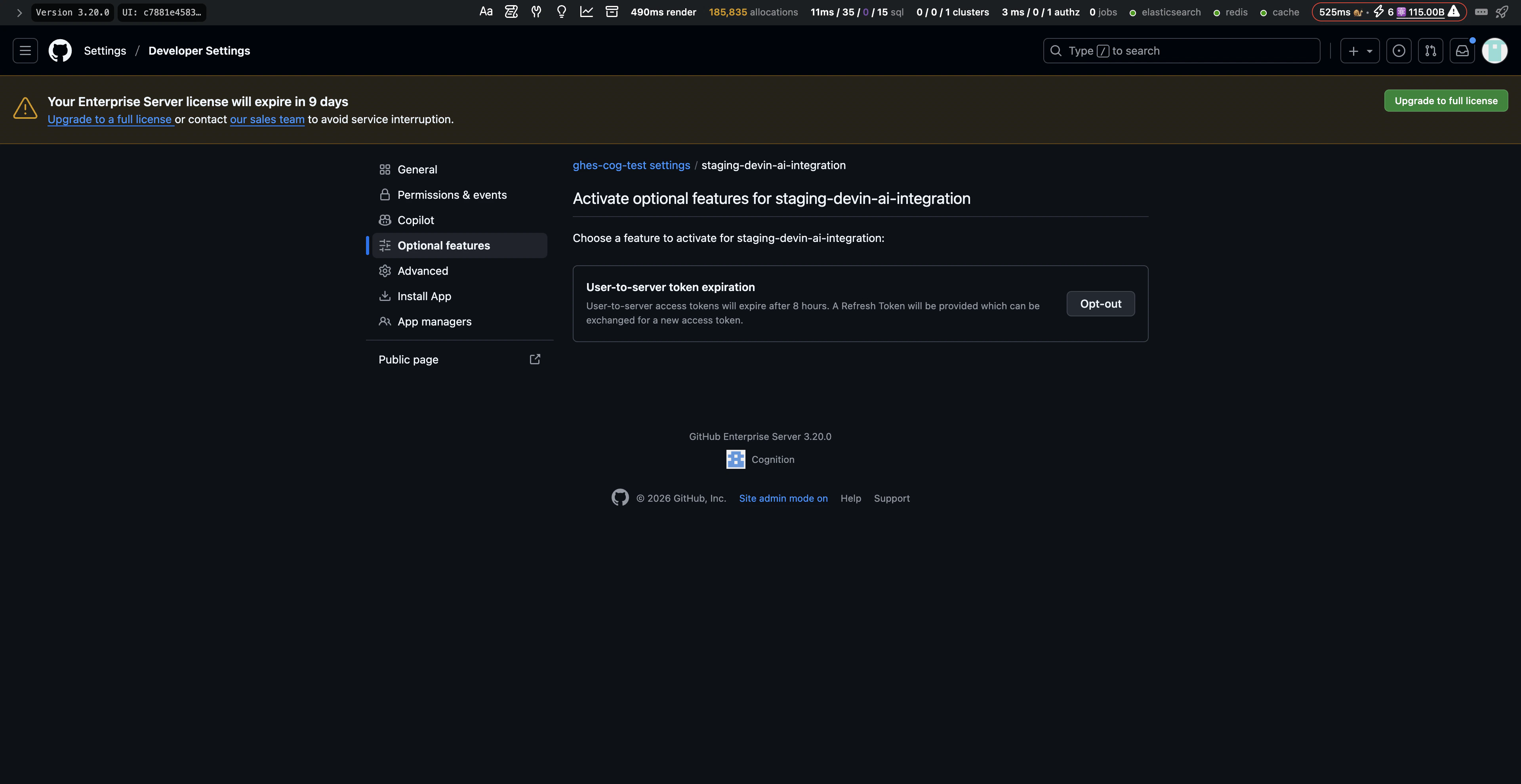
- Navigate to the Optional features section and opt out of User-to-server token expiration. This prevents access tokens from expiring and avoids the need for users to re-authorize the App periodically.
Step 3: Install the GitHub App
- In your Devin account, navigate to Enterprise Settings → Connections → GitHub.
- Open the Advanced tab and click Manage apps.
- In the GitHub Enterprise apps modal, click Install next to the GitHub App registered under your GHES or GHEC instance.
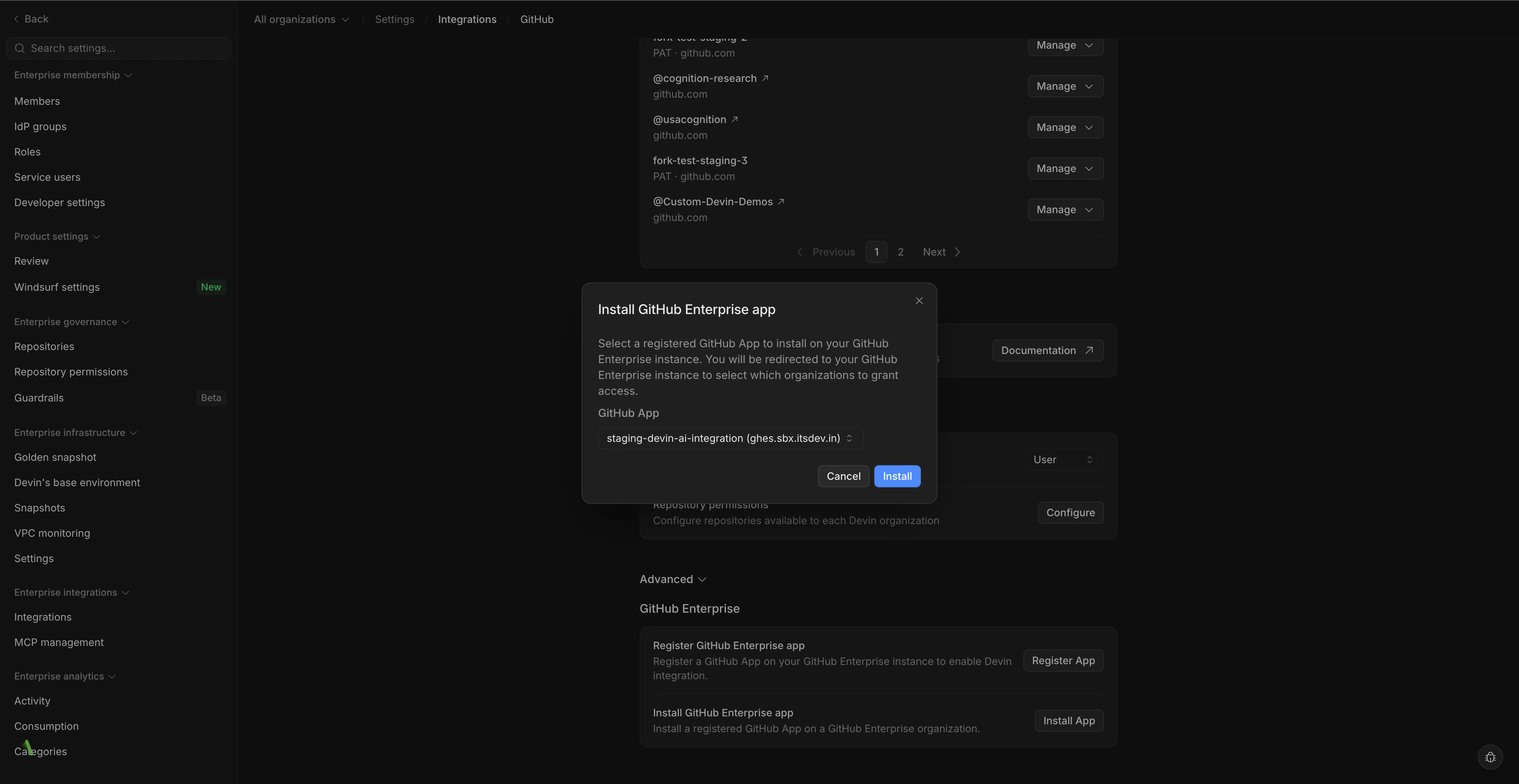
- You will be redirected to GitHub, where you can choose a GitHub organization and select which repositories to grant Devin access to. We recommend granting access to all repositories.
- After completing the installation, you will be redirected back to Devin. A new git connection will appear in Settings → Connections → GitHub.
Troubleshooting
If you encounter issues during the GitHub App registration or installation process, please contact your Cognition representative or reach out to enterprise@cognition.ai.Personal Access Token Setup
Integrating Devin into your GitHub allows Devin to access your repos and create pull requests. This lets Devin be a true collaborator on your engineering team.Create a Service Account for Devin
- Within your GitHub Enterprise, create a new GitHub account for Devin to use. This is important to ensure all of Devin’s access and usage can be properly tracked and managed.
- Add the newly created service account to all relevant GitHub organizations as a Member. Verify that the account has access to all of the repositories that Devin is expected to access.
Generate a Personal Access Token for Devin
- While logged into the service account, click on the profile picture in the upper-right corner, then click Settings.
- In the left sidebar, click Developer settings.
- In the left sidebar, under Personal access tokens, click Fine-grained tokens.
- Click Generate new token.
- Add the Token name and Expiration.
Note: When the token expires, Devin will immediately lose all access to GitHub and a new token will need to be created. - Under Resource owner, select the correct organization.
Common Issue: Organization not showing up
Common Issue: Organization not showing up
If you’re not seeing the correct organization under “Resource owner”, make sure that the enterprise and organization have enabled the use of fine-grained personal access tokens.
Enabling in Enterprise Settings
Only Enterprise Admins will be able to update these settings. Make sure that personal access tokens are also enabled in the specific organization settings.- In the top-right corner of GitHub Enterprise Server, click your profile picture, then click Enterprise settings.
- At the top of the page, click Policies.
- Under Policies, click Personal access tokens.
- Select the Fine-grained tokens tab.
- Under Fine-grained personal access tokens, enable access.
- Click Save.
Enabling in Organization Settings
Only Organization Admins will be able to update these settings. Make sure that personal access tokens are also enabled in the enterprise settings.- In the upper-right corner of GitHub, click your profile picture, then click Organizations.
- Next to the organization, click Settings.
- In the left sidebar, under Personal access tokens, click Settings.
- Select the Fine-grained tokens tab.
- Under Fine-grained personal access tokens, enable access for your organization.
- Click Save.
- Under Repository access, select which repositories you want Devin to work with. Tokens always include read-only access to all public repositories on GitHub.
- Make sure the token has the following permissions which are required for Devin to work properly:
Additional permissions will help Devin better collaborate with your team depending on what work you’re asking Devin to do.
- Click Generate Token and save the token that is displayed.
Note: Admin approval may be needed depending on your GitHub settings. - To validate that the token has all the necessary access and permissions, create and push a test branch on your local machine to a repository in the organization.
- Once the token has been generated and tested, reach out to your Cognition point of contact to finish the setup process. If you are not currently working directly with our team, reach out to enterprise@cognition.ai.
Validating PAT Permissions Locally
Before sharing the token with Cognition, verify that it has the correct permissions by pushing a test branch:Using Devin with the GitHub Integration
Now that GitHub is integrated, you can configure which Devin sub-organizations have access to each repository (see Repository Permissions) Once the integration is set up, you can go to the Devin web application and you are now able to @mention any repository in your prompt! If you are using a repository for the first time, we recommend going through the development environment setup process in the onboarding flow to ensure that Devin has the most accurate and up to date information about working with your codebase.Security Considerations
Some additional information regarding Devin’s permissions in GitHub:- We recommend enabling branch protections on master to ensure checks are enforced before Devin can merge any changes.
- If Devin is connected to your organization’s GitHub account then it will have the same permissions for any user with access to the GitHub and Devin organizations.
- Devin will not mirror the permissions of the user running a session with Devin, it will retain the permissions granted at the org-level.
- Devin cannot create new repos in your GitHub account.