

Enterprise users must manually turn this on via settings
Adding a new MCP plugin
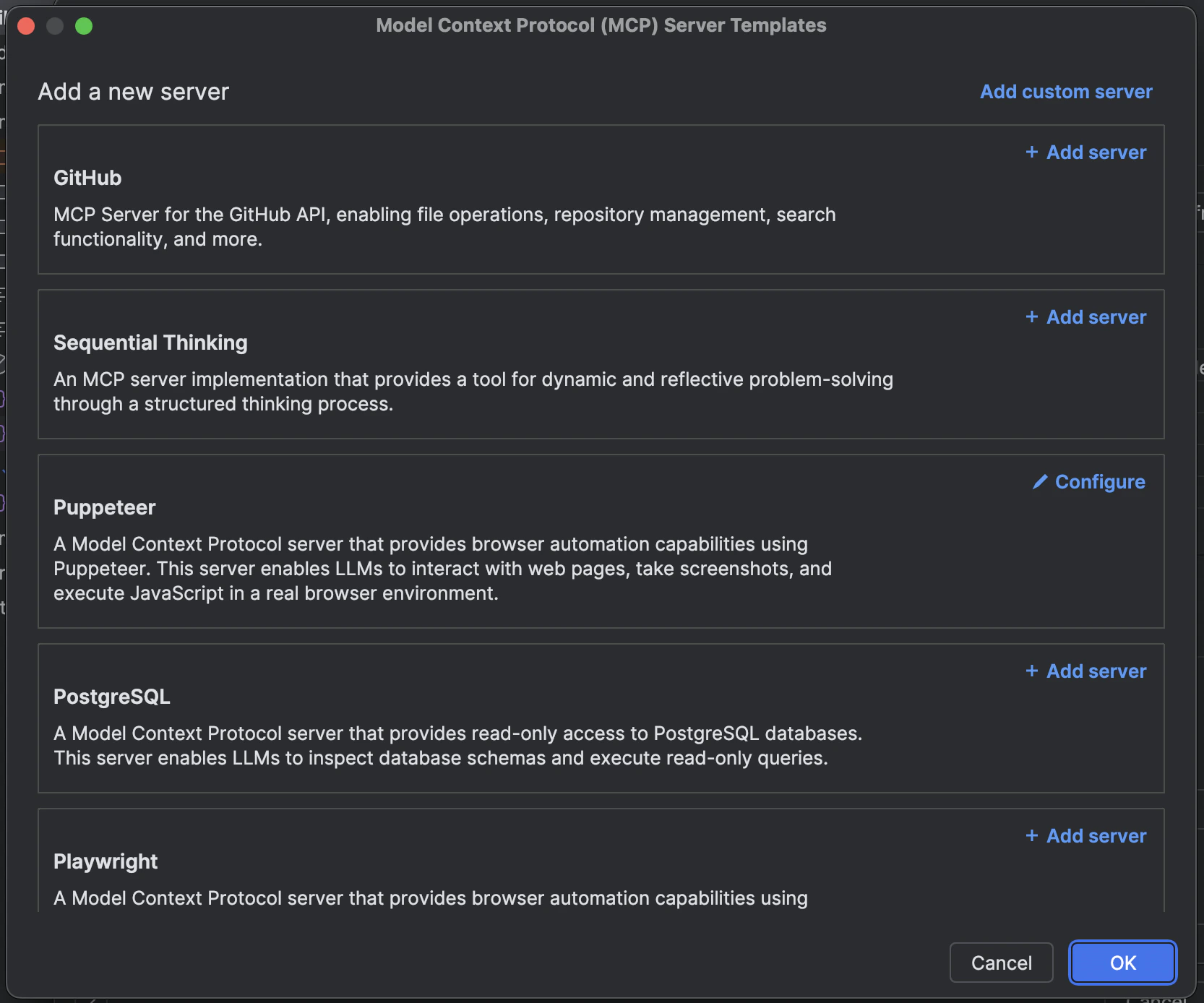
New MCP plugins can be added by going to theSettings > Tools > Windsurf Settings > Add Server section.
To configure an MCP server manually, use Open MCP config file in Cascade’s MCP menu and edit the raw mcp_config.json file it opens.
When you click on an MCP server, simply click + Add Server to expose the server and its tools to Cascade.
stdio, Streamable HTTP, and SSE.
Cascade also supports OAuth for remote servers that use the Streamable HTTP or SSE transport. OAuth is not available for stdio servers; pass their credentials through env or args instead.
For http servers, the URL should reflect that of the endpoint and resemble https://<your-server-url>/mcp.
Make sure to press the refresh button after you add a new MCP plugin.
mcp_config.json
Themcp_config.json file contains a list of servers that Cascade can connect to. Cascade’s Open MCP config file action opens the Cortex-managed file in the Devin configuration directory:
- macOS and Linux:
~/.config/devin/mcp_config.json, or$XDG_CONFIG_HOME/devin/mcp_config.jsonwhenXDG_CONFIG_HOMEis set. - Windows:
%AppData%/devin/mcp_config.jsonby default.
The editor’s MCP discovery uses a separate, build-specific file:
~/.codeium/windsurf/mcp_config.json for stable or ~/.codeium/windsurf-next/mcp_config.json for Next. In editor Settings, search for chat.mcp.discovery.enabled and enable the windsurf source, labeled Devin configurations, to discover servers from that file.To open a discovered server’s file, run MCP: List Servers from the Command Palette, select the server, then choose Show Configuration. This discovery setting does not change the Cortex-managed file opened by Cascade’s Open MCP config file action.Remote HTTP MCPs
It’s important to note that for remote HTTP MCPs, the configuration is slightly different and requires aserverUrl or url field.
Here’s an example configuration for an HTTP server:
Config Interpolation
Cascade’s Cortex-managedmcp_config.json file (by default ~/.config/devin/mcp_config.json on macOS and Linux) handles interpolation of
environment variables in these fields: command, args, env, serverUrl, url, and
headers.
Here’s an example configuration, which uses an AUTH_TOKEN environment variable
in headers.
Admin Controls (Teams & Enterprises)
Team admins can toggle MCP access for their team, as well as allowlist approved MCP servers for their team to use:MCP Team Settings
Configurable MCP settings for your team.
How Server Matching Works
When you allowlist an MCP server, the system uses regex pattern matching with the following rules:- Full String Matching: All patterns are automatically anchored (wrapped with
^(?:pattern)$) to prevent partial matches - Command Field: Must match exactly or according to your regex pattern
- Arguments Array: Each argument is matched individually against its corresponding pattern
- Array Length: The number of arguments must match exactly between allowlist and user config
- Special Characters: Characters like
$,.,[,],(,)have special regex meaning and should be escaped with\if you want literal matching
Configuration Options
Option 1: Plugin Store Default (Recommended)
Leave the Server Config (JSON) field empty to allow the default configuration from the Windsurf MCP Plugin Store.
Option 1: Plugin Store Default (Recommended)
Leave the Server Config (JSON) field empty to allow the default configuration from the Windsurf MCP Plugin Store.
Admin Allowlist Configuration:Matching User Config (This allows users to install the GitHub MCP server with any valid configuration, as long as the server ID matches the plugin store entry.
- Server ID:
github-mcp-server - Server Config (JSON): (leave empty)
mcp_config.json):Option 2: Exact Match Configuration
Provide the exact configuration that users must use. Users must match this configuration exactly.
Option 2: Exact Match Configuration
Provide the exact configuration that users must use. Users must match this configuration exactly.
Admin Allowlist Configuration:Matching User Config (Users must use this exact configuration - any deviation in command or args will be blocked. The
- Server ID:
github-mcp-server - Server Config (JSON):
mcp_config.json):env section can have different values.Option 3: Flexible Regex Patterns
Use regex patterns to allow variations in user configurations while maintaining security controls.
Option 3: Flexible Regex Patterns
Use regex patterns to allow variations in user configurations while maintaining security controls.
Admin Allowlist Configuration:Matching User Config (This example allows users flexibility while maintaining security:
- Server ID:
python-mcp-server - Server Config (JSON):
mcp_config.json):- The regex
/.*\\.pymatches any Python file path like/home/user/my_server.py - The regex
[0-9]+matches any numeric port like8080or3000 - Users can customize file paths and ports while admins ensure only Python scripts are executed
Common Regex Patterns
Notes
Admin Configuration Guidelines
- Environment Variables: The
envsection is not regex-matched and can be configured freely by users - Disabled Tools: The
disabledToolsarray is handled separately and not part of allowlist matching - Case Sensitivity: All matching is case-sensitive
- Error Handling: Invalid regex patterns will be logged and result in access denial
- Testing: Test your regex patterns carefully - overly restrictive patterns may block legitimate use cases
Troubleshooting
If users report that their MCP servers aren’t working after allowlisting:- Check Exact Matching: Ensure the allowlist pattern exactly matches the user’s configuration
- Verify Regex Escaping: Special characters may need escaping (e.g.,
\.for literal dots) - Review Logs: Invalid regex patterns are logged with warnings
- Test Patterns: Use a regex tester to verify your patterns work as expected