

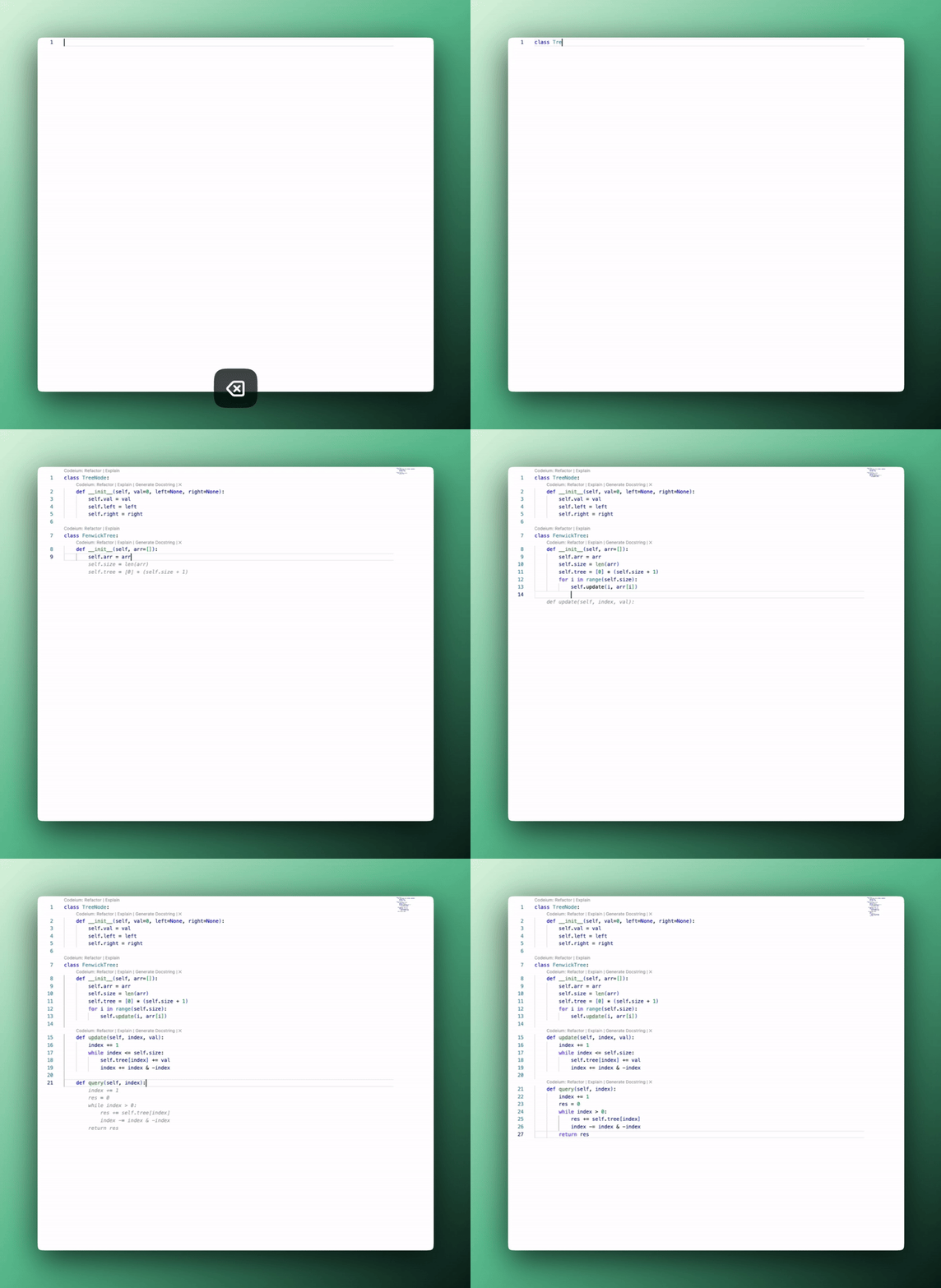
esc to cancel a suggestion.
Suggestions will also disappear if you continue typing or navigating without accepting them.
Keyboard Shortcuts
General Shortcuts
Here are the general shortcuts that apply for macOS. Replace⌘ with Ctrl and ⌥ with Alt to get the corresponding shortcuts on Windows/Linux.
- Accept suggestion:
⇥ - Cancel suggestion:
esc - Accept suggestion word-by-word:
⌘+→(VS Code),⌥+⇧+\(JetBrains) - Next/previous suggestion:
⌥+]/⌥+[ - Trigger suggestion:
⌥+\
JetBrains Shortcuts - 2.2.2 (stable) and 2.3.5 (pre-release) and later
- macOS
- Windows/Linux
- Accept suggestion:
⇥ - Accept next word:
⌥→ - Accept current line:
⌘→ - Trigger suggestion:
⌥\
You can customize these keyboard shortcuts by
- Hover over any completion text and select “Custom” from the dropdown.
- Navigate to Settings > Keymap > Main Menu > Code > Code Completion.
Settings
Configure completions in the Devin Tab section of Devin Desktop settings:- Completion mode: choose Supercomplete (edit suggestions near your cursor), Autocomplete (standard inline completions), or Off to disable all code completions.
- Aggression: shown only when the completion mode is Supercomplete. Choose Low, Medium, or High to control how proactively Supercomplete suggests edits.