

General FAQ
I subscribed to Pro so why am I stuck on the Free tier?
I subscribed to Pro so why am I stuck on the Free tier?
First, give it a few minutes to update. If that doesn’t work, try logging out of Devin Desktop on the website, restarting your IDE, and logging back into Devin Desktop. Additionally, please make sure you have the latest version of Devin Desktop installed.
How do I cancel my Pro/Teams subscription?
How do I cancel my Pro/Teams subscription?
You can cancel your paid plan by going to your Profile by clicking your icon on the top right of the Devin Desktop website.To cancel your Pro subscription, navigate to the
Billing page in the navigation panel on the left and click “Cancel Plan”.To cancel your Teams subscription, navigate to the Manage Team page in the navigation panel on the left and click “Cancel Plan”.How do I disable code snippet telemetry?
How do I disable code snippet telemetry?
As mentioned on our security page, you can opt out of code snippet telemetry by going to your account settings. For more information, please visit our Terms of Service.
How do I delete my account?
How do I delete my account?
Reach out to support to delete your account.
How do I request a feature?
How do I request a feature?
You can share feature requests and feedback through our community channels:
Reddit, Discord, or Twitter/X.You can also reach out to us via our support platform.
I’m experiencing rate limiting issues
We’re subject to rate limits and unfortunately sometimes hit capacity for the premium models we work with. We are actively working on getting these limits increased and fairly distributing the capacity that we have! This should not be an issue forever. If you get this error, please wait a few moments and try again.Pylance or Pyright isn’t working / Python syntax highlighting is broken or subpar
We’ve gone ahead and developed a Pyright extension specifically for Devin Desktop. Please search for “Windsurf Pyright” or paste@id:codeium.windsurfPyright into the extension search.
How do I download Diagnostic logs to send to the Devin Desktop support team?
You can download diagnostic logs by going to your Cascade Panel, tapping the three dots in the top right corner, and then clicking “Download Diagnostics”.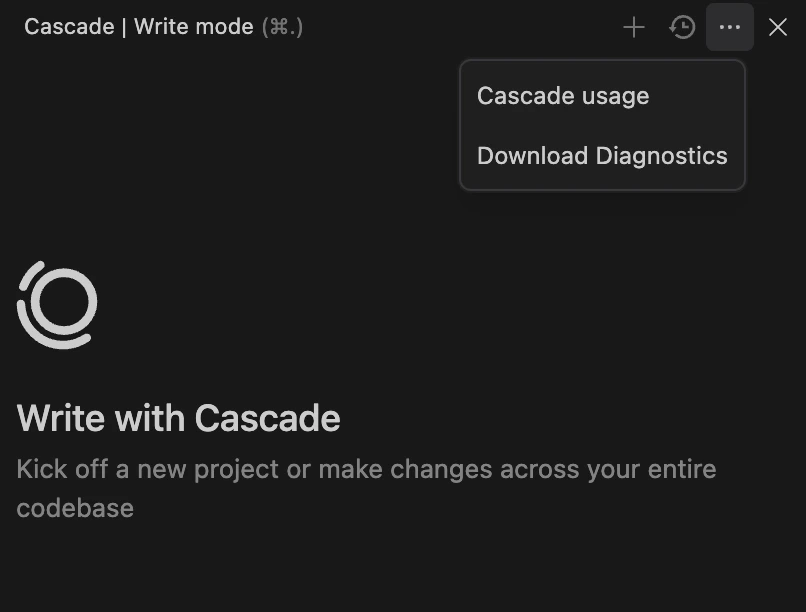
On MacOS, I see a pop-up: ‘Devin Desktop’ is damaged and cannot be opened.
This pop-up is due to a false positive in MacOS security features. You can usually resolve this by going to “System Settings -> Privacy & Security” and clicking “Allow” or “Open anyway” for Devin Desktop. If this fails or is not possible, try the following steps:- Ensure that Devin Desktop is placed under your
/Applicationsfolder and that you are running it from there. - Check your processor type: if your Mac has an Intel chip, make sure you have the Intel version. If it’s Apple Silicon (like M1, M2 or M3), make sure you have the Apple Silicon version. You can select the processor type from the Mac download page.
- Try redownloading the DMG and reinstalling from the official download page, as the failing security feature is usually triggered on download.
- Make sure Devin Desktop (and the “Devin Desktop is Damaged” pop-up) is closed, and run
xattr -c "/Applications/Devin.app/".
I received an error message about updates on Windows, or updates are not appearing on Windows.
For example:Updates are disabled because you are running the user-scope installation of Devin Desktop as Administrator.We cannot auto-update Devin Desktop when it is run as Administrator. Please re-run Devin Desktop with User scope to update.
On macOS, Remote SSH fails with “Undefined error: 0” but SSH works from Terminal
If Remote SSH in Devin Desktop fails immediately while the same SSH connection works from Terminal, VS Code, or other applications, this is usually caused by macOS blocking Devin Desktop’s local network access. In the Remote - SSH output log (View → Output → Remote - SSH), you will see:SSH server closed unexpectedly. Error code: 255.
The Undefined error: 0 message (rather than “Connection refused” or “Network unreachable”) is the key indicator — this is the error macOS returns when an application is not granted Local Network permission under Privacy & Security.
To fix this:
- Open System Settings → Privacy & Security → Local Network.
- Find Devin Desktop in the list and enable the toggle.
- Restart Devin Desktop and retry the connection.
What domains should I allowlist for network filters/firewalls, VPNs, or proxies?
If you’re using any network filtering, firewalls, VPN services, or working in environments with restricted network access, you may experience connectivity issues with Devin Desktop. To ensure smooth operation, please allowlist the following domains in your network configuration: For all customers, Devin Desktop requires (backend domains):.codeiumdata.comupdate.windsurf.com.windsurf.com.codeium.com.googleapis.com(authentication)apis.google.com(authentication)static.devin.ai
app.devin.ai(webapp, session URLs, and resource downloads)api.devin.ai(API backend and the ACP live WebSocket)
.devin.ai covers both. Cognition Platform customers on a devinenterprise.com domain should allowlist the equivalent hosts (or .devinenterprise.com).
User-accessible domains (changelog, documentation, and support):
docs.devin.aiordocs.devinenterprise.com(changelog and documentation, after June 2, 2026)decagon.ai(support)
On Linux, Devin Desktop quietly doesn’t launch, or crashes on launch
This is usually due to an Electron permissions issue, which VSCode also has, and is expected when using the tarball on Linux. The easiest way to fix it is to run the following:devin-desktop with the flag --no-sandbox, though we don’t encourage this.
If this fails, then try the below.
I received an error message saying ‘Devin Desktop failed to start’
Delete the following folder: Windows:C:\Users\<YOUR_USERNAME>\.codeium\windsurf\cascade
Linux/Mac: ~/.codeium/windsurf/cascade
and try restarting the IDE.
My Cascade panel goes blank
Please reach out to us if this happens! A screen recording would be much appreciated. This can often be solved by clearing your chat history (~/.codeium/windsurf/cascade).
Terminal session appears stuck in Cascade
If a terminal command has finished running in the terminal but Cascade still shows the session as in progress or stuck, this can be caused by several issues: Default terminal profile not set This may be caused by the default terminal profile not being explicitly set. To resolve this, you can set the default terminal profile in your Editor settings. Open the Settings UI (Cmd/Ctrl + ,), search for “terminal default profile”, and set the appropriate value for your operating system. Alternatively, you can add the following to yoursettings.json:
For macOS:
bash, zsh, PowerShell, Command Prompt, etc.).
Customized zsh themes
In some cases, a heavily customized zsh theme (for example, themes from Oh My Zsh, Powerlevel10k, or other prompt frameworks) can also cause Cascade to think a command is still running even after it finishes. To check if this is the issue:
- Open your
~/.zshrcfile in a text editor. - Temporarily disable your theme by commenting out lines that set or load it, such as
ZSH_THEME="...",source ~/.p10k.zsh, oreval "$(oh-my-posh init zsh)". - Save the file, restart Devin Desktop (or open a new terminal in Devin Desktop), and run a command again.
~/.zshrc, or create a separate, minimal zsh configuration used only by the Devin Desktop terminal so your other terminals can continue using the more complex theme.
Systemd terminal context tracking (Linux)
On some newer Linux distributions (reported on Fedora 43 and later), the shell startup chain (~/.bashrc → /etc/bashrc → /etc/profile.d/80-systemd-osc-context.sh) can enable systemd “terminal context tracking,” which emits OSC 3008 escape sequences via PS0 or PROMPT_COMMAND. These extra control sequences can interfere with Cascade’s output parsing, causing a command to appear stuck or resulting in captured output that looks missing or truncated—even though the terminal displays it correctly.
To work around this issue, prevent the OSC context sequences from being emitted in the Cascade terminal by not sourcing /etc/bashrc from your ~/.bashrc, or by creating a minimal shell configuration file used only for Devin Desktop/Cascade.