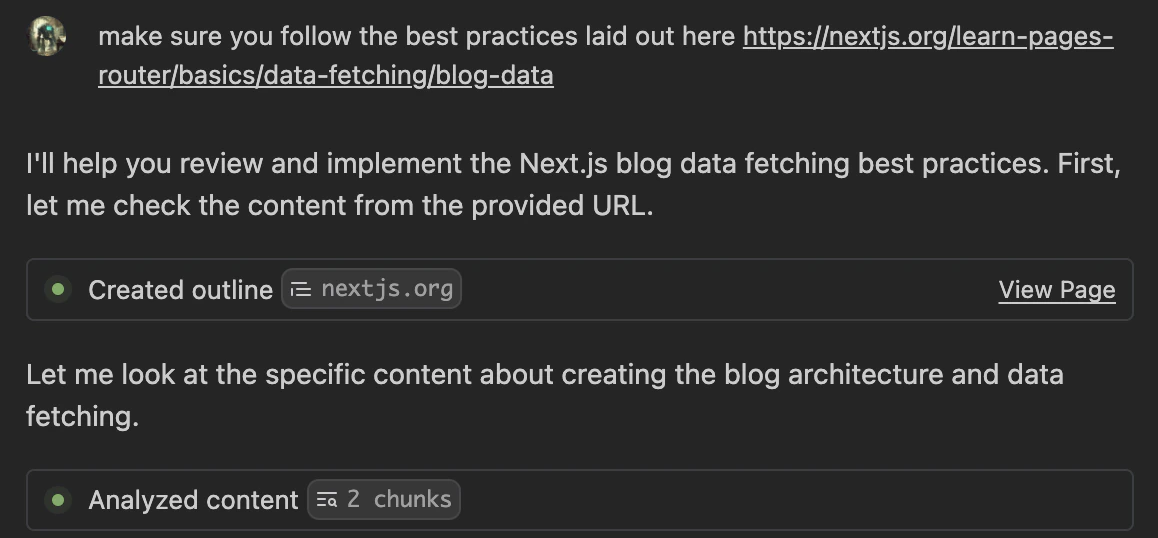
Overview
To help you better understand how Web Search works, we’ve recorded a short video covering the key concepts and best practices.Quick Start
The fastest way to get started is to activate web search in your Devin Settings in the bottom right corner of the editor. You can activate it a couple of different ways:- Ask a question that probably needs the Internet (i.e., “What’s new in the latest version of React?”).
- Use
@webto force a web search. - Use
@docsto query over a list of docs that we are confident we can read with high quality. - Paste a URL into your message.
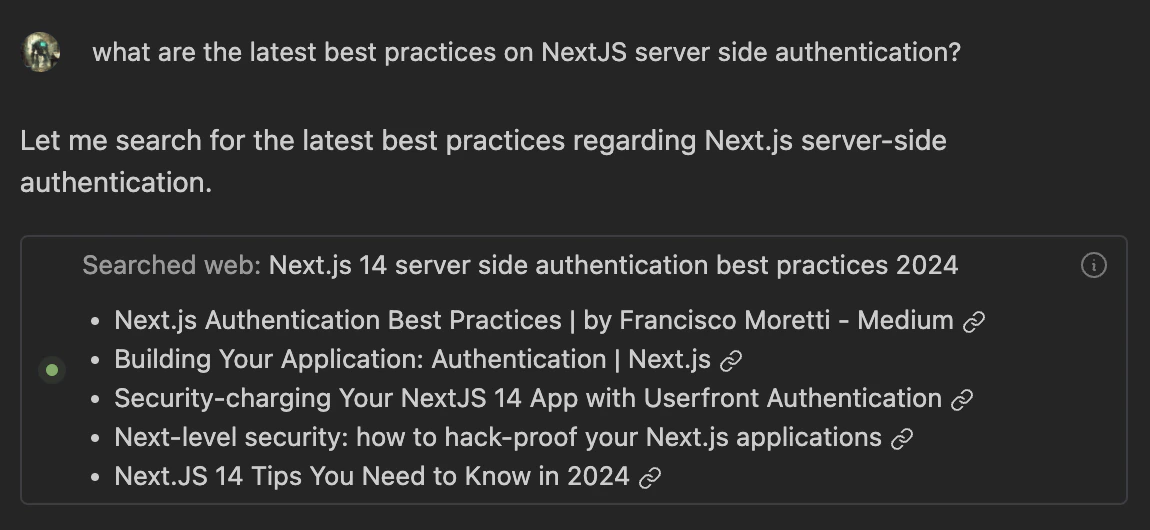
Search the web
Cascade can deduce that certain prompts from the user may require a real-time web search to provide the optimal response. In these cases, Cascade will perform a web search and provide the results to the user. This can happen automatically or manually using the@web mention.
The Enable Web Search admin setting controls Cascade’s web tools for your team. When it is disabled:
- Cascade cannot perform web searches on the open Internet. The web search tool is removed from Cascade’s requests server-side, so it cannot be re-enabled by individual users.
- Cascade can still read specific URLs (see Reading Pages below), but every page read requires manual approval. The Always allow this page and Allow all requests options are unavailable, and users’ auto-approval settings for web requests are ignored.
Reading Pages
Cascade can read individual pages for things like documentation, blog posts, and GitHub files. The page reads happen entirely on your device within your network so if you’re using a VPN you shouldn’t have any problems. Pages are picked up either from web search results, inferred based on the conversation, or from URLs pasted directly into your message. We break pages up into multiple chunks, very similar to how a human would read a page: for a long page we skim to the section we want then read the text that’s relevant. This is how Cascade operates as well.