

You can switch between different modes using the mode selector below the input box, or by using the keyboard shortcut
⌘+. (Mac) or Ctrl+. (Windows/Linux). The selector also offers permission modes, which control how much the agent asks before acting — see Permissions.
Code Mode
Code mode is Devin Desktop’s default fully agentic mode, designed for making changes to your codebase. In Code mode, the agent can:- Create, edit, and delete files
- Run terminal commands
- Search and analyze your codebase
- Install dependencies
- Execute multi-step tasks autonomously
Plan Mode
Plan mode helps you think through complex tasks by developing a detailed implementation plan before writing any code. In Plan mode, the agent will:- Explore your codebase to understand the current state
- Ask clarifying questions to ensure the plan aligns with your goals
- Provide multiple options for you to choose from with an interactive interface
- Present a detailed plan, written in an external Markdown file, with implementation steps
Planning more deeply
Including the keywordmegaplan, ultraplan, or masterplan anywhere in your message switches the conversation into Plan mode and makes the agent plan more extensively, asking at least one clarifying question before it writes the plan. The previous mode is restored once you remove the keyword.
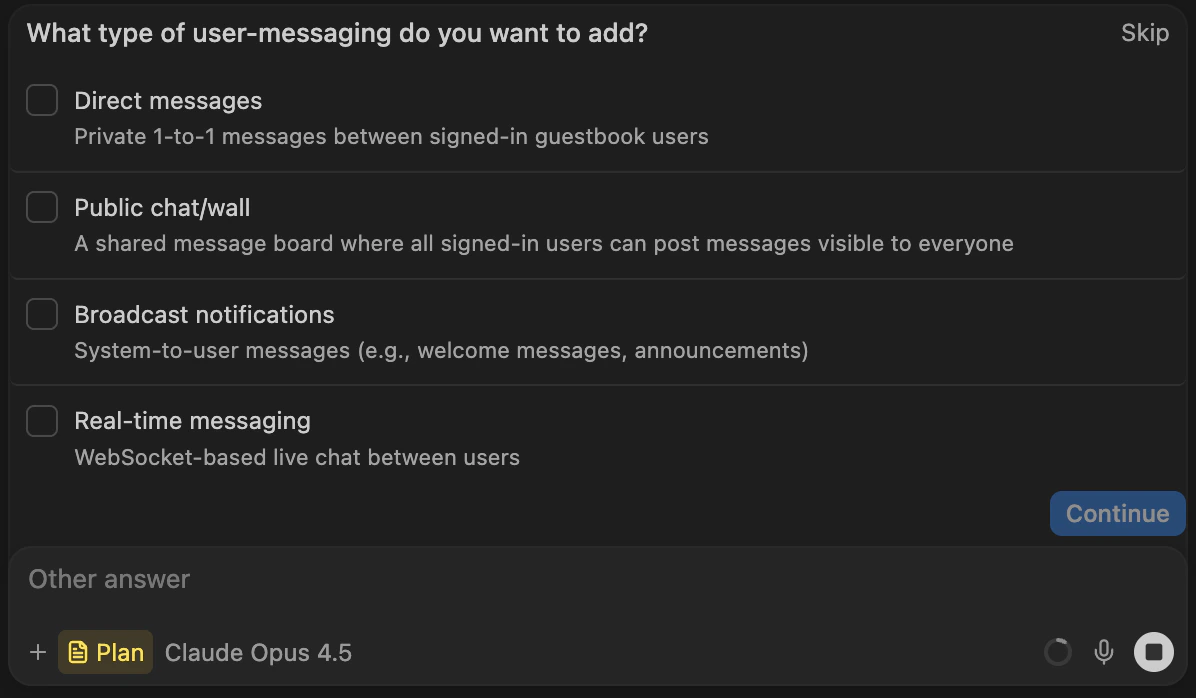
In plan mode, Cascade often asks multiple choice questions to clarify your requirements
Continuing from a plan
The markdown file created in plan mode can be particularly useful for continuing work across multiple sessions. Plans are stored in your~/.windsurf/plans or ~/.devin/plans directory, depending on the agent, and are available in the @mentions menu.
By mentioning a plan file, you can continue implementation with a fresh context.
This can be particularly useful when an initial implementation went awry: just discard the original changes, tweak the plan file, and click “Implement” to attempt implementation again in a new conversation.
Exiting plan mode
There are multiple different ways to move from planning to implementation:- Click the “Implement” button on the plan file
- Approve the agent’s request to leave Plan mode once the plan is ready
- Change your mode to Code mode in the input box
- Let the agent automatically switch to Code mode when it detects that you’re ready to implement