> ## Documentation Index
> Fetch the complete documentation index at: https://docs.devin.ai/llms.txt
> Use this file to discover all available pages before exploring further.
# 2024
**Devin 现已全面开放!**:
查看我们在 [X 上的公告](https://x.com/cognition_labs/status/1866535303911182771)。所有工程团队现在都可以 @Devin 来修复前端 bug、为积压任务创建首版拉取请求 (PR) 、进行重构等。订阅起价为每月 500 美元,包含:
* 无限席位——Devin 专为工程团队打造
* 访问 Devin 的 API、Slack 集成以及 IDE 扩展
* 上线培训会以及来自 Cognition 工程团队的直接支持
**Devin 现在更快、成本更低**:
在过去两周中,我们让 Devin 的速度提升了约 10%,成本也降低了约 10%,尤其是对那些需要 Devin 进行大量代码编辑的任务。这意味着完成同样的任务将消耗更少的算力单元 (ACUs)。
**修复导致 Devin 崩溃、卡死和挂起的问题**:
如果你发现 Devin 卡在同一个操作上,或无法休眠/唤醒,请通过 Slack Connect 或 [support@cognition.ai](mailto:support@cognition.ai) 告诉我们。这类问题不应该再发生,如果发生了,我们很乐意为你退还相应的算力单元配额!
**更多自定义 Devin 的选项**:
默认情况下,你侧边栏中的会话会过滤为你发起的未归档会话。你可以点击“Search sessions”旁边的筛选图标,在筛选列表底部点击“Save as Default”来更改默认筛选条件。
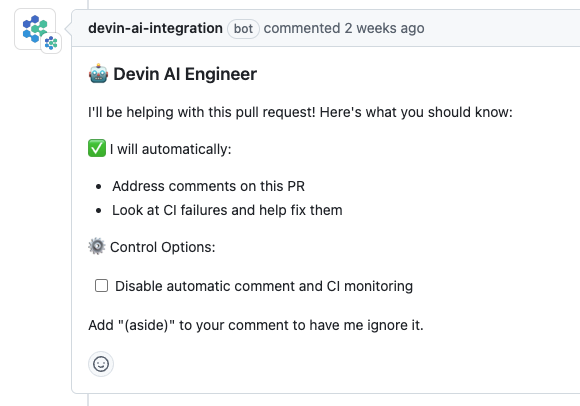
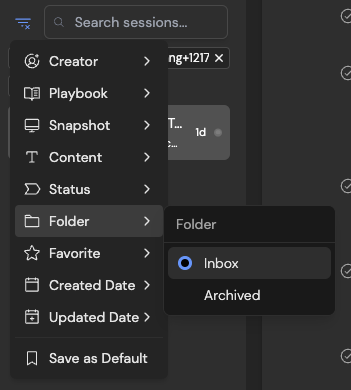 默认情况下,Devin 会自动响应 PR 评论和 CI 失败。你可以在 Devin 的 PR 评论中的 "Control Options" 区域修改这一行为。
 始终接收来自 Devin 的 Slack 通知,即使你是从 Web 应用中发起会话。可以在 Settings > Profile 中开启 Slack 通知。
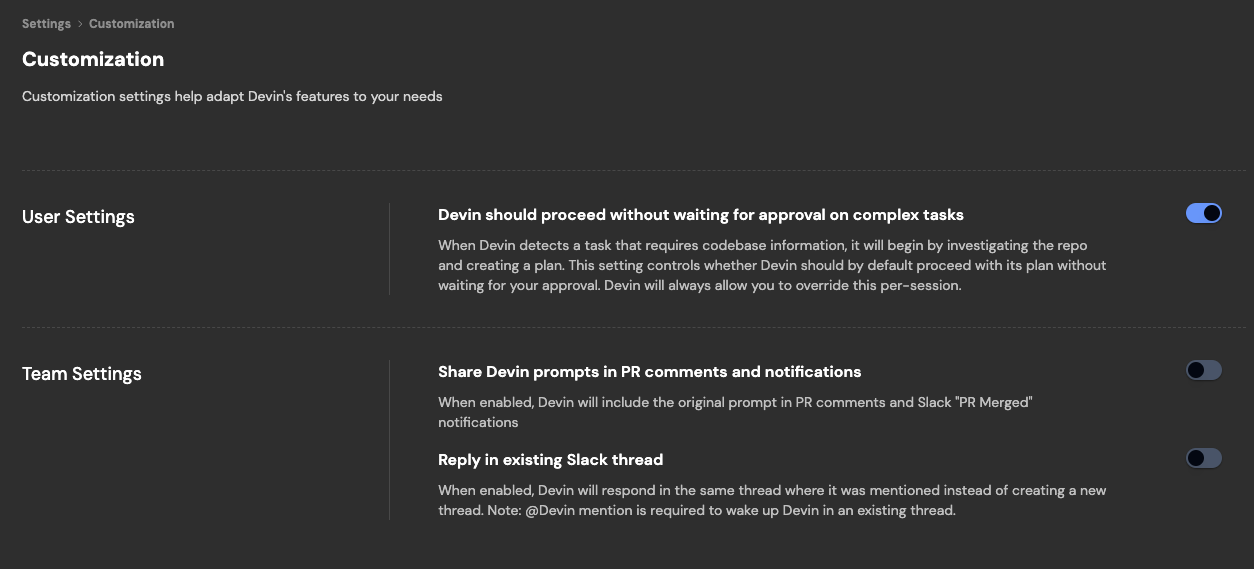
在 Settings > Customization 中自定义 Devin 会话是在现有 Slack 线程中继续还是开启新的 Slack 线程、Devin 是否需要等待你批准其计划等。
始终接收来自 Devin 的 Slack 通知,即使你是从 Web 应用中发起会话。可以在 Settings > Profile 中开启 Slack 通知。
在 Settings > Customization 中自定义 Devin 会话是在现有 Slack 线程中继续还是开启新的 Slack 线程、Devin 是否需要等待你批准其计划等。
 Devin 可以就其在 GitHub 上的活动发送 Slack 更新。可以在 Settings > Integrations 中配置这些更新发送到的频道。
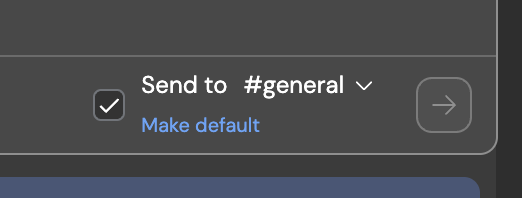
将你在 Web 应用中发起的 Devin 会话分享至 Slack。你现在还可以更改默认频道。
Devin 可以就其在 GitHub 上的活动发送 Slack 更新。可以在 Settings > Integrations 中配置这些更新发送到的频道。
将你在 Web 应用中发起的 Devin 会话分享至 Slack。你现在还可以更改默认频道。
 **配置并监控 Devin 的机器**:
如果你需要增大 Devin 的机器规格 (磁盘空间、内存、CPU) ,我们在 Settings > Devin 的工作区 > Danger Zone 中新增了更多选项。
**配置并监控 Devin 的机器**:
如果你需要增大 Devin 的机器规格 (磁盘空间、内存、CPU) ,我们在 Settings > Devin 的工作区 > Danger Zone 中新增了更多选项。
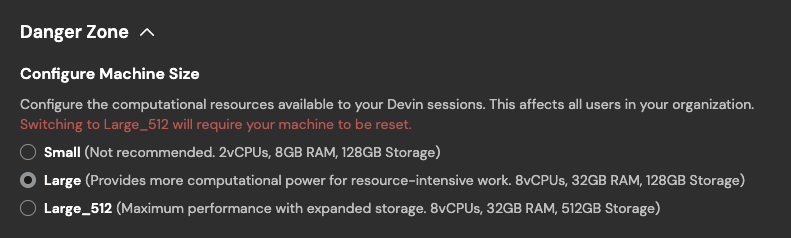 在会话过程中,你随时可以在会话页面右上角监控 Devin 的机器资源使用情况。
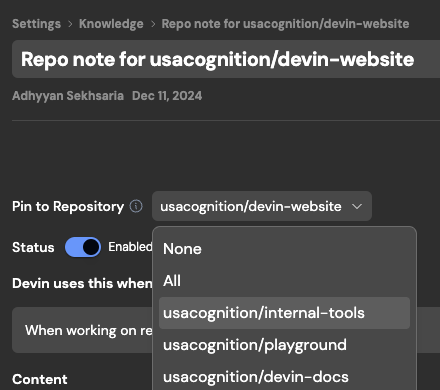
 **置顶和自动更新的 Knowledge**:
在代码仓库中 Devin 应始终记住的 Knowledge 内容现在可以被置顶。
**置顶和自动更新的 Knowledge**:
在代码仓库中 Devin 应始终记住的 Knowledge 内容现在可以被置顶。
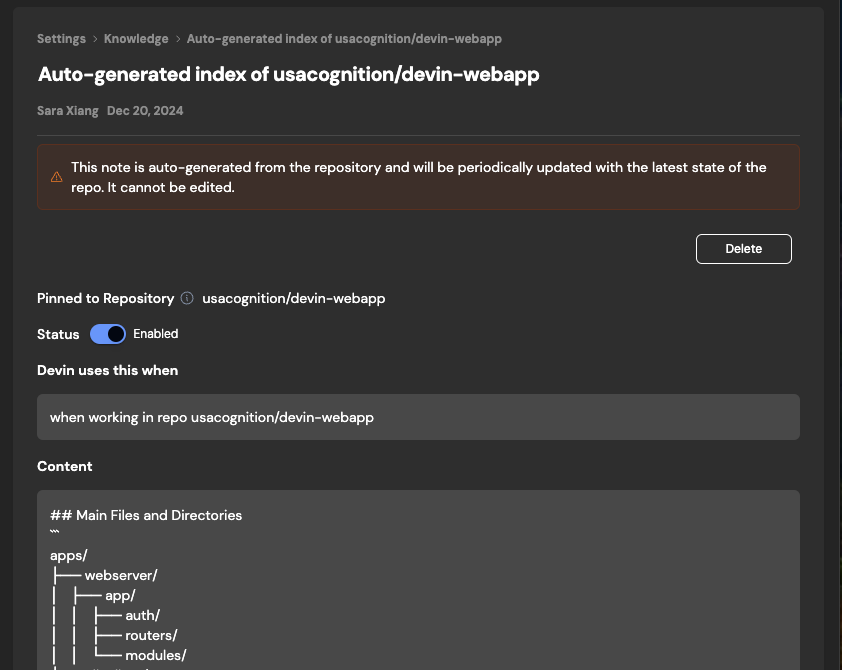
 Devin 还会自动生成并自动更新其关于仓库结构和组件的自有 Knowledge。可以在 Knowledge > Repo Knowledge 下找到自动生成的笔记。
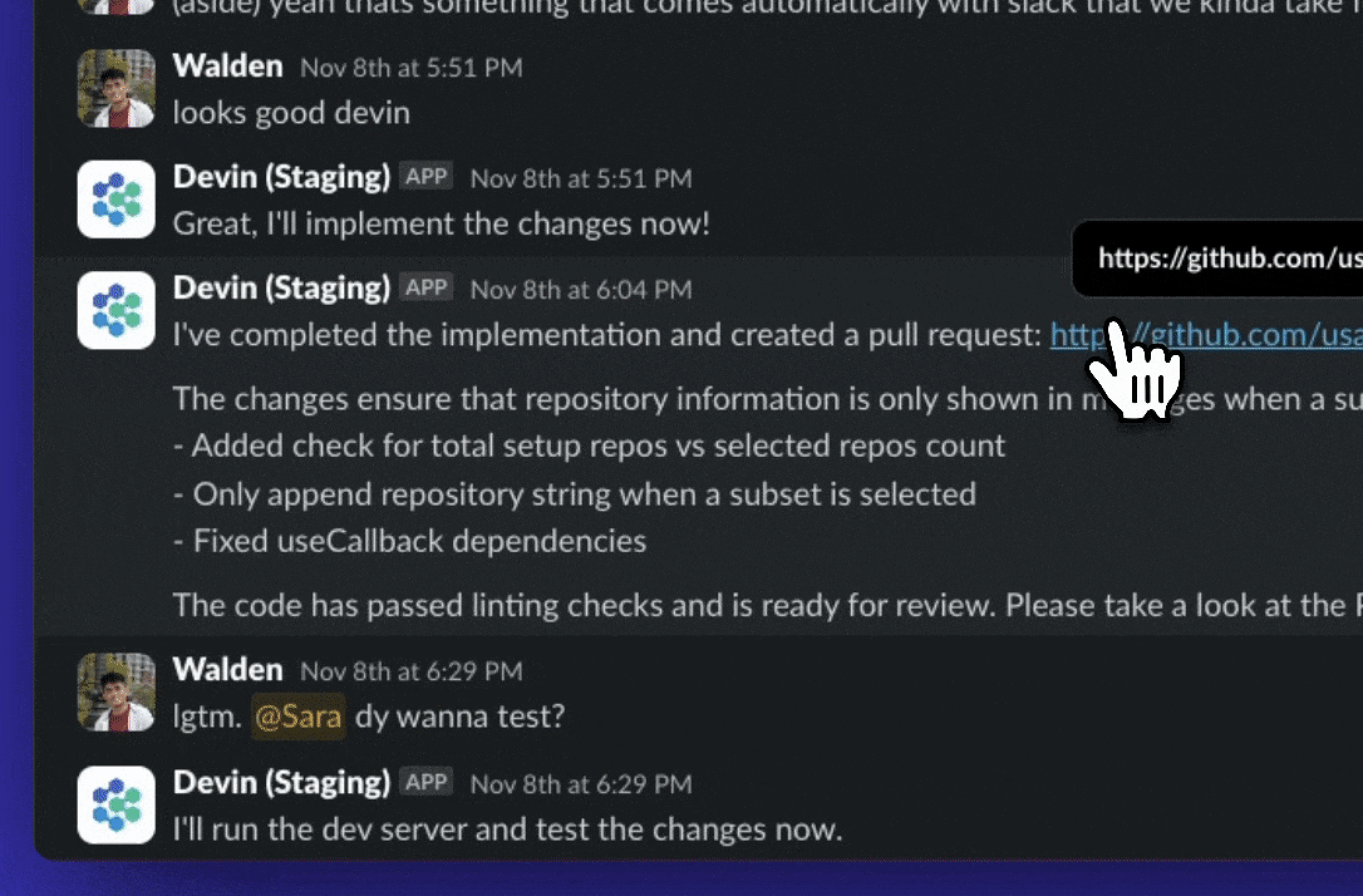
 **像对待人类队友一样,把 Devin 加入对话中**:
在 Slack 上的 bug 报告和功能请求中直接 @Devin:
* Devin 会自动获取上下文
* 可以在手机上给 Devin 发送消息
* 所有 Slack 会话也会链接到一个 Web 应用会话
我们近期对 Slack 集成做出的改进:
* 说 "sleep" 让 Devin 进入休眠。只有当你在线程中再次 @Devin 时,Devin 才会被唤醒
* 说 "archive" 会让 Devin 休眠并归档该会话
* 在从 Web 应用启动的会话中开启 Slack 通知后,你现在可以 (1) 在 Slack 中与 Devin 交互 (2) 在 Slack 的 Threads 区域接收更新
**像对待人类队友一样,把 Devin 加入对话中**:
在 Slack 上的 bug 报告和功能请求中直接 @Devin:
* Devin 会自动获取上下文
* 可以在手机上给 Devin 发送消息
* 所有 Slack 会话也会链接到一个 Web 应用会话
我们近期对 Slack 集成做出的改进:
* 说 "sleep" 让 Devin 进入休眠。只有当你在线程中再次 @Devin 时,Devin 才会被唤醒
* 说 "archive" 会让 Devin 休眠并归档该会话
* 在从 Web 应用启动的会话中开启 Slack 通知后,你现在可以 (1) 在 Slack 中与 Devin 交互 (2) 在 Slack 的 Threads 区域接收更新
 **Devin 会自动响应 PR 评论和 lint 错误**:
让 Devin 帮你创建一个 PR!我们近期对 PR 工作流做了以下改进:
* 当 PR 收到评论或 lint 未通过时,如果 Devin 处于休眠状态,它会自动被唤醒来处理这些问题
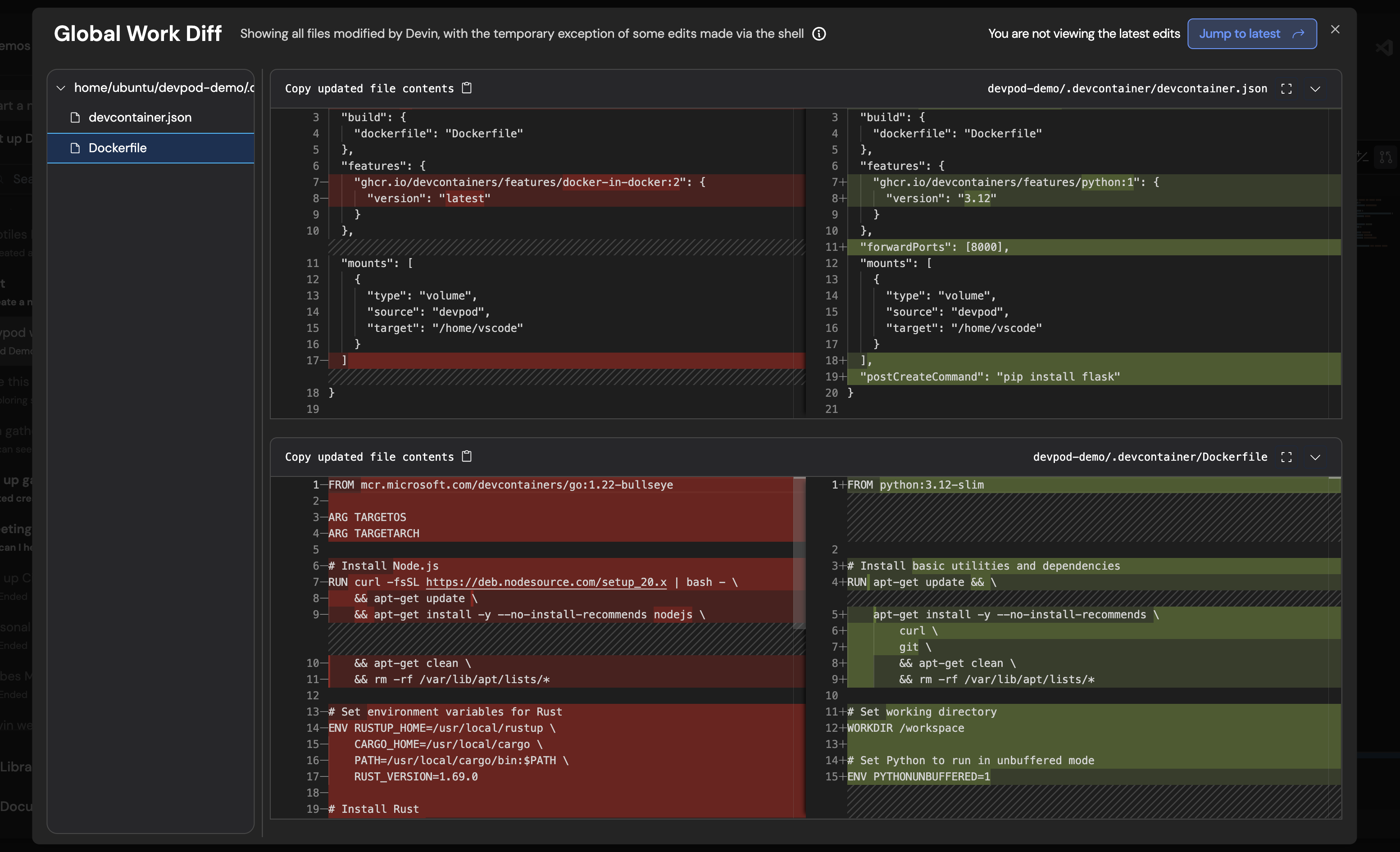
* 点击会话标题下方的 "PR Preview" 即可在创建 PR 之前查看 Devin 做出的更改。如果 Devin 有新的修改,你会在右上角看到 "Jump to Latest" 按钮
**Devin 会自动响应 PR 评论和 lint 错误**:
让 Devin 帮你创建一个 PR!我们近期对 PR 工作流做了以下改进:
* 当 PR 收到评论或 lint 未通过时,如果 Devin 处于休眠状态,它会自动被唤醒来处理这些问题
* 点击会话标题下方的 "PR Preview" 即可在创建 PR 之前查看 Devin 做出的更改。如果 Devin 有新的修改,你会在右上角看到 "Jump to Latest" 按钮
 **把 Devin 当作你的待办清单使用**:
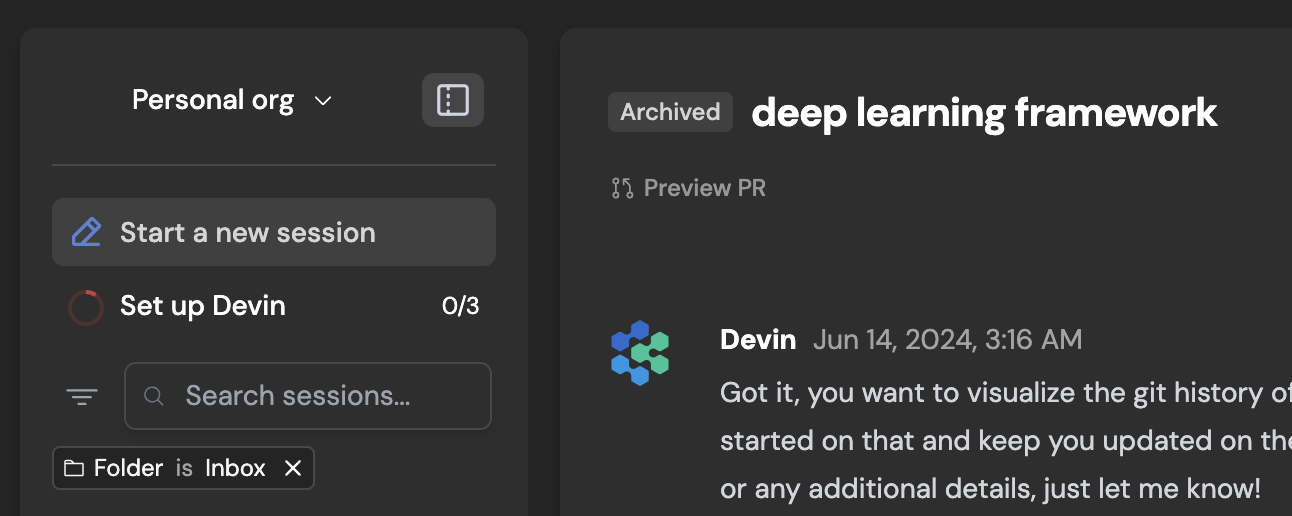
任务出现时可以直接发给 Devin,而不是写进你的待办清单。用会话标题旁边新的归档按钮隐藏已完成的会话。
已归档的会话会显示在左侧边栏的 Folder > Archived 下。
**把 Devin 当作你的待办清单使用**:
任务出现时可以直接发给 Devin,而不是写进你的待办清单。用会话标题旁边新的归档按钮隐藏已完成的会话。
已归档的会话会显示在左侧边栏的 Folder > Archived 下。
 **配置 Devin 的行为**:
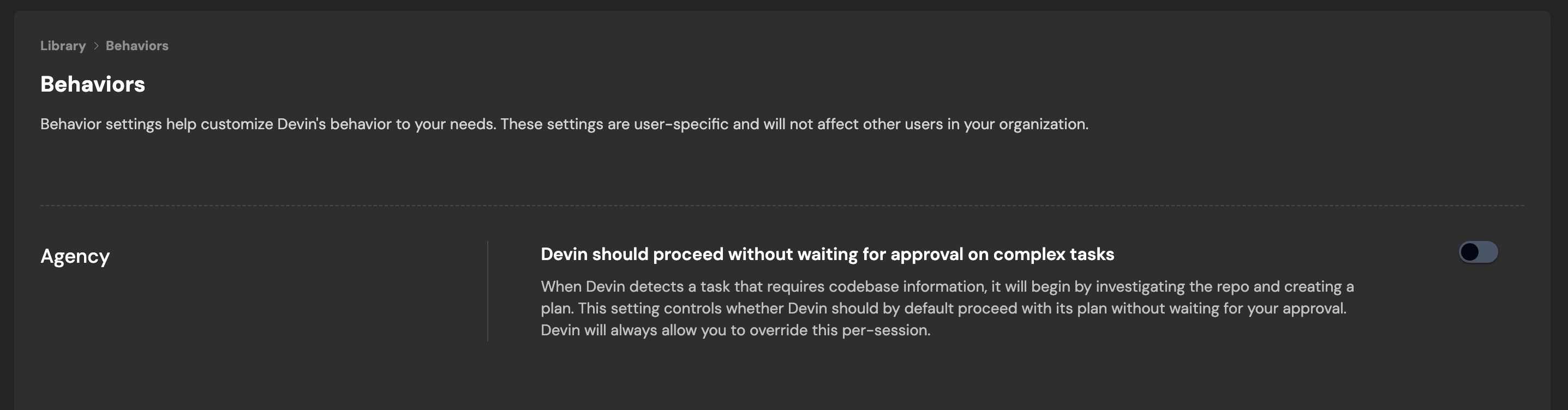
通过 [Configure Behavior in Settings](https://app.devin.ai/customization) 按需自定义 Devin 的行为。这些设置是用户级别的,不会影响你组织中的其他用户。
你现在可以配置的第一个行为是 Agency。
当 Devin 发现某个任务需要代码库信息时,它会先调查仓库并创建一个计划。当 Agency 打开时,Devin 会按照这个计划继续执行,而不等待你的批准。Devin 总会询问你是否要在每个会话中覆写这一设置。
**配置 Devin 的行为**:
通过 [Configure Behavior in Settings](https://app.devin.ai/customization) 按需自定义 Devin 的行为。这些设置是用户级别的,不会影响你组织中的其他用户。
你现在可以配置的第一个行为是 Agency。
当 Devin 发现某个任务需要代码库信息时,它会先调查仓库并创建一个计划。当 Agency 打开时,Devin 会按照这个计划继续执行,而不等待你的批准。Devin 总会询问你是否要在每个会话中覆写这一设置。
 **配置 Devin 的 Workspace**:
Devin 的 Workspace 会在每个会话开始时重置为一个已保存的机器状态。默认情况下,这个机器状态包含你在 app.devin.ai/workspace 添加并完成设置的所有仓库。
> Tip: 设置好 Devin 的 Workspace 可以显著提升 Devin 在你代码库上的表现。想象一下,如果你每次开始一个任务,你的笔记本电脑和部分记忆都会被清空——这就是没有完成 Workspace 设置时 Devin 的状态!
在幕后,你配置的所有仓库会在每个会话开始时共存于同一个 (默认) 机器状态中。
**批量导入机密 (secrets) **:
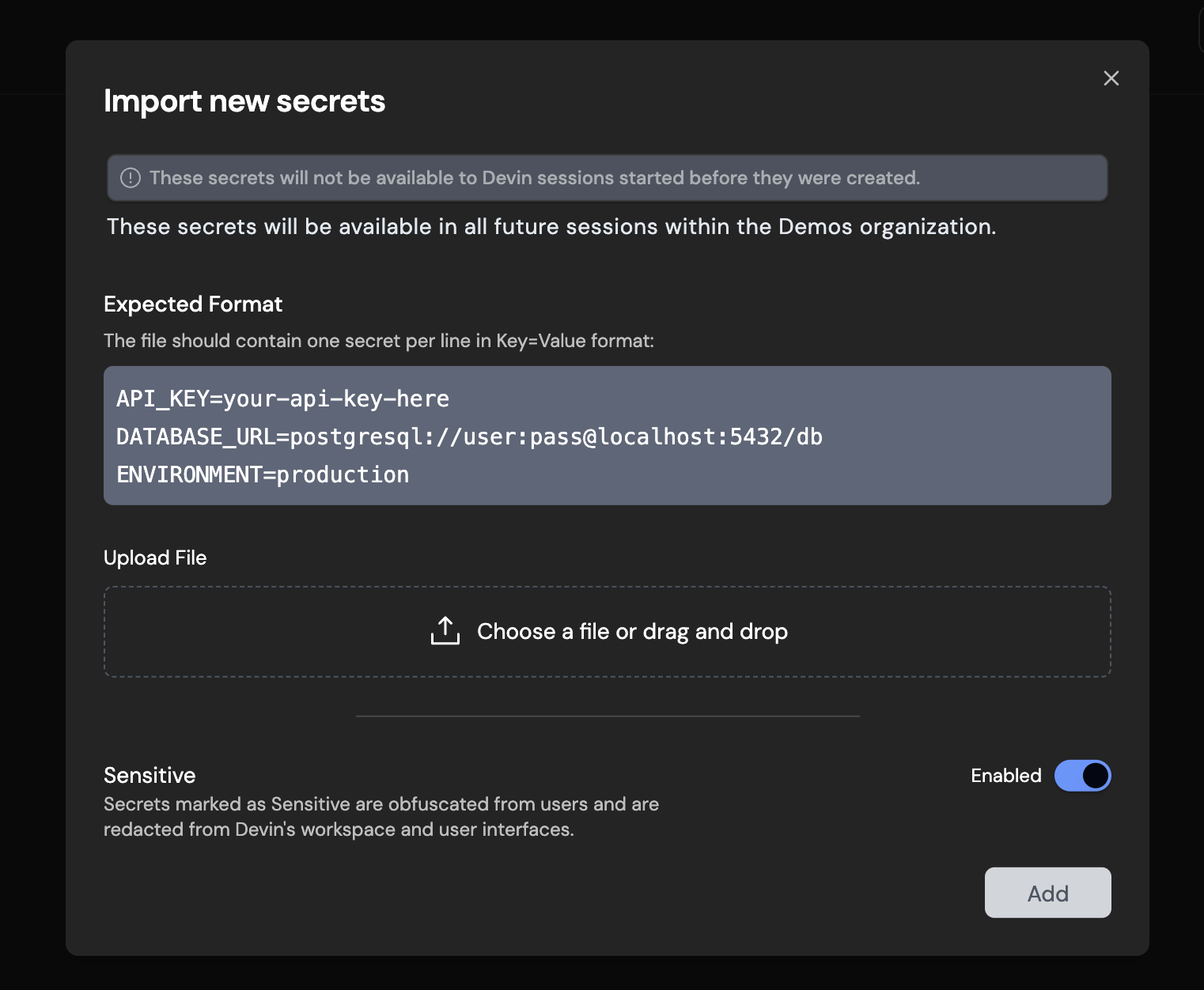
如果你的仓库需要大量机密信息,可以在 [设置中的 Secrets 部分](https://app.devin.ai/secrets) 批量分享给 Devin——很快也会出现在仓库接入流程中。
**配置 Devin 的 Workspace**:
Devin 的 Workspace 会在每个会话开始时重置为一个已保存的机器状态。默认情况下,这个机器状态包含你在 app.devin.ai/workspace 添加并完成设置的所有仓库。
> Tip: 设置好 Devin 的 Workspace 可以显著提升 Devin 在你代码库上的表现。想象一下,如果你每次开始一个任务,你的笔记本电脑和部分记忆都会被清空——这就是没有完成 Workspace 设置时 Devin 的状态!
在幕后,你配置的所有仓库会在每个会话开始时共存于同一个 (默认) 机器状态中。
**批量导入机密 (secrets) **:
如果你的仓库需要大量机密信息,可以在 [设置中的 Secrets 部分](https://app.devin.ai/secrets) 批量分享给 Devin——很快也会出现在仓库接入流程中。
 **使用 cmd-k 更快导航**:
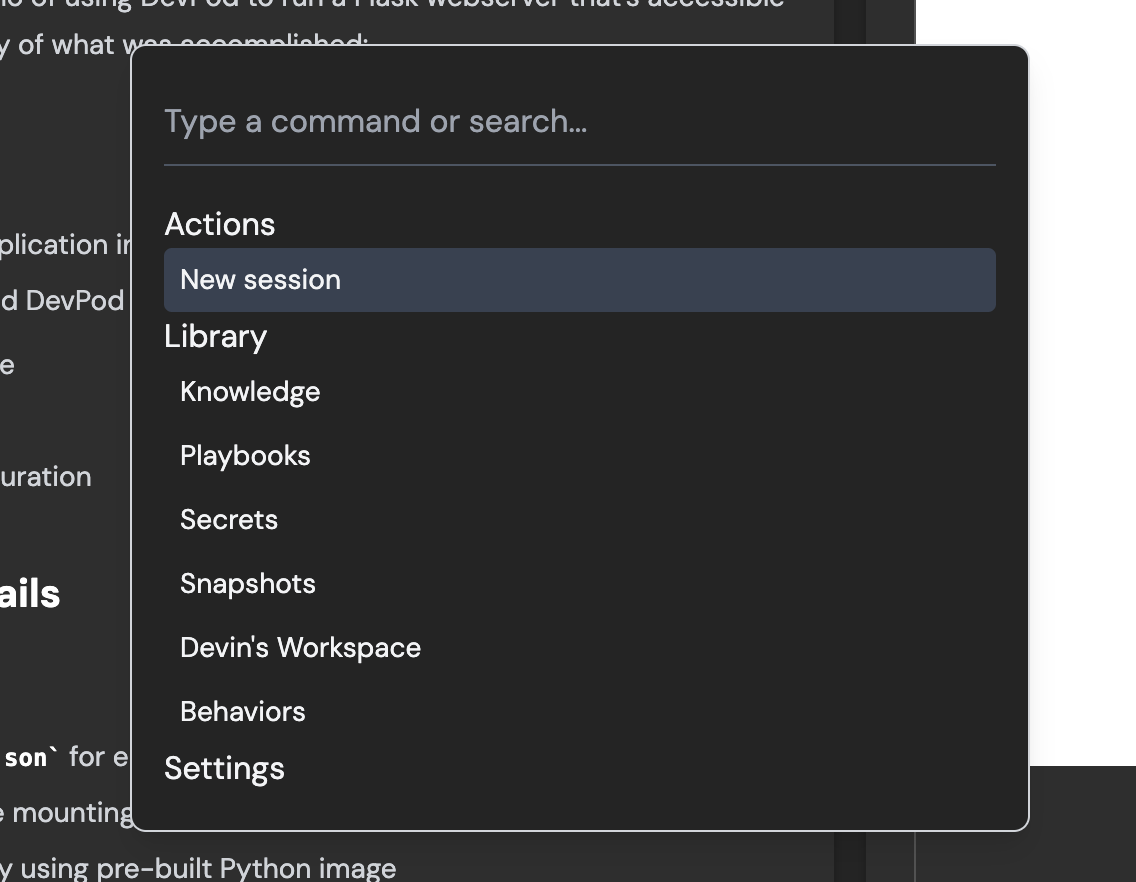
使用 cmd-k 快速开始新会话并在 Web 应用中导航。
**使用 cmd-k 更快导航**:
使用 cmd-k 快速开始新会话并在 Web 应用中导航。
 **从你的 IDE 与 Devin 对话 (Beta 体验) **:
将异步工作交给 Devin 处理,你可以专注在主要任务上,并在合适的时候进行审查。
* 可与 Copilot 和 Cursor 协同工作
* Devin 只需一个快捷键即可唤起 (Cmd+G)
* 跟踪你当前所有活跃的 Devin 会话
* 在本地 IDE 中直接审查并接受代码
[安装 Devin 扩展](https://marketplace.visualstudio.com/items?itemName=cognition.devin)以开始使用。
**使用宏轻松附加 [Playbooks](/zh/product-guides/creating-playbooks) (来自 Slack、Devin IDE 或 Web 应用) **:
宏是一个快捷方式 (例如 !macro) ,可用于在发给 Devin 的初始提示中快速附加某个 Playbook。[在 Library 中打开你的 Playbook](https://app.devin.ai/playbooks) 并点击 "Edit" 来为每个 Playbook 设置对应的宏。
**规划模式**:
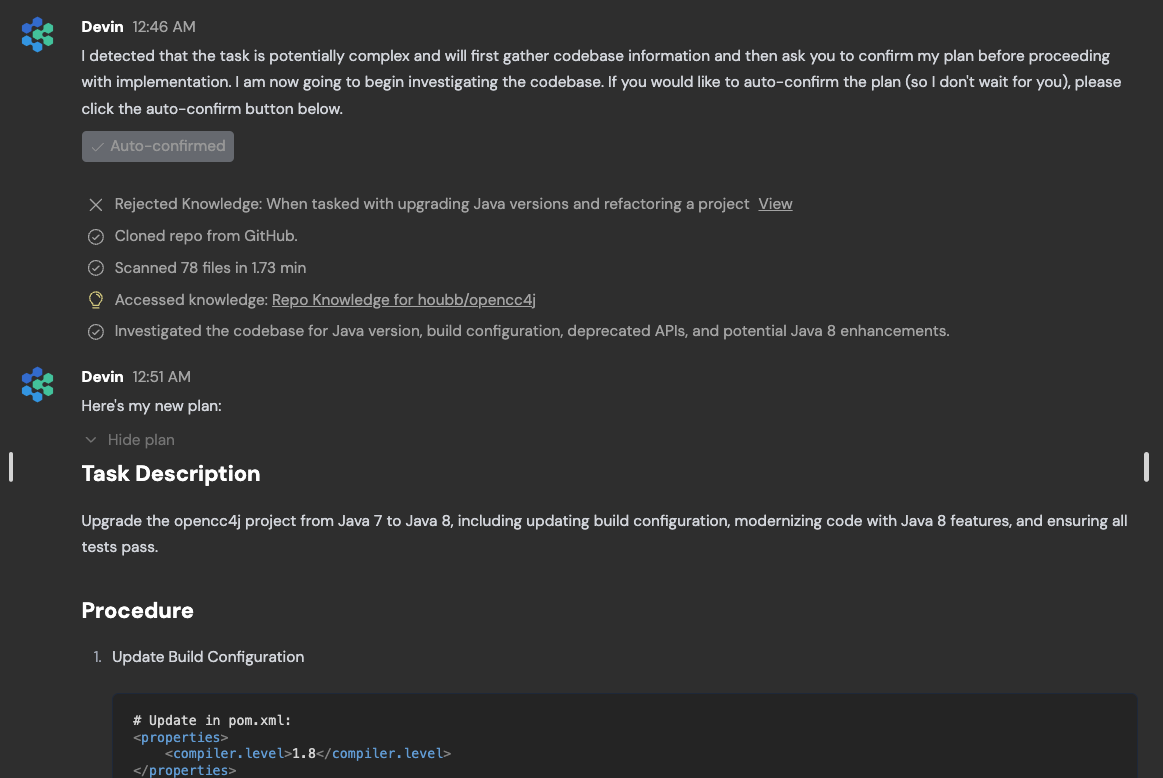
对于某些任务,大部分工作在于弄清应该做什么并就方案达成一致。Devin 现在会自动检测更复杂的任务,并在开始执行前花时间先提出一份计划。
如果你不希望 Devin 等待你的批准,可以随时自动批准该计划。
**从你的 IDE 与 Devin 对话 (Beta 体验) **:
将异步工作交给 Devin 处理,你可以专注在主要任务上,并在合适的时候进行审查。
* 可与 Copilot 和 Cursor 协同工作
* Devin 只需一个快捷键即可唤起 (Cmd+G)
* 跟踪你当前所有活跃的 Devin 会话
* 在本地 IDE 中直接审查并接受代码
[安装 Devin 扩展](https://marketplace.visualstudio.com/items?itemName=cognition.devin)以开始使用。
**使用宏轻松附加 [Playbooks](/zh/product-guides/creating-playbooks) (来自 Slack、Devin IDE 或 Web 应用) **:
宏是一个快捷方式 (例如 !macro) ,可用于在发给 Devin 的初始提示中快速附加某个 Playbook。[在 Library 中打开你的 Playbook](https://app.devin.ai/playbooks) 并点击 "Edit" 来为每个 Playbook 设置对应的宏。
**规划模式**:
对于某些任务,大部分工作在于弄清应该做什么并就方案达成一致。Devin 现在会自动检测更复杂的任务,并在开始执行前花时间先提出一份计划。
如果你不希望 Devin 等待你的批准,可以随时自动批准该计划。
 **使用我们的全新 REST API 以编程方式创建 Devin 会话并获取结果 (包括结构化输出) **:
全新的 RESTful API 允许你将 Devin 集成到自己的应用中,编写脚本并行启动多个会话,并在 Devin 之上构建强大的自动化工作流。
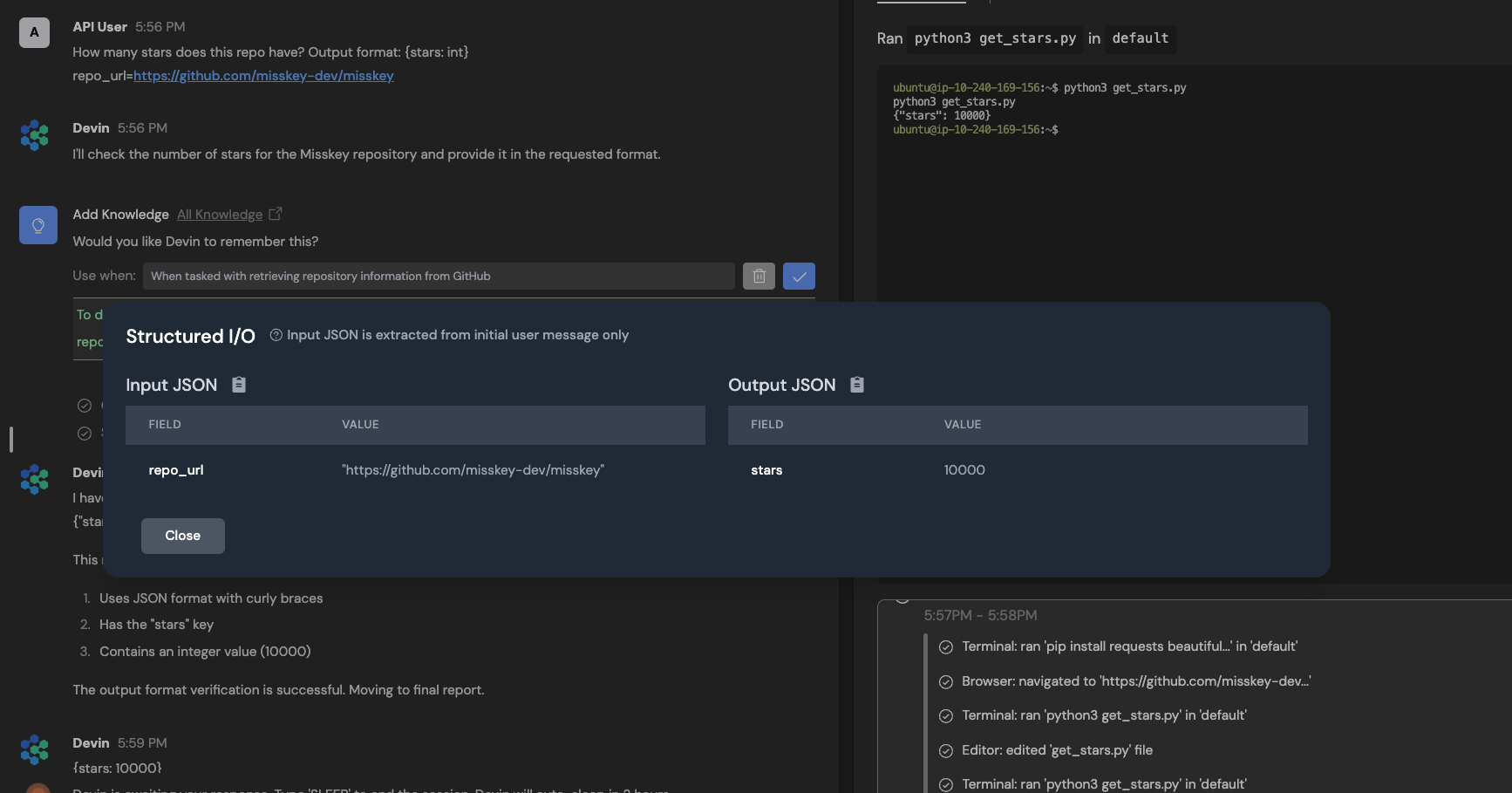
你可以在提示中指定结构化输出格式,例如:
```txt theme={null}
Devin, we're using auth0 instead of clerk - can you remove clerk support from the provided file? Output format: {lines_edited: int, success: bool}
```
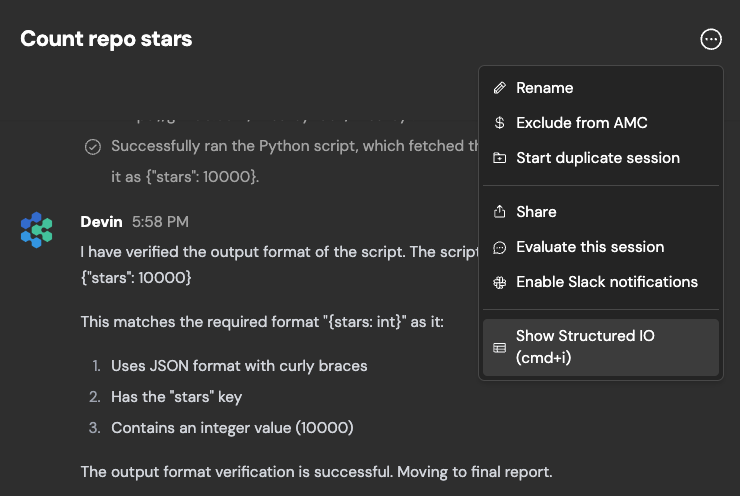
在任意会话页面按 CMD+i,即可在 Web 应用中查看结构化输出,或点击聊天窗口右上角下拉菜单中的 "Show structured IO"。
**使用我们的全新 REST API 以编程方式创建 Devin 会话并获取结果 (包括结构化输出) **:
全新的 RESTful API 允许你将 Devin 集成到自己的应用中,编写脚本并行启动多个会话,并在 Devin 之上构建强大的自动化工作流。
你可以在提示中指定结构化输出格式,例如:
```txt theme={null}
Devin, we're using auth0 instead of clerk - can you remove clerk support from the provided file? Output format: {lines_edited: int, success: bool}
```
在任意会话页面按 CMD+i,即可在 Web 应用中查看结构化输出,或点击聊天窗口右上角下拉菜单中的 "Show structured IO"。
 你可以在[设置页面](https://app.devin.ai/settings/api-keys)获取 API key。
阅读我们的 [API 文档](/zh/api-reference/overview)以了解更多信息,并查看如何使用该 API 的示例。
你可以在[设置页面](https://app.devin.ai/settings/api-keys)获取 API key。
阅读我们的 [API 文档](/zh/api-reference/overview)以了解更多信息,并查看如何使用该 API 的示例。
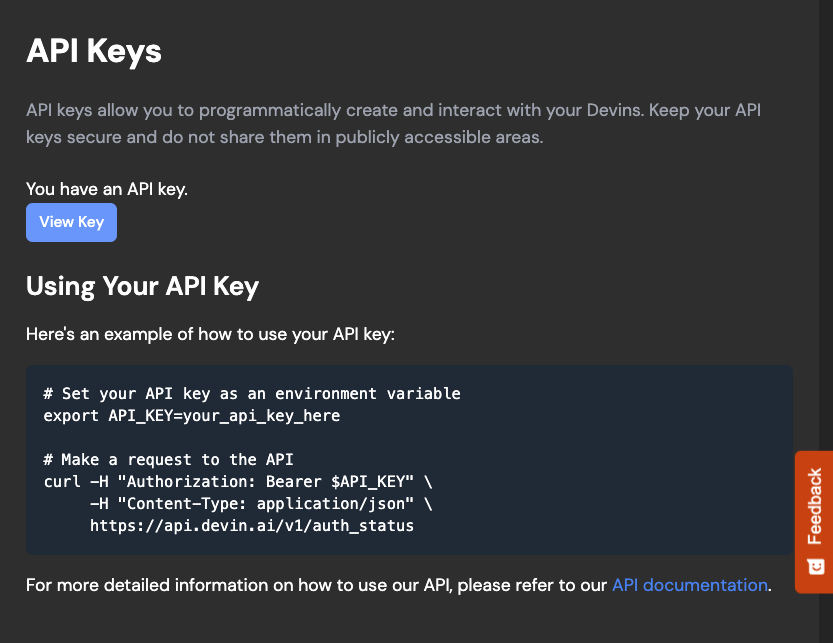 **通过 "Follow Devin" 标签页,现在更容易理解 Devin 最近在做什么**:
"Follow Devin" 标签页旨在帮助你更快理解 Devin 最近在做什么——它会在 Devin 工作时高亮显示 Devin 的操作 (文件编辑、shell 命令等) 。点击放大镜图标可跳转到关联工具 (Editor、shell、浏览器、planner) 以获取更多信息。
**通过 "Follow Devin" 标签页,现在更容易理解 Devin 最近在做什么**:
"Follow Devin" 标签页旨在帮助你更快理解 Devin 最近在做什么——它会在 Devin 工作时高亮显示 Devin 的操作 (文件编辑、shell 命令等) 。点击放大镜图标可跳转到关联工具 (Editor、shell、浏览器、planner) 以获取更多信息。
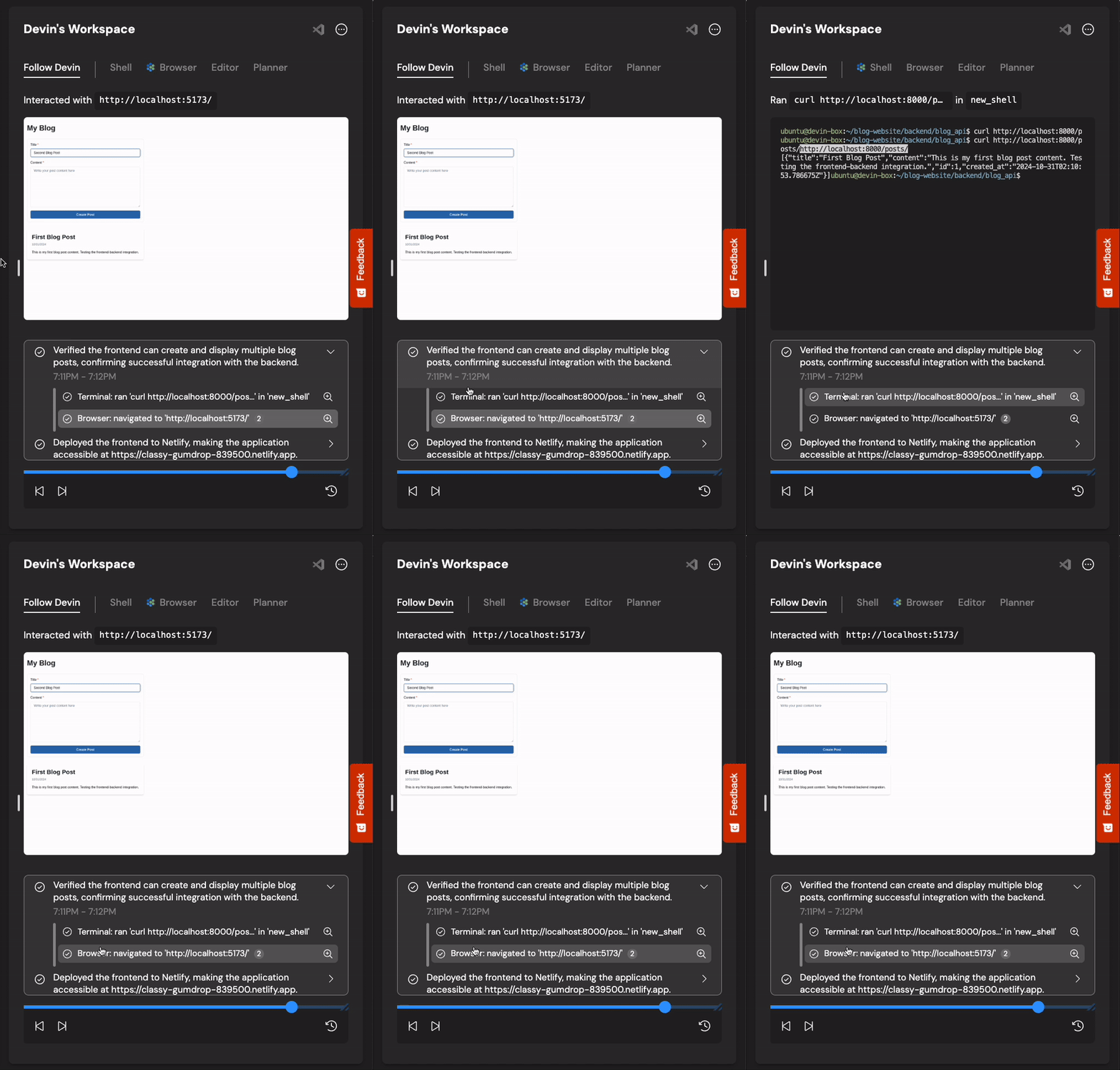 **要想高效使用 Devin,通常需要前期投入——全新的 Onboarding Flow 将引导你完成所需步骤**:
Onboarding 步骤包括:
* 连接你的 GitHub 组织——这使 Devin 能够**扫描你的代码库**并生成 [Repo Knowledge](/zh/product-guides/knowledge)。GitHub 还让 Devin 能够创建 PR,并**自动回复你的 PR 评论**!
* 连接你的 Slack 组织,使你可以在与你人类队友互动的同一位置启动会话并与 Devin 交互!下次有人报告前端 bug 时,尝试在频道中 @Devin 来处理它!
* 手动[设置 Devin 的机器](/zh/onboard-devin/environment)。如果你的代码仓库要求开发者配置环境变量或安装依赖,为 Devin 设置好机器非常重要。否则,在能够处理你分配的任务之前,Devin 会把有限的资源花在摸索环境配置上。
**要想高效使用 Devin,通常需要前期投入——全新的 Onboarding Flow 将引导你完成所需步骤**:
Onboarding 步骤包括:
* 连接你的 GitHub 组织——这使 Devin 能够**扫描你的代码库**并生成 [Repo Knowledge](/zh/product-guides/knowledge)。GitHub 还让 Devin 能够创建 PR,并**自动回复你的 PR 评论**!
* 连接你的 Slack 组织,使你可以在与你人类队友互动的同一位置启动会话并与 Devin 交互!下次有人报告前端 bug 时,尝试在频道中 @Devin 来处理它!
* 手动[设置 Devin 的机器](/zh/onboard-devin/environment)。如果你的代码仓库要求开发者配置环境变量或安装依赖,为 Devin 设置好机器非常重要。否则,在能够处理你分配的任务之前,Devin 会把有限的资源花在摸索环境配置上。
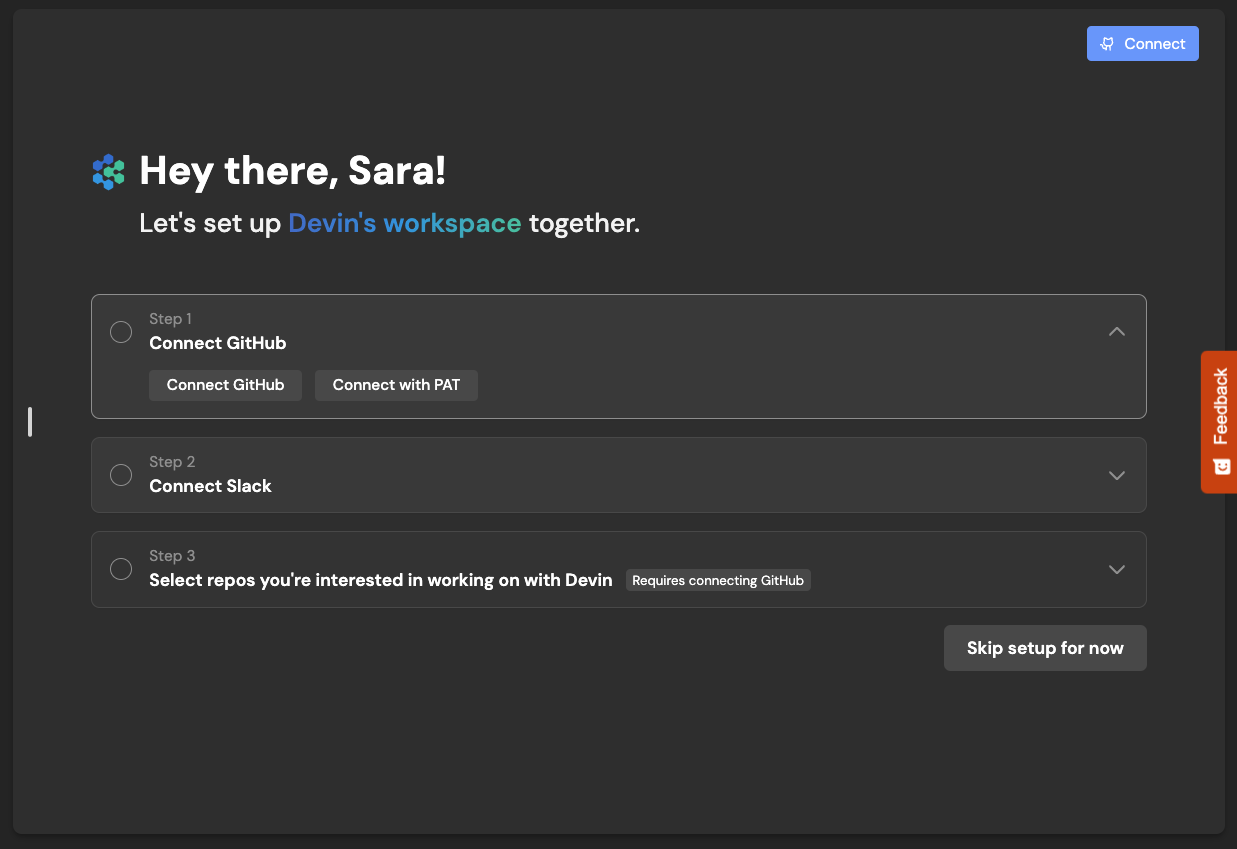 **如果 Devin 即将休眠,你会收到警告**:
之前,我们的 Personal 和 Team 方案用户可能注意到 Devin 有时会意外休眠。
这一问题现已修复,如果 Devin 因为 ACU 不足或接近每会话 ACU 限制 (该限制会在每条新指令时重置,并可在 [Settings > Usage](https://app.devin.ai/settings/usage) 中进行配置) 而即将休眠,你会在 Web 应用中收到一条弹出提示!
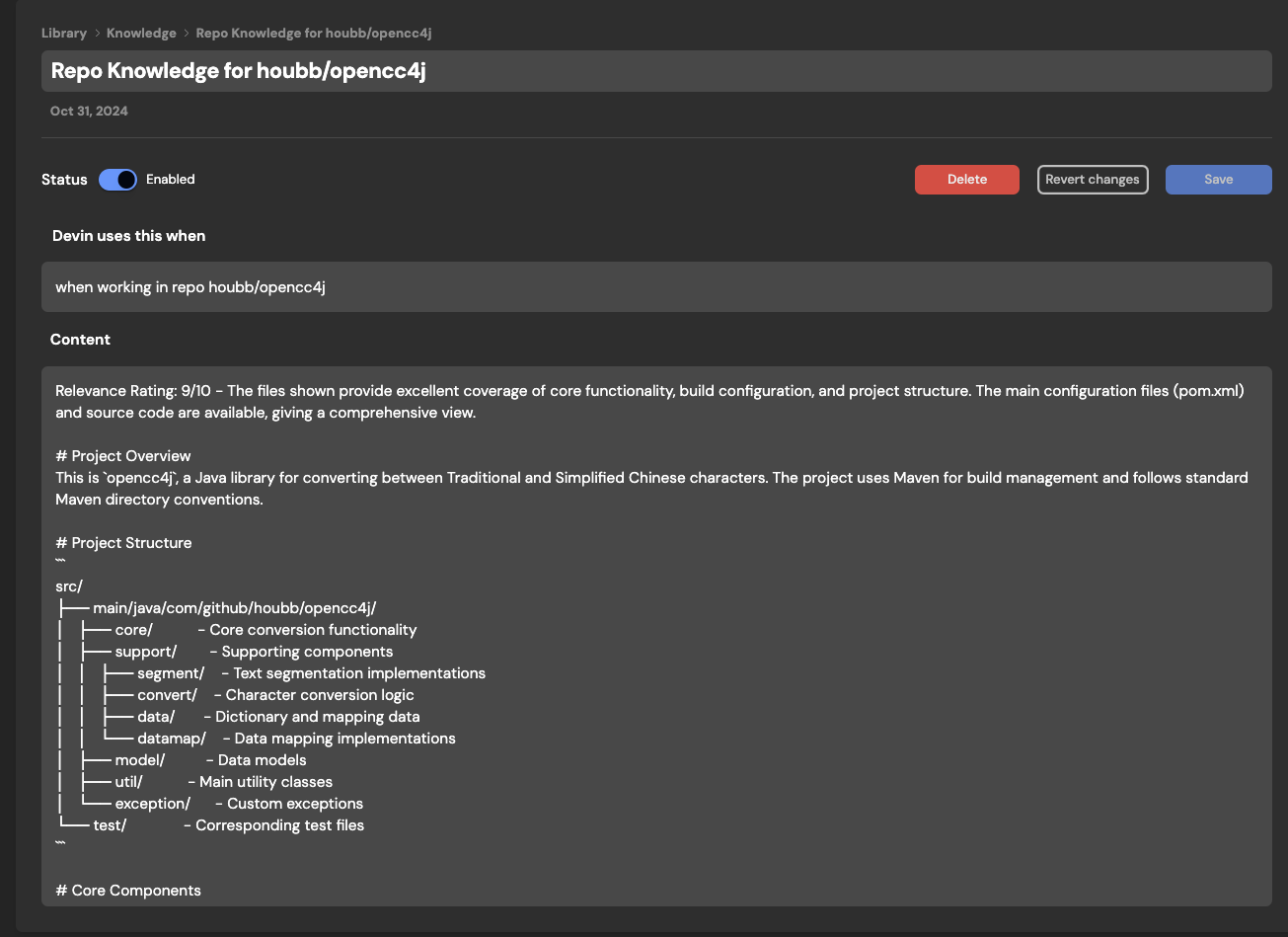
**Repo Knowledge**:
Devin 现在会自动**扫描你的代码仓库**并生成 [Repo Knowledge](/zh/product-guides/knowledge)。这使 Devin 能够在你的仓库中更快速、更成功地为你完成实际工作。你也可以随时在 [Settings > Knowledge](https://app.devin.ai/knowledge) 中手动添加和编辑你自己的 Knowledge。
**如果 Devin 即将休眠,你会收到警告**:
之前,我们的 Personal 和 Team 方案用户可能注意到 Devin 有时会意外休眠。
这一问题现已修复,如果 Devin 因为 ACU 不足或接近每会话 ACU 限制 (该限制会在每条新指令时重置,并可在 [Settings > Usage](https://app.devin.ai/settings/usage) 中进行配置) 而即将休眠,你会在 Web 应用中收到一条弹出提示!
**Repo Knowledge**:
Devin 现在会自动**扫描你的代码仓库**并生成 [Repo Knowledge](/zh/product-guides/knowledge)。这使 Devin 能够在你的仓库中更快速、更成功地为你完成实际工作。你也可以随时在 [Settings > Knowledge](https://app.devin.ai/knowledge) 中手动添加和编辑你自己的 Knowledge。

 **为 Enterprise 用户提供更多选项**:
Enterprise 用户现在有更多选项可以配置 Devin,以满足你所在组织的需求,包括:
* **与 Okta 的单点登录 (SSO) **
* \*\*公司域名自动加入:\*\*允许任何使用公司邮箱的用户无需单独邀请即可加入 Devin
* \*\*自定义 Onboarding:\*\*定制示例会话和推荐提示,引导你组织内的用户使用 Devin 最有价值的用例
* \*\*使用洞察:\*\*通过自动邮件提醒,帮助你持续跟踪使用情况
**全新首页,为更长输入和小屏设备而设计**:
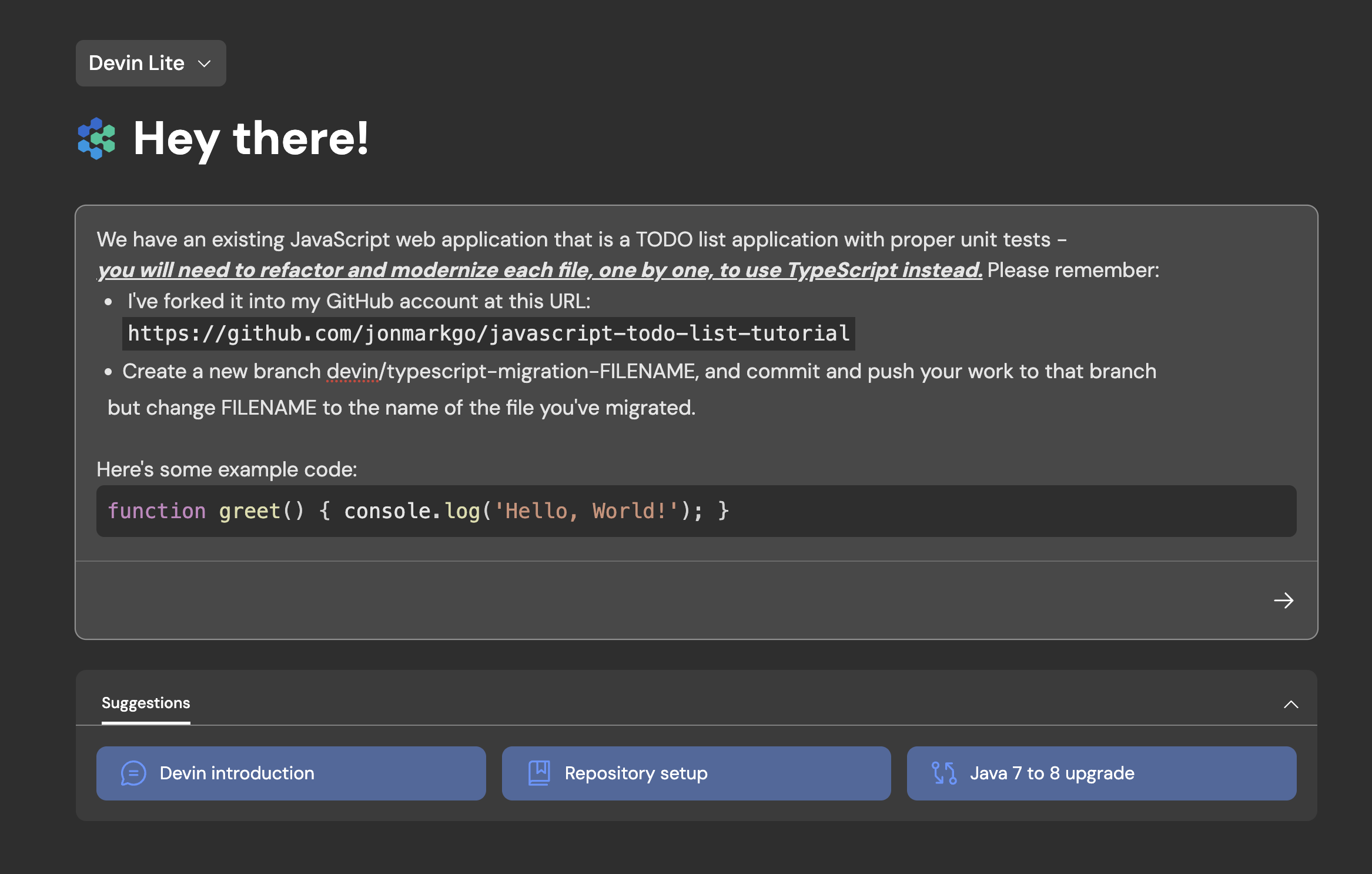
当你一开始就提供详细背景和需求时,Devin 往往能发挥最佳效果。通过我们重新设计的首页,输入框会随着你输入自动扩展,用起来更像是一个文本编辑器:
* 按 Enter 换行
* 使用 Cmd + Enter (或 Ctrl + Enter) 发送消息
* 粘贴示例代码片段或需求列表,体验我们的富文本功能
**为 Enterprise 用户提供更多选项**:
Enterprise 用户现在有更多选项可以配置 Devin,以满足你所在组织的需求,包括:
* **与 Okta 的单点登录 (SSO) **
* \*\*公司域名自动加入:\*\*允许任何使用公司邮箱的用户无需单独邀请即可加入 Devin
* \*\*自定义 Onboarding:\*\*定制示例会话和推荐提示,引导你组织内的用户使用 Devin 最有价值的用例
* \*\*使用洞察:\*\*通过自动邮件提醒,帮助你持续跟踪使用情况
**全新首页,为更长输入和小屏设备而设计**:
当你一开始就提供详细背景和需求时,Devin 往往能发挥最佳效果。通过我们重新设计的首页,输入框会随着你输入自动扩展,用起来更像是一个文本编辑器:
* 按 Enter 换行
* 使用 Cmd + Enter (或 Ctrl + Enter) 发送消息
* 粘贴示例代码片段或需求列表,体验我们的富文本功能
 **\[Beta] Devin API**:
Devin API 允许你以编程方式启动 Devin 会话。用例包括自动审查 PR (拉取请求) 代码、修复 lint 错误,以及为迁移提供内部服务。目前对我们的 Enterprise 用户开放——请通过 [support@cognition.ai](mailto:support@cognition.ai) 联系我们以了解详情!
**更快的会话和工作区导航**:
现在在 Devin Web 应用中浏览 Devin 的工作区、切换会话和创建新会话的速度大幅提升。
**我们已将认证系统迁移到 Auth0**:
你会在登录页看到新的设计,但仍可以像往常一样使用邮箱、Google 或 GitHub 凭证登录。
**推出 Devin for Teams**:
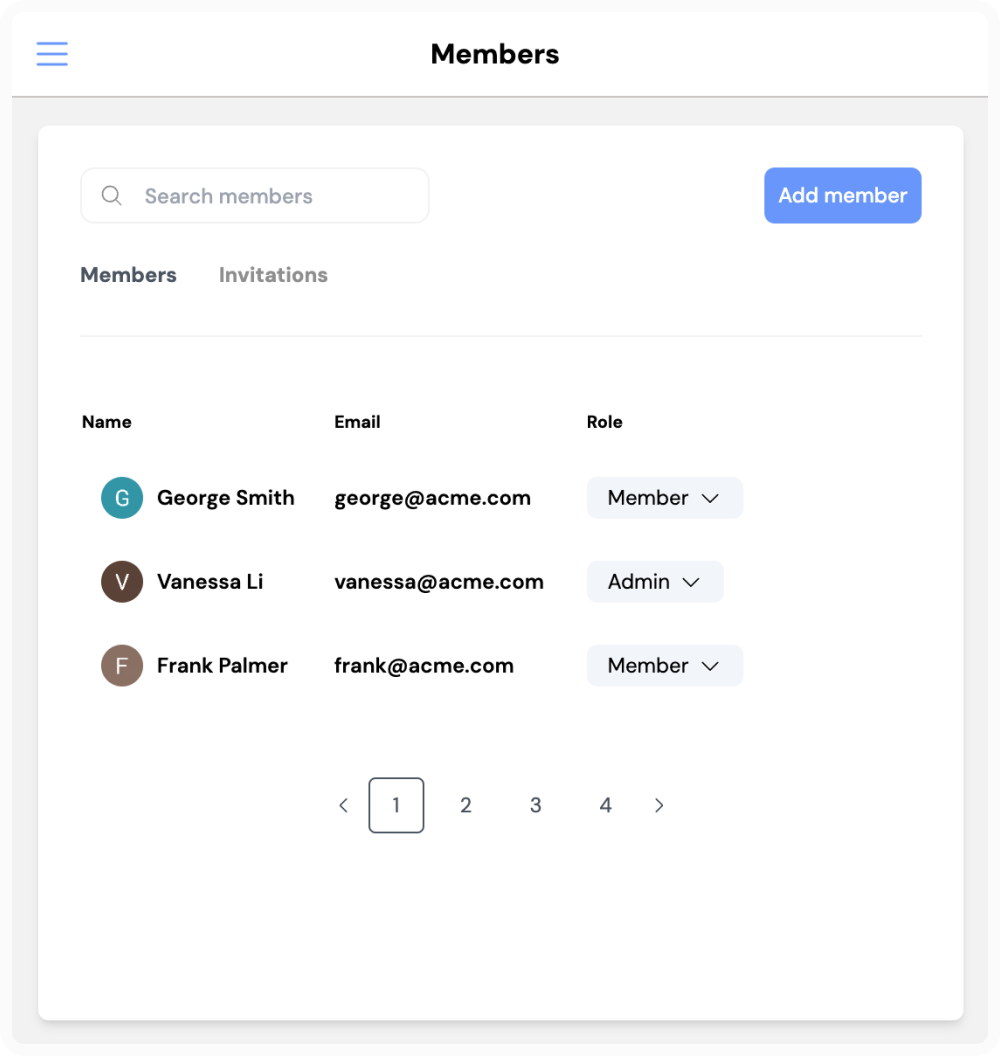
通过我们的 Team 方案,你的整个团队都可以在 Devin 会话中创建、共享和协作。Team 方案包含 Personal 方案中的全部内容,另外还包括:
* 不限席位数
* 使用我们的 Slack 集成
* 每月订阅中包含更高的 ACU (Agent Compute Unit,算力单元) 配额
* 为你的团队提供一个专用工作区,用于在 Devin 会话中创建、共享和协作
请通过 [support@cognition.ai](mailto:support@cognition.ai) 联系我们以了解详情!
**\[Beta] Devin API**:
Devin API 允许你以编程方式启动 Devin 会话。用例包括自动审查 PR (拉取请求) 代码、修复 lint 错误,以及为迁移提供内部服务。目前对我们的 Enterprise 用户开放——请通过 [support@cognition.ai](mailto:support@cognition.ai) 联系我们以了解详情!
**更快的会话和工作区导航**:
现在在 Devin Web 应用中浏览 Devin 的工作区、切换会话和创建新会话的速度大幅提升。
**我们已将认证系统迁移到 Auth0**:
你会在登录页看到新的设计,但仍可以像往常一样使用邮箱、Google 或 GitHub 凭证登录。
**推出 Devin for Teams**:
通过我们的 Team 方案,你的整个团队都可以在 Devin 会话中创建、共享和协作。Team 方案包含 Personal 方案中的全部内容,另外还包括:
* 不限席位数
* 使用我们的 Slack 集成
* 每月订阅中包含更高的 ACU (Agent Compute Unit,算力单元) 配额
* 为你的团队提供一个专用工作区,用于在 Devin 会话中创建、共享和协作
请通过 [support@cognition.ai](mailto:support@cognition.ai) 联系我们以了解详情!
 **Devin 会回复 PR 评论**:
试试通过 GitHub 或 GitHub Mobile 审查 Devin 的代码——只要会话尚未结束且 Devin 未处于休眠状态,Devin 会自动回复。
**Devin 会建议添加 Knowledge**:
试着在聊天中向 Devin 提供反馈!如果某些内容对未来会话看起来有用,Devin 会自动建议将其添加到 Knowledge 中。
Knowledge 是一组 Devin 在所有未来会话中“已知”的提示、文档和指令。Devin 会在需要时自动回忆相关的 Knowledge,你也可以随时在 **Settings & Library** > **Knowledge** 中手动添加或查看 Knowledge。
**让 Devin 使用 MultiDevin 创建多个 Devin**:
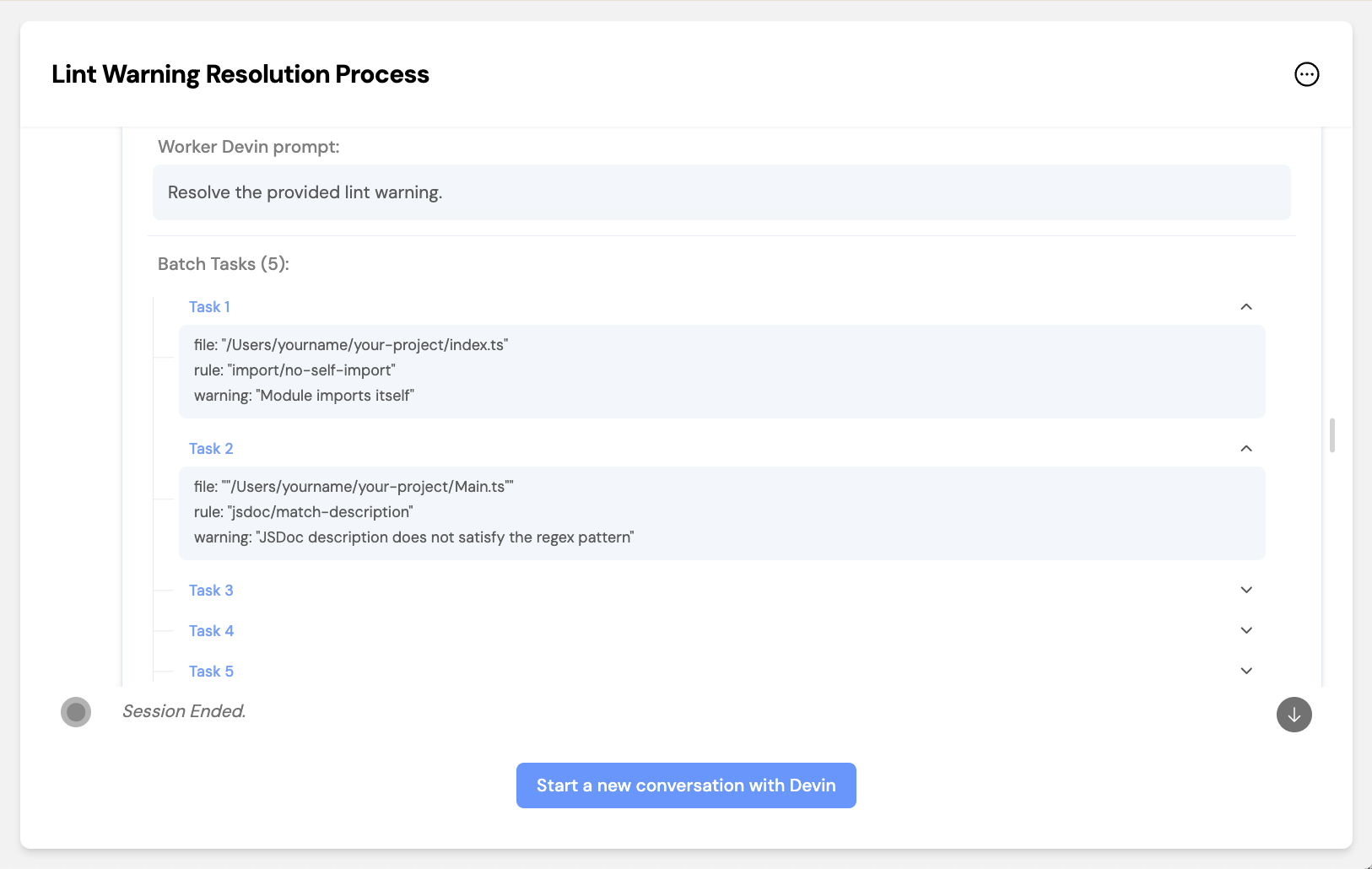
将大量积压任务委派给一组并行工作的 Devin 来处理。MultiDevin 由 1 个“管理者” Devin 和最多 10 个“工作者” Devin 组成。
管理者 Devin 会将任务分配给每个工作者 Devin,然后将所有*成功*的工作者 Devin 的更改合并到一个分支或一个 pull request 中。MultiDevin 非常适合处理重复且相对独立的任务,例如 lint 错误、代码清理、迁移、重构等!
**Devin 会回复 PR 评论**:
试试通过 GitHub 或 GitHub Mobile 审查 Devin 的代码——只要会话尚未结束且 Devin 未处于休眠状态,Devin 会自动回复。
**Devin 会建议添加 Knowledge**:
试着在聊天中向 Devin 提供反馈!如果某些内容对未来会话看起来有用,Devin 会自动建议将其添加到 Knowledge 中。
Knowledge 是一组 Devin 在所有未来会话中“已知”的提示、文档和指令。Devin 会在需要时自动回忆相关的 Knowledge,你也可以随时在 **Settings & Library** > **Knowledge** 中手动添加或查看 Knowledge。
**让 Devin 使用 MultiDevin 创建多个 Devin**:
将大量积压任务委派给一组并行工作的 Devin 来处理。MultiDevin 由 1 个“管理者” Devin 和最多 10 个“工作者” Devin 组成。
管理者 Devin 会将任务分配给每个工作者 Devin,然后将所有*成功*的工作者 Devin 的更改合并到一个分支或一个 pull request 中。MultiDevin 非常适合处理重复且相对独立的任务,例如 lint 错误、代码清理、迁移、重构等!
 **Enterprise VPC 部署**:
Devin 提供面向具有严格安全与合规要求组织的企业级部署选项。我们与云厂商无关的解决方案允许 Devin 在你的 Virtual Private Cloud (VPC,虚拟私有云) 内部署 DevBox,并在你的云环境中存储数据,从而确保你的数据始终仅保留在你可控的环境中。
**“唤醒”旧的 Devin 会话**:
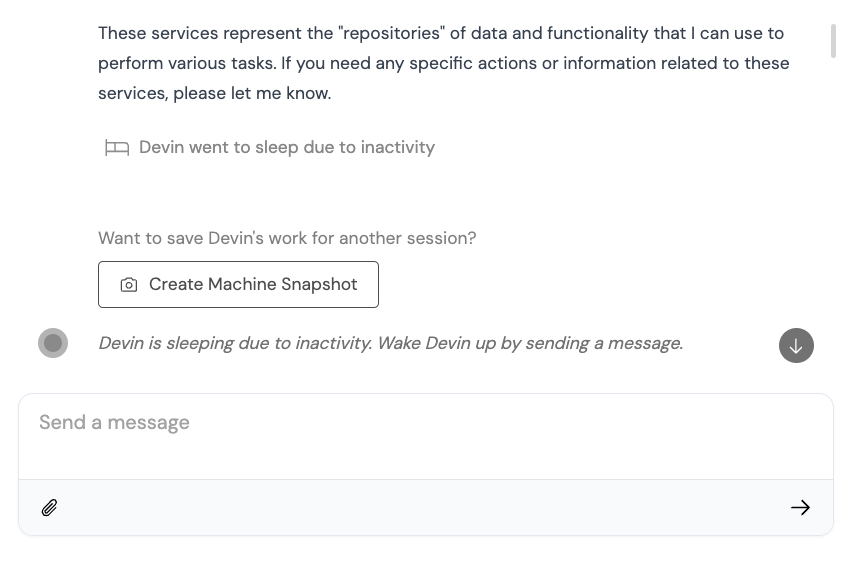
之前,Devin 会话在长时间无活动后会直接结束。现在,大多数会话会改为进入“休眠”状态,这意味着你可以在任意时间唤醒 Devin 并继续该会话。
你仍然可以通过聊天窗口右上角的“stop”按钮手动结束会话。
**Enterprise VPC 部署**:
Devin 提供面向具有严格安全与合规要求组织的企业级部署选项。我们与云厂商无关的解决方案允许 Devin 在你的 Virtual Private Cloud (VPC,虚拟私有云) 内部署 DevBox,并在你的云环境中存储数据,从而确保你的数据始终仅保留在你可控的环境中。
**“唤醒”旧的 Devin 会话**:
之前,Devin 会话在长时间无活动后会直接结束。现在,大多数会话会改为进入“休眠”状态,这意味着你可以在任意时间唤醒 Devin 并继续该会话。
你仍然可以通过聊天窗口右上角的“stop”按钮手动结束会话。
 **在产品内向 Devin 发送代码审查请求**:
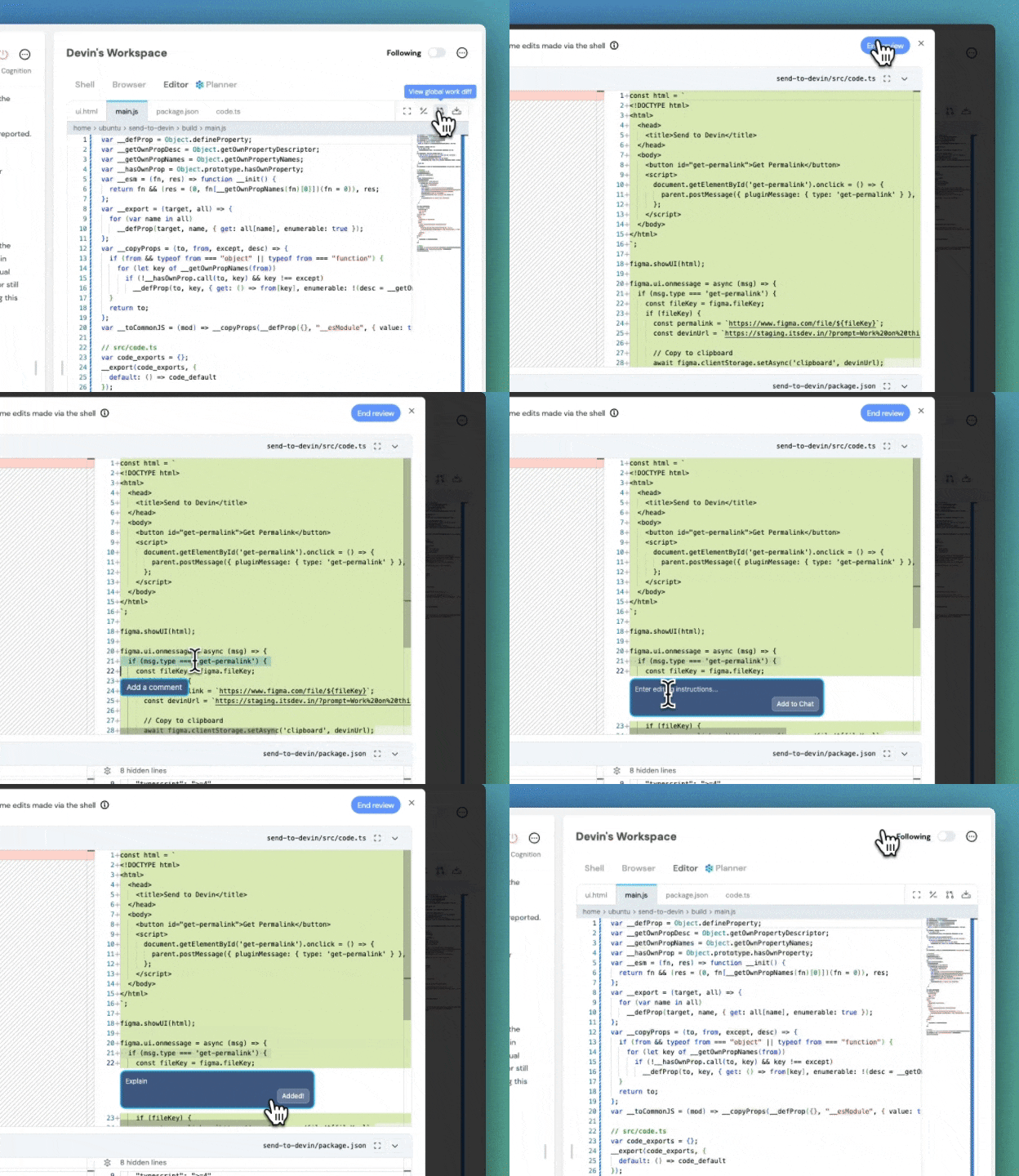
可以向 Devin 提问,或请求修改特定代码行。你评论的代码会作为一条聊天消息发送给 Devin。
只需在 Devin 的编辑器中选中任意文本,然后点击 "Add to chat" 或 "Add a comment" 即可。
**在产品内向 Devin 发送代码审查请求**:
可以向 Devin 提问,或请求修改特定代码行。你评论的代码会作为一条聊天消息发送给 Devin。
只需在 Devin 的编辑器中选中任意文本,然后点击 "Add to chat" 或 "Add a comment" 即可。
 **Universal Planner**:
借助 Universal Planner,Devin 现在可以在不需要使用 Playbooks 的情况下,更可靠地执行需要**循环**的、时间较长的多步骤任务——换句话说,就是那些需要多次执行相同操作的任务。
**Universal Planner**:
借助 Universal Planner,Devin 现在可以在不需要使用 Playbooks 的情况下,更可靠地执行需要**循环**的、时间较长的多步骤任务——换句话说,就是那些需要多次执行相同操作的任务。
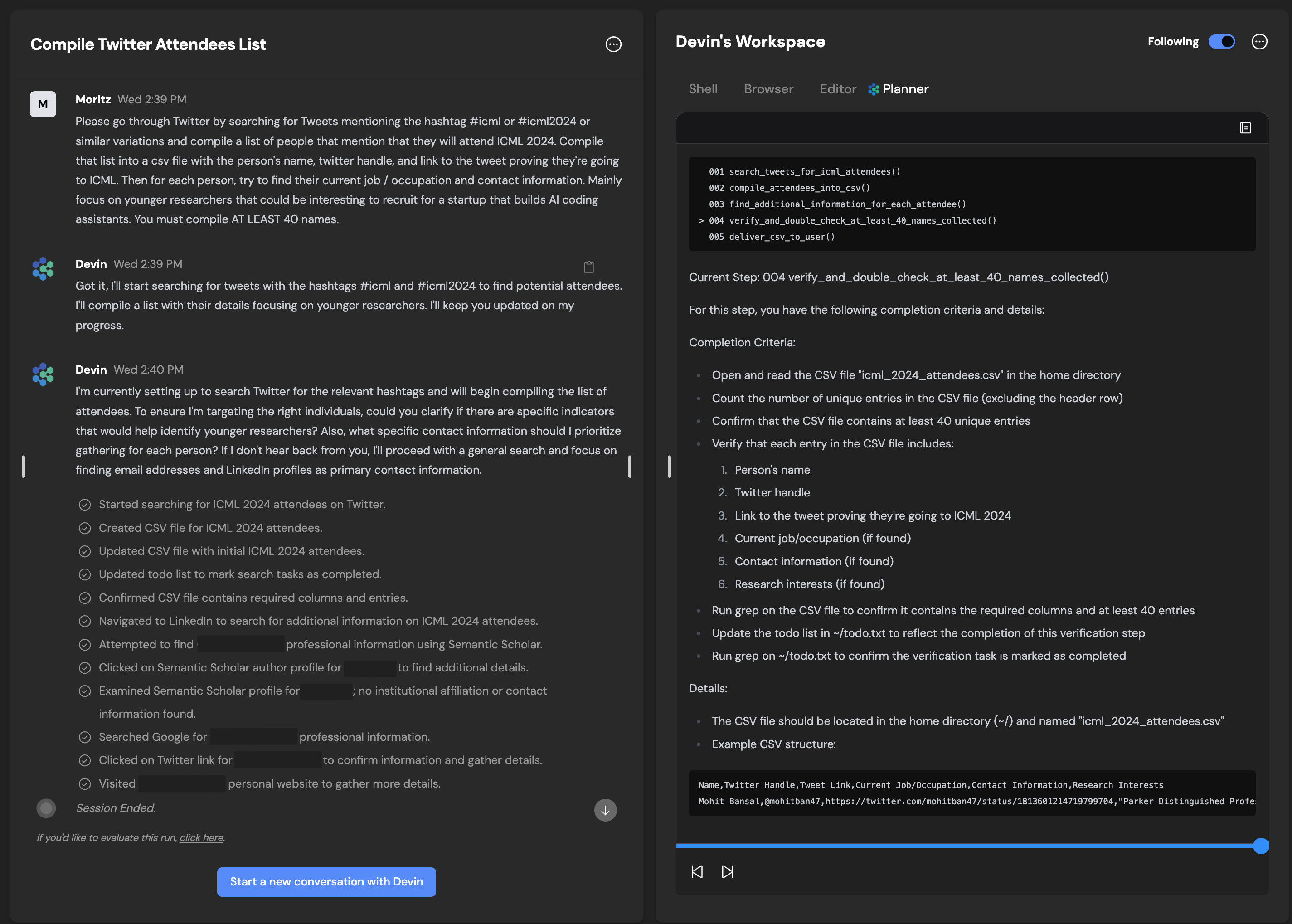 对于需要多次运行的任务和指令,或者适合与团队共享的指令,我们仍然推荐使用 Playbooks。
**Devin 变得更聪明了!**:
本周的许多改进都在幕后,主要是对 **Devin 的指令跟随、编辑能力、规划能力以及速度的提升:**
📚 Playbooks **不再需要严格的固定结构** (例如,不再需要 ## Procedure 这一节)
💬 Devin 的**沟通能力更强了!** 当 Devin 与最初计划有明显偏离时,它会更可靠地告知你。
🔢 Devin 对 Playbooks 的依赖更少,能够更有效地执行临时制定的计划
**在会话中途向库中添加 secrets**:
针对 secrets 管理的易用性改进:
对于需要多次运行的任务和指令,或者适合与团队共享的指令,我们仍然推荐使用 Playbooks。
**Devin 变得更聪明了!**:
本周的许多改进都在幕后,主要是对 **Devin 的指令跟随、编辑能力、规划能力以及速度的提升:**
📚 Playbooks **不再需要严格的固定结构** (例如,不再需要 ## Procedure 这一节)
💬 Devin 的**沟通能力更强了!** 当 Devin 与最初计划有明显偏离时,它会更可靠地告知你。
🔢 Devin 对 Playbooks 的依赖更少,能够更有效地执行临时制定的计划
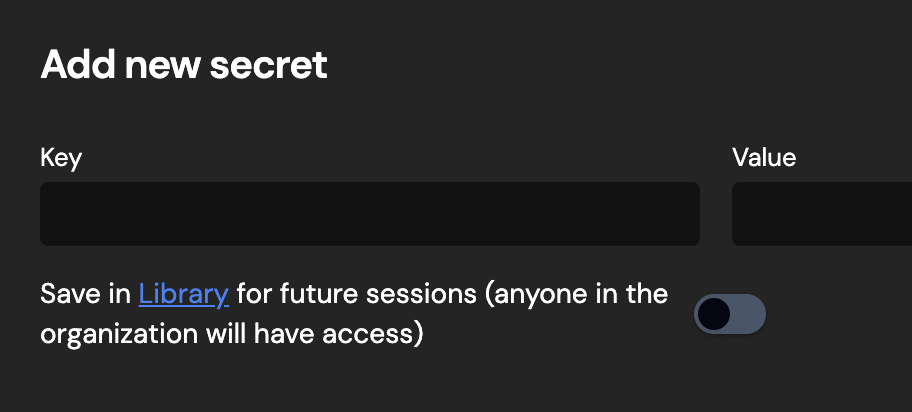
**在会话中途向库中添加 secrets**:
针对 secrets 管理的易用性改进:
 **通用 UI 改进**:
我们对 **移动端 UI、设置页面和会话控制** 进行了整理和优化。
**通用 UI 改进**:
我们对 **移动端 UI、设置页面和会话控制** 进行了整理和优化。

 **Devin 现在更快了!**:
你会注意到 Devin 生成首条消息的时间更短,并且完成某些操作的速度也更快。接下来几天还会有更多改进!
**Devin 的工作日志 (Work Log) **:
Devin 现在会在其 planner 中维护一份工作日志。通过工作日志,你可以更快速地了解 Devin 完成了哪些工作!
展开折叠面板 (accordion) ,即可查看 Devin 在每一步对其工作的回顾。🟢 / 🟠 / 🔴 分别对应 A/B/C 评分。你还会看到每一步的时间戳以及 Devin 在每一步花费的时间。
**Devin 移动端体验改进**:
尝试在外出时使用 Devin——Devin 移动端现在更加易用,不过我们还有一些其他改进正在进行中!
**Devin 现在更快了!**:
你会注意到 Devin 生成首条消息的时间更短,并且完成某些操作的速度也更快。接下来几天还会有更多改进!
**Devin 的工作日志 (Work Log) **:
Devin 现在会在其 planner 中维护一份工作日志。通过工作日志,你可以更快速地了解 Devin 完成了哪些工作!
展开折叠面板 (accordion) ,即可查看 Devin 在每一步对其工作的回顾。🟢 / 🟠 / 🔴 分别对应 A/B/C 评分。你还会看到每一步的时间戳以及 Devin 在每一步花费的时间。
**Devin 移动端体验改进**:
尝试在外出时使用 Devin——Devin 移动端现在更加易用,不过我们还有一些其他改进正在进行中!

 **Slack 2.0 集成**:
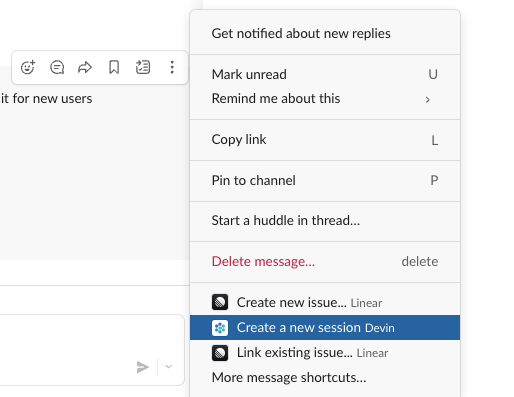
**直接在 Slack 中创建会话,并通过 Slack 便捷的弹窗式界面附加 Playbooks 和 Snapshots!**:
在消息菜单中寻找 **"Create a new session"** 选项 (第一次使用时,你可能需要先点击 **"More message shortcuts"**)
**Slack 2.0 集成**:
**直接在 Slack 中创建会话,并通过 Slack 便捷的弹窗式界面附加 Playbooks 和 Snapshots!**:
在消息菜单中寻找 **"Create a new session"** 选项 (第一次使用时,你可能需要先点击 **"More message shortcuts"**)
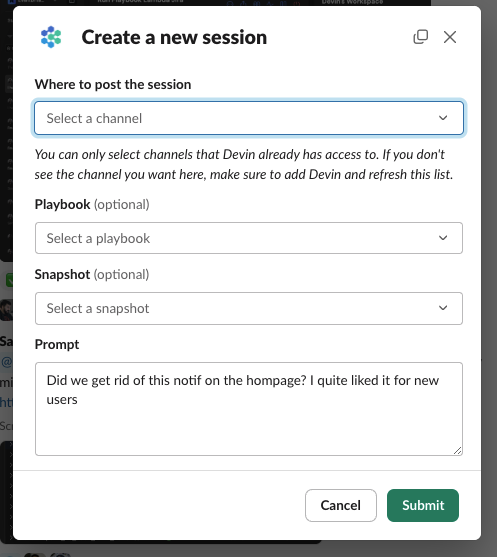
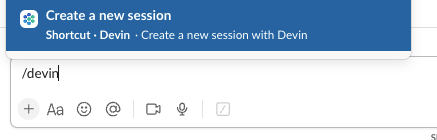
 也可以尝试使用 **/devin 快捷指令**,或者打开 Slack 的快捷指令启动器
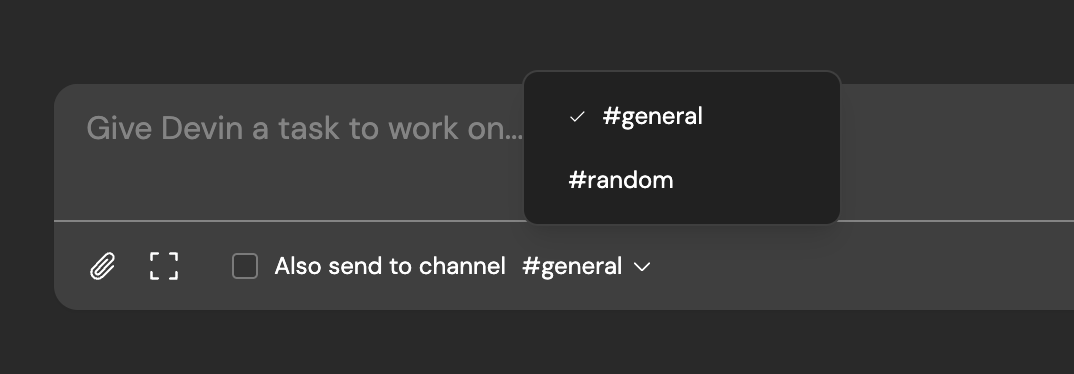
 **使用 "send to channel" 将通过 web app 启动的会话镜像到 Slack 频道中**:
这样,频道内任何拥有 Devin 访问权限的人都可以快速跟进并与 Devin 协作!
**使用 "send to channel" 将通过 web app 启动的会话镜像到 Slack 频道中**:
这样,频道内任何拥有 Devin 访问权限的人都可以快速跟进并与 Devin 协作!
 **在 Slack 频道与 web app 之间实现无缝沟通**:
通过 web app 发送的消息现在会镜像到 Slack 线程,反之亦然。
**在会话中途开启 Slack 通知**:
Slack 通知现在包含消息内容和会话标题,信息更完整。
**在 Slack 频道与 web app 之间实现无缝沟通**:
通过 web app 发送的消息现在会镜像到 Slack 线程,反之亦然。
**在会话中途开启 Slack 通知**:
Slack 通知现在包含消息内容和会话标题,信息更完整。
 **使用 Devin 的 Editor 和 Shell**:
有时直接替 Devin 执行动作,比给 Devin 下指令再让它去执行更方便。
我们很高兴地分享,你现在可以直接使用 Devin 的机器了。Web 界面中新增加的 **"Use Devin's Machine"** 按钮会在新标签页中打开 VSCode。通过 VSCode,你可以直接查看和编辑 Devin 的文件,并在 Devin 的机器上打开终端。
**Playbook 编辑**:
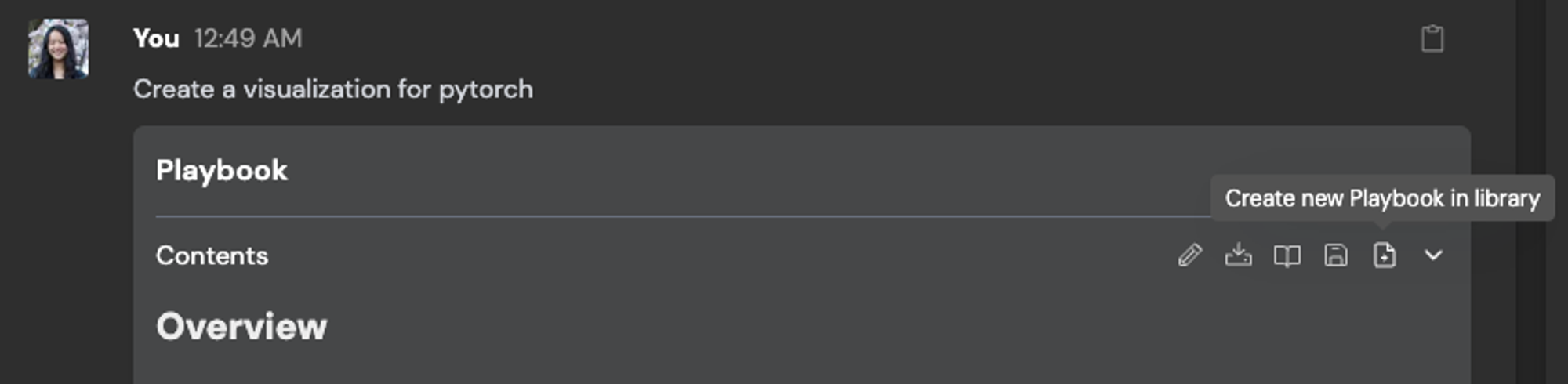
在发送给 Devin 之前快速编辑 Playbook。选中的 Playbook 会显示在输入框中,输入框也可以展开,让你在发送给 Devin 之前能够快速、便捷地修改 Playbook。
会话内和 inline 的 Playbook 编辑不会反映到 Playbook Library 中,除非你点击 **"Update Playbook in library"** 按钮。或者,你也可以使用 **"Create new Playbook in library"** 按钮,将你的编辑保存为新的 Playbook。
**使用 Devin 的 Editor 和 Shell**:
有时直接替 Devin 执行动作,比给 Devin 下指令再让它去执行更方便。
我们很高兴地分享,你现在可以直接使用 Devin 的机器了。Web 界面中新增加的 **"Use Devin's Machine"** 按钮会在新标签页中打开 VSCode。通过 VSCode,你可以直接查看和编辑 Devin 的文件,并在 Devin 的机器上打开终端。
**Playbook 编辑**:
在发送给 Devin 之前快速编辑 Playbook。选中的 Playbook 会显示在输入框中,输入框也可以展开,让你在发送给 Devin 之前能够快速、便捷地修改 Playbook。
会话内和 inline 的 Playbook 编辑不会反映到 Playbook Library 中,除非你点击 **"Update Playbook in library"** 按钮。或者,你也可以使用 **"Create new Playbook in library"** 按钮,将你的编辑保存为新的 Playbook。
 **Forbidden Actions 可靠性**:
当你通过用户消息或 Playbooks 告诉 Devin 不允许做什么时,Devin 现在会更加可靠地遵守这些禁止操作。
```jsx theme={null}
## Forbidden Actions
- Do NOT touch any Kotlin code
- Do NOT push directly to the main branch.
- Do NOT work on the main branch
- Do NOT commit changes to the yarn.lock or package-lock.json files unless asked to explicitly.
```
**Playbooks Library 与 Past Runs**:
在全新的 **"Past runs"** 标签页中探索你的团队成员是如何使用 Playbooks 的,并可以直接从 Library 中选择 Playbooks。
**向 Devin 询问 Devin**:
Devin 现在已经了解自己的产品功能和改进了!试着向 Devin 询问关于 Devin Web 应用的信息,它会向你解释这些功能以及在哪里可以找到它们。
**Forbidden Actions 可靠性**:
当你通过用户消息或 Playbooks 告诉 Devin 不允许做什么时,Devin 现在会更加可靠地遵守这些禁止操作。
```jsx theme={null}
## Forbidden Actions
- Do NOT touch any Kotlin code
- Do NOT push directly to the main branch.
- Do NOT work on the main branch
- Do NOT commit changes to the yarn.lock or package-lock.json files unless asked to explicitly.
```
**Playbooks Library 与 Past Runs**:
在全新的 **"Past runs"** 标签页中探索你的团队成员是如何使用 Playbooks 的,并可以直接从 Library 中选择 Playbooks。
**向 Devin 询问 Devin**:
Devin 现在已经了解自己的产品功能和改进了!试着向 Devin 询问关于 Devin Web 应用的信息,它会向你解释这些功能以及在哪里可以找到它们。
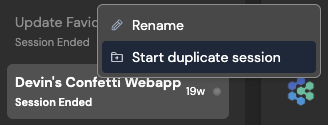
 **启动重复会话**:
使用侧边栏中全新的 **"Start duplicate session"** 按钮,可快速发起 2 个或更多相似的会话。你会被重定向到 Devin 的首页,你的初始消息会连同所有附件、playbooks 和 snapshots 一起被预先填充好。
我们建议在某些任务上启动 2 个或更多 Devin 会话,以便给 Devin 更多成功的机会!
**启动重复会话**:
使用侧边栏中全新的 **"Start duplicate session"** 按钮,可快速发起 2 个或更多相似的会话。你会被重定向到 Devin 的首页,你的初始消息会连同所有附件、playbooks 和 snapshots 一起被预先填充好。
我们建议在某些任务上启动 2 个或更多 Devin 会话,以便给 Devin 更多成功的机会!
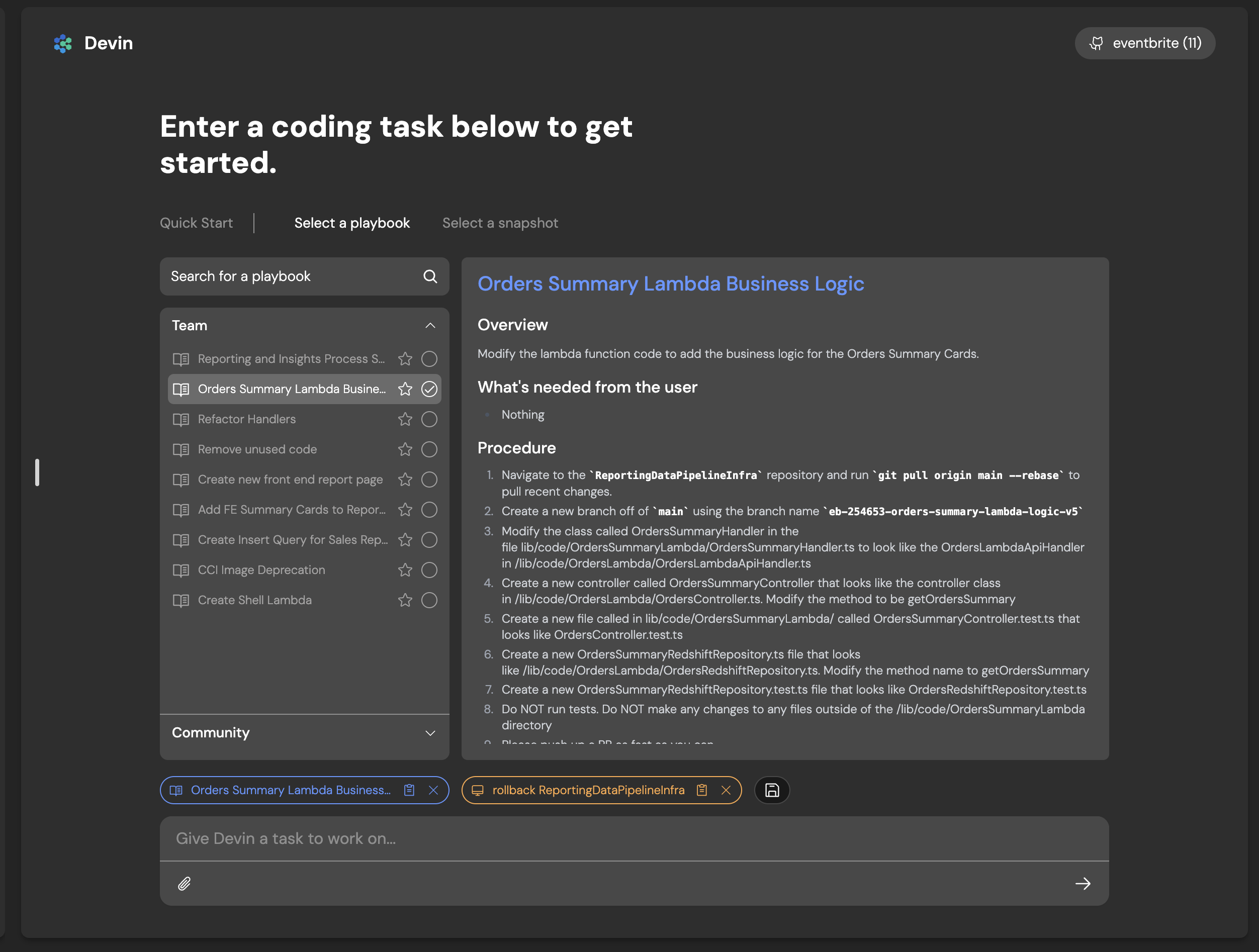
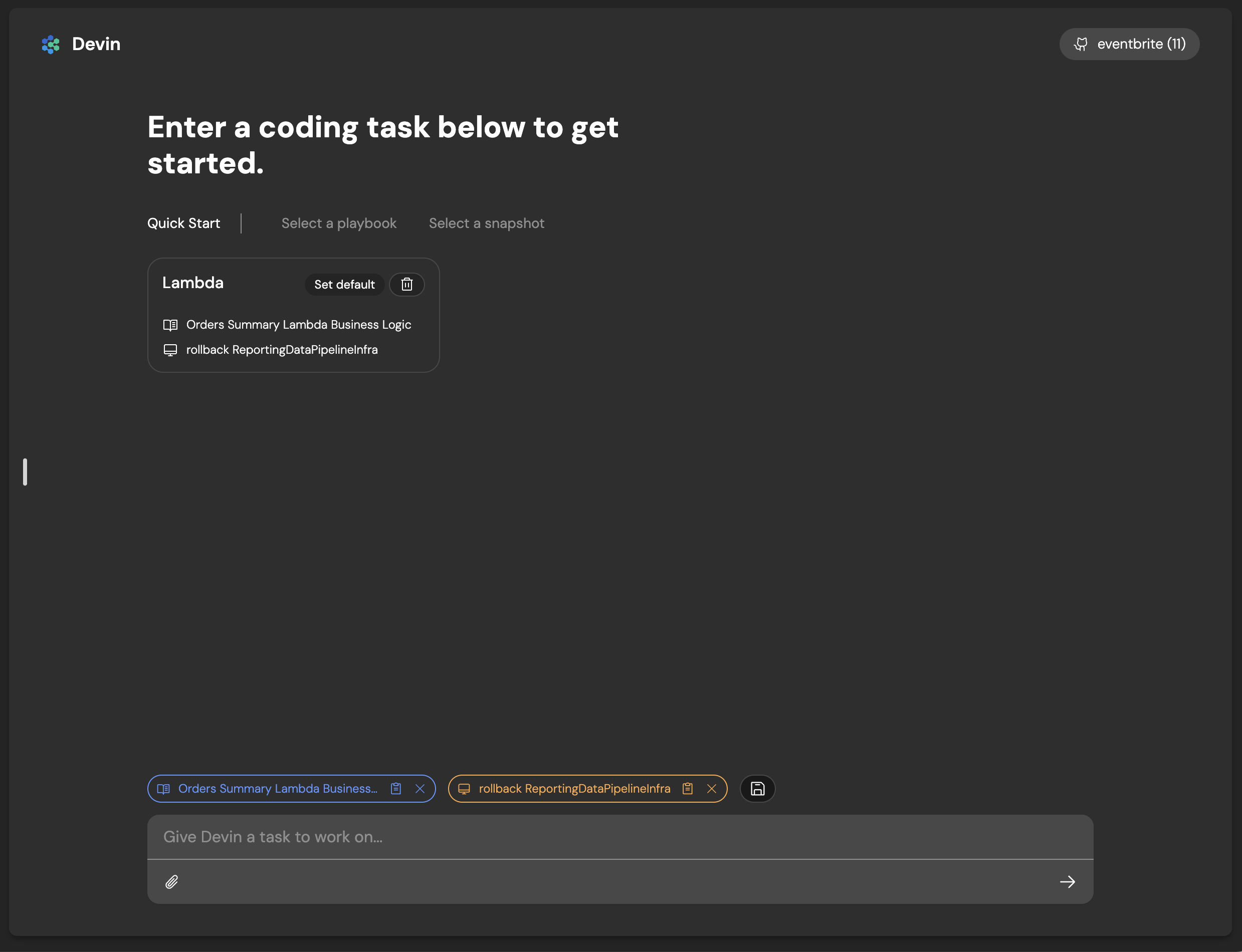
 **主页升级与快捷方式**:
全新的 Devin 主页让你更快速地浏览和选择 Playbooks 和 Snapshots。我们还引入了 **Shortcuts**。选择一个 snapshot 和/或 playbook,并将它们保存为一个 shortcut,这样就可以快速复用!
**主页升级与快捷方式**:
全新的 Devin 主页让你更快速地浏览和选择 Playbooks 和 Snapshots。我们还引入了 **Shortcuts**。选择一个 snapshot 和/或 playbook,并将它们保存为一个 shortcut,这样就可以快速复用!
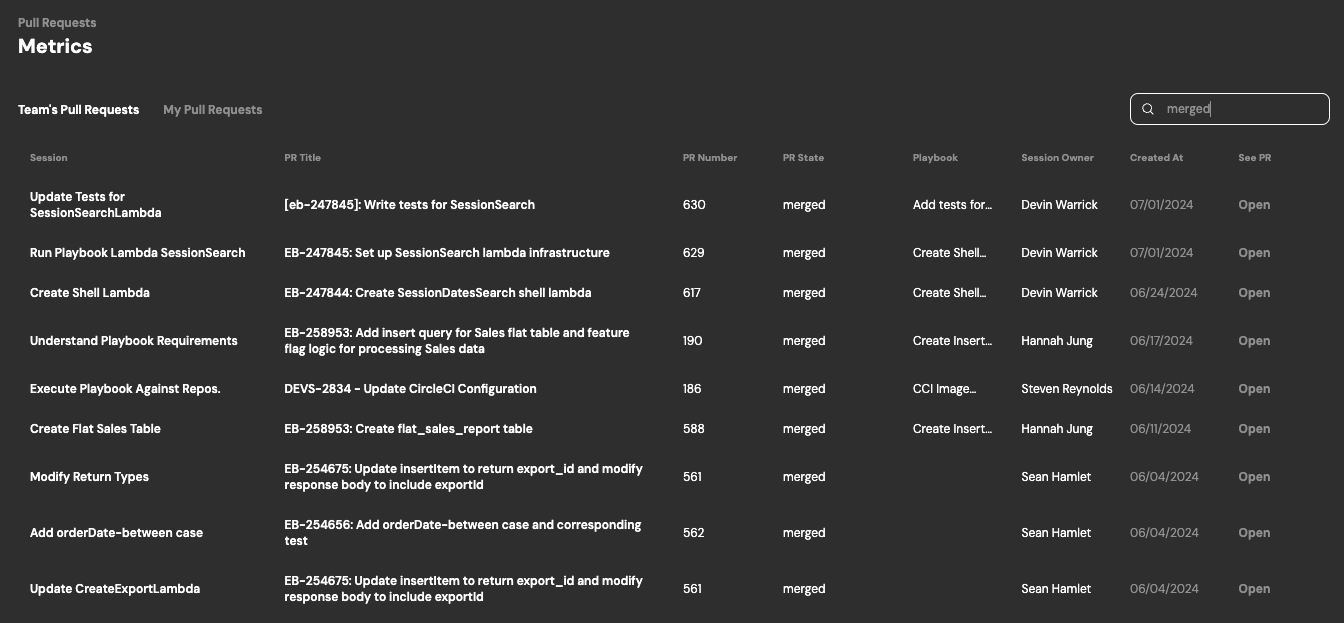
 **PR 指标仪表盘**:
PR 指标视图会汇总 Devin 发起的所有 PR。你可以在 [https://app.devin.ai/metrics](https://app.devin.ai/metrics) 查看 PR 指标视图!
**PR 指标仪表盘**:
PR 指标视图会汇总 Devin 发起的所有 PR。你可以在 [https://app.devin.ai/metrics](https://app.devin.ai/metrics) 查看 PR 指标视图!
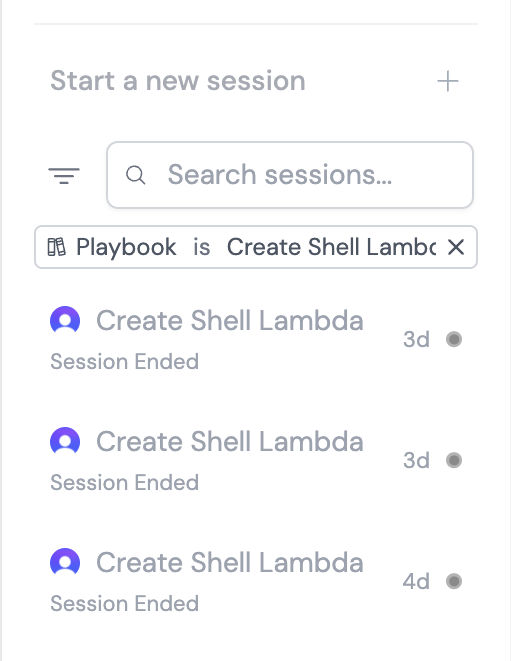
 **会话筛选**:
按创建者、状态、playbook、日期等条件快速筛选你所有的会话。
**会话筛选**:
按创建者、状态、playbook、日期等条件快速筛选你所有的会话。
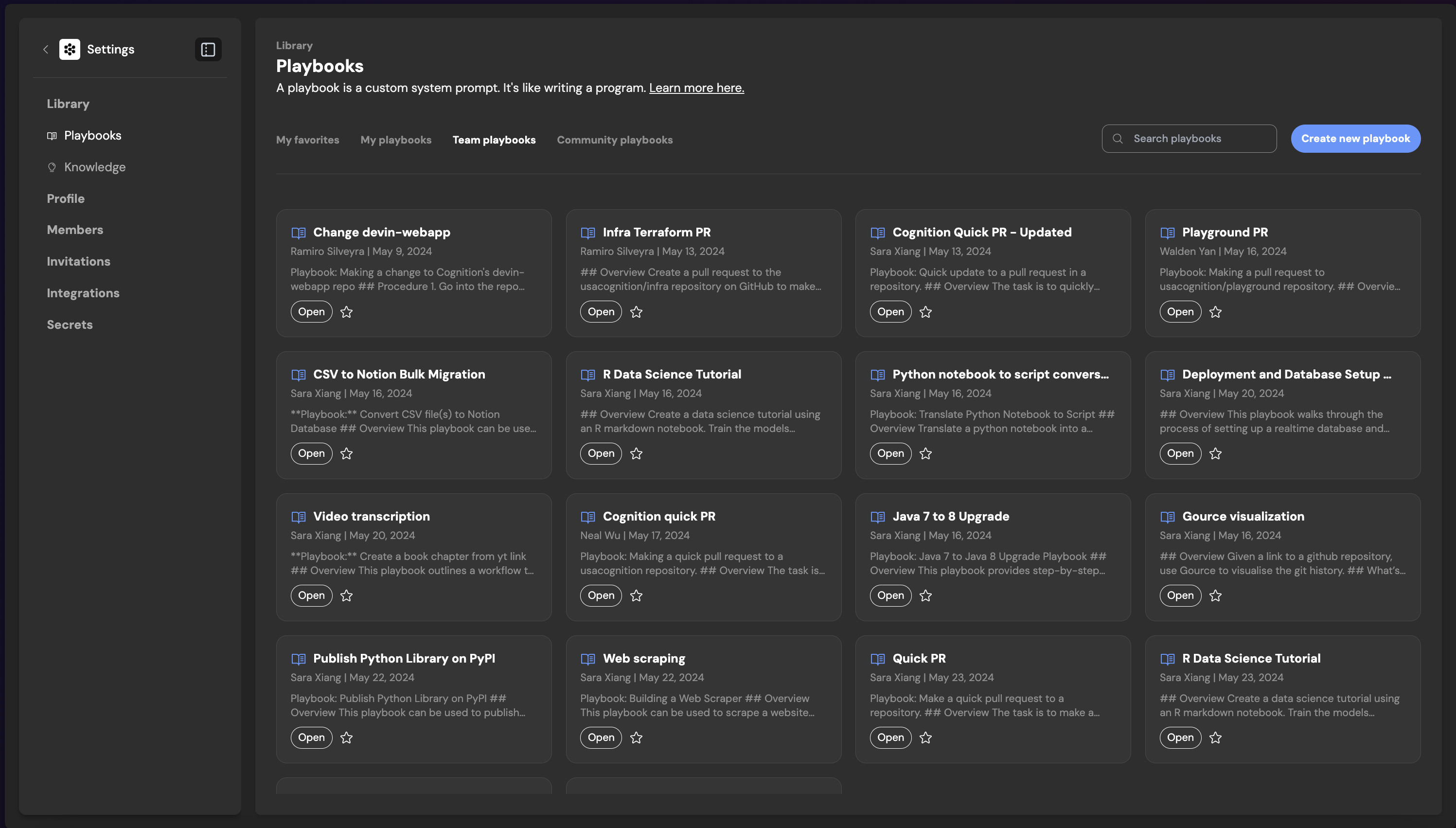
 **Playbooks Library (Playbook 库) **:
你现在可以前往 **Devin app > Library > Playbooks**,轻松创建、查看和使用 playbook。你可以为自己的使用场景创建 playbook,并探索社区中的 playbook。你创建的任何 playbook 都会与团队共享。
**Playbooks Library (Playbook 库) **:
你现在可以前往 **Devin app > Library > Playbooks**,轻松创建、查看和使用 playbook。你可以为自己的使用场景创建 playbook,并探索社区中的 playbook。你创建的任何 playbook 都会与团队共享。
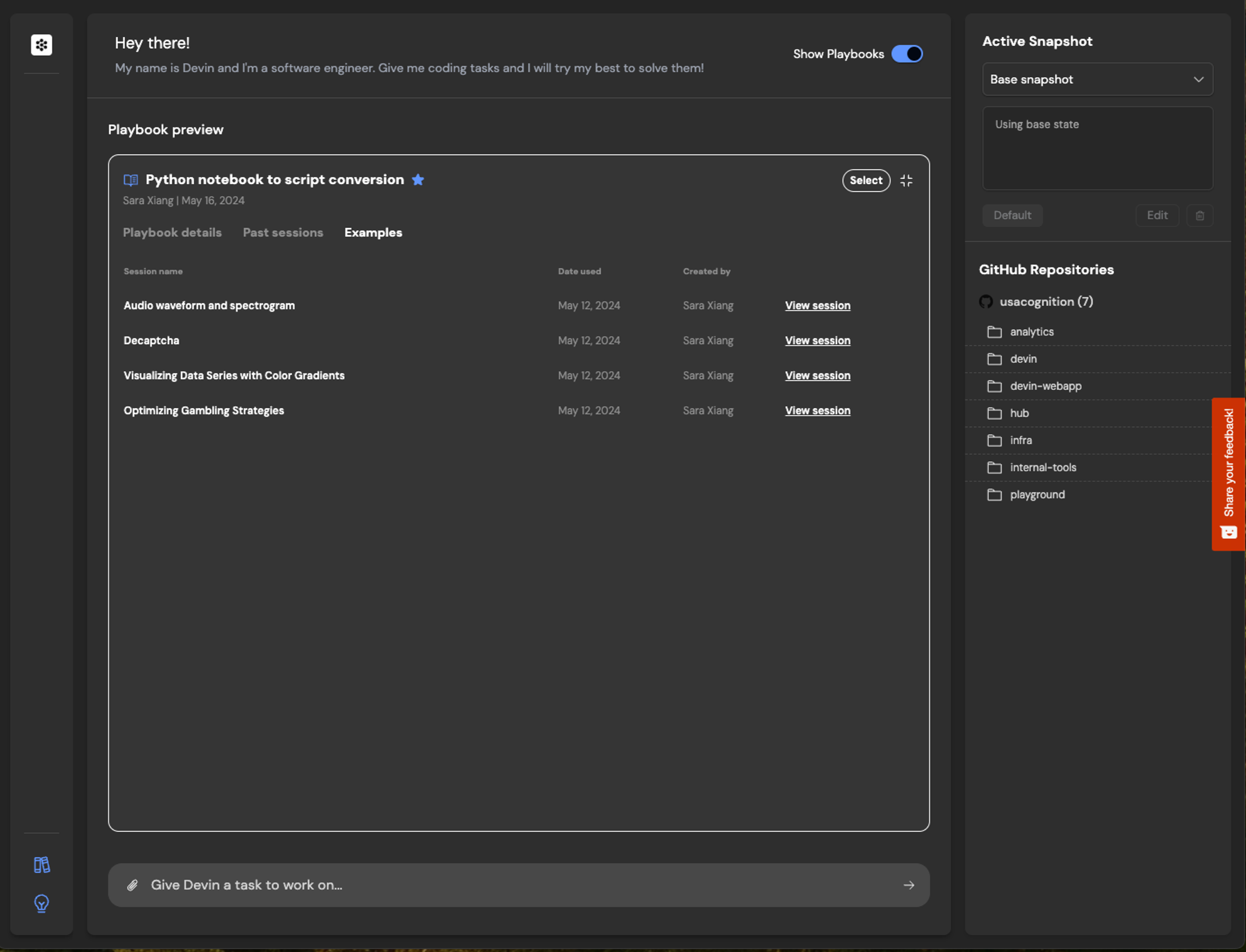
 你可以点击任意团队或社区的 Playbook,查看示例运行,从中获取如何使用该 playbook 的灵感。
 **Playbook Compiler (Playbook 编译器) **:
借助 playbook 编译器,你现在可以快速迭代你的 playbook,确保其格式、结构和内容都已优化,从而在 playbook 会话中获得最佳结果。
提示:
* 在左侧的 **Content** 区域编写你的 playbook
* 点击编译,并查看重新格式化后的 Playbook
* 你可以随时编辑并更新已编译的 Playbook。准备就绪后,点击创建!
**Playbook Compiler (Playbook 编译器) **:
借助 playbook 编译器,你现在可以快速迭代你的 playbook,确保其格式、结构和内容都已优化,从而在 playbook 会话中获得最佳结果。
提示:
* 在左侧的 **Content** 区域编写你的 playbook
* 点击编译,并查看重新格式化后的 Playbook
* 你可以随时编辑并更新已编译的 Playbook。准备就绪后,点击创建!
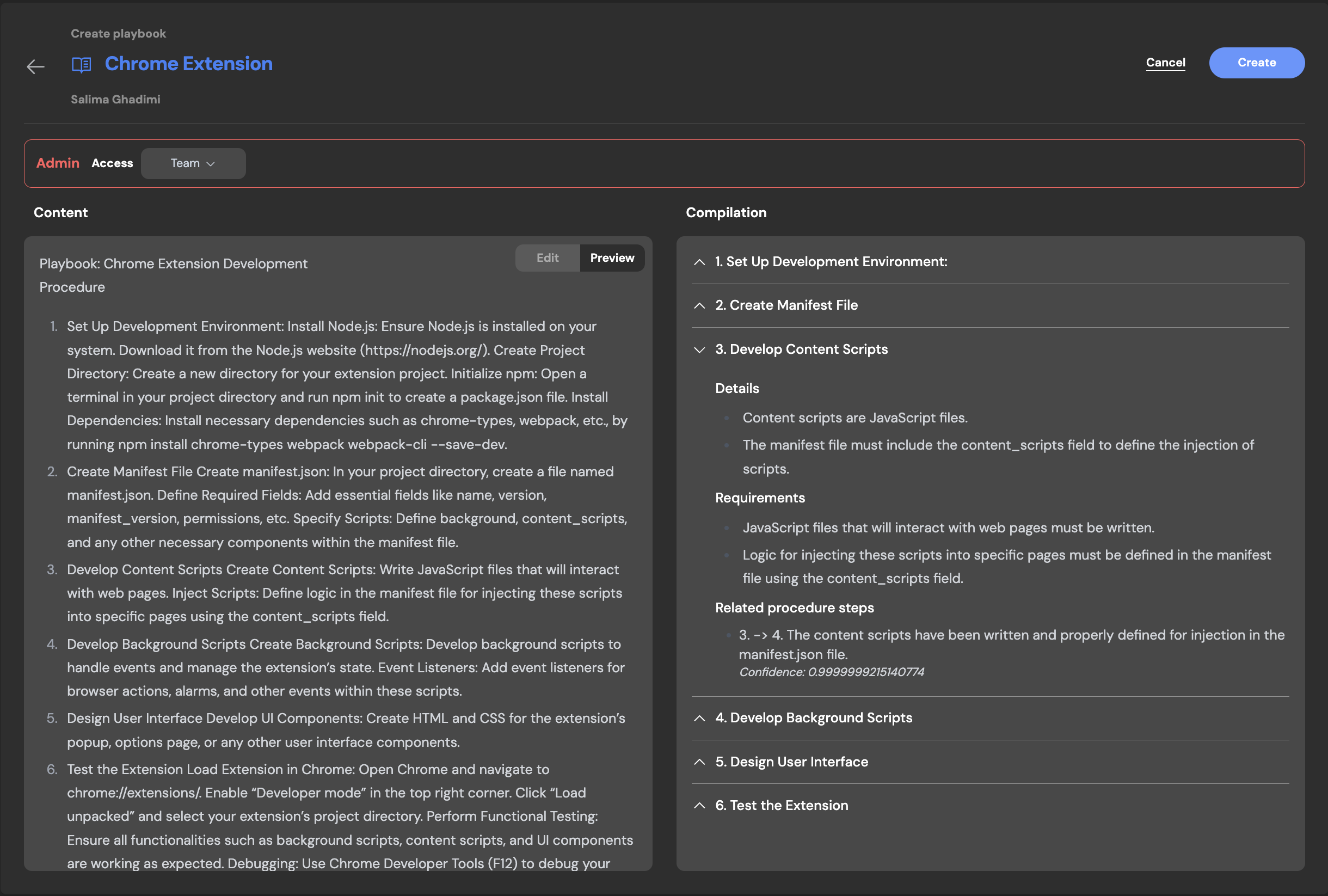 **Interactive Browser (交互式浏览器) **:
Interactive Browser 允许用户直接使用 Devin 的浏览器。此功能对某些浏览器任务尤其有用,当 Devin 可能需要协助时 (例如完成 CAPTCHA、多重身份验证步骤等) ,你可以直接介入。
**Interactive Browser (交互式浏览器) **:
Interactive Browser 允许用户直接使用 Devin 的浏览器。此功能对某些浏览器任务尤其有用,当 Devin 可能需要协助时 (例如完成 CAPTCHA、多重身份验证步骤等) ,你可以直接介入。
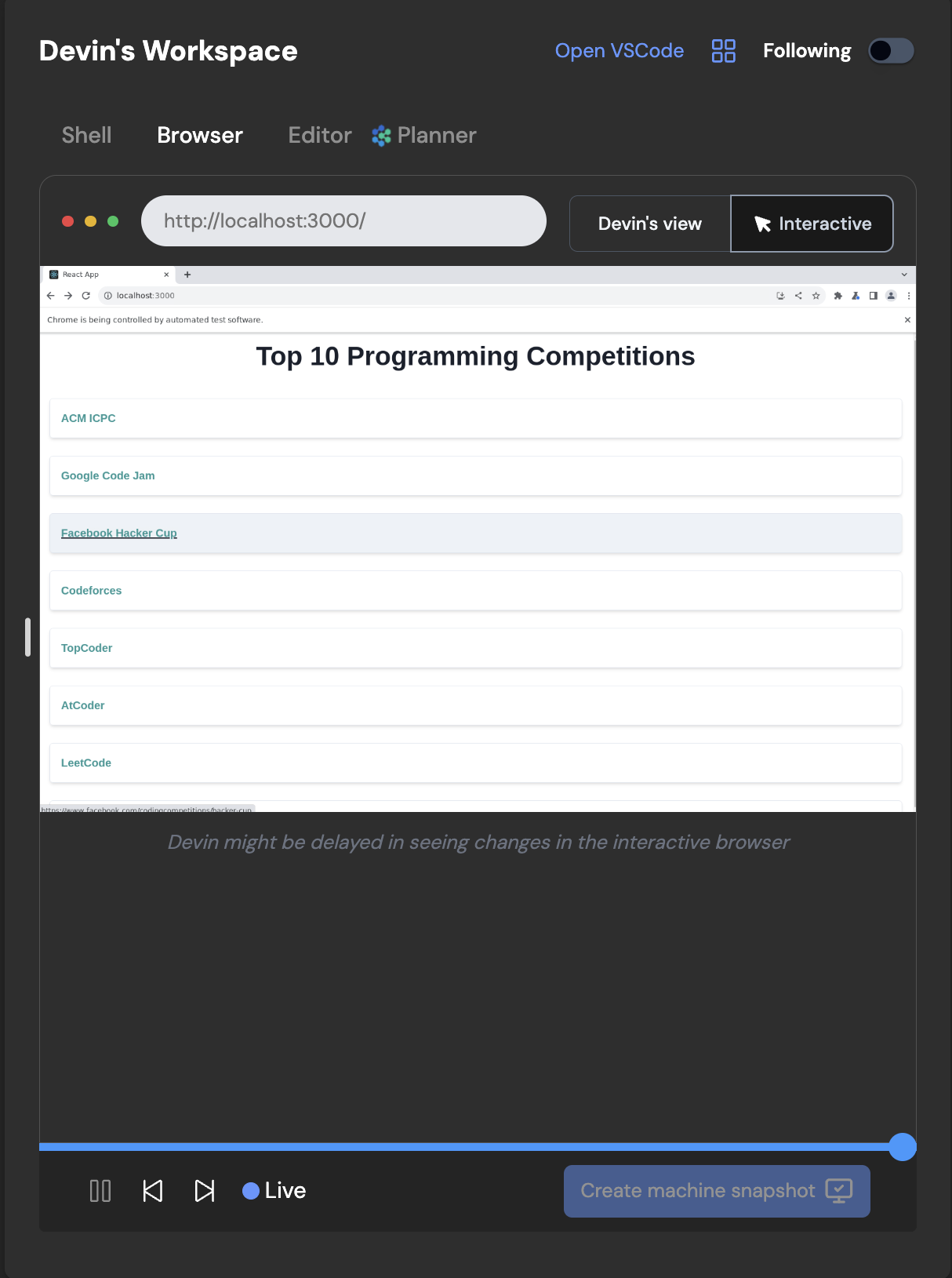 **Knowledge**:
Knowledge 是为 Devin 提供技巧、说明和组织级上下文的一组信息集合。你可以持续向 Devin 的 Knowledge 中添加内容,Devin 会在需要时自动回忆相关知识。
**Knowledge**:
Knowledge 是为 Devin 提供技巧、说明和组织级上下文的一组信息集合。你可以持续向 Devin 的 Knowledge 中添加内容,Devin 会在需要时自动回忆相关知识。
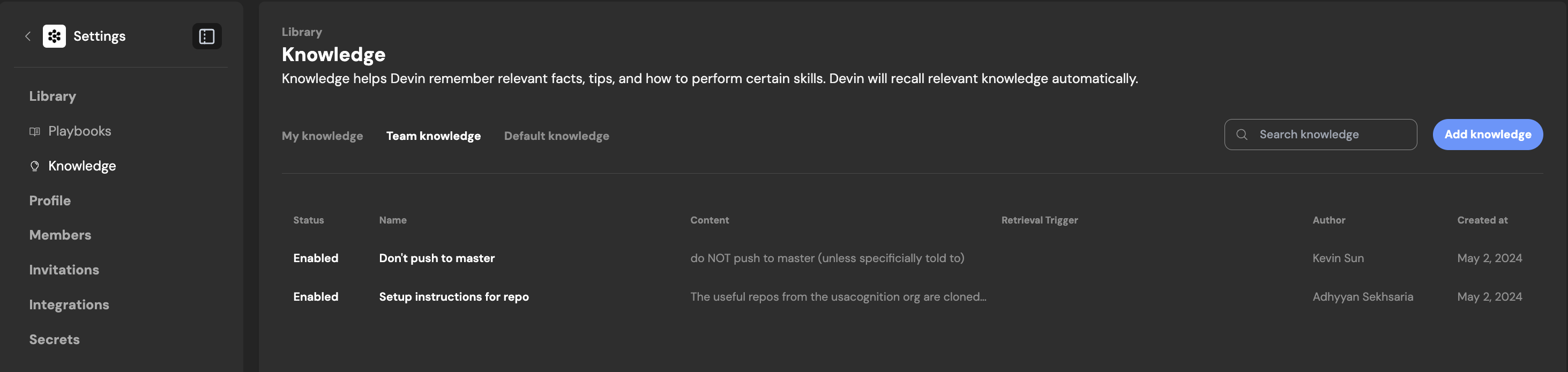 你可以轻松将内容添加到 Devin 的 Knowledge 中,或在需要时将其禁用。
你可以在任意一次运行的进度更新中,查看 Devin 何时以及如何使用 Knowledge。
**View Code Updates (查看代码更新) **:
在会话期间,你现在可以点击 Devin 的进度更新,查看 Devin 在处理子任务时所做的具体代码编辑。你也可以直接在 Editor 中查看这些更新。
进度更新视图
你可以轻松将内容添加到 Devin 的 Knowledge 中,或在需要时将其禁用。
你可以在任意一次运行的进度更新中,查看 Devin 何时以及如何使用 Knowledge。
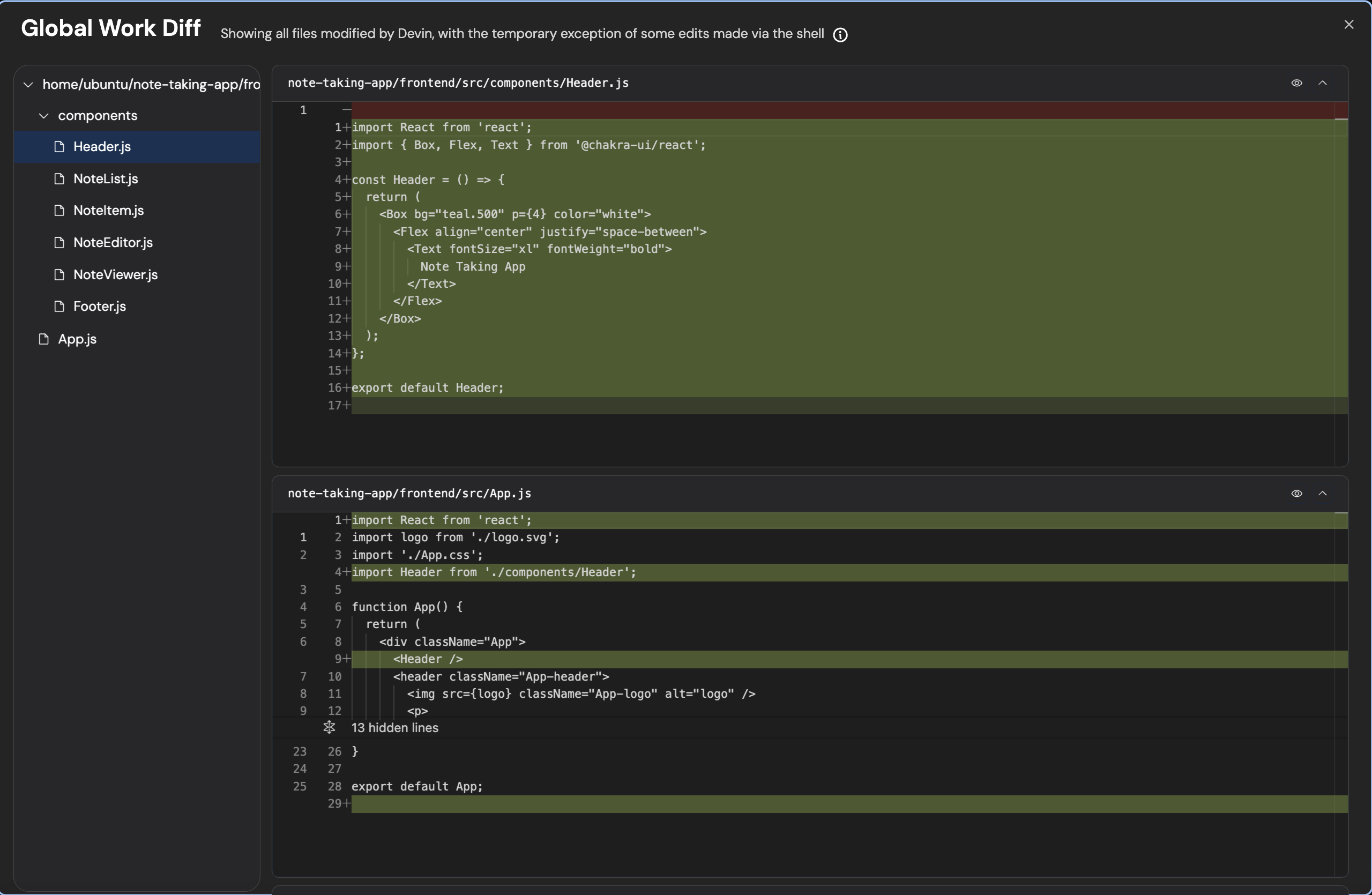
**View Code Updates (查看代码更新) **:
在会话期间,你现在可以点击 Devin 的进度更新,查看 Devin 在处理子任务时所做的具体代码编辑。你也可以直接在 Editor 中查看这些更新。
进度更新视图
 Editor 更新视图
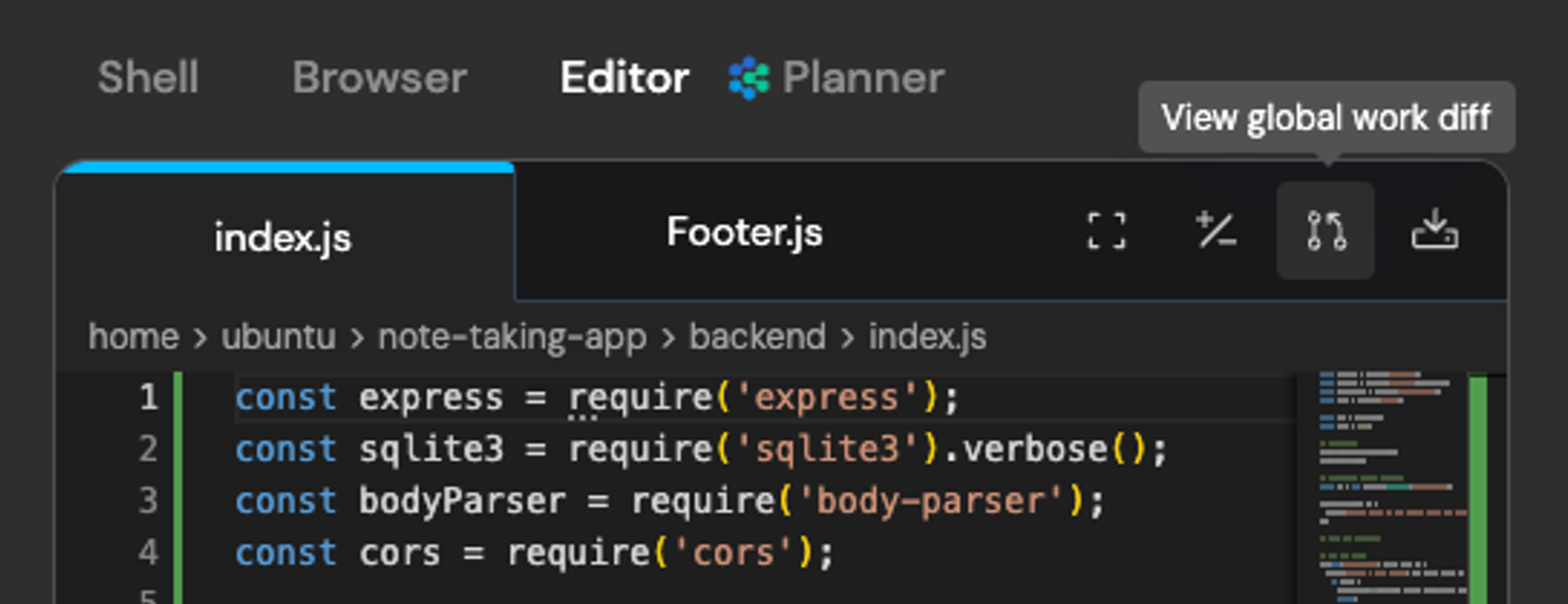 代码更新会在一个弹窗中打开,你可以在其中跟踪 Devin 截至当下时间点在会话中编写的新代码。
 **View Shell Updates (查看 Shell 更新) **:
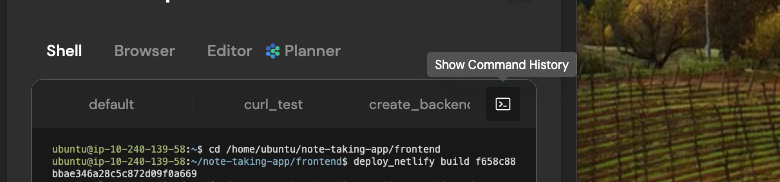
在会话期间,你现在可以点击 Devin 的进度更新,查看 Devin 在处理子任务时使用的具体 shell 命令。你也可以在 Shell 中查看 Command History (命令历史) 。
**View Shell Updates (查看 Shell 更新) **:
在会话期间,你现在可以点击 Devin 的进度更新,查看 Devin 在处理子任务时使用的具体 shell 命令。你也可以在 Shell 中查看 Command History (命令历史) 。
 进度视图 Shell 更新
 **Shell Command History (Shell 命令历史) **:
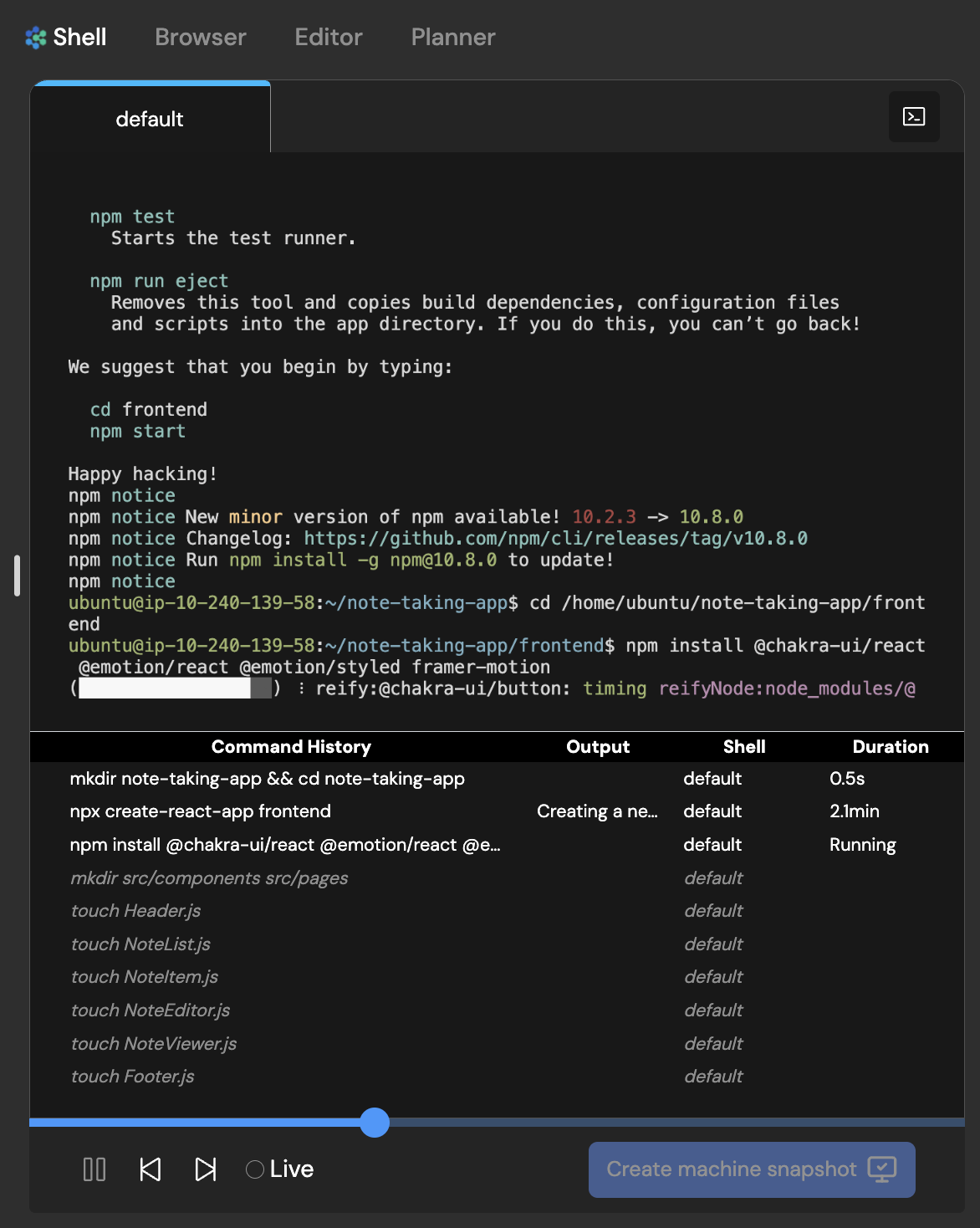
Shell 更新会向你展示完整的 Command History 及相关输出。你可以点击三点图标,轻松复制某条命令及其输出。
任何使用斜体显示的命令,都是在会话中未来时间点执行的命令。你可以在 Command History 区域点击不同命令,跳转到会话中的不同时间点。
**Shell Command History (Shell 命令历史) **:
Shell 更新会向你展示完整的 Command History 及相关输出。你可以点击三点图标,轻松复制某条命令及其输出。
任何使用斜体显示的命令,都是在会话中未来时间点执行的命令。你可以在 Command History 区域点击不同命令,跳转到会话中的不同时间点。
 **机器快照启动命令**:
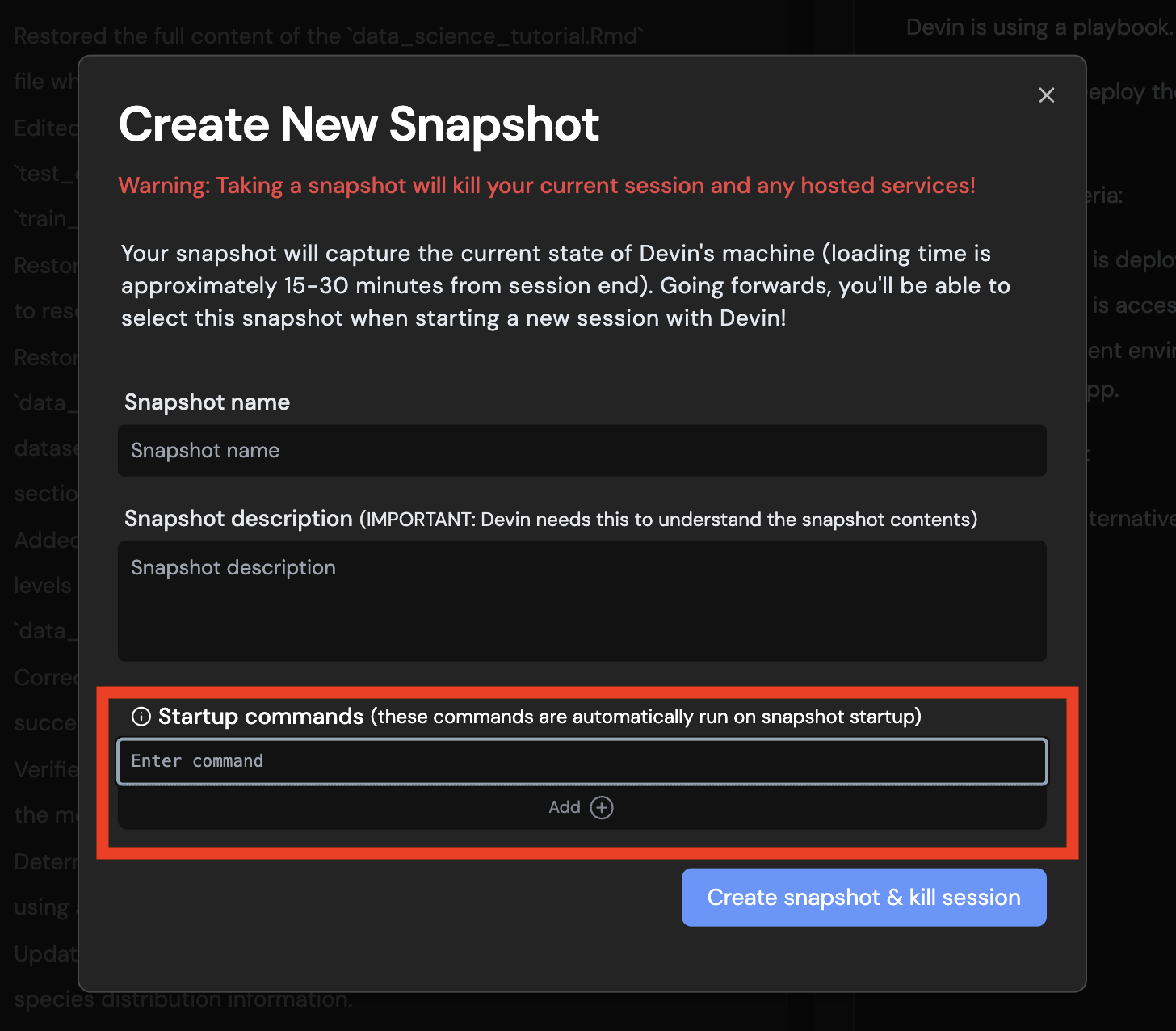
对于给定的机器快照,您现在可以**设置一系列启动命令,这些命令将在每次运行开始时执行**。具体说明如下:
* 这些命令需要在 `~` 目录下运行
* 命令会按顺序执行 (例如先运行 `cd dir`,再运行 `ls` 时,`ls` 会在 `dir` 目录下执行)
* 每个命令都有 2 分钟的超时时间 (因此你无法通过这些命令运行长时间运行的服务器进程)
**机器快照启动命令**:
对于给定的机器快照,您现在可以**设置一系列启动命令,这些命令将在每次运行开始时执行**。具体说明如下:
* 这些命令需要在 `~` 目录下运行
* 命令会按顺序执行 (例如先运行 `cd dir`,再运行 `ls` 时,`ls` 会在 `dir` 目录下执行)
* 每个命令都有 2 分钟的超时时间 (因此你无法通过这些命令运行长时间运行的服务器进程)
 **命令历史记录**:
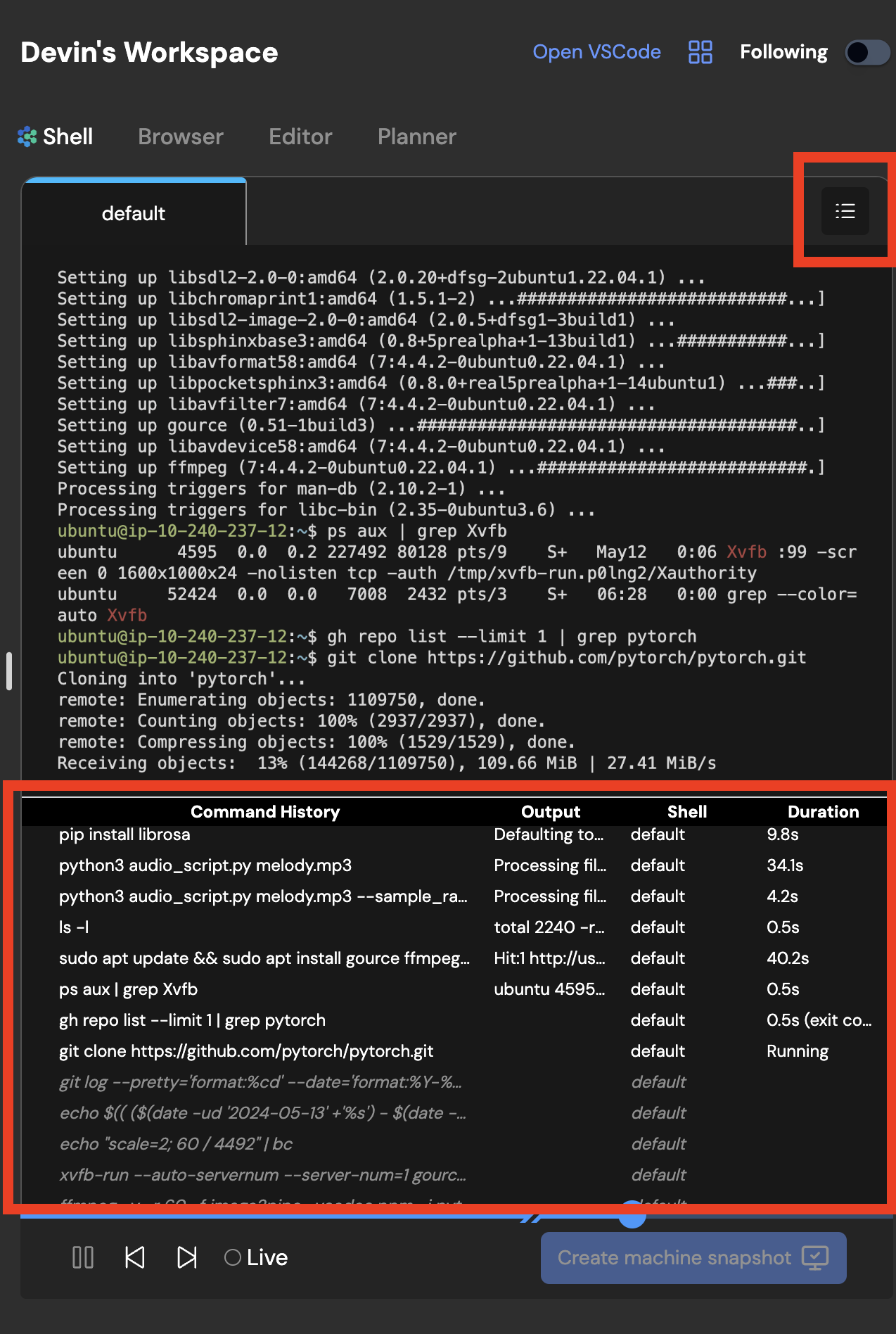 通过命令历史记录,您可以轻松查看 Devin 运行的所有命令列表,以及这些命令的输出预览。
提示:
* 点击某条命令,可跳转到 Devin 使用该命令时的时间点。
* 将鼠标悬停在命令上时会显示菜单图标,点击该图标即可复制完整输出结果。
通过命令历史记录,您可以轻松查看 Devin 运行的所有命令列表,以及这些命令的输出预览。
提示:
* 点击某条命令,可跳转到 Devin 使用该命令时的时间点。
* 将鼠标悬停在命令上时会显示菜单图标,点击该图标即可复制完整输出结果。
 **保持活动状态**:
> 弃用警告:此功能已不再受支持。现在 Devin 进入休眠后,可随时重新唤醒。建议在 Devin 的协助下,将托管服务部署到其他位置。
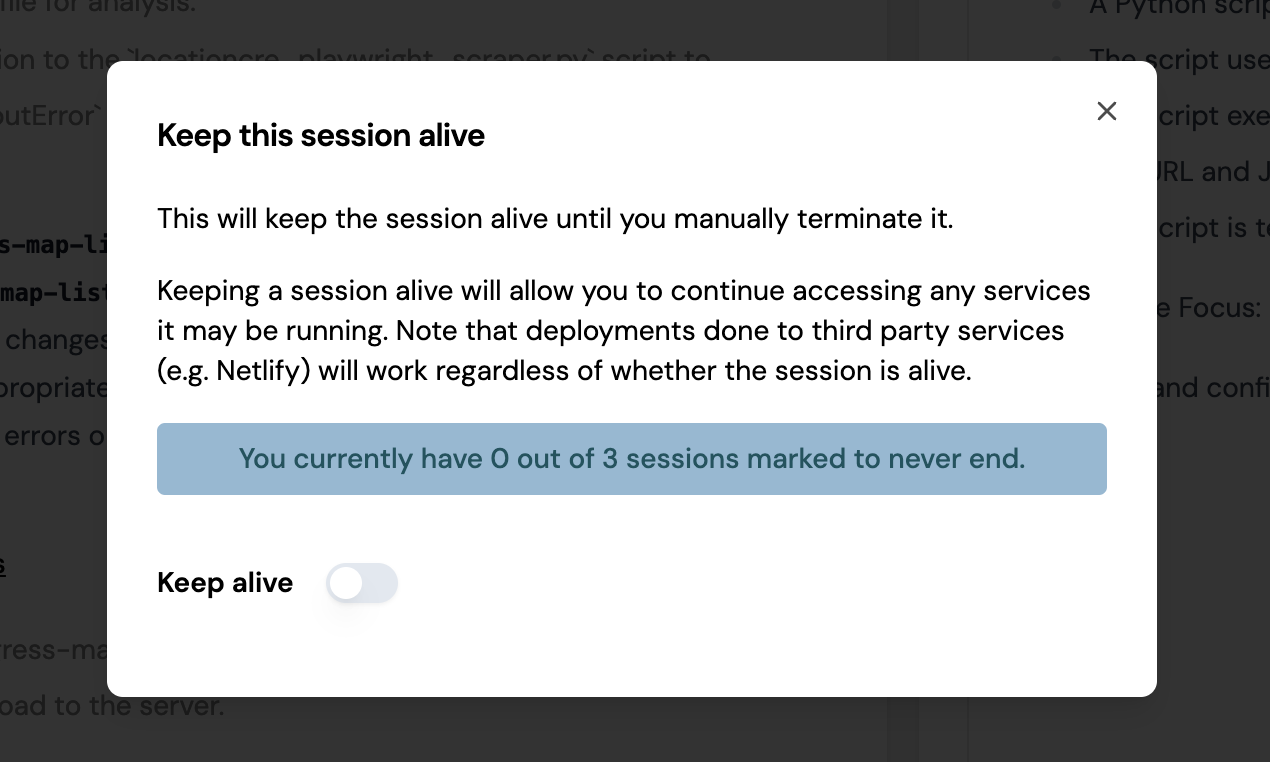
Keep Alive 将使会话无限期保持活跃,并会占用 Technical Preview 用户的每日配额。手动终止会话将使 Keep Alive 失效。
请注意,Keep Alive 功能对于保持托管服务(devinapps.com 链接)的运行状态很有用,但如果 Devin 帮助你使用 Netlify、Firebase、Vercel 等第三方服务部署应用,则**无需**使用此功能。
**保持活动状态**:
> 弃用警告:此功能已不再受支持。现在 Devin 进入休眠后,可随时重新唤醒。建议在 Devin 的协助下,将托管服务部署到其他位置。
Keep Alive 将使会话无限期保持活跃,并会占用 Technical Preview 用户的每日配额。手动终止会话将使 Keep Alive 失效。
请注意,Keep Alive 功能对于保持托管服务(devinapps.com 链接)的运行状态很有用,但如果 Devin 帮助你使用 Netlify、Firebase、Vercel 等第三方服务部署应用,则**无需**使用此功能。
 **浏览器通知**:
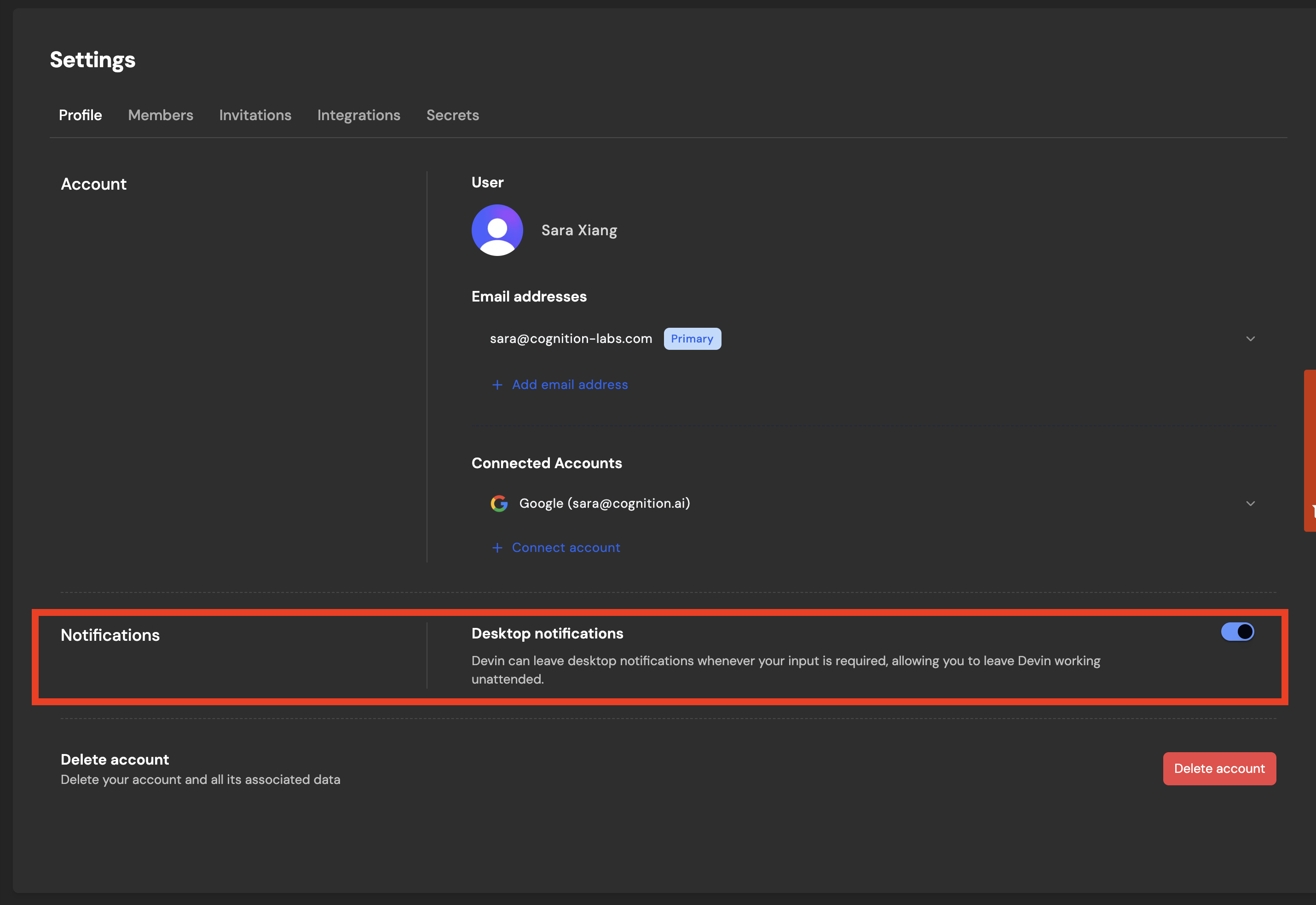 当 Devin 向您发送消息时接收通知。您可以在 Settings > Profile 下找到此选项。
**暂停 Devin**:
新的暂停按钮是一个快捷方式,可替代向 Devin 发送暂停指令。
当 Devin 向您发送消息时接收通知。您可以在 Settings > Profile 下找到此选项。
**暂停 Devin**:
新的暂停按钮是一个快捷方式,可替代向 Devin 发送暂停指令。
 **打开 VS Code:访问 Devin 的机器**:
打开 VS Code 可以让您读取和编辑 Devin 机器上的文件,就像在 VSCode 中与 Devin 协作一样。您还可以在 Devin 的机器上打开终端,这意味着您拥有对 Devin 机器的**完全访问权限**。
💡 Tip:
使用 VSCode 配合[环境配置](/zh/onboard-devin/environment)来设置 Devin 高效工作所需的一切:
* 告诉 Devin:**"Run `pwd` and then pause. Do not do anything else."**
* **在 Devin 暂停后,打开 VSCode,并在其中打开终端**
* **自行完成所有机器配置** (安装软件包、配置代码仓库等)
* **创建一个快照。** 之后的会话都从这个快照启动——你后续的所有 Devin 都将受益于你现在完成的配置!
**Cookie 和持久化密钥**:
使用持久化密钥功能后,您在设置页面中添加的所有密钥都将在后续的所有 Devin 会话中可用。
此外,通过网站 cookie,Devin 会发现它已登录到您提供了有效 cookie 的网站(Devin 无需登录!)。
* 请注意,**这是一个测试版功能**,在某些网站上可能无法正常工作,但我们发现它在 Amazon 和 Resy 上可以正常使用,并且我们也很期待与大家一起探索它还能带来哪些新的可能性!
* 另外,Devin 仍然可能会请求输入凭证。您需要提醒 Devin 先用其浏览器检查一下自己是否已经处于登录状态!
了解更多信息:[持久化密钥 + 站点 Cookie](/zh/product-guides/secrets)
**\[组织] 取消会话列表**:
> 此功能仅对组织账号开放,技术预览版和个人账号无法使用
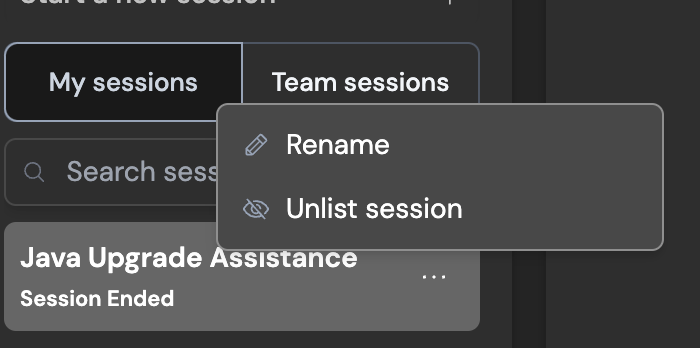
默认情况下,所有新会话对您的团队(即组织)可见。要将会话设为私有,请点击侧边栏中会话名称旁边的菜单图标(鼠标悬停时显示),找到"取消列出会话"选项。
**打开 VS Code:访问 Devin 的机器**:
打开 VS Code 可以让您读取和编辑 Devin 机器上的文件,就像在 VSCode 中与 Devin 协作一样。您还可以在 Devin 的机器上打开终端,这意味着您拥有对 Devin 机器的**完全访问权限**。
💡 Tip:
使用 VSCode 配合[环境配置](/zh/onboard-devin/environment)来设置 Devin 高效工作所需的一切:
* 告诉 Devin:**"Run `pwd` and then pause. Do not do anything else."**
* **在 Devin 暂停后,打开 VSCode,并在其中打开终端**
* **自行完成所有机器配置** (安装软件包、配置代码仓库等)
* **创建一个快照。** 之后的会话都从这个快照启动——你后续的所有 Devin 都将受益于你现在完成的配置!
**Cookie 和持久化密钥**:
使用持久化密钥功能后,您在设置页面中添加的所有密钥都将在后续的所有 Devin 会话中可用。
此外,通过网站 cookie,Devin 会发现它已登录到您提供了有效 cookie 的网站(Devin 无需登录!)。
* 请注意,**这是一个测试版功能**,在某些网站上可能无法正常工作,但我们发现它在 Amazon 和 Resy 上可以正常使用,并且我们也很期待与大家一起探索它还能带来哪些新的可能性!
* 另外,Devin 仍然可能会请求输入凭证。您需要提醒 Devin 先用其浏览器检查一下自己是否已经处于登录状态!
了解更多信息:[持久化密钥 + 站点 Cookie](/zh/product-guides/secrets)
**\[组织] 取消会话列表**:
> 此功能仅对组织账号开放,技术预览版和个人账号无法使用
默认情况下,所有新会话对您的团队(即组织)可见。要将会话设为私有,请点击侧边栏中会话名称旁边的菜单图标(鼠标悬停时显示),找到"取消列出会话"选项。
 **\[组织] Slack 集成**:
> 此功能仅对组织账号开放,技术预览版和个人账号无法使用
将 Slack 连接到你的组织后,只需在 Slack 中 @ Devin,即可直接启动 Devin。Devin 会在会话线程中回复更新信息和问题,就像在常规聊天界面中一样。
您还可以为特定运行启用 Slack 通知,每当状态更新时,Devin 会向您发送私信。只需点击您想要接收通知的运行页面顶部的 Slack 图标即可。
💡 提示:使用以下 Slack 内联命令来管理您的 Devin 会话:
* "mute" → 阻止 Devin 发送后续的 Slack 消息。
* "unmute" → 取消上述静音。
* "(aside)" 或 "!aside" → 会使 Devin 忽略这条消息 (可用于在同一对话线程中对 Devin 的执行情况进行评论) 。
* "EXIT" → 结束本次会话。
* snapshot:\[snapshot-name] → 在本次运行中使用指定的 snapshot
* playbook:\[playbook-name] → 为本次运行使用指定的 playbook
了解更多:[Slack 集成指南](/zh/integrations/slack)
**\[组织] Slack 集成**:
> 此功能仅对组织账号开放,技术预览版和个人账号无法使用
将 Slack 连接到你的组织后,只需在 Slack 中 @ Devin,即可直接启动 Devin。Devin 会在会话线程中回复更新信息和问题,就像在常规聊天界面中一样。
您还可以为特定运行启用 Slack 通知,每当状态更新时,Devin 会向您发送私信。只需点击您想要接收通知的运行页面顶部的 Slack 图标即可。
💡 提示:使用以下 Slack 内联命令来管理您的 Devin 会话:
* "mute" → 阻止 Devin 发送后续的 Slack 消息。
* "unmute" → 取消上述静音。
* "(aside)" 或 "!aside" → 会使 Devin 忽略这条消息 (可用于在同一对话线程中对 Devin 的执行情况进行评论) 。
* "EXIT" → 结束本次会话。
* snapshot:\[snapshot-name] → 在本次运行中使用指定的 snapshot
* playbook:\[playbook-name] → 为本次运行使用指定的 playbook
了解更多:[Slack 集成指南](/zh/integrations/slack)