> ## Documentation Index
> Fetch the complete documentation index at: https://docs.devin.ai/llms.txt
> Use this file to discover all available pages before exploring further.
# Slack
> 直接在贵公司的 Slack 中与 Devin 聊天和协作
一旦有 bug、功能需求或问题出现,就在 Slack 中 @**Devin**。每次被 @ 到时,Devin 都会在同一会话线程中回复最新进展并提出进一步的问题。
## 开始使用
### 安装
1. 前往 [Settings > Connections > Slack](https://app.devin.ai/settings/connections/slack)
2. 点击“Connect”
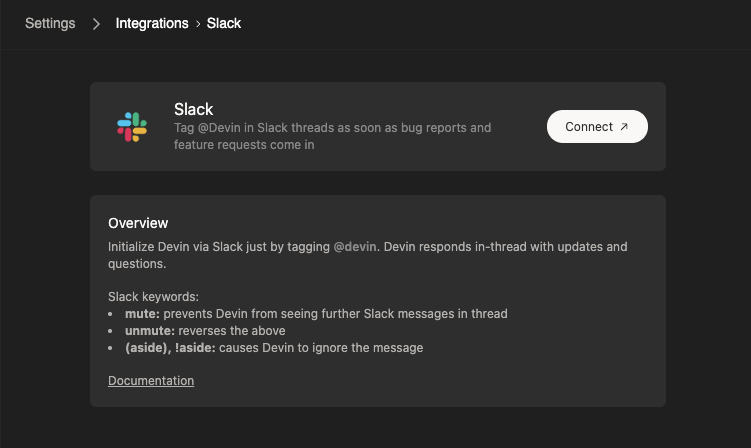 3. 根据提示在你的工作区中安装 Devin 的 Slack 应用
4. 确保关联你的个人用户账户。你所在组织中的所有用户都需要完成此步骤才能使用 Devin。
3. 根据提示在你的工作区中安装 Devin 的 Slack 应用
4. 确保关联你的个人用户账户。你所在组织中的所有用户都需要完成此步骤才能使用 Devin。
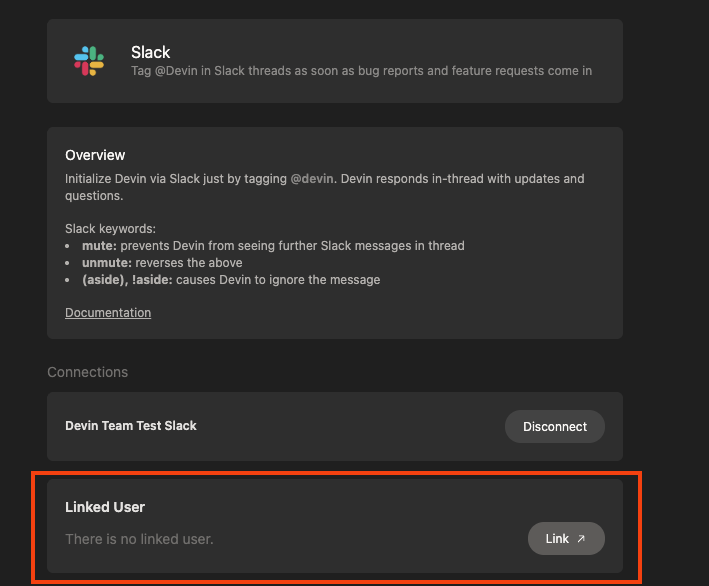 5. 在 Slack 中 @Devin 以开始会话
> 注意:如果你的用户账户无法正常连接,请确认你的 Slack 邮箱地址是否与 [https://app.devin.ai/settings](https://app.devin.ai/settings) 中的邮箱地址一致。如果不一致,请在 Slack 中使用正确的邮箱地址重新认证。
5. 在 Slack 中 @Devin 以开始会话
> 注意:如果你的用户账户无法正常连接,请确认你的 Slack 邮箱地址是否与 [https://app.devin.ai/settings](https://app.devin.ai/settings) 中的邮箱地址一致。如果不一致,请在 Slack 中使用正确的邮箱地址重新认证。
### 如何在 Slack 中使用 Devin
在你为 Slack 安装完成 Devin 集成后,只需在任意频道中通过 @Devin 触发 Devin。你可以在消息中添加附件。
 Devin 会在会话线程中回复你。现在,你可以像在常规聊天界面中一样与 Devin 来回交流。
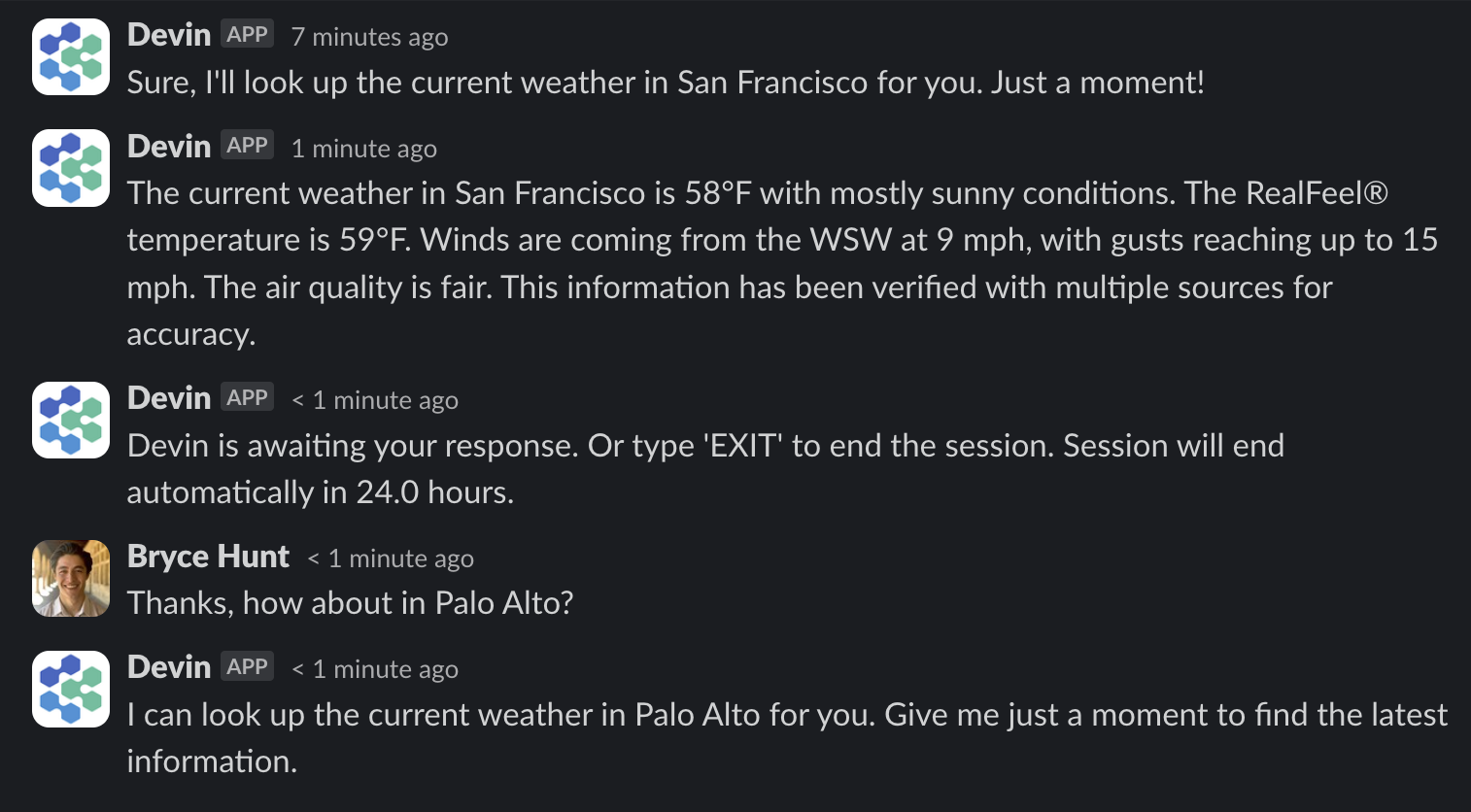 *请注意,Devin 可能会出错。请务必仔细检查其回复内容。*
### 内联 Slack 关键词和功能
| Keyword | Function |
| --------------------------- | ------------------------------------------------------------------------------ |
| `!ask` | 在消息开头使用 !ask,可在不启动完整 agent 的情况下快速获取与代码库相关的解答 |
| `!deep` | 使用高级搜索获取更深入的研究型解答 |
| `mute`, `@Devin mute` | 阻止 Devin 查看该会话线程中后续的 Slack 消息 |
| `unmute`, `@Devin unmute` | 撤销上述操作 |
| `(aside)`, `!aside` | 让 Devin 忽略该消息 (适用于在同一会话线程中直接评论 Devin 的运行) |
| `sleep` | 让 Devin 进入休眠;要唤醒 Devin,在该会话线程中发送任意消息即可 |
| `archive`, `@Devin archive` | 让 Devin 进入休眠并归档该会话 |
| `EXIT` | 结束会话 |
| `!dana` | 启动 [Data Analyst (Dana)](/zh/work-with-devin/data-analyst) 会话,用于数据库查询、数据分析和可视化 |
| `!fast` | 在消息开头使用 !fast,以快速模式启动会话,从而在较简单的任务上更快获得响应 |
| `!ultra` | 在消息开头使用 !ultra,以 Ultra Mode 启动会话,用于最复杂的任务 |
| `!lite` | 在消息开头使用 !lite,以 Lite Mode 启动会话 |
| `!agent` | 在消息开头使用 !agent,将活跃会话切换回默认 Agent mode |
| `!new` | 在消息开头使用 !new,强制在新会话线程中启动会话 |
| `![macro_name]` | 通过引用其宏名称,将一个 Playbook 附加到会话中 |
模式关键词 (`!fast`, `!lite`, `!ultra`, `!agent`) 和 `!new` 仅会在消息的 **开头** (紧跟在 `@Devin` 提及之后) 被识别。它们可以叠加使用 (例如 `@Devin !ultra !new fix the bug`) 。如果关键词放在消息的其他位置,则会被忽略。在活跃的 Devin 会话线程中发送模式关键词,会在会话进行中切换该会话的模式。
### 开启 Slack 通知
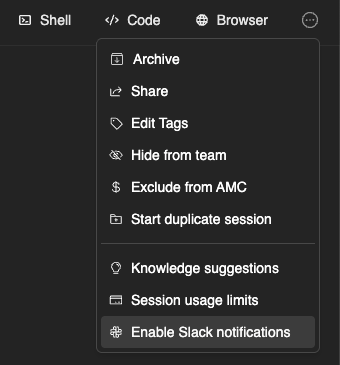
你可以为特定的运行启用 Slack 通知,这样每当有状态更新时,Devin 都会私信通知你。要启用通知,只需在任意运行页面顶部的菜单中点击“Enable Slack notifications”。
### 专用 Devin 频道
创建一个专门的 **#devin-runs** 频道 (或类似名称) ,将所有与 Devin 相关的对话集中到一个地方。这样可以帮助你的团队协作处理 Devin 的运行任务,并从彼此的不同使用场景中获得灵感。

### 如何重命名 Devin
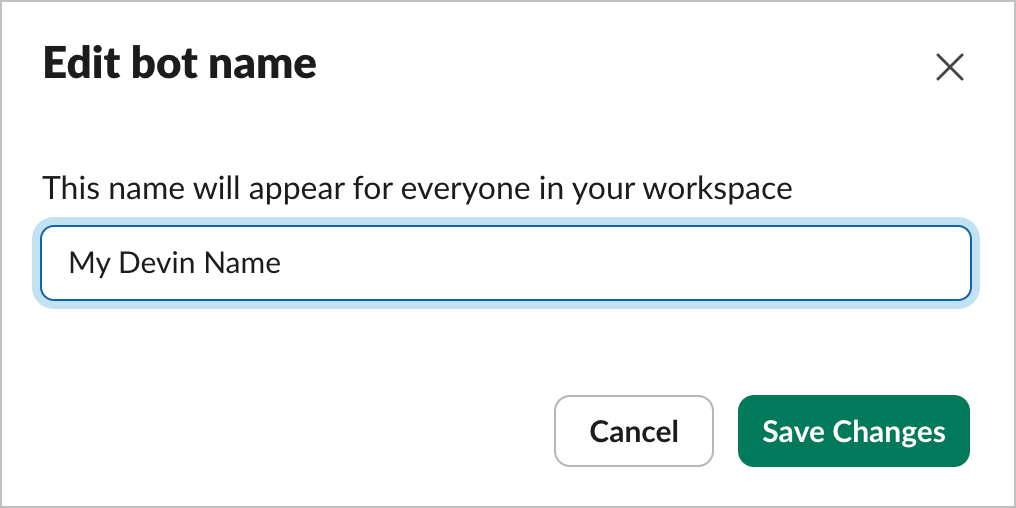
你可以在 Slack 工作区中更改 Devin 的名称。前往 Slack 工作区管理面板 -> Configure apps -> Installed Apps -> Devin。然后点击 App Details,并进入该页面的 Configuration 选项卡。向下滚动,你会看到名为“Bot User”的部分,在那里可以更改 Devin 的名称。
### 定价
如果你还没有 Devin 账户,可以在[此处](https://devin.ai/pricing)了解更多定价和套餐信息。
AI 助手侧边栏体验 (应用容器) 需要付费的 Slack 套餐。所有其他 Devin 功能——包括频道和会话线程中的 @提及、`/ask-devin`、`/dana` 以及消息快捷方式——均可在任何 Slack 套餐中使用,包括免费工作区。
### 隐私
请参阅我们的[隐私政策](https://cognition.com/privacy-policy)。
### 权限详情
| 权限 | 描述 | 原因说明 |
| ---------------------------------------------------- | ----------------------------------------- | ------------------------------------------------------- |
| `chat:write, chat:write.customize` | 以 @Devin 身份或使用自定义用户名和头像发送消息 | Devin 必须能够响应用户请求 |
| `commands` | 添加供用户使用的快捷方式和/或斜杠命令 | Devin 将来可能会获得更多交互功能,这些功能将需要不同的命令 |
| `files:read, files:write` | 以 Devin 身份上传、编辑和删除文件 | Devin 需要管理文件,以便向用户发送附件并从用户接收附件 |
| `channels:history, groups:history, im:history` | 查看 Devin 所在频道、群组和直接消息 (DM) 中的消息及其他内容 | 当 Devin 在某条消息会话线程中被启动时,它必须能够访问历史消息,以便检索该会话线程中之前的消息作为上下文 |
| `im:read`, `im:write` | 与用户发起直接消息 (DM) ,并查看 Devin 已被添加到的直接消息的基本信息 | Devin 需要能够发起 DM,以便通过 Slack 向用户发送通知 |
| `reactions:write` | 添加和编辑表情回应 | Devin 会向消息添加表情,以标记某次运行是已完成还是失败 |
| `remote_files:read, remote_files:write` | 查看由应用在工作区中添加的远程文件 | Devin 需要管理远程文件,以便向用户发送附件并从用户接收附件 |
| `users:read, users:read.email`, `users.profile:read` | 查看工作区中的成员,以及他们的邮箱和个人资料 | Devin 需要根据邮箱地址将 Slack 用户与 Devin 用户进行匹配 |