> ## Documentation Index
> Fetch the complete documentation index at: https://docs.devin.ai/llms.txt
> Use this file to discover all available pages before exploring further.

# 你的首次会话

> 开启你的首次会话，看看 Devin 能做什么

export const PromptBlock = ({children, type, agent, intent, playbookId}) => {
  var utm = 'utm_source=docs&utm_medium=use-case-gallery&utm_campaign=prompt-block';
  var tag = 'docs-use-case-gallery';
  var agentParams = (agent ? '&agent=' + agent : '') + (intent ? '&intent=' + intent : '') + (playbookId ? '&playbookId=' + playbookId : '');
  var label = type === 'schedule' ? 'Schedule in Devin' : type === 'playbook' ? 'Create Playbook' : type === 'knowledge' ? 'Add to Knowledge' : agent === 'advanced' ? 'Try in Devin' : agent === 'dana' ? 'Try in Dana' : agent === 'ada' ? 'Try in Ask Devin' : 'Try in Devin';
  var buildUrl = function (text) {
    var encoded = encodeURIComponent(text);
    if (type === 'schedule') return 'https://app.devin.ai/settings/schedules/create?' + utm + agentParams + '&prompt=' + encoded;
    if (type === 'playbook') return 'https://app.devin.ai/settings/playbooks/create?' + utm + '&body=' + encoded;
    if (type === 'knowledge') return 'https://app.devin.ai/knowledge?' + utm + '&body=' + encoded;
    if (agent === 'ada') return 'https://app.devin.ai/search?' + utm + '&noSubmit=true&prompt=' + encoded;
    return 'https://app.devin.ai/?tags=' + tag + '&' + utm + agentParams + '&prompt=' + encoded;
  };
  const ref = React.useRef(null);
  const [href, setHref] = React.useState('#');
  React.useEffect(() => {
    if (!ref.current) return;
    var codeEl = ref.current.querySelector('pre code');
    if (codeEl) {
      var text = codeEl.textContent.trim();
      if (text) setHref(buildUrl(text));
    }
    var header = ref.current.querySelector('[data-component-part="code-block-header"]');
    if (header && !header.querySelector('.prompt-block-devin-link')) {
      var link = document.createElement('a');
      link.href = href;
      link.target = '_blank';
      link.rel = 'noopener noreferrer';
      link.className = 'prompt-block-devin-link';
      link.style.cssText = 'display:inline-flex;align-items:center;gap:6px;text-decoration:none;color:#fff;font-size:11px;font-weight:500;padding:4px 10px;border-radius:6px;white-space:nowrap;background:#317CFF;transition:background 0.2s;margin-left:8px;';
      link.innerHTML = '<svg xmlns="http://www.w3.org/2000/svg" width="12" height="12" viewBox="0 0 24 24" fill="none" stroke="currentColor" stroke-width="2" stroke-linecap="round" stroke-linejoin="round"><path d="M18 13v6a2 2 0 0 1-2 2H5a2 2 0 0 1-2-2V8a2 2 0 0 1 2-2h6"/><polyline points="15 3 21 3 21 9"/><line x1="10" y1="14" x2="21" y2="3"/></svg> ' + label;
      link.onmouseenter = function () {
        link.style.background = '#2968D9';
      };
      link.onmouseleave = function () {
        link.style.background = '#317CFF';
      };
      header.appendChild(link);
    }
    var existingLink = ref.current.querySelector('.prompt-block-devin-link');
    if (existingLink && href !== '#') existingLink.href = href;
  });
  return <div className="prompt-block" ref={ref}>{children}</div>;
};

<Note>
  在开始你的首次会话之前，请确保你已经为代码仓库[建立索引](/zh/onboard-devin/index-repo)并[完成设置](/zh/onboard-devin/environment)。这些是帮助 Devin 理解并处理你的代码库的基础步骤。
</Note>

现在你已经完成所有配置，可以开始你的第一个 Devin 会话了！本指南将带你逐步了解新的会话界面，并帮助你理解与 Devin 交互的最佳方式。

<Tip>
  更喜欢在终端中工作？[Devin CLI](/zh/cli)让你可以直接通过命令行启动会话。使用 `curl -fsSL https://cli.devin.ai/install.sh | bash` 只需 2 分钟即可完成安装。
</Tip>

<div id="understanding-the-devin-session-page">
  ## 了解 Devin 会话页面
</div>

当你开始一个新会话时，你会看到两种主要模式：**Ask** 模式和 **Agent** 模式。

<Note>
  除非你已经有一个完整且明确的计划，否则我们建议先使用 Ask 模式，与 Devin 一起制定计划，然后再切换到 Agent 模式来执行该计划。
</Note>

<div id="ask-mode">
  ### Ask 模式
</div>

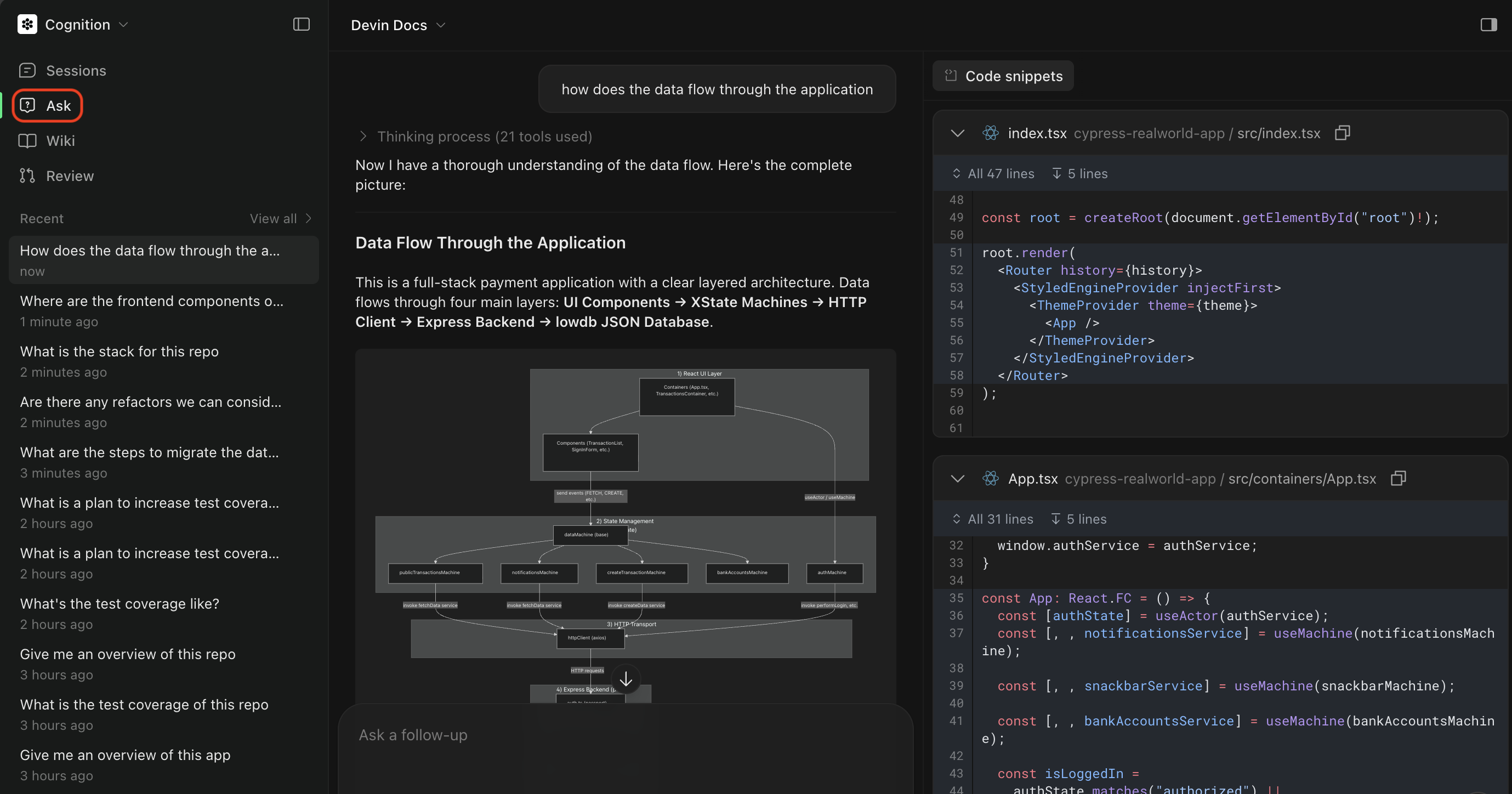
**Ask Devin** 是一种轻量级模式，可用于在不修改实际代码的前提下，与 Devin 一起探索你的代码库并规划任务。现在 Ask Devin 同时支持提问和任务规划：

* **提出问题**，了解你的代码是如何工作的。利用高级代码搜索生成详细、准确且引用充分的回答。
* **规划任务**，在实现之前对工作进行范围界定和规划。Devin 会为 Agent 会话生成富上下文的提示。

当你从 Ask Devin 启动 Devin 会话时，会话状态会直接显示在对话中。

<Frame>
  <img src="https://mintcdn.com/cognitionai/KaxfltcA8G4WlgV5/images/get-started/ada-main-page.png?fit=max&auto=format&n=KaxfltcA8G4WlgV5&q=85&s=a66e840b304f9f6ca9c5dfa18dbbc89f" alt="Ask Mode" width="2758" height="1448" data-path="images/get-started/ada-main-page.png" />
</Frame>

<div id="triggering-ask-mode">
  #### 触发 Ask 模式
</div>

你可以从主页面或 DeepWiki 页面触发 Ask 模式。

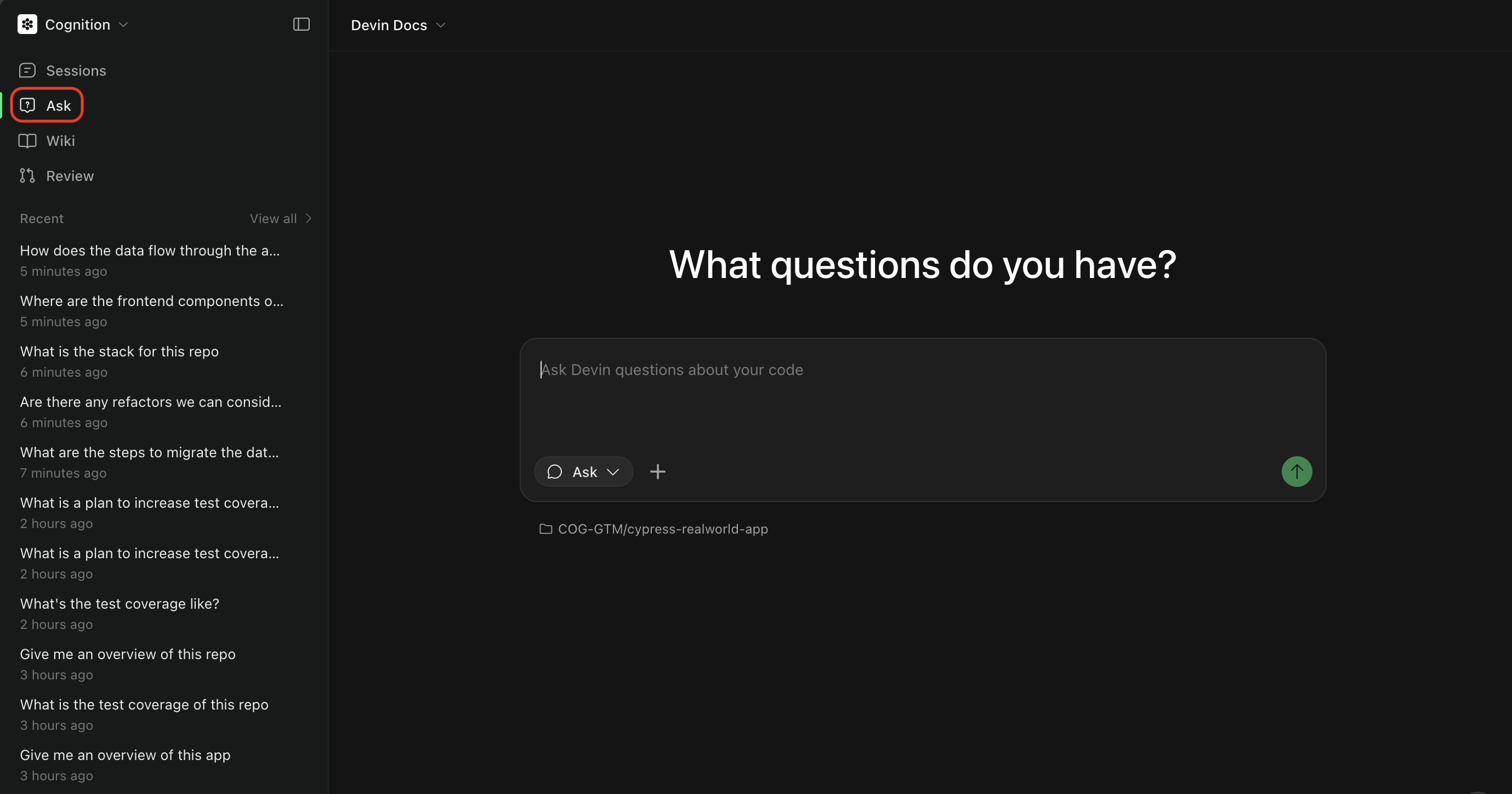
要在主页面使用 Ask 模式，切换到 Ask 模式并选择你想要提问的代码仓库。

<Frame>
  <img src="https://mintcdn.com/cognitionai/KaxfltcA8G4WlgV5/images/get-started/ada-session-page-entry.png?fit=max&auto=format&n=KaxfltcA8G4WlgV5&q=85&s=43193478bd6ed7faa4af38d98b28d281" alt="Ask 模式（主页面）" width="2758" height="1448" data-path="images/get-started/ada-session-page-entry.png" />
</Frame>

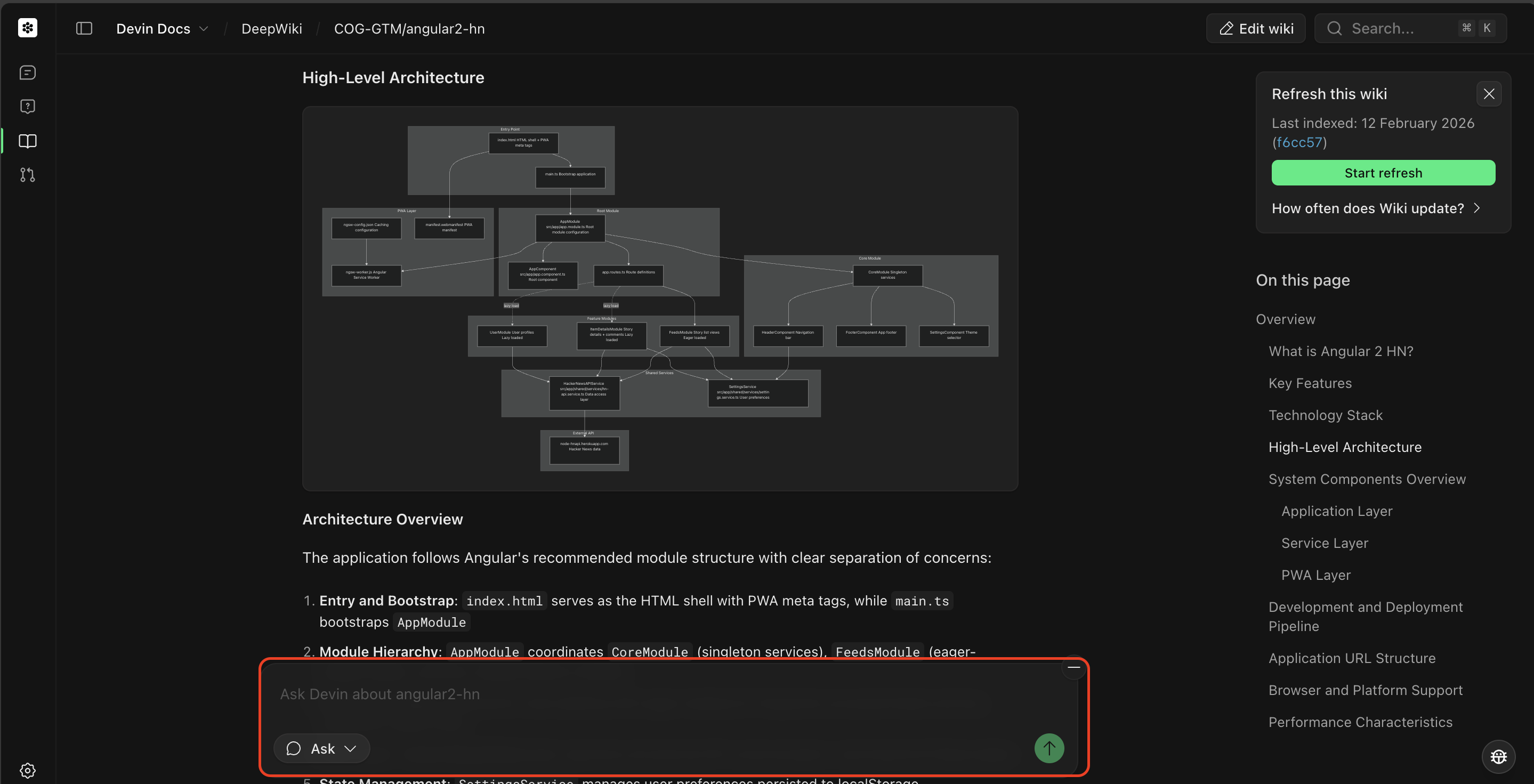
要在 DeepWiki 页面使用 Ask 模式，在页面底部的聊天输入框中输入你的问题并点击 Ask。Devin 的 Knowledge 将会自动限定在该代码仓库范围内。
<Frame>
  <img src="https://mintcdn.com/cognitionai/KaxfltcA8G4WlgV5/images/get-started/ada-deepwiki-entry.png?fit=max&auto=format&n=KaxfltcA8G4WlgV5&q=85&s=d8bd2adc7aa530f6f32801f8e662ae83" alt="Ask 模式（DeepWiki 页面）" width="2878" height="1471" data-path="images/get-started/ada-deepwiki-entry.png" />
</Frame>

在我们的 [Ask Devin 指南](/zh/work-with-devin/ask-devin)中了解更多信息。

一旦你已与 Devin 一起理解了问题并制定了计划，就可以切换到 Agent 模式了。

<div id="agent-mode">
  ### Agent 模式
</div>

Agent 模式是 Devin 的完全自主模式，在该模式下它可以编写代码、运行命令、浏览网页，并端到端完成复杂任务。 当你准备：

* 实现功能或修复 bug
* 创建 pull request
* 运行测试并调试问题
* 执行需要修改代码的多步骤任务

时，请使用 Agent 模式。

<div id="triggering-agent-mode">
  #### 触发 Agent 模式
</div>

你可以在主页面或 Ask Devin 会话中进入 Agent 模式。当会话由 Ask Devin 启动时，其状态会显示在 Ask Devin 对话中，方便你跟踪进度。

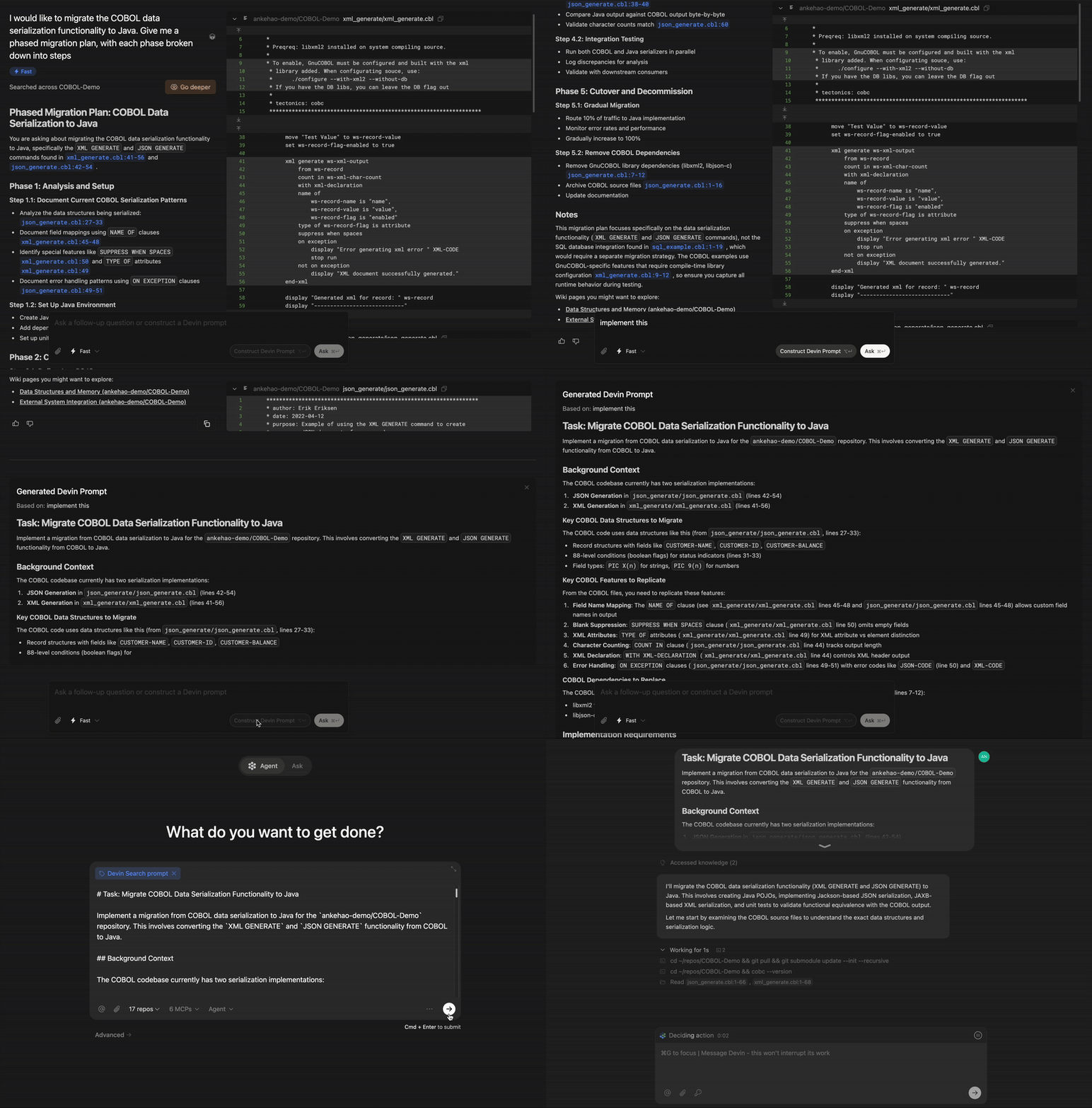
对于范围尚未完全明确的任务，我们建议：

* 先使用 **Ask 模式** 来规划任务
* **构建 Devin Prompt**，它会基于你的 Ask 会话生成一个范围清晰的计划
* 点击 **Send to Devin** 切换到 Agent 模式并执行任务

该流程如下所示：

<Frame>
  <img src="https://mintcdn.com/cognitionai/BYl4s8rnjUeg9-BI/images/get-started/ada-to-agent.gif?s=fe3afc60b81ee7fa2fdaae4b7eadbe09" alt="Ask Mode to Agent Mode" width="800" height="541" data-path="images/get-started/ada-to-agent.gif" />
</Frame>

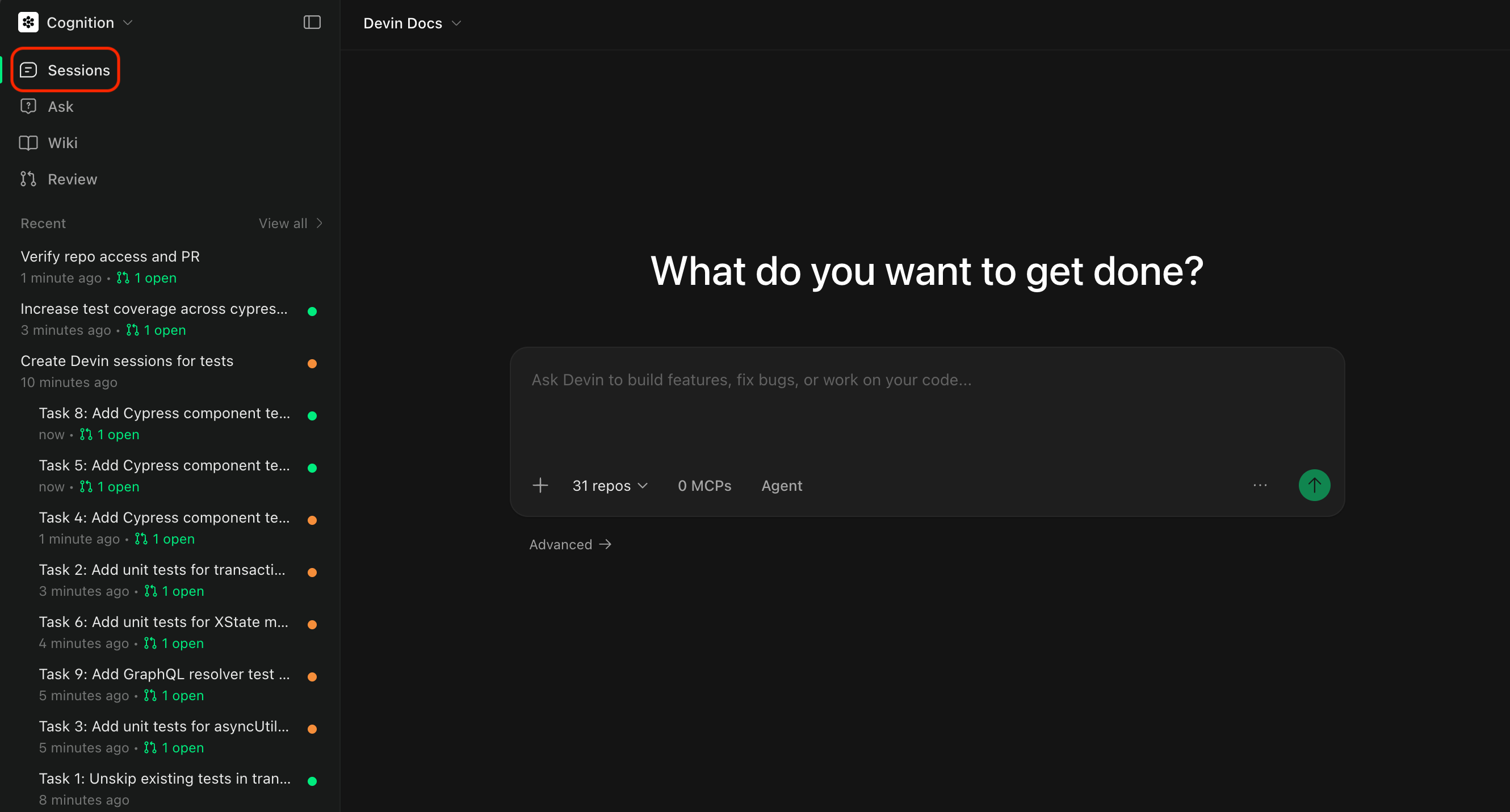
若要从主页面进入 Agent 模式，将模式切换到 Agent，并选择你要处理的一个或多个代码仓库。

<Frame>
  <img src="https://mintcdn.com/cognitionai/KaxfltcA8G4WlgV5/images/get-started/agent-mode.png?fit=max&auto=format&n=KaxfltcA8G4WlgV5&q=85&s=57d16a630c02c971df9e5a55bd77c734" alt="Agent Mode" width="2660" height="1431" data-path="images/get-started/agent-mode.png" />
</Frame>

启动 Agent 会话时，你需要配置几个选项：选择代码仓库，以及选择一个 Agent。

<div id="selecting-a-repository">
  #### 选择代码仓库
</div>

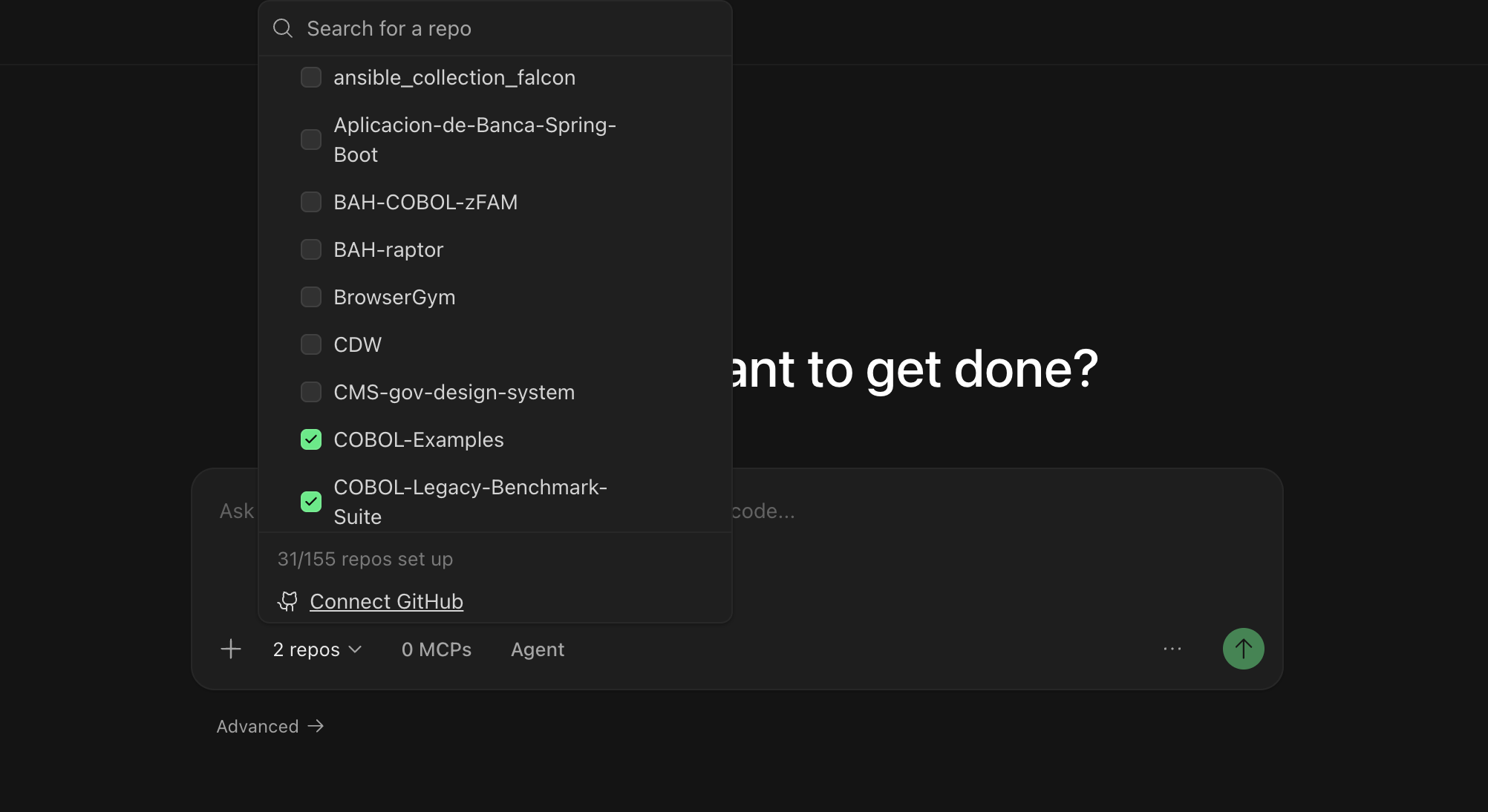
选择你希望 Devin 使用的代码仓库。点击代码仓库选择器，可以查看所有已[添加到 Devin 运行环境中的代码仓库](/zh/onboard-devin/environment)。

<Frame>
  <img src="https://mintcdn.com/cognitionai/KaxfltcA8G4WlgV5/images/get-started/repo-selector.png?fit=max&auto=format&n=KaxfltcA8G4WlgV5&q=85&s=9595a223283d64396cf43cd1b8e245c9" alt="Repository Selector" width="2004" height="1094" data-path="images/get-started/repo-selector.png" />
</Frame>

选择代码仓库可以确保 Devin：

* 能访问你的代码库并进行修改
* 使用正确的分支作为起点
* 能向正确的代码仓库创建 pull request
<div id="selecting-an-agent">
  #### 选择 Agent
</div>

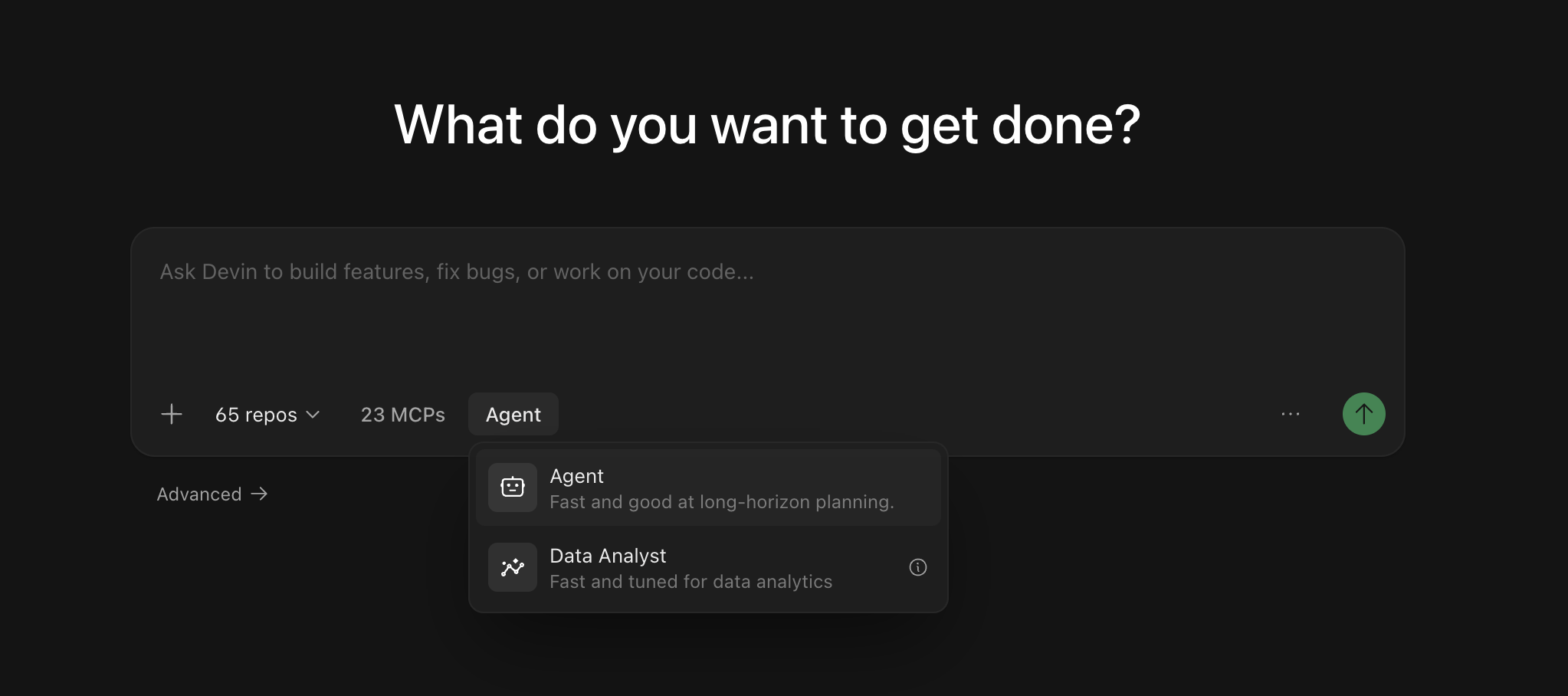
你可以选择 Devin 在本次会话中使用哪种 agent 配置。不同的 agent 可能具备不同的能力，或针对特定类型的任务进行了专项优化。

可用的 agent 包括：

* **Devin** (默认) — 一位通用型 AI 软件工程师，适用于构建功能、修复 bug、重构代码以及大多数开发任务。
* **Fast Mode** — 一种针对快速、范围明确的任务进行优化的模式。
* **[Dana](/zh/work-with-devin/data-analyst)** — 一个针对数据库 query、数据分析和创建可视化内容进行优化的数据分析 agent。

<Frame>
  <img src="https://mintcdn.com/cognitionai/KaxfltcA8G4WlgV5/images/get-started/agent-selector.png?fit=max&auto=format&n=KaxfltcA8G4WlgV5&q=85&s=7c10af743b77164b0288ae12defeefba" alt="Agent Selector" width="2046" height="908" data-path="images/get-started/agent-selector.png" />
</Frame>

<Tip>
  如果你不确定该使用哪个 agent，默认的 Devin agent 通常可以很好地完成大多数任务。
</Tip>

<div id="using-mentions">
  ## 使用 @ 提及
</div>

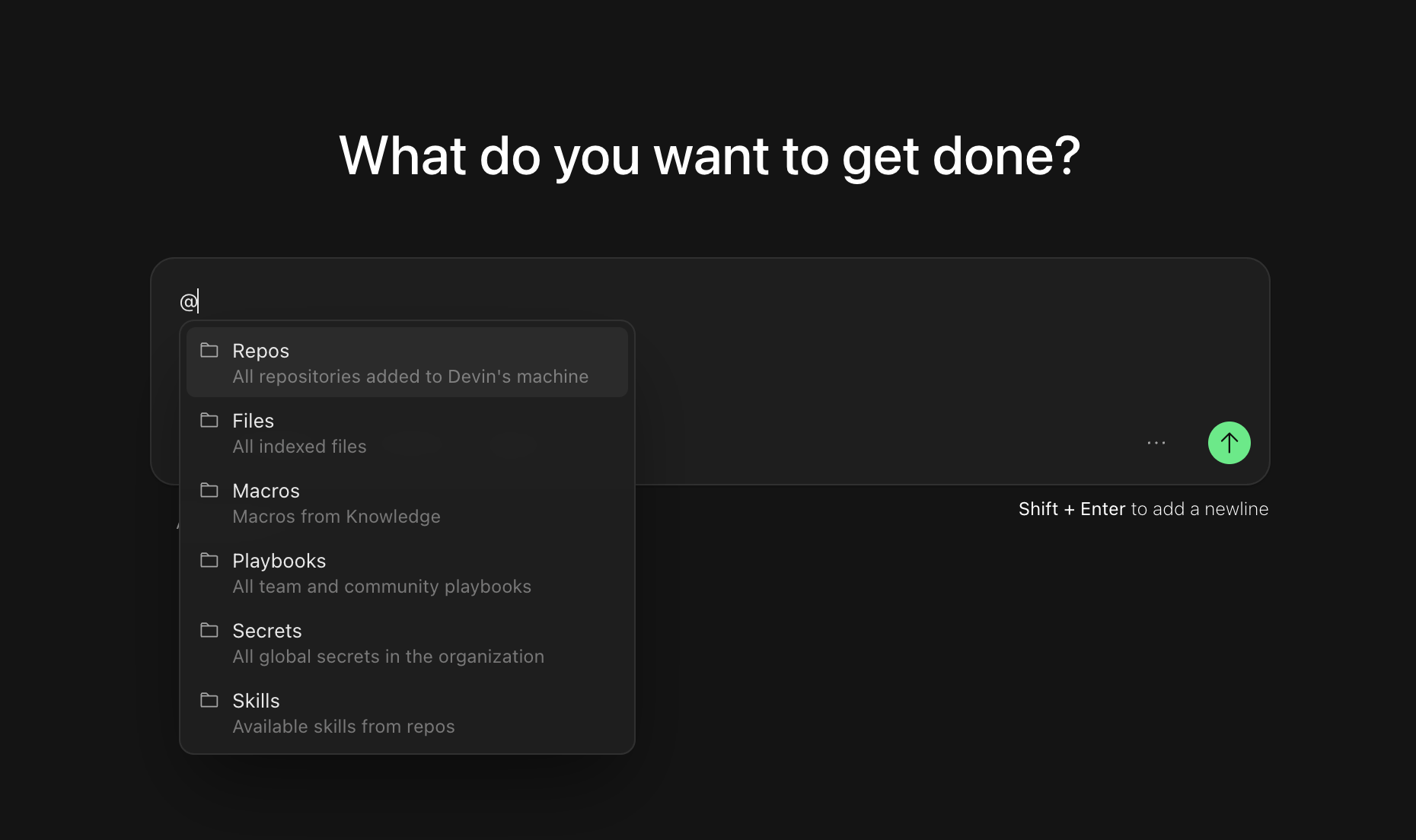
使用 `@` 提及为 Devin 提供有关文件、代码仓库或其他资源的特定上下文。当你在聊天输入框中键入 `@` 时，你会看到一个可用提及项的下拉列表：

* **@Repos** - 引用特定代码仓库
* **@Files** - 引用代码库中的特定文件
* **[@Macros](/zh/product-guides/knowledge)** - 引用某个 Knowledge 条目对应的宏
* **[@Playbooks](/zh/product-guides/creating-playbooks)** - 引用团队或社区的 playbook (操作手册) ，这些是详细的提示模板，可用于引导 Devin 的行为
* **[@Skills](/zh/product-guides/skills)** - 引用你在代码仓库中定义的 skill (以 `SKILL.md` 文件提交的可复用步骤)
* **[@Secrets](/zh/product-guides/secrets)** - 从 Devin 的会话管理器中引用某个特定机密 (例如 API key、凭证等)
* **@Sessions** - 引用之前的 Devin 会话作为上下文

<Frame>
  <img src="https://mintcdn.com/cognitionai/KaxfltcA8G4WlgV5/images/get-started/at-mention.png?fit=max&auto=format&n=KaxfltcA8G4WlgV5&q=85&s=054556b638d4418a4da99871f57ed96e" alt="At Mentions" width="1860" height="1104" data-path="images/get-started/at-mention.png" />
</Frame>

@ 提及可以帮助 Devin 准确理解你正在处理的内容，并减少提示中的歧义。

<div id="scoping-your-first-session">
  ## 为你的首次会话设定范围
</div>

从那些具有**明确成功标准**并且**能为 Devin 提供所需上下文**的任务开始——就像你把工作交接给一位队友时那样。随着你逐渐熟悉，可以尝试越来越复杂的任务。我们看到用户和 Devin 合作完成了各种工作，从修复小 bug，到有针对性的重构，再到大规模迁移，甚至从零构建完整功能。

<Tip>
  一般来说：如果一个任务由你来做，三小时以内能完成，Devin 大概率也能完成。对于更大的项目，把它拆分成多个聚焦的会话，并使用[托管 Devin](/zh/work-with-devin/advanced-capabilities#managed-devins)并行运行。
</Tip>

<div id="first-time-prompt-ideas">
  ## 首次使用的提示词示例
</div>

<AccordionGroup>
  <Accordion title="新增 API 端点" icon="code-pull-request">
    <PromptBlock>
      ```Adding a new API 端点 theme={null}
      创建一个新的 API 端点 /users/stats，返回一个包含用户数量和平均注册年龄的 JSON 对象。 

      使用我们在 PostgreSQL 中现有的 users 表。 

      可以参考 statsController.js 中的 /orders/stats 端点，了解我们如何构造响应。 

      确保新端点纳入 StatsController.test.js 测试套件的覆盖范围。
      ```
    </PromptBlock>
  </Accordion>

  <Accordion title="小型前端功能" icon="sun">
    <PromptBlock>
      ```Small frontend features theme={null}
      在 UserProfileComponent 中添加一个下拉菜单，用于显示用户角色列表（admin、editor、viewer）。 

      使用 DropdownBase 的样式。 

      当选择某个角色时，调用现有的 API 来设置用户角色。 

      通过检查所选角色是否更新了数据库中的用户角色来进行验证。请参考你的 Knowledge，了解如何正确进行测试。
      ```
    </PromptBlock>
  </Accordion>

  <Accordion title="编写单元测试" icon="flask">
    <PromptBlock>
      ```Write theme={null}
      为 AuthService 的 login 和 logout 方法添加 Jest 测试。 

      确保这两个函数的测试覆盖率至少为 80%。 

      使用 UserService.test.js 作为示例。

      实现完成后，运行 `npm test -- --coverage`，并确认覆盖率报告中这两个函数的覆盖率均超过 80%。 

      同时确认在凭据有效和无效两种情况下测试都能通过，并且 logout 能正确清除会话数据。
      ```
    </PromptBlock>
  </Accordion>

  <Accordion title="迁移或重构现有代码" icon="code-pull-request">
    <PromptBlock>
      ```Migrating or refactoring existing code theme={null}
      将 logger.js 从 JavaScript 迁移到 TypeScript。 

      我们已经有用于验证的 tsconfig.json 和 LoggerTest.test.js 测试套件。 

      确保编译无错误，并且不要修改现有配置！

      迁移完成后，请通过以下方式验证： 
      1) 运行 `tsc`，确认没有类型错误
      2) 运行 `npm test LoggerTest.test.js`，确保所有测试通过
      3) 检查代码库中所有现有的 logger 方法调用，确认它们仍然可以正常工作且没有类型错误。
      ```
    </PromptBlock>
  </Accordion>

  <Accordion title="更新 API 或数据库查询" icon="database">
    <PromptBlock>
      ```Updating APIs or database queries theme={null}
      我们正在从 pg 迁移到 sequelize（参见 https://sequelize.org/api/v6/identifiers）。 

      请将 UserModel 中的查询更新为使用 Sequelize 方法。 

      可以参考本代码库中的 OrderModel，了解我们的具体实现方式。

      实现完成后，请按以下步骤进行验证：
      1) 运行 `npm run test:integration UserModel.test.js`，确认所有集成测试通过
      2) 在包含 1000 个用户的测试数据集上检查执行时间，确认查询性能未下降
      3) 运行 `npm run test:e2e user-flows.test.js`，验证所有 CRUD 操作仍然能够保证数据完整性
      ```
    </PromptBlock>
  </Accordion>

  <Accordion title="快速创建一个 PR（我们建议在 Playbook 中使用此提示）" icon="code-pull-request">
    <PromptBlock>
      ```txt Quick PR theme={null}
      ## Overview
      The task is to make a quick pull request to a repository.
      Since this is a 'quick' PR, you will not need to run any code or test anything; simply make a PR and the user will handle the testing. Your only responsibility is reading and writing code.

      ## What's Needed From User
      - 用于创建 PR 的代码仓库

      ## Procedure
      ### Prepare your workspace
      1. Navigate to the relevant repository on your machine (clarify with the user if you can't figure it out).
          - Check out the main branch and note down the name of the main branch.
          - Checkout to a new branch since you'll be making a pull request. 分支名称必须符合 `devin/<timestamp>-<your-branch-name>` 的格式。例如 `devin/1700000000-fix-popup`。运行 `git remote -v && git pull && git checkout -b devin/$(date +%s)-{branch-name}`，并将 `{branch-name}` 替换为你想要创建的分支名称。
      2. Study the request, codebase, and plan out the changes
          - Review the most relevant files and code sections, identifying relevant snippets.
          - Inform the user of your plan
      ### Work on the PR itself
      3. Make the code changes
          - Don't change anything that wasn't specifically requested by the user
      4. Make the PR
          - Commit and push the changes and tell the user.
          - See advice section for the exact command to make the PR
          - Make a pull request & review the pr to make sure it looks OK.
          - Ensure all GitHub actions pass successfully & make necessary changes until they do
          - Send the PR link to the user and summarize what you changed.
      5. Address any feedback from the review; send the PR link again every time you make any changes
          - If you need to make updates, just push more commits to the same branch; don't create a new one


      ## Task Specification
      - PR link is included in your messages to the user
      - PR was reviewed after creation
      - PR does not include any stray changes
      - PR does not change anything that wasn't specifically requested by the user
      - PR description should include a summary of the changes, formatted as a checklist
      - PR description should mention that the code was written without testing, and include - [ ] Test the changes as an item
      - PR description should include the following footer: "This PR was written by [Devin](https://devin.ai/) :angel:"
      - PR description should include any metadata that the user has provided (e.g. linear ticket tags in the appropriate syntax)
      - PR description should not be malformatted (use --body-file instead of --body if the newlines are garbled!)

      ## Forbidden Actions
      - Do NOT try to access github.com through the browser, you will not be authenticated.
      - NEVER force push on branches! Prefer merging over rebasing so that you don't lose any work.
      - Do NOT push directly to the main branch.

      ## Advice and Pointers
      - Double check the name of the main branch (which could be `main` or `master`) using `git branch`.
      - For repos with CI/CD on github actions, you can check build logs using the gh cli. if you're asked to fix a build/fix lint, you should start by looking at recent build logs
      - Check `git status` before committing or adding files.
      - Use `git diff` to see what changes you have made before committing.
      - If you're updating an existing repo, use `gh cli` to make pull requests.
      - Send the PR link to the user every time you update & ask them to re-review so that it's convenient for them
      - You should already be authorized to access any repositories the user tells you about. If not, ask the user for access.
      ```
    </PromptBlock>
  </Accordion>
</AccordionGroup>

如果你想进一步了解 Devin 能做什么以及如何实现这些能力，请查看我们的**使用场景**。

<CardGroup cols={1}>
  <Card title="浏览使用场景" icon="grid-2" href="/zh/use-cases/gallery/index">
    探索工程工作流中的实用示例——每个示例都包含可以立即尝试的提示词。
  </Card>
</CardGroup>

<div id="after-your-session">
  ## 会话结束后
</div>

当 Devin 完成后，打开 [Session Insights](/zh/product-guides/session-insights) 并点击 **Generate Analysis** —— 你将获得一条事件发生过程的时间线、可执行的反馈，以及一个经过改进的提示，供你在今后处理类似任务时使用。

<div id="next-steps">
  ## 后续步骤
</div>

当你已经熟悉基础会话后，可以进一步查看以下资源，以更高效地使用 Devin：

<CardGroup cols={2}>
  <Card title="Integrations" icon="plug" href="/zh/integrations/overview">
    将 Devin 连接到你现有的工具，如 GitHub、Slack、Jira 等。
  </Card>

  <Card title="Playbooks" icon="book" href="/zh/product-guides/creating-playbooks">
    了解如何使用 Playbooks 来实现任务。
  </Card>

  <Card title="Knowledge" icon="lightbulb" href="/zh/product-guides/knowledge">
    添加知识，帮助 Devin 理解你团队的工作方式和实践。
  </Card>
</CardGroup>