> ## Documentation Index
> Fetch the complete documentation index at: https://docs.devin.ai/llms.txt
> Use this file to discover all available pages before exploring further.
# Devin Desktop 预览
> 通过元素选择、错误捕获以及与 Cascade 的直接集成,在 Devin Desktop IDE 或浏览器中本地预览你的 Web 应用,以便快速迭代。
Devin Desktop 预览支持你在 IDE 或浏览器中查看应用的本地部署版本 (已针对 Google Chrome、Arc 和基于 Chromium 的浏览器优化) ,并通过监听功能轻松将元素和错误作为上下文发送回 Cascade,从而实现快速迭代。
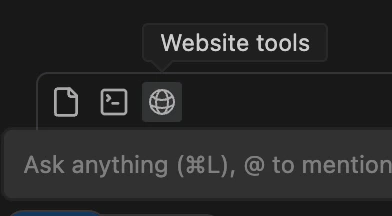
Devin Desktop 预览通过工具调用启动,因此只需让 Cascade 预览你的网站即可开始使用。或者,你也可以点击 Cascade 工具栏中的 Web 图标,自动将输入到代理中的自然语言提示传递过去。
# 将元素发送到 Cascade
在 预览 中,你可以直接选择元素/组件和错误并发送到 Cascade。只需点击右下角的“Send element”按钮,然后选择你想要发送的元素即可。
所选元素会以 `@ mention` 的形式插入到你当前的 Cascade 提示中。你可以在提示中添加任意数量的元素。
# IDE 内预览
Devin Desktop 可以在你的编辑器中以新的选项卡打开预览。这是一个简单的网页视图,让你可以在 Cascade 面板旁查看 Web 应用。
由于这些预览托管在本地,你也可以在系统浏览器中打开它们,同时保留所有监听器,以及选择元素并将其和控制台错误发送到 Cascade 的功能。
这些监听器以及发送元素和错误的功能已针对 Google Chrome、Arc 和基于 Chromium 的浏览器进行了优化。
# 如何禁用
你可以在 Devin 的“设置”中禁用 Devin Desktop 预览。这样可防止 Cascade 发起此工具调用。