> ## Documentation Index
> Fetch the complete documentation index at: https://docs.devin.ai/llms.txt
> Use this file to discover all available pages before exploring further.
# 导入本地设置
> 在 Devin 的 IDE 中使用你的本地设置和扩展
在 VS Code 中使用你熟悉的设置、扩展和键盘快捷键,会让工作更加顺手。按照本教程手动上传你的本地设置。
## 自动导入设置
此工作流程会自动导入你的设置。
1. 打开任意一个你启动的 Devin 会话
2. 你应该会看到欢迎页面。(如果此页面没有出现,你也可以随时在 Mac 上使用 `Cmd+Shift+P` 或在 Windows/Linux 上使用 `Ctrl+Shift+P` 重新打开它,然后搜索 "Help: Welcome"。)
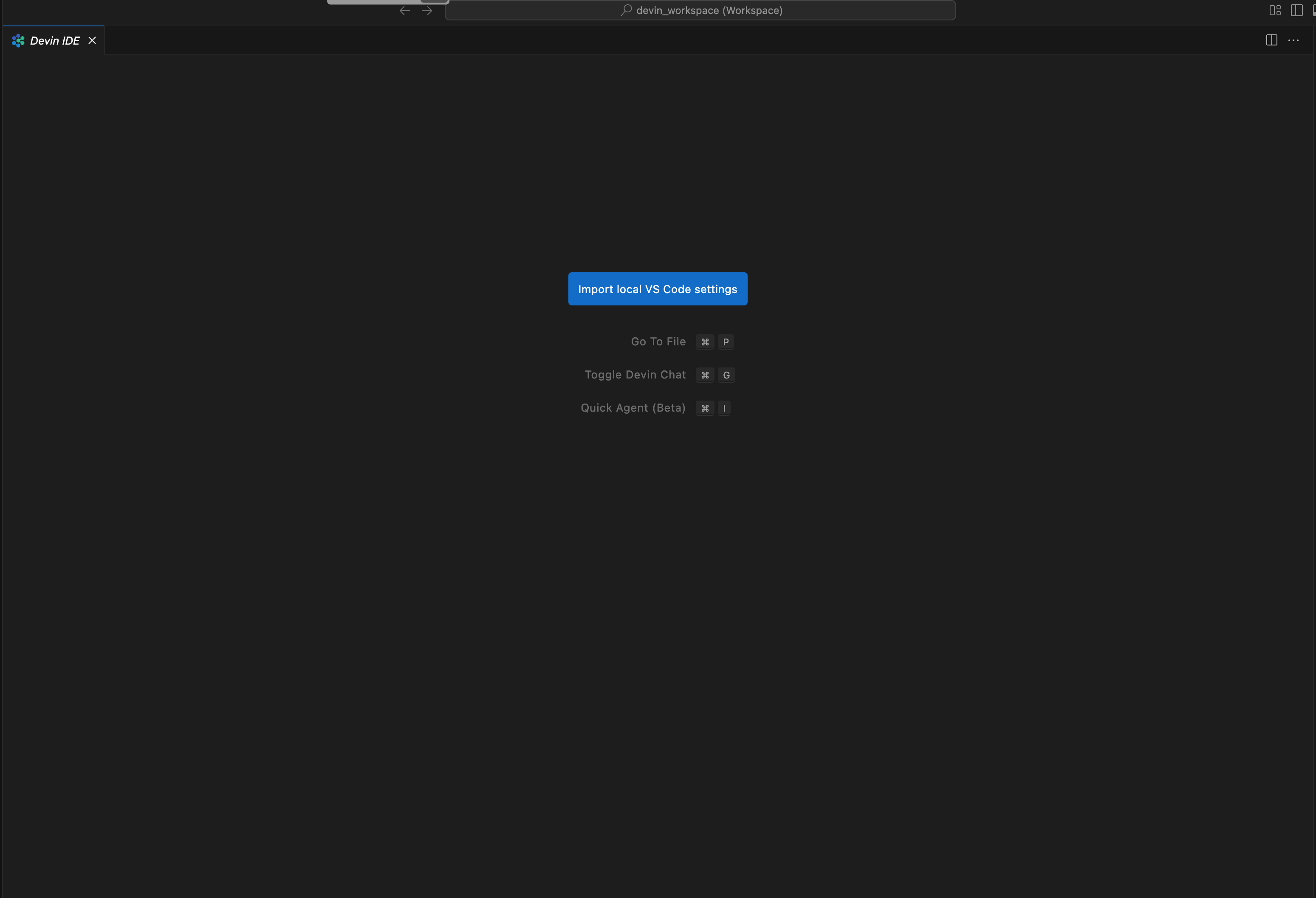 3. 点击按钮开始导入流程。
4. 按照屏幕上的步骤操作。你需要将一个 Python 脚本复制粘贴到本地计算机的终端中以上传你的 Profile。(Windows 上使用 PowerShell)
5. 脚本会提示你访问 app.devin.ai URL 以确认你的设置。
6. 确认后,你的设置将自动同步到你的 Devin 会话以及所有未来的 Devin 会话中!
3. 点击按钮开始导入流程。
4. 按照屏幕上的步骤操作。你需要将一个 Python 脚本复制粘贴到本地计算机的终端中以上传你的 Profile。(Windows 上使用 PowerShell)
5. 脚本会提示你访问 app.devin.ai URL 以确认你的设置。
6. 确认后,你的设置将自动同步到你的 Devin 会话以及所有未来的 Devin 会话中!
## 手动导出本地 Profile
如果自动导入工作流程无法正常工作,请按照以下步骤手动导出和导入。
观看此视频,了解如何在 VS Code 中导出你的 Profile(包括 VS Code forks):
1. 打开 VS Code,按 `Cmd+Shift+P`(Mac)或 `Ctrl+Shift+P`(Windows/Linux)-> Preferences: Open Profiles (UI)
2. 右键点击你的 Profile(通常是 Default)。
3. 点击 Export,并在出现的快速选择列表中选择 File。
4. 将文件保存到磁盘。这会保存为一个 `.code-profile` 文件。
## 手动导入你的 `.code-profile` 文件
一旦你有了 `.code-profile` 文件,就可以将它上传到任意一个你启动的 Devin 会话 IDE。
1. 打开任意一个你启动的 Devin 会话
2. 使用 `Cmd+Shift+P`(Mac)或 `Ctrl+Shift+P`(Windows/Linux)打开命令面板,并搜索 "Preferences: Devin: Import Profile (Manual)"。
3. 选择你上传的文件。这会将你的 Profile 上传到该机器上。之后,你的所有扩展和设置都应会自动安装。
## 验证你的上传是否成功
你可以在 Devin IDE 中通过执行以下操作来检查你的设置、扩展和键盘快捷键是否已正确上传:
* 设置:打开命令面板(Mac 上使用 `Cmd+Shift+P` / Windows/Linux 上使用 `Ctrl+Shift+P`),然后搜索 "Preferences: Open User Settings (JSON)"。检查它是否与你本地编辑器中的一致。
* 键盘快捷键:打开命令面板,然后搜索 "Preferences: Open Keyboard Shortcuts (JSON)"。检查它是否与你本地编辑器中的一致。
* 扩展:点击右侧边栏中的扩展图标(或在 Mac 上按 `Cmd+Shift+X` / Windows/Linux 上按 `Ctrl+Shift+X`)。搜索你在本地安装的扩展。
## 设置同步
您的设置会在所有会话中自动同步。如在此过程中遇到任何问题,请联系支持团队。