> ## Documentation Index
> Fetch the complete documentation index at: https://docs.devin.ai/llms.txt
> Use this file to discover all available pages before exploring further.
# Build an iOS app with Devin
> Building an iOS app with Devin on a macOS VM: Building, Testing, and TestFlight
In this tutorial, Devin builds a small SwiftUI habit tracker from an empty repository. Devin writes the code, builds it with Xcode, runs it in the iOS Simulator, and opens a pull request. You watch it work, review the result, and then have Devin ship a beta build to TestFlight.
 ## Before you start
* **macOS VMs**: Devin's sessions need to run on macOS. If you're on a Dedicated SaaS deployment, ask your account team to enable macOS VMs. See [macOS support](/onboard-devin/environment/macos-support).
* **A repository**: create an empty repository (for example, `habit-tracker`) and give Devin access to it through your [Git integration](/onboard-devin/environment#before-you-start).
* **Desktop mode**: turn on **Enable desktop mode** in [Settings > Customization](https://app.devin.ai/customization) so Devin can interact with the Simulator and record its testing. See [Computer Use](/work-with-devin/computer-use).
macOS sessions use the same amount of usage as Linux sessions. There is no macOS surcharge.
## Step 1: Prompt Devin to build the app
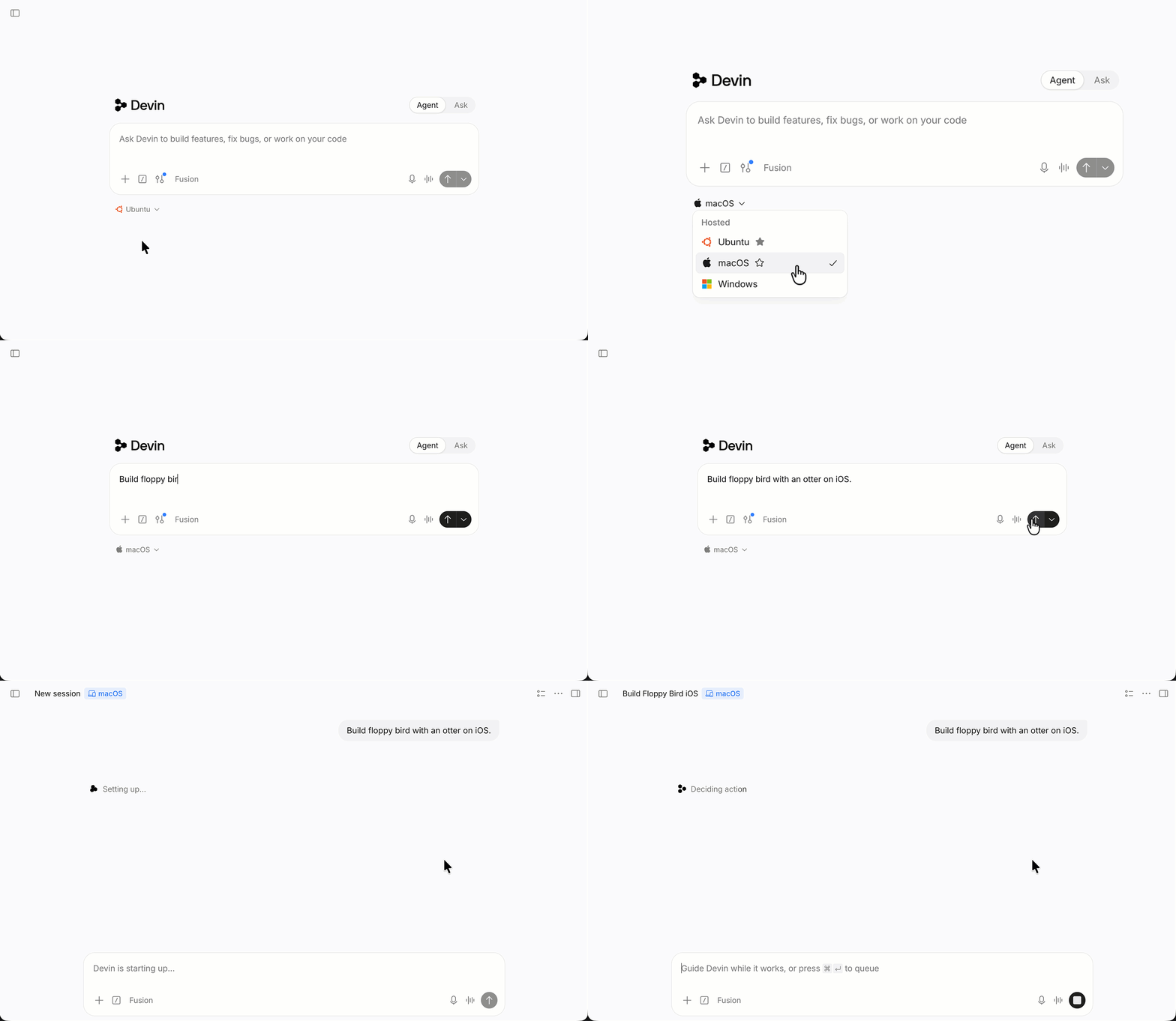
Start a new session on your chosen repository and choose **macOS** from the platform menu below the prompt box. Xcode, the iOS Simulator, and Homebrew are preinstalled, so there's nothing to configure first.
In Slack, add the `!mac` [bang command](/integrations/slack) to your message. Through the [API](/api-reference/overview), set `platform: "macos"` when you create a session.
Give Devin a specific prompt that covers the app's features, the tooling, and how to prove it works. Here's an example:
```text theme={null}
Build a SwiftUI iOS app called HabitTracker in this repo.
Requirements:
- Target iOS 17+. Use SwiftUI and the Observation framework.
- Main screen: a list of habits, each with a name, an SF Symbol icon, and
a checkmark button that marks the habit done for today.
- Show the current streak (consecutive days completed) next to each habit.
- A "+" toolbar button opens a sheet to add a habit. Swipe to delete.
- Keep habits in memory for now. No persistence yet.
Project setup:
- Install xcodegen, swiftlint, and xcbeautify with Homebrew.
- Define the project in project.yml with XcodeGen. Commit project.yml
and add the generated .xcodeproj to .gitignore.
- Add a unit test target with XCTest tests for the streak calculation.
- Make sure swiftlint passes.
Verification:
- Build and run the tests on the iPhone 17 simulator.
- Install and launch the app in the Simulator. Add two habits, mark one
as done, and delete one. Record this and send me a screenshot of the
main screen.
- Open a PR with a short summary and the screenshot.
```
A good iOS prompt:
* **Names the platform version and frameworks**, so Devin doesn't guess the deployment target or architecture.
* **Names the simulator device**, so build commands use a destination that exists on the VM.
* **Describes a concrete verification flow**, so Devin tests the behavior you care about instead of only checking that it compiles.
## Step 2: Watch Devin build and test
Devin works through the task much like an iOS developer would:
1. **Scaffolds the project**: writes `project.yml`, the SwiftUI views, the habit model, and the test target, then runs `xcodegen generate`.
2. **Builds and fixes errors**: runs `xcodebuild` from its shell, reads the compiler output, and fixes errors until the build and tests pass.
3. **Runs the app in the Simulator**: boots the device and installs and launches the build:
```bash theme={null}
xcrun simctl boot "iPhone 17"
xcrun simctl install booted
xcrun simctl launch booted
```
4. **Tests the flow you described**: taps through the app with [Computer Use](/work-with-devin/computer-use), checks the result on screen, and [records](/work-with-devin/testing-and-recordings) the run.
5. **Opens a pull request** with the summary and screenshot.
Open the **iOS Simulator** tab in the session workspace to watch the booted simulator live while Devin taps through the app.
If the build can't find a destination, ask Devin to run `xcrun simctl list devices available` and use a device and OS that the VM actually has.
## Step 3: Review and iterate
Review the pull request as you would any other. Check that the screenshot and recording match what you asked for. Then keep building in the same session with follow-up prompts:
```text theme={null}
Persist habits and completion history with SwiftData so they survive app
relaunches. Add a test that inserts a habit into an in-memory model
container and verifies the streak. Relaunch the app in the Simulator to
confirm habits persist, then push to the same PR.
```
```text theme={null}
Add a UI test target with an XCUITest that adds a habit, marks it done,
and checks that the streak shows 1. Run it on the iPhone 17 simulator.
```
```text theme={null}
Support Dark Mode and Dynamic Type. Check the main screen in the
Simulator in dark appearance and at the largest accessibility text size,
and send screenshots of both.
```
You can also leave review comments on the pull request, and Devin responds to them while the session is active. See [GitHub integration](/integrations/gh) and [Devin Review](/work-with-devin/devin-review).
## Step 4: Ship a beta to TestFlight
Once the app works in the Simulator, Devin can archive it, sign it, and upload the build to TestFlight so testers can install it on real devices.
This needs some one-time setup that you do yourself. [Upload iOS builds to TestFlight](/onboard-devin/environment/testflight) covers each step:
1. **Set up App Store Connect**: accept agreements, register the bundle ID, create the app record, create a beta group, and answer export compliance.
2. **Create an App Store Connect API key** and download its `.p8` file.
3. **Add Devin secrets**: `ASC_KEY_ID`, `ASC_ISSUER_ID`, `ASC_PRIVATE_KEY`, and `APPLE_TEAM_ID`.
4. **Allow network access** to Apple's servers if your organization uses a restricted network policy.
Use the same bundle ID in `project.yml` and in App Store Connect. If Devin picked a placeholder bundle ID in Step 1, ask it to update the project first.
Then start a new session so the secrets are available, and prompt Devin:
```text theme={null}
Archive the HabitTracker scheme and upload it to TestFlight. Use a build
number higher than the latest build in App Store Connect, add the build
to the "QA" beta group, and send me the build number when it's done.
```
Devin writes the API key to disk, archives the app with `xcodebuild archive`, and uploads it with `xcodebuild -exportArchive`. It then adds the processed build to the beta group. To reuse these steps without repeating them in every prompt, add a `testflight` entry to the blueprint's `knowledge` section. See [Save the steps in your blueprint](/onboard-devin/environment/testflight#save-the-steps-in-your-blueprint).
## Tips
* **Pin the toolchain**: macOS images include more than one Xcode version. Use `DEVELOPER_DIR` or `xcode-select` in the blueprint to choose one. See [Selecting an Xcode version](/onboard-devin/environment/macos-support#selecting-an-xcode-version).
* **Store credentials as secrets**: App Store Connect API keys, signing certificates, and private package registry tokens belong in [Secrets](/product-guides/secrets). Devin reads them as environment variables.
* **Allow package registries**: if your organization uses a restricted network policy, make sure the macOS allowlist includes Swift Package Manager, CocoaPods, or any private registries your app uses. See [Network access](/onboard-devin/environment/macos-support#network-access).
* **Restart the Simulator after a wake**: when a session sleeps and wakes, files survive but running processes don't. Ask Devin to boot the Simulator again before testing.
* **Ask for evidence**: ask for screenshots or a recording of specific screens so you can check the UI without running the app yourself.
## Limitations
* Devin runs apps on simulators, not physical iPhones or iPads. To test on a device, install a [TestFlight](#step-4-ship-a-beta-to-testflight) build.
* Timing and profiling results inside a VM don't reflect real device performance.
* Containers run under software emulation on macOS VMs, so container-heavy work is slow.
See [macOS support limitations](/onboard-devin/environment/macos-support#limitations) for details.
## Next steps
App Store Connect setup, API keys, and secrets for uploading builds
Blueprint options, preinstalled tools, and troubleshooting for macOS sessions
How Devin tests your app and records the results
## Before you start
* **macOS VMs**: Devin's sessions need to run on macOS. If you're on a Dedicated SaaS deployment, ask your account team to enable macOS VMs. See [macOS support](/onboard-devin/environment/macos-support).
* **A repository**: create an empty repository (for example, `habit-tracker`) and give Devin access to it through your [Git integration](/onboard-devin/environment#before-you-start).
* **Desktop mode**: turn on **Enable desktop mode** in [Settings > Customization](https://app.devin.ai/customization) so Devin can interact with the Simulator and record its testing. See [Computer Use](/work-with-devin/computer-use).
macOS sessions use the same amount of usage as Linux sessions. There is no macOS surcharge.
## Step 1: Prompt Devin to build the app
Start a new session on your chosen repository and choose **macOS** from the platform menu below the prompt box. Xcode, the iOS Simulator, and Homebrew are preinstalled, so there's nothing to configure first.
In Slack, add the `!mac` [bang command](/integrations/slack) to your message. Through the [API](/api-reference/overview), set `platform: "macos"` when you create a session.
Give Devin a specific prompt that covers the app's features, the tooling, and how to prove it works. Here's an example:
```text theme={null}
Build a SwiftUI iOS app called HabitTracker in this repo.
Requirements:
- Target iOS 17+. Use SwiftUI and the Observation framework.
- Main screen: a list of habits, each with a name, an SF Symbol icon, and
a checkmark button that marks the habit done for today.
- Show the current streak (consecutive days completed) next to each habit.
- A "+" toolbar button opens a sheet to add a habit. Swipe to delete.
- Keep habits in memory for now. No persistence yet.
Project setup:
- Install xcodegen, swiftlint, and xcbeautify with Homebrew.
- Define the project in project.yml with XcodeGen. Commit project.yml
and add the generated .xcodeproj to .gitignore.
- Add a unit test target with XCTest tests for the streak calculation.
- Make sure swiftlint passes.
Verification:
- Build and run the tests on the iPhone 17 simulator.
- Install and launch the app in the Simulator. Add two habits, mark one
as done, and delete one. Record this and send me a screenshot of the
main screen.
- Open a PR with a short summary and the screenshot.
```
A good iOS prompt:
* **Names the platform version and frameworks**, so Devin doesn't guess the deployment target or architecture.
* **Names the simulator device**, so build commands use a destination that exists on the VM.
* **Describes a concrete verification flow**, so Devin tests the behavior you care about instead of only checking that it compiles.
## Step 2: Watch Devin build and test
Devin works through the task much like an iOS developer would:
1. **Scaffolds the project**: writes `project.yml`, the SwiftUI views, the habit model, and the test target, then runs `xcodegen generate`.
2. **Builds and fixes errors**: runs `xcodebuild` from its shell, reads the compiler output, and fixes errors until the build and tests pass.
3. **Runs the app in the Simulator**: boots the device and installs and launches the build:
```bash theme={null}
xcrun simctl boot "iPhone 17"
xcrun simctl install booted
xcrun simctl launch booted
```
4. **Tests the flow you described**: taps through the app with [Computer Use](/work-with-devin/computer-use), checks the result on screen, and [records](/work-with-devin/testing-and-recordings) the run.
5. **Opens a pull request** with the summary and screenshot.
Open the **iOS Simulator** tab in the session workspace to watch the booted simulator live while Devin taps through the app.
If the build can't find a destination, ask Devin to run `xcrun simctl list devices available` and use a device and OS that the VM actually has.
## Step 3: Review and iterate
Review the pull request as you would any other. Check that the screenshot and recording match what you asked for. Then keep building in the same session with follow-up prompts:
```text theme={null}
Persist habits and completion history with SwiftData so they survive app
relaunches. Add a test that inserts a habit into an in-memory model
container and verifies the streak. Relaunch the app in the Simulator to
confirm habits persist, then push to the same PR.
```
```text theme={null}
Add a UI test target with an XCUITest that adds a habit, marks it done,
and checks that the streak shows 1. Run it on the iPhone 17 simulator.
```
```text theme={null}
Support Dark Mode and Dynamic Type. Check the main screen in the
Simulator in dark appearance and at the largest accessibility text size,
and send screenshots of both.
```
You can also leave review comments on the pull request, and Devin responds to them while the session is active. See [GitHub integration](/integrations/gh) and [Devin Review](/work-with-devin/devin-review).
## Step 4: Ship a beta to TestFlight
Once the app works in the Simulator, Devin can archive it, sign it, and upload the build to TestFlight so testers can install it on real devices.
This needs some one-time setup that you do yourself. [Upload iOS builds to TestFlight](/onboard-devin/environment/testflight) covers each step:
1. **Set up App Store Connect**: accept agreements, register the bundle ID, create the app record, create a beta group, and answer export compliance.
2. **Create an App Store Connect API key** and download its `.p8` file.
3. **Add Devin secrets**: `ASC_KEY_ID`, `ASC_ISSUER_ID`, `ASC_PRIVATE_KEY`, and `APPLE_TEAM_ID`.
4. **Allow network access** to Apple's servers if your organization uses a restricted network policy.
Use the same bundle ID in `project.yml` and in App Store Connect. If Devin picked a placeholder bundle ID in Step 1, ask it to update the project first.
Then start a new session so the secrets are available, and prompt Devin:
```text theme={null}
Archive the HabitTracker scheme and upload it to TestFlight. Use a build
number higher than the latest build in App Store Connect, add the build
to the "QA" beta group, and send me the build number when it's done.
```
Devin writes the API key to disk, archives the app with `xcodebuild archive`, and uploads it with `xcodebuild -exportArchive`. It then adds the processed build to the beta group. To reuse these steps without repeating them in every prompt, add a `testflight` entry to the blueprint's `knowledge` section. See [Save the steps in your blueprint](/onboard-devin/environment/testflight#save-the-steps-in-your-blueprint).
## Tips
* **Pin the toolchain**: macOS images include more than one Xcode version. Use `DEVELOPER_DIR` or `xcode-select` in the blueprint to choose one. See [Selecting an Xcode version](/onboard-devin/environment/macos-support#selecting-an-xcode-version).
* **Store credentials as secrets**: App Store Connect API keys, signing certificates, and private package registry tokens belong in [Secrets](/product-guides/secrets). Devin reads them as environment variables.
* **Allow package registries**: if your organization uses a restricted network policy, make sure the macOS allowlist includes Swift Package Manager, CocoaPods, or any private registries your app uses. See [Network access](/onboard-devin/environment/macos-support#network-access).
* **Restart the Simulator after a wake**: when a session sleeps and wakes, files survive but running processes don't. Ask Devin to boot the Simulator again before testing.
* **Ask for evidence**: ask for screenshots or a recording of specific screens so you can check the UI without running the app yourself.
## Limitations
* Devin runs apps on simulators, not physical iPhones or iPads. To test on a device, install a [TestFlight](#step-4-ship-a-beta-to-testflight) build.
* Timing and profiling results inside a VM don't reflect real device performance.
* Containers run under software emulation on macOS VMs, so container-heavy work is slow.
See [macOS support limitations](/onboard-devin/environment/macos-support#limitations) for details.
## Next steps
App Store Connect setup, API keys, and secrets for uploading builds
Blueprint options, preinstalled tools, and troubleshooting for macOS sessions
How Devin tests your app and records the results