> ## Documentation Index
> Fetch the complete documentation index at: https://docs.devin.ai/llms.txt
> Use this file to discover all available pages before exploring further.
# エンジニアリングのバックログを解消
> エンジニアリングのバックログ対応は Devinに任せましょう
export const PromptBlock = ({children, type, agent, intent, playbookId}) => {
var utm = 'utm_source=docs&utm_medium=use-case-gallery&utm_campaign=prompt-block';
var tag = 'docs-use-case-gallery';
var agentParams = (agent ? '&agent=' + agent : '') + (intent ? '&intent=' + intent : '') + (playbookId ? '&playbookId=' + playbookId : '');
var label = type === 'schedule' ? 'Schedule in Devin' : type === 'playbook' ? 'Create Playbook' : type === 'knowledge' ? 'Add to Knowledge' : agent === 'advanced' ? 'Try in Devin' : agent === 'dana' ? 'Try in Dana' : agent === 'ada' ? 'Try in Ask Devin' : 'Try in Devin';
var buildUrl = function (text) {
var encoded = encodeURIComponent(text);
if (type === 'schedule') return 'https://app.devin.ai/settings/schedules/create?' + utm + agentParams + '&prompt=' + encoded;
if (type === 'playbook') return 'https://app.devin.ai/settings/playbooks/create?' + utm + '&body=' + encoded;
if (type === 'knowledge') return 'https://app.devin.ai/knowledge?' + utm + '&body=' + encoded;
if (agent === 'ada') return 'https://app.devin.ai/search?' + utm + '&noSubmit=true&prompt=' + encoded;
return 'https://app.devin.ai/?tags=' + tag + '&' + utm + agentParams + '&prompt=' + encoded;
};
const ref = React.useRef(null);
const [href, setHref] = React.useState('#');
React.useEffect(() => {
if (!ref.current) return;
var codeEl = ref.current.querySelector('pre code');
if (codeEl) {
var text = codeEl.textContent.trim();
if (text) setHref(buildUrl(text));
}
var header = ref.current.querySelector('[data-component-part="code-block-header"]');
if (header && !header.querySelector('.prompt-block-devin-link')) {
var link = document.createElement('a');
link.href = href;
link.target = '_blank';
link.rel = 'noopener noreferrer';
link.className = 'prompt-block-devin-link';
link.style.cssText = 'display:inline-flex;align-items:center;gap:6px;text-decoration:none;color:#fff;font-size:11px;font-weight:500;padding:4px 10px;border-radius:6px;white-space:nowrap;background:#317CFF;transition:background 0.2s;margin-left:8px;';
link.innerHTML = ' ' + label;
link.onmouseenter = function () {
link.style.background = '#2968D9';
};
link.onmouseleave = function () {
link.style.background = '#317CFF';
};
header.appendChild(link);
}
var existingLink = ref.current.querySelector('.prompt-block-devin-link');
if (existingLink && href !== '#') existingLink.href = href;
});
return {children}
;
};
## 概要
Devin は GitHub、Jira、Linear などのプラットフォーム間で課題バックログを管理・整理するのに役立ち、バックログ管理における手間のかかる作業を自動化しつつ、チームが最も重要な作業に集中できるようにします。
## よくあるバックログ管理シナリオ
GitHub Issue で Devin をメンションして、新しい Devin セッションを開始します。
### セットアップ方法
1. 任意の GitHub リポジトリの `.github/workflows` フォルダ配下に、[devin-on-label.yml](https://github.com/ankehao-demo/COBOL-Demo/blob/main/.github/workflows/devin-on-label.yml) をプッシュします
2. **`devin`** という名前の GitHub Issue ラベルを作成します
3. Devin 組織の Devin API キーを、`DEVIN_API_KEY` という名前の GitHub リポジトリ・シークレットとして追加します
### 動作概要
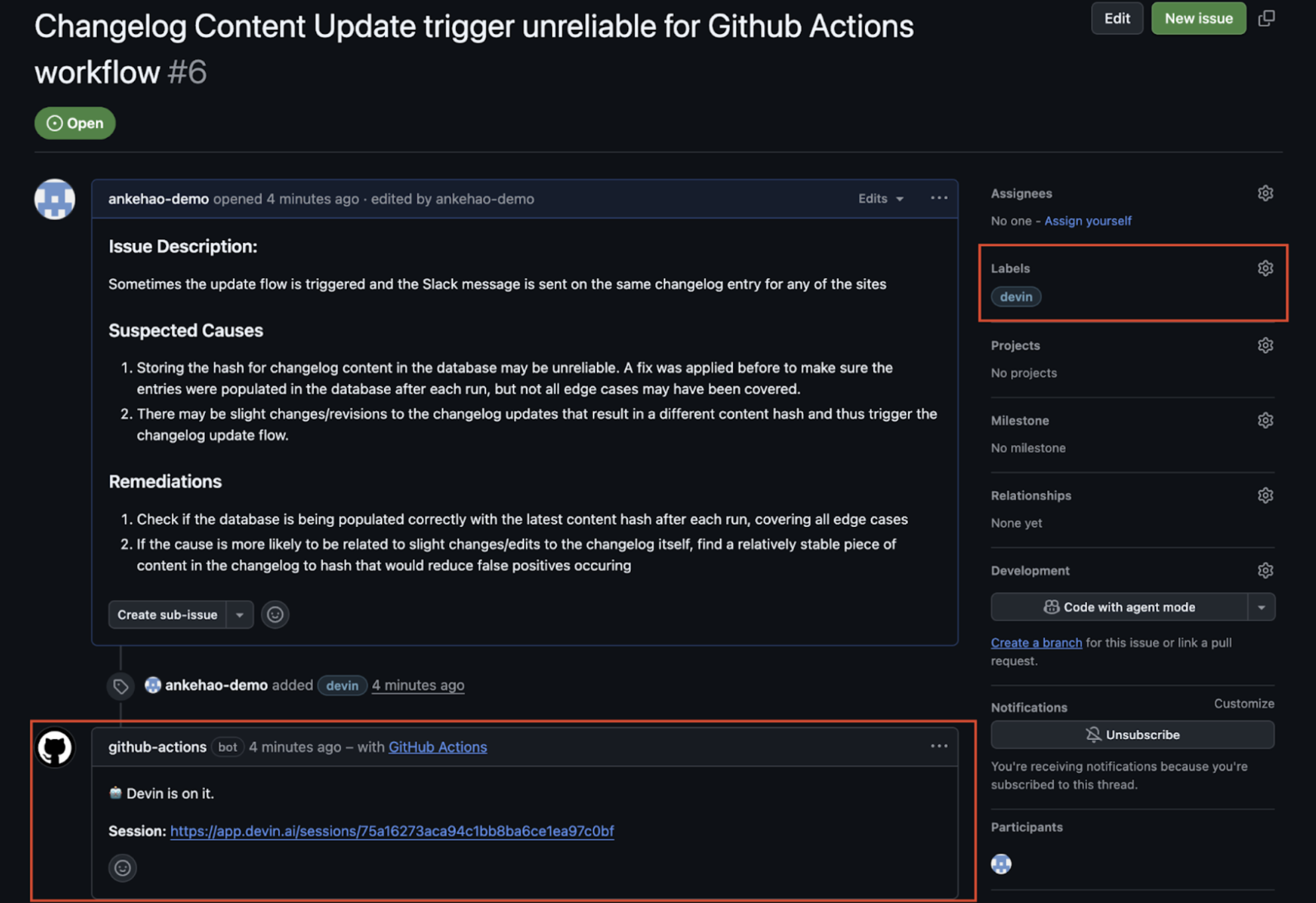
1. Issue に **`devin`** ラベルを追加します 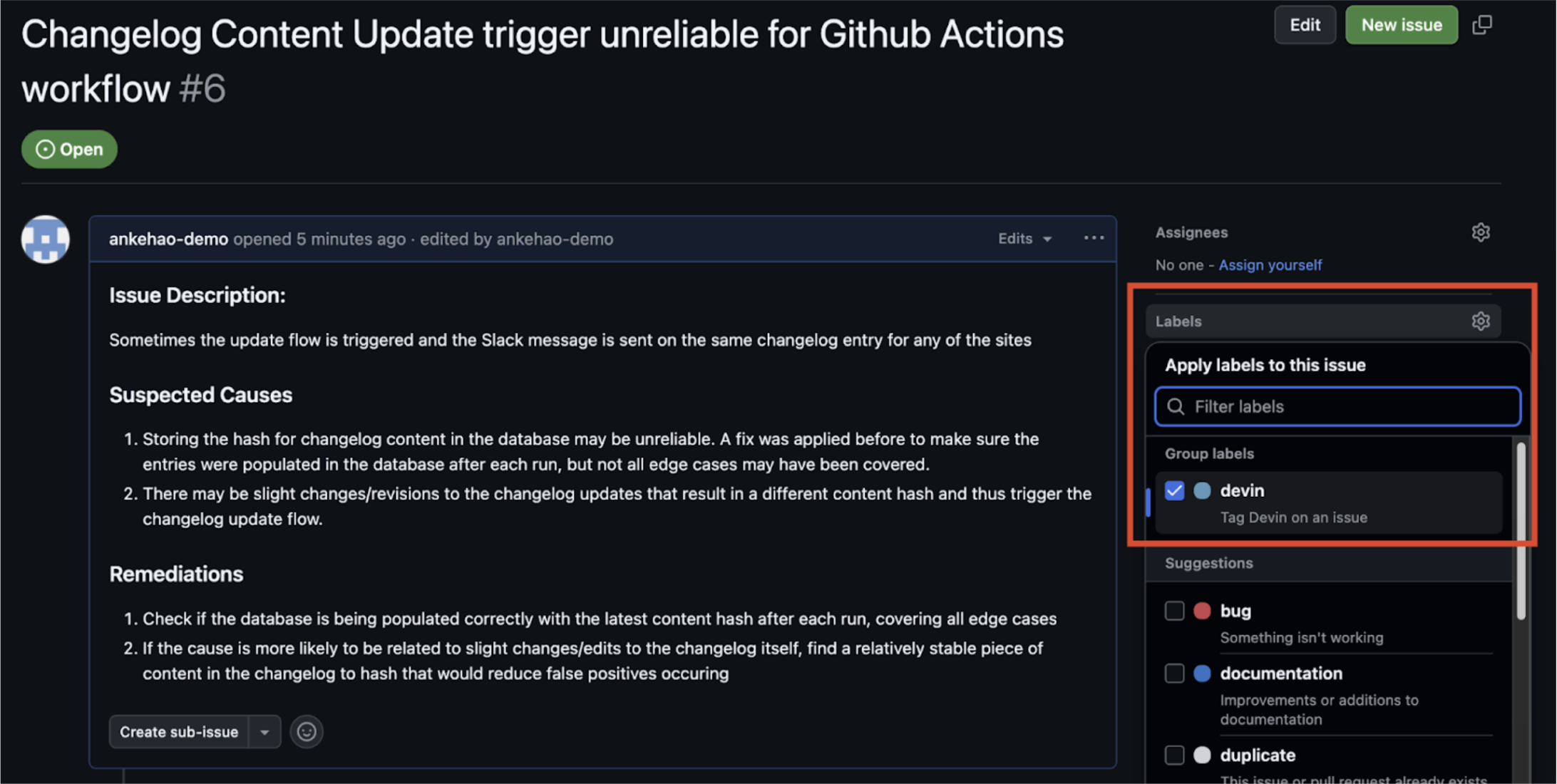 2. GitHub Actions のワークフローが起動し、新しい Devin セッションへのリンクを含む自動コメントが Issue に作成されます
3. Devin セッションが自動的に開始されます
2. GitHub Actions のワークフローが起動し、新しい Devin セッションへのリンクを含む自動コメントが Issue に作成されます
3. Devin セッションが自動的に開始されます
 ### Jira と Linear の連携
Devin は Jira と Linear の両方と直接連携し、Issue バックログの管理を支援します。両プラットフォーム上でチケットを Devin にアサインすると、自動的に PR が作成されます。
詳細なセットアップ手順と設定オプションについては、[Jira Integration Guide](/ja/integrations/jira) および [Linear Integration Guide](/ja/integrations/linear) を参照してください。
### Jira と Linear の連携
Devin は Jira と Linear の両方と直接連携し、Issue バックログの管理を支援します。両プラットフォーム上でチケットを Devin にアサインすると、自動的に PR が作成されます。
詳細なセットアップ手順と設定オプションについては、[Jira Integration Guide](/ja/integrations/jira) および [Linear Integration Guide](/ja/integrations/linear) を参照してください。
## 関連ユースケース
* [テストとリファクタリング](/ja/use-cases/testing-refactoring)
* [移行とモダナイゼーション](/ja/use-cases/migration-modernization)