> ## Documentation Index
> Fetch the complete documentation index at: https://docs.devin.ai/llms.txt
> Use this file to discover all available pages before exploring further.

# Okta SSO のセットアップ

> Okta でシングルサインオンを設定する

Devin のユーザー向けに Okta をログイン方法の一つとして設定するには、このドキュメントを Okta 管理者や IT チームのメンバーと共有してください。

<div id="create-a-new-application-in-okta">
  ## Okta で新しいアプリケーションを作成する
</div>

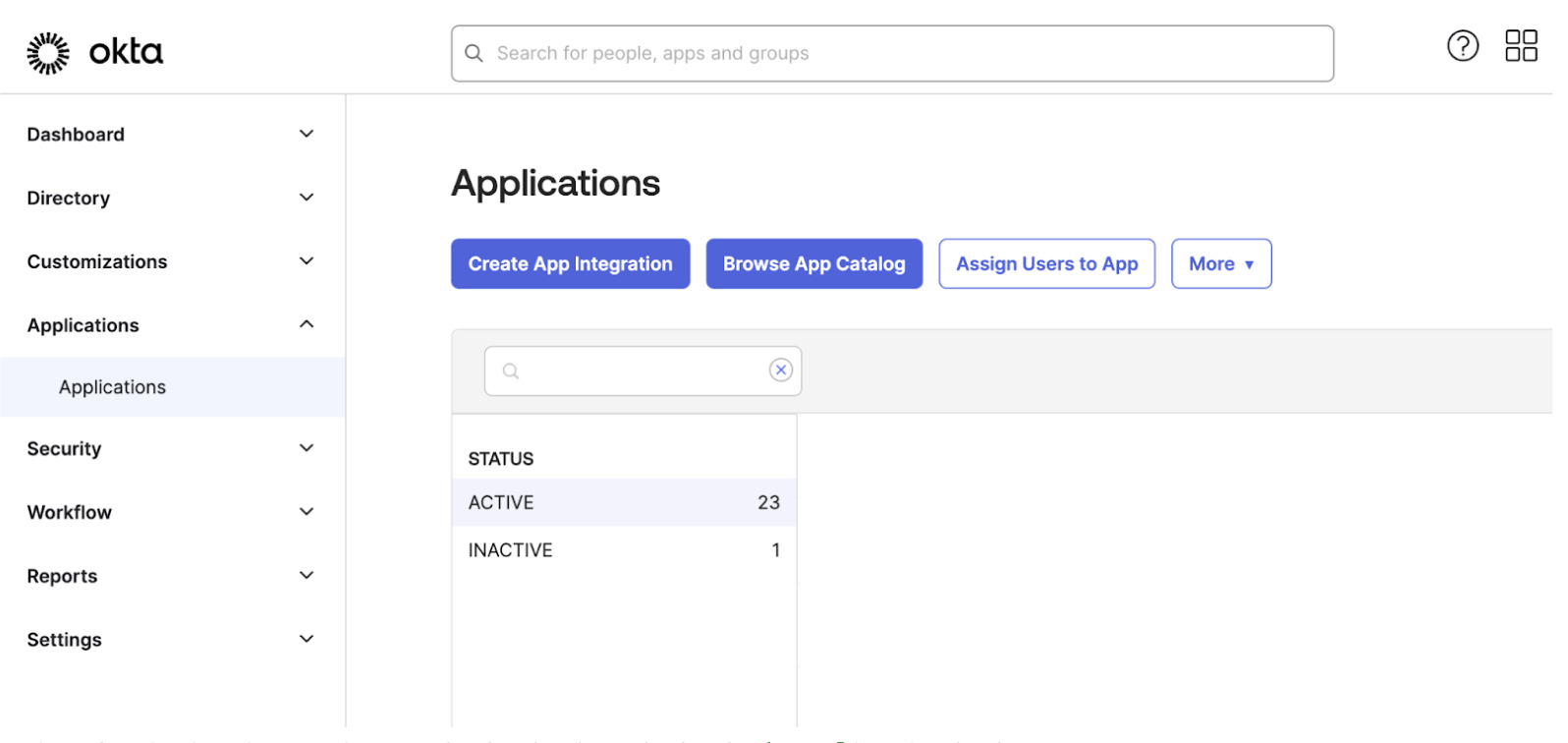
1. Okta 管理コンソールで「Applications > Create App Integration」に移動します。

<Frame>
  <img src="https://mintcdn.com/cognitionai/s_eAbNGhbOgn5ZqZ/images/okta-application-1.png?fit=max&auto=format&n=s_eAbNGhbOgn5ZqZ&q=85&s=23af89ed666db6134b90a6e29c1c16cf" alt="Okta Application Creation Step 1" width="1596" height="756" data-path="images/okta-application-1.png" />
</Frame>

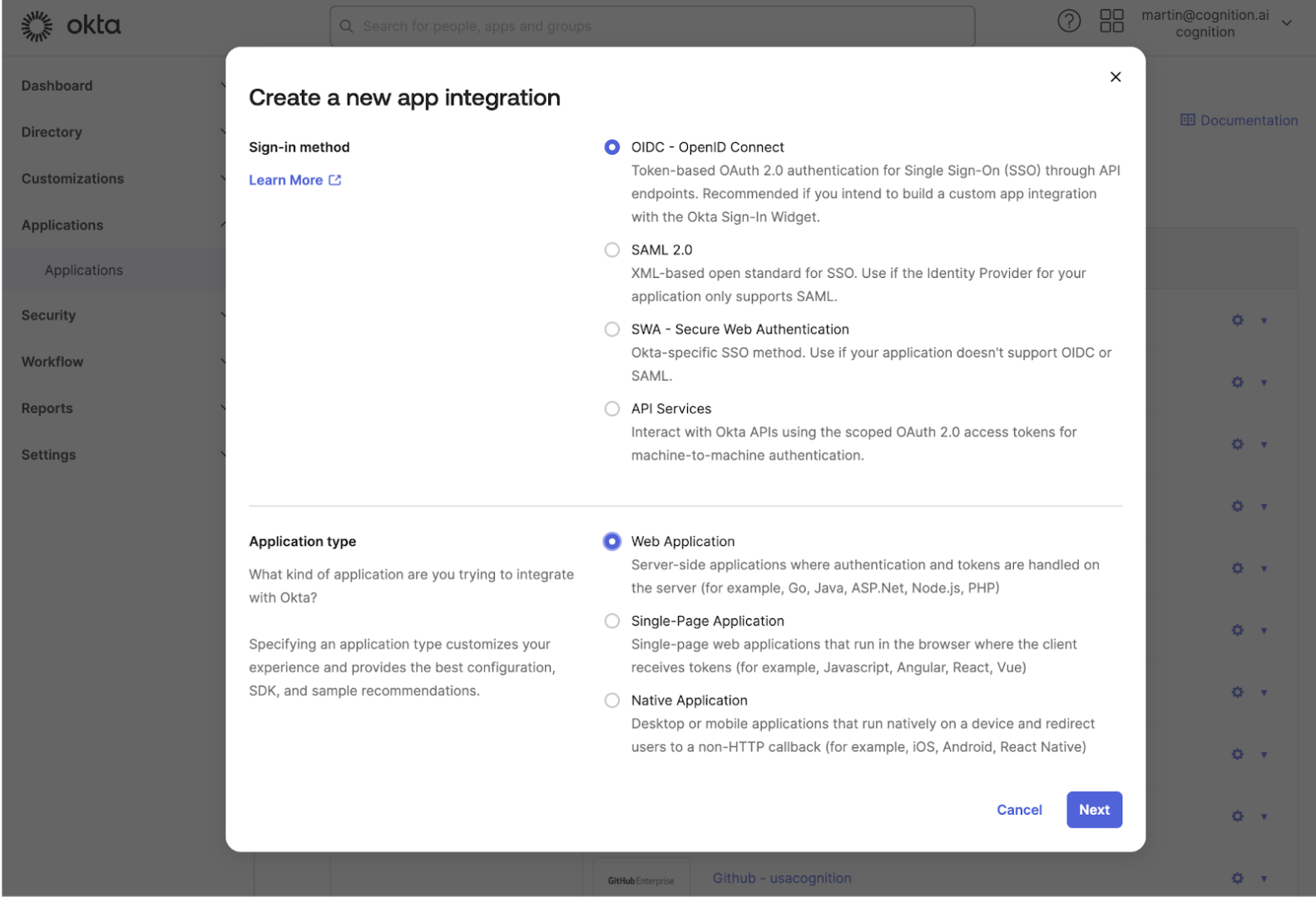
2. 「Sign-in method」は `OIDC - OpenID Connect` を選択し、「Application Type」は `Web Application` を選択します。
<Frame>
  <img src="https://mintcdn.com/cognitionai/s_eAbNGhbOgn5ZqZ/images/okta-application-2.png?fit=max&auto=format&n=s_eAbNGhbOgn5ZqZ&q=85&s=7495dd25e50c17e393ce95c91a088e6c" alt="Okta Application Creation Step 2" width="1582" height="1078" data-path="images/okta-application-2.png" />
</Frame>

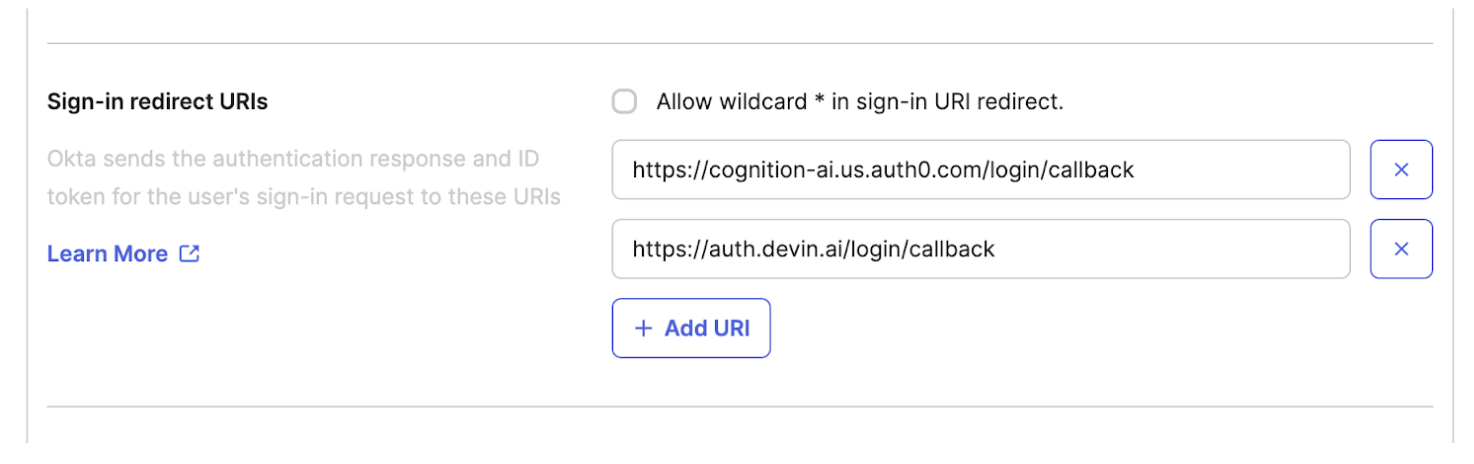
3. 「Sign-in redirect URIs」に次の値を入力します。

<Note>
  [https://auth.devin.ai/login/callback](https://auth.devin.ai/login/callback)
</Note>

<Frame>
  <img src="https://mintcdn.com/cognitionai/s_eAbNGhbOgn5ZqZ/images/okta-redirect.png?fit=max&auto=format&n=s_eAbNGhbOgn5ZqZ&q=85&s=906cbe108e586cf59f2641b7d03af388" alt="Okta Redirect URIs" width="1474" height="464" data-path="images/okta-redirect.png" />
</Frame>

4. 「Sign-out redirect URIs」は空欄のままにしておきます。

<div id="share-your-application-credentials-with-cognition">
  ## アプリケーション認証情報を Cognition と共有する
</div>

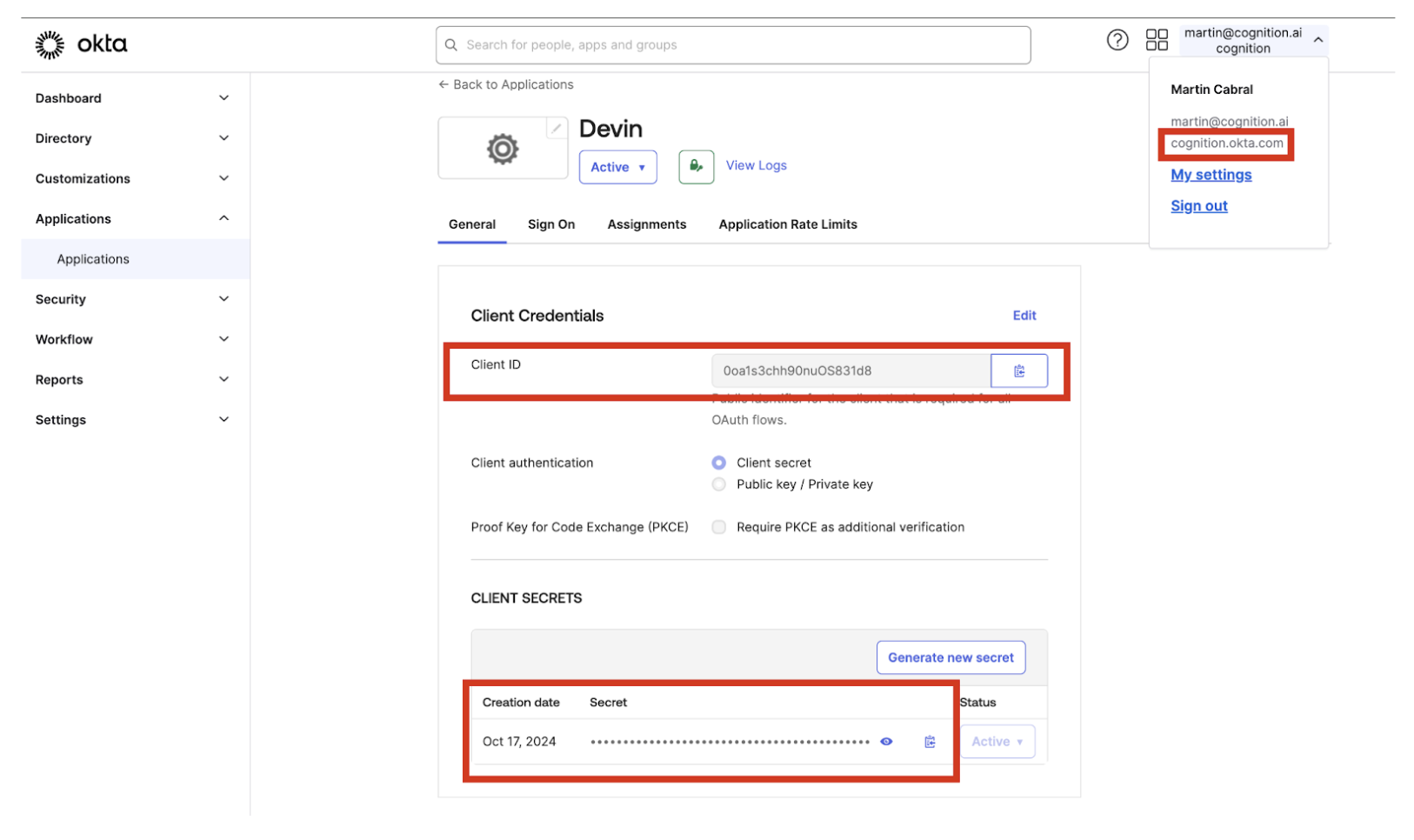
1. アプリケーションを作成したら、Cognition と共有する必要がある情報は次のとおりです。
   1. Client ID
   2. Client Secret
   3. お使いの Okta ドメイン (メールアドレスの下にあるユーザー名のドロップダウンから確認できます)
<Frame>
  <img src="https://mintcdn.com/cognitionai/s_eAbNGhbOgn5ZqZ/images/okta-client-creds.png?fit=max&auto=format&n=s_eAbNGhbOgn5ZqZ&q=85&s=03aa71a5024f189a8737bda5d516b430" alt="Okta Client Credentials" width="1626" height="966" data-path="images/okta-client-creds.png" />
</Frame>

<div id="optional">
  ## 任意設定
</div>

次の設定を行うと、ユーザーのダッシュボードにアプリケーションをアイコンとして表示できます。

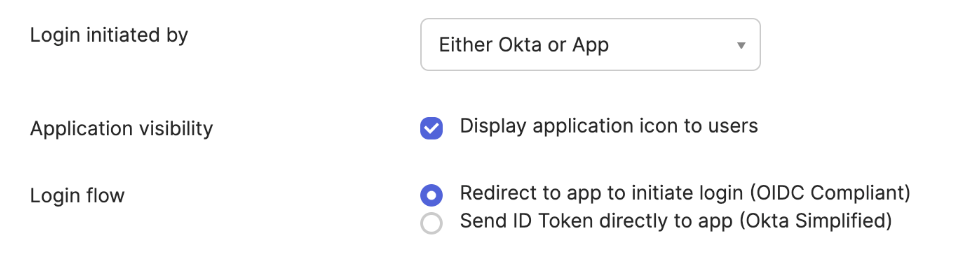
1. `Login initiated by` で **Either OKTA or App** を選択します
2. **Display application icon to users** にチェックを入れます
3. `Login flow` の値として **Redirect to app to initiate login (OIDC Compliant)** を選択します
4. `Initiate login URI` にDevin Enterpriseのログイン URL を設定します

<Note>
  `https://<your_subdomain>.devinenterprise.com/login`
</Note>

<Frame>
  <img src="https://mintcdn.com/cognitionai/s_eAbNGhbOgn5ZqZ/images/okta-optional-step.png?fit=max&auto=format&n=s_eAbNGhbOgn5ZqZ&q=85&s=09cabf28f3712bad1cf2d96ff07dede7" alt="Okta Optional Settings" width="968" height="258" data-path="images/okta-optional-step.png" />
</Frame>