> ## Documentation Index
> Fetch the complete documentation index at: https://docs.devin.ai/llms.txt
> Use this file to discover all available pages before exploring further.
# Git 連携
> Devin をソースコードリポジトリと連携させる
## Enterprise ソースコード管理のセットアップ
Devin がリポジトリにアクセスできるようにするには、まずソースコード管理 (SCM) プロバイダーを Enterprise に接続し、そのうえで特定のグループまたはリポジトリへのアクセス権を Devin Organization に付与する必要があります。
SCM 連携を設定できるのは Enterprise 管理者のみです。
**Enterprise Settings > Integrations** に移動し、Devin をソースコード管理に接続します。
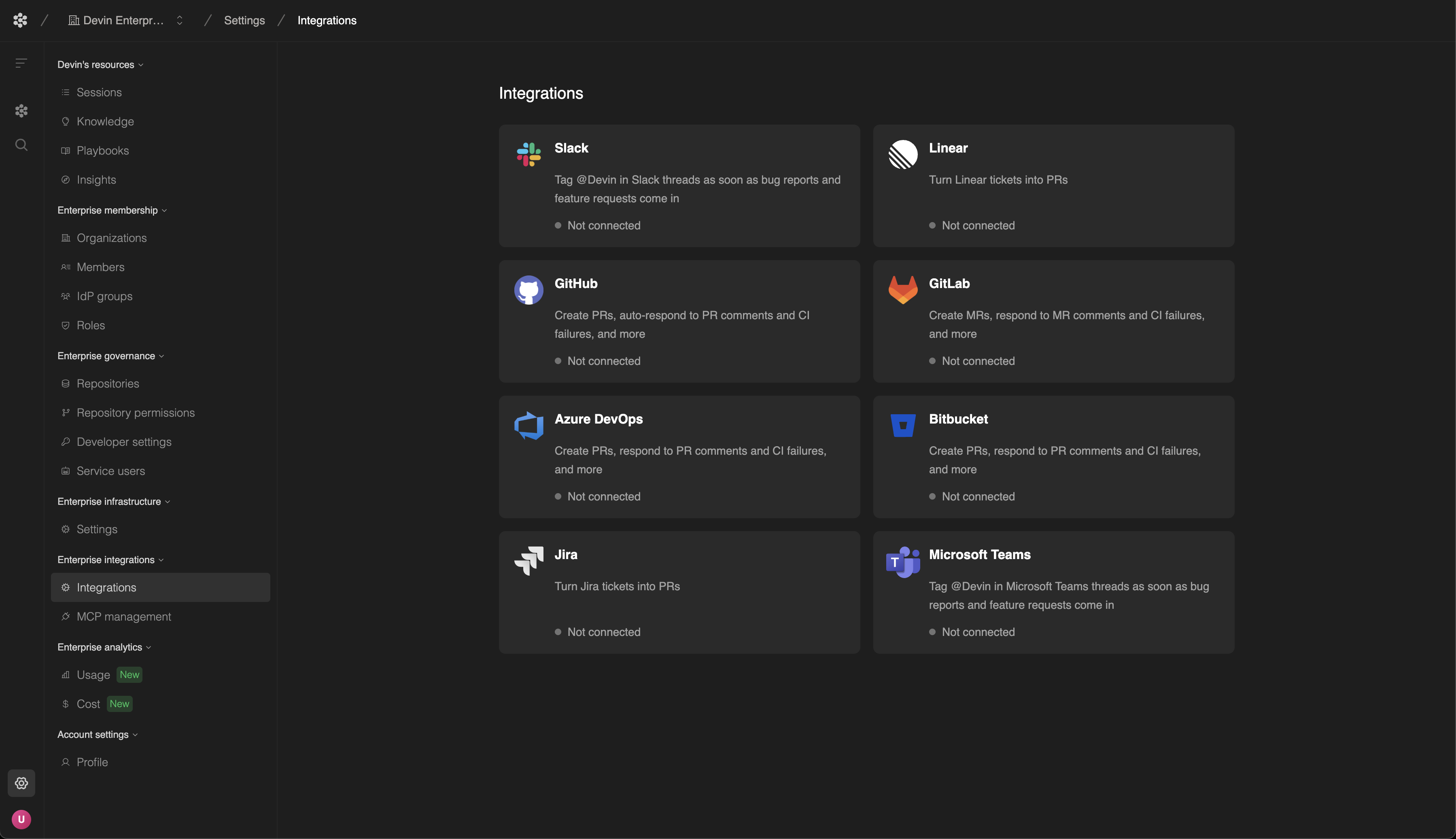 Git 連携の設定方法の詳細については、ご利用の SCM プロバイダーごとのドキュメントを参照してください。
GitHub リポジトリと Devin を接続します。
GitHub Enterprise Server と Devin を接続します。
Azure DevOps リポジトリと Devin を接続します。
GitLab リポジトリと Devin を接続します。
Bitbucket リポジトリと Devin を接続します。
Git 連携の設定方法の詳細については、ご利用の SCM プロバイダーごとのドキュメントを参照してください。
GitHub リポジトリと Devin を接続します。
GitHub Enterprise Server と Devin を接続します。
Azure DevOps リポジトリと Devin を接続します。
GitLab リポジトリと Devin を接続します。
Bitbucket リポジトリと Devin を接続します。
## リポジトリ権限
Devin Enterprise を SCM プロバイダーに接続すると、複数の組織やリポジトリへのアクセス権限を管理できるセキュアなリンクが確立されます。ただし、明示的に権限を付与するまでは、Devin の Organizations はリポジトリを操作できません。
Devin Enterprise を SCM プロバイダーに接続した後は、**Enterprise Settings > Repository Permissions** でリポジトリ権限を管理できます。
### 権限を追加または更新する
1. ページ上部のドロップダウンメニューから、リポジトリアクセスを管理したい Devin Organization を選択します。
* ここで、現在設定されているすべての権限とリポジトリを確認できます。
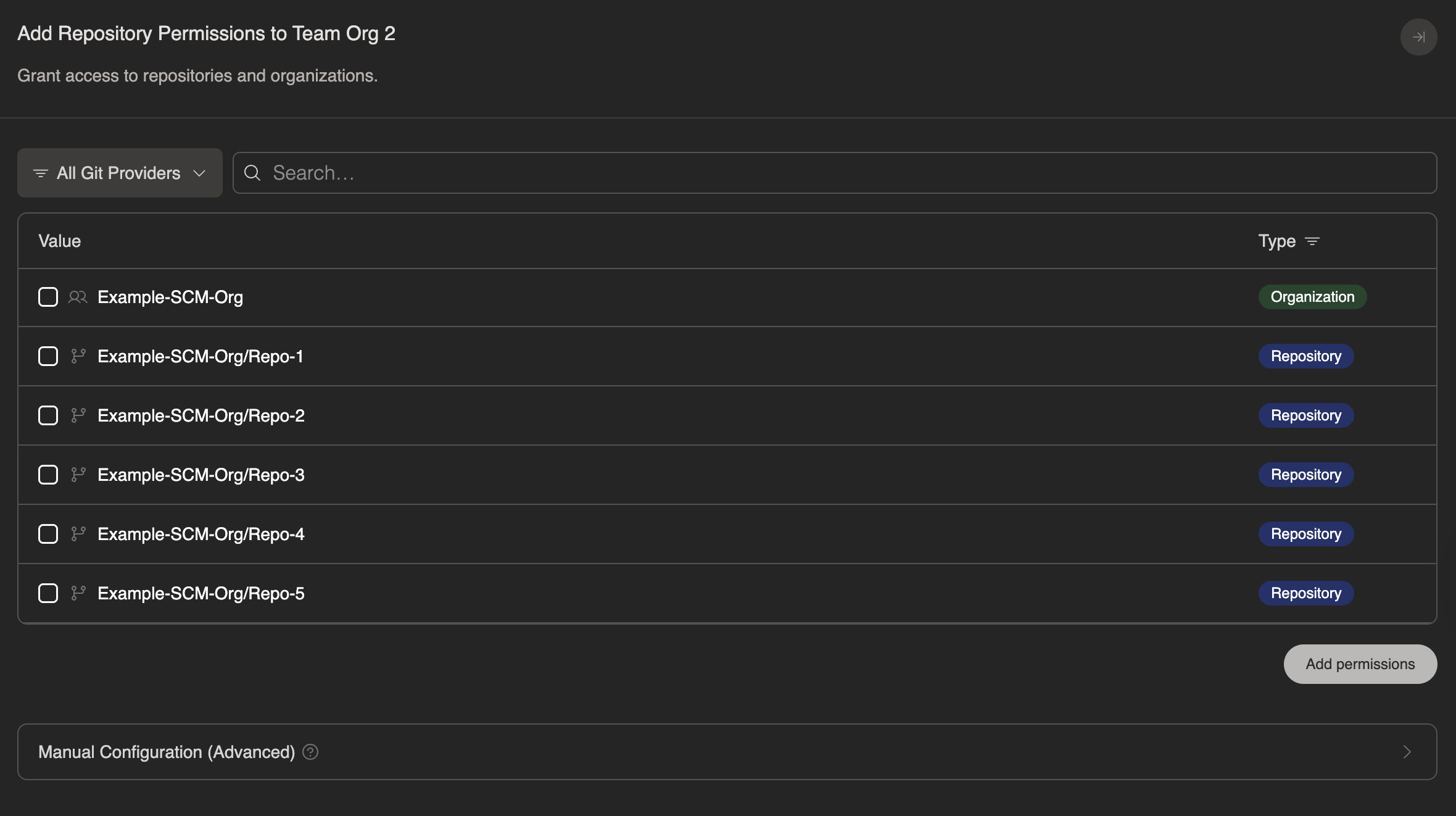
2. 権限フライアウトを開くには、**+ Add Permissions** をクリックします。
3. 付与したいアクセスレベルを選択します:
* **グループレベルのアクセス**: 組織単位内のすべてのリポジトリへのアクセスを付与します。SCM プロバイダーのグルーピング構造を選択します:
* GitHub / GitHub Enterprise Server: Organization
* Azure DevOps: Organization または Project
* GitLab: Group または Subgroup
* Bitbucket: Workspace
* **リポジトリレベルのアクセス**: 特定の 1 つのリポジトリへのアクセスを付与します。
4. 必要に応じて、ドロップダウンを使用して Git プロバイダーで絞り込みます。
5. 変更を保存するには、**Add permissions** を選択します。
### 権限の取り消し
リポジトリまたはグループへのアクセス権を取り消すには、次のいずれかの方法を使用します。
* 削除したい権限の横にある**ゴミ箱アイコン**をクリックする
* **+ Add Permissions**に進み、該当の権限の選択を外して保存する
保存すると、その Devin Organization はこれらのリポジトリまたはグループにアクセスできなくなります。