> ## Documentation Index
> Fetch the complete documentation index at: https://docs.devin.ai/llms.txt
> Use this file to discover all available pages before exploring further.

# Visual Studio のトラブルシューティング

> IntelliCode の競合、Tab キーの割り当て、marketplace で表示されない問題など、Visual Studio プラグインに関する問題を解決します。

<Note>
  高度なエージェント型 AI 機能と最先端機能を利用できるため、ネイティブの Devin Desktop Editor または JetBrains のローカルプラグインの使用を強く推奨します。
  Visual Studio プラグインはメンテナンス モードとなっています。
</Note>

<div id="supported-versions">
  # サポート対象バージョン
</div>

Visual Studio 17.5.5 以降。

<div id="gathering-extension-logs">
  # 拡張機能のログを収集する
</div>

`View > Output` を開き、ドロップダウンから `Codeium` を選択して、ログをコピーします。

<div id="known-ide-issues-and-solutions">
  # IDEの既知の問題と解決策
</div>

<div id="dont-see-codeium-in-the-vs-marketplace">
  ## VS Marketplace に Codeium が見つからない場合
</div>

VS のバージョンが 2022 17.5.5 以降であることを確認してください。

<div id="seeing-overlapping-autocomplete-suggestions">
  ## 補完候補が重なって表示される
</div>

これは、Visual Studio の IntelliCode の候補が Codeium の候補と同時に表示される場合に発生します。以下のように、IntelliCode のオプションをすべて無効にしてください。
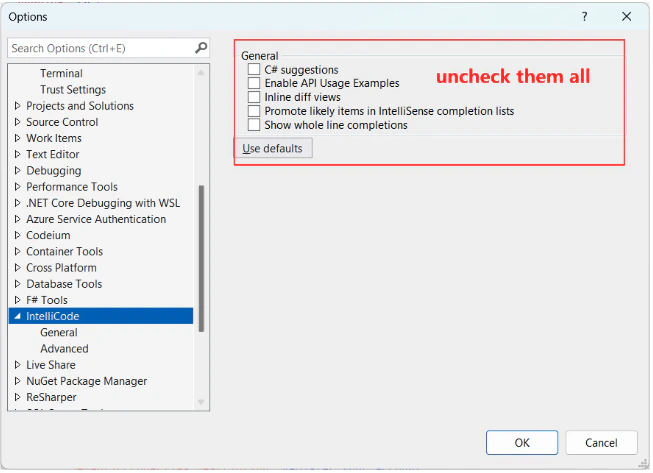
<Frame>
  <img src="https://mintcdn.com/cognitionai/hxeMffzXgF_RWx-U/desktop/assets/plugins/troubleshooting-visualstudio-disable-intellicode.jpg?fit=max&auto=format&n=hxeMffzXgF_RWx-U&q=85&s=e07986cde37aa822f49c9c74d971bec4" width="653" height="473" data-path="desktop/assets/plugins/troubleshooting-visualstudio-disable-intellicode.jpg" />
</Frame>

<div id="tab-key-is-not-always-accepting-completions">
  ## Tabキーで補完が常に確定されるとは限りません
</div>

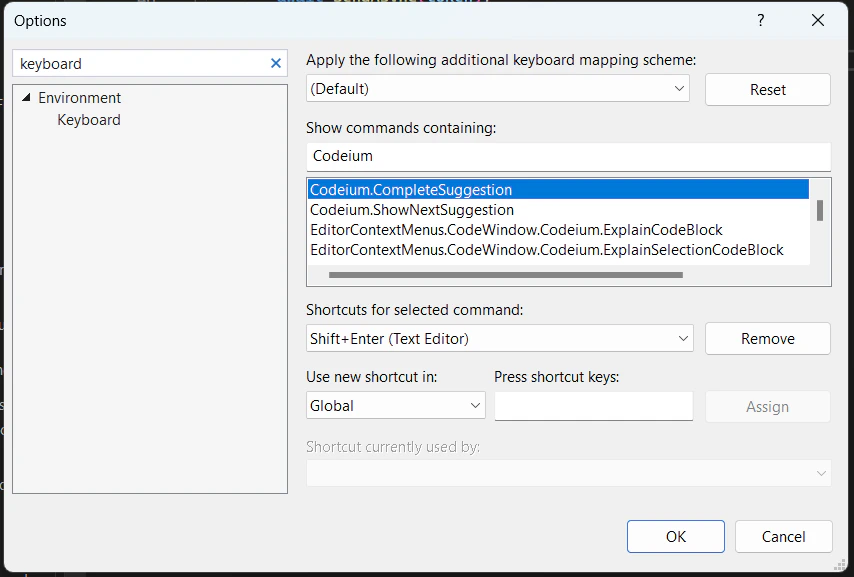
設定で、これを別のキーボードショートカットに再割り当てできます。

<Frame>
  <img src="https://mintcdn.com/cognitionai/hxeMffzXgF_RWx-U/desktop/assets/plugins/troubleshooting-visualstudio-keybindings.jpg?fit=max&auto=format&n=hxeMffzXgF_RWx-U&q=85&s=fc90de6cd32057833366f17cf3265a79" width="854" height="577" data-path="desktop/assets/plugins/troubleshooting-visualstudio-keybindings.jpg" />
</Frame>