> ## Documentation Index
> Fetch the complete documentation index at: https://docs.devin.ai/llms.txt
> Use this file to discover all available pages before exploring further.
# よくある問題
## GitHub.com の組織を接続できない
連携を設定できなかったり、接続したい組織の横に「Configure」と表示される場合、あなた、またはチームメイトのいずれかが、すでにその GitHub 組織を別の Devin アカウントに接続している可能性があります。**ご自身の Devin アカウントに接続する前に、既存の連携を解除する必要があります。**
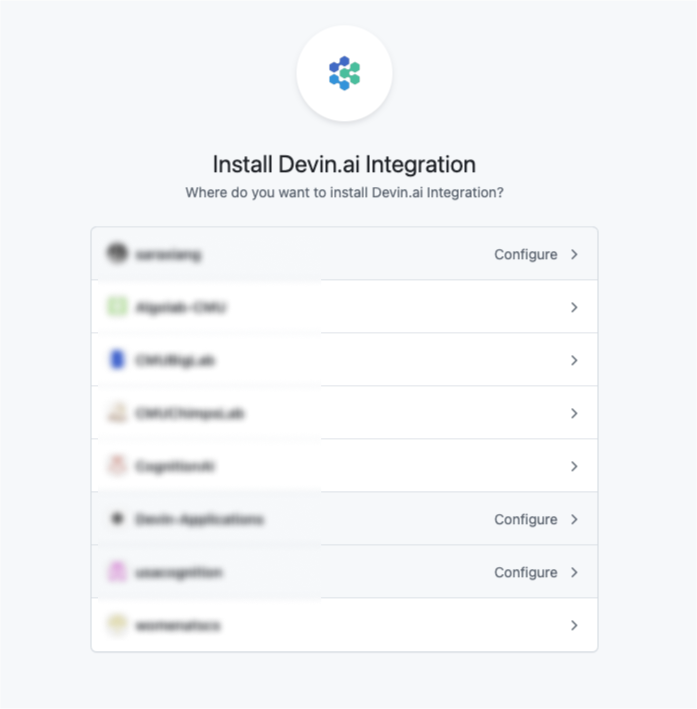 既存の連携は、次の手順で解除できます。
1. 連携が有効になっている Devin Enterprise または Organization に移動します
2. Integrations ページに移動します
* Enterprise アカウントの場合は、Enterprise Settings の [https://app.devin.ai/settings/connected-accounts](https://app.devin.ai/settings/connected-accounts) に移動します
* Teams アカウントの場合は、Organization Settings の [https://app.devin.ai/settings/integrations](https://app.devin.ai/settings/integrations) に移動します
3. GitHub integration のカードをクリックします
4. GitHub integration の「Disconnect」をクリックします
または、GitHub から連携を解除することもできます。
1. [GitHub Integration settings](https://github.com/settings/installations) に移動します
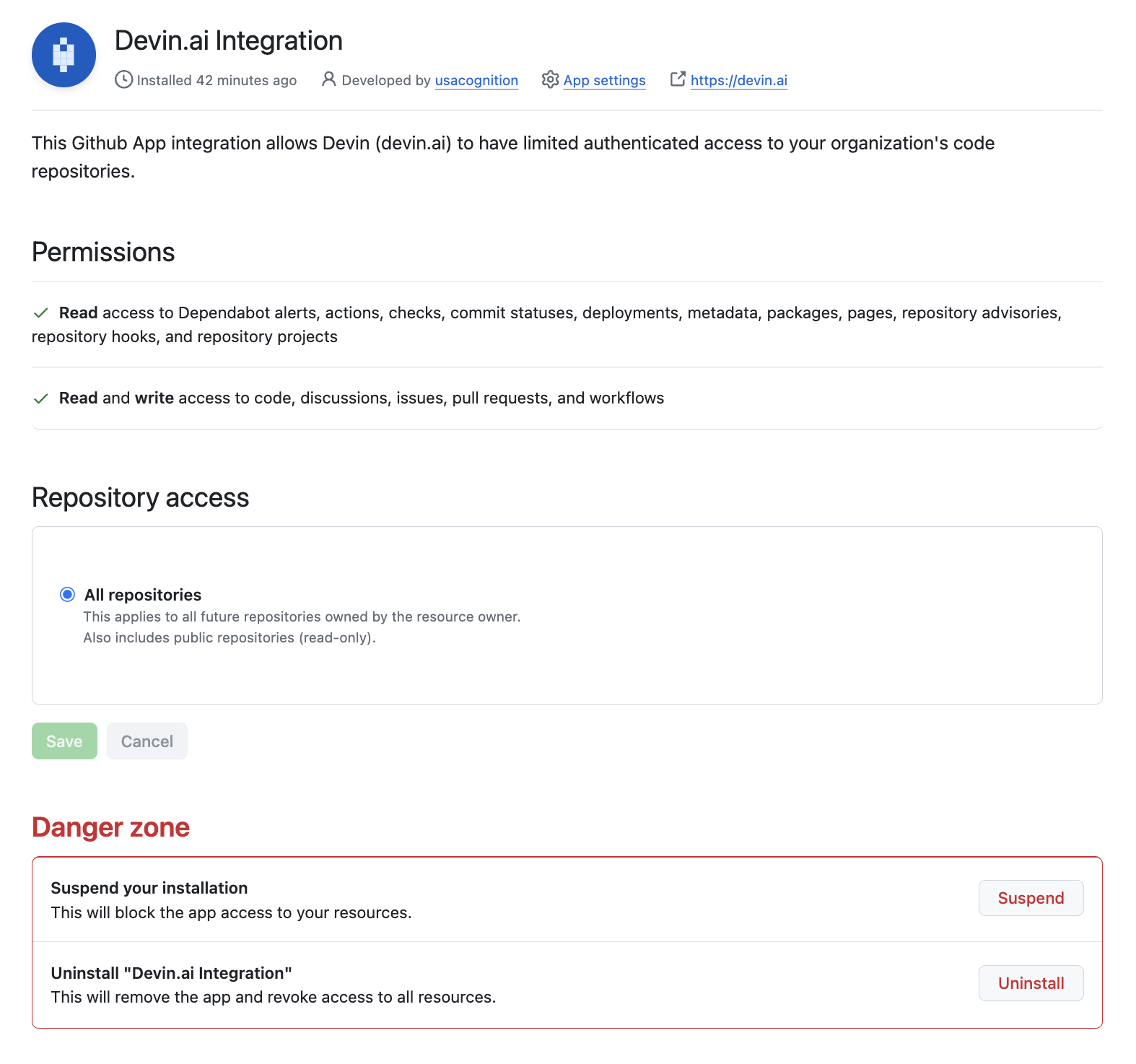
2. Devin.ai Integration に移動し、「Configure」をクリックします
3. 連携をアンインストールするため、「Danger zone」セクションまでスクロールします
既存の連携は、次の手順で解除できます。
1. 連携が有効になっている Devin Enterprise または Organization に移動します
2. Integrations ページに移動します
* Enterprise アカウントの場合は、Enterprise Settings の [https://app.devin.ai/settings/connected-accounts](https://app.devin.ai/settings/connected-accounts) に移動します
* Teams アカウントの場合は、Organization Settings の [https://app.devin.ai/settings/integrations](https://app.devin.ai/settings/integrations) に移動します
3. GitHub integration のカードをクリックします
4. GitHub integration の「Disconnect」をクリックします
または、GitHub から連携を解除することもできます。
1. [GitHub Integration settings](https://github.com/settings/installations) に移動します
2. Devin.ai Integration に移動し、「Configure」をクリックします
3. 連携をアンインストールするため、「Danger zone」セクションまでスクロールします
## Slack の組織を接続できません
"Unable to proceed with request" というエラーが表示される場合は、あなた、またはあなたのチームメイトのいずれかが、すでに Slack 組織を別の Devin 組織に接続していることを意味します。**新しい組織を接続する前に、既存の連携を解除する必要があります。**
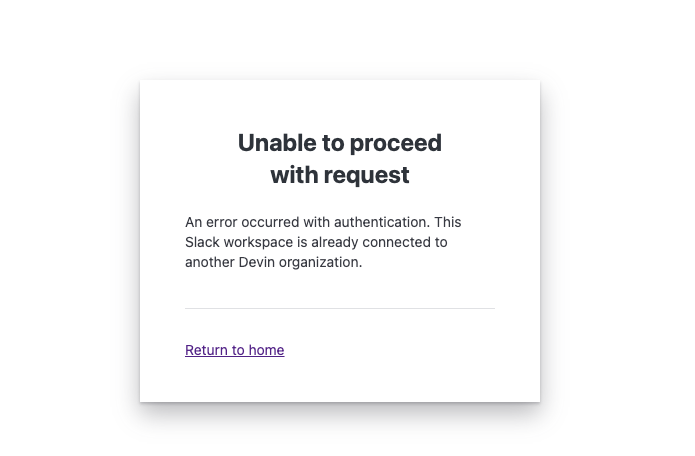 既存の連携は、次の手順で解除できます。
1. 連携が有効になっている Devin Enterprise または組織に移動します
2. Integrations ページに移動します
* Enterprise アカウントの場合は、Enterprise Settings 内の [https://app.devin.ai/settings/connected-accounts](https://app.devin.ai/settings/connected-accounts) に移動します
* Teams アカウントの場合は、Organization Settings 内の [https://app.devin.ai/settings/integrations](https://app.devin.ai/settings/integrations) に移動します
3. Slack integration カードをクリックします
4. Slack integration の "Disconnect" をクリックします
既存の組織の連携を解除できない、または既存の組織が見つけられない場合は、[support@cognition.ai](mailto:support@cognition.ai) までお問い合わせください。
既存の連携は、次の手順で解除できます。
1. 連携が有効になっている Devin Enterprise または組織に移動します
2. Integrations ページに移動します
* Enterprise アカウントの場合は、Enterprise Settings 内の [https://app.devin.ai/settings/connected-accounts](https://app.devin.ai/settings/connected-accounts) に移動します
* Teams アカウントの場合は、Organization Settings 内の [https://app.devin.ai/settings/integrations](https://app.devin.ai/settings/integrations) に移動します
3. Slack integration カードをクリックします
4. Slack integration の "Disconnect" をクリックします
既存の組織の連携を解除できない、または既存の組織が見つけられない場合は、[support@cognition.ai](mailto:support@cognition.ai) までお問い合わせください。
## IP ホワイトリスト設定
Devin のサービスをホワイトリストに登録する必要がある場合は、次の IP アドレスを追加してください:
* 100.20.50.251
* 44.238.19.62
* 52.10.84.81
* 52.183.72.253
* 20.172.46.235
* 52.159.232.99
* 4.204.199.103
* 54.201.200.193
* 54.69.238.189
* 100.23.34.160
(ご留意ください:このリストは固定として運用する予定ですが、今後のアップデートによりこれらの IP アドレスが変更される可能性があります。)
## セッションの有効期限
Devin のセッションは 30 日を経過すると継続できません。その期間を過ぎて作業を再開する場合は、新しいセッションを開始し、関連するコンテキスト(例:目標、要件、重要な決定事項、重要なファイルやリンクなど)を共有し直して、Devin が引き続き効果的に作業できるようにしてください。