> ## Documentation Index
> Fetch the complete documentation index at: https://docs.devin.ai/llms.txt
> Use this file to discover all available pages before exploring further.
# Entra ID SSO Setup
> Configure Single Sign-On with Microsoft Entra ID (formerly Azure AD)
Click on any image to enlarge it.
## Required Information
To enable Microsoft Entra ID login for Devin, we will need to collect the following values:
* Client ID
* Tenant ID
* Client Secret
* Microsoft AD Domain
* Identity Provider Domains (i.e. all company email domains you'd like to support)
## Setup Instructions
To get the required information above, you will need to register an App Registration in Microsoft Entra ID.
The App Registration should be created by an admin in your organization with the **Application Administrator** or **Cloud Application Administrator** role. The Devin service account does not need any special privileges for this setup.
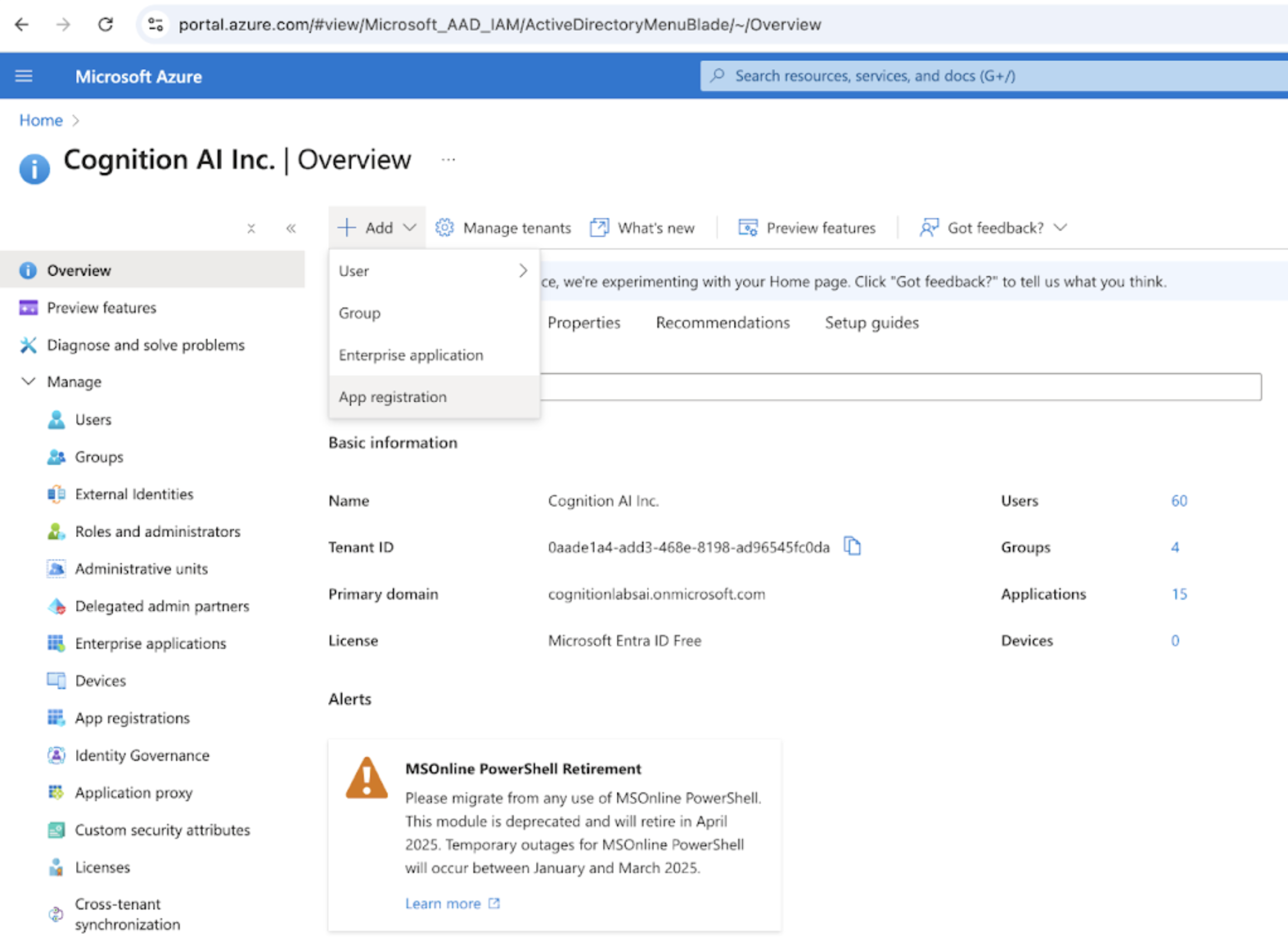
In the Microsoft Entra ID portal, click on Add registration
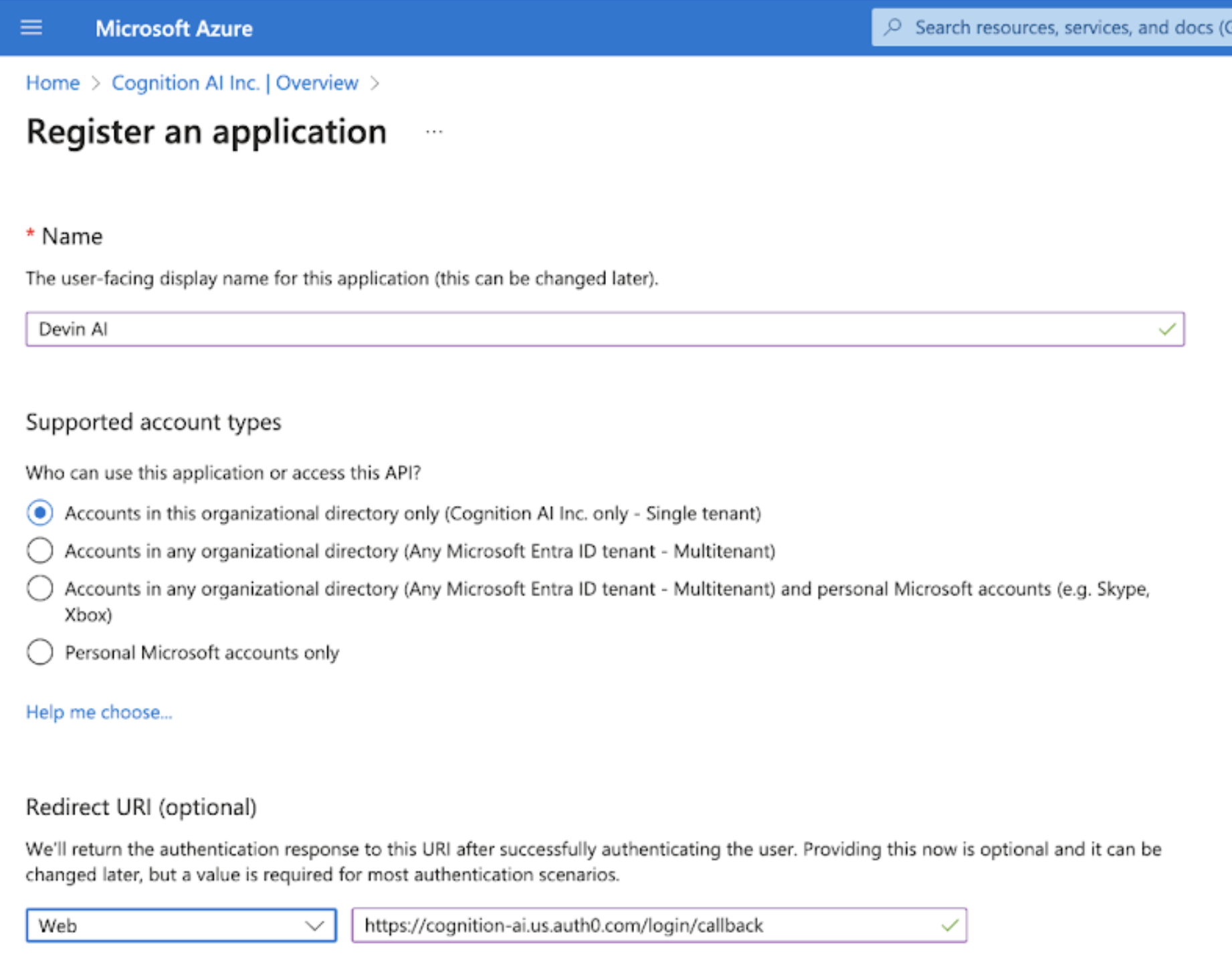
 Name the registration Devin AI. Select "Accounts in this organizational directory only". Set the Redirect URI as "[https://auth.devin.ai/login/callback](https://auth.devin.ai/login/callback)" (this is the only Redirect URI needed)
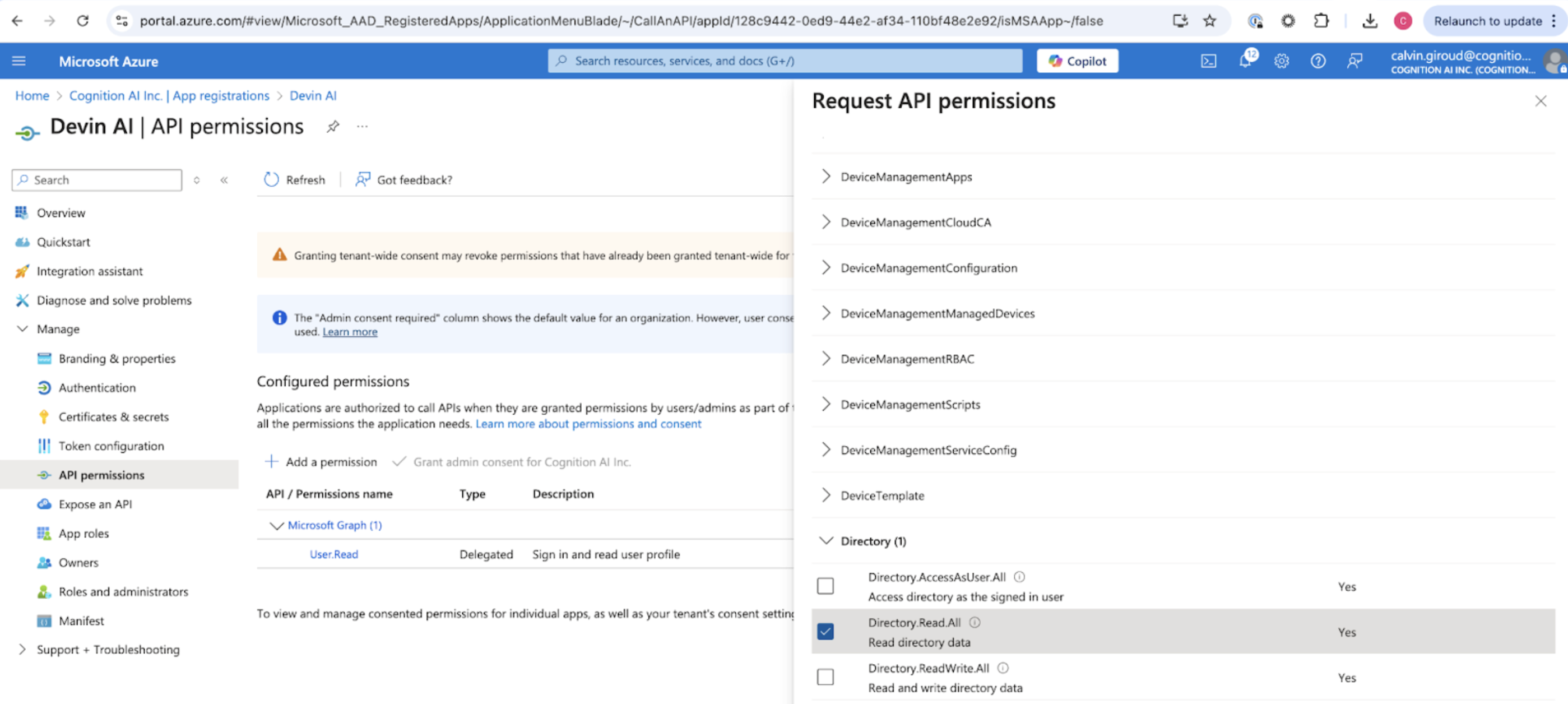
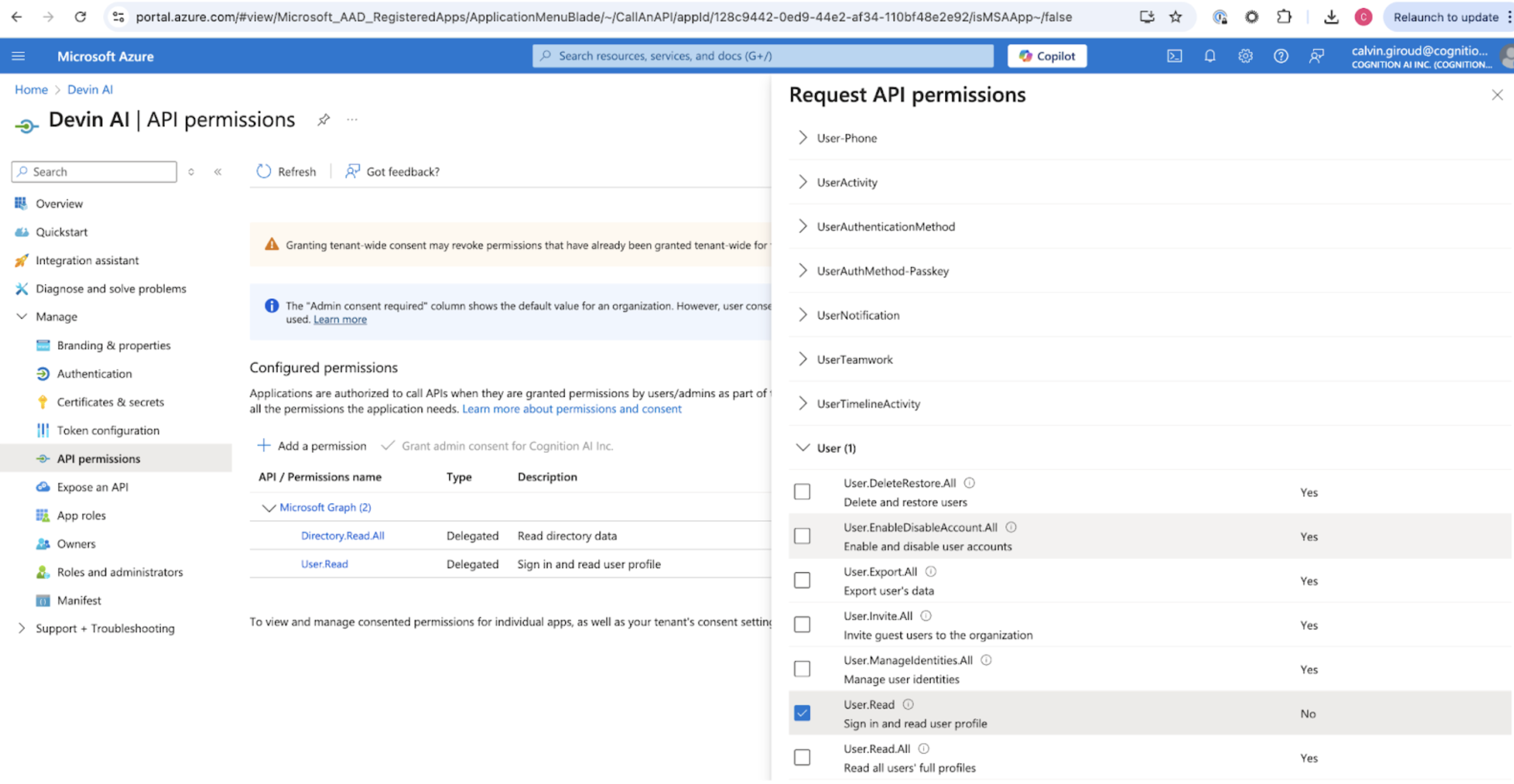
 Add the User.Read and Directory.Read.All permissions by selecting "API Permissions" and "Add a permission" to the Microsoft Graph API.
 ## Collecting the Required Values
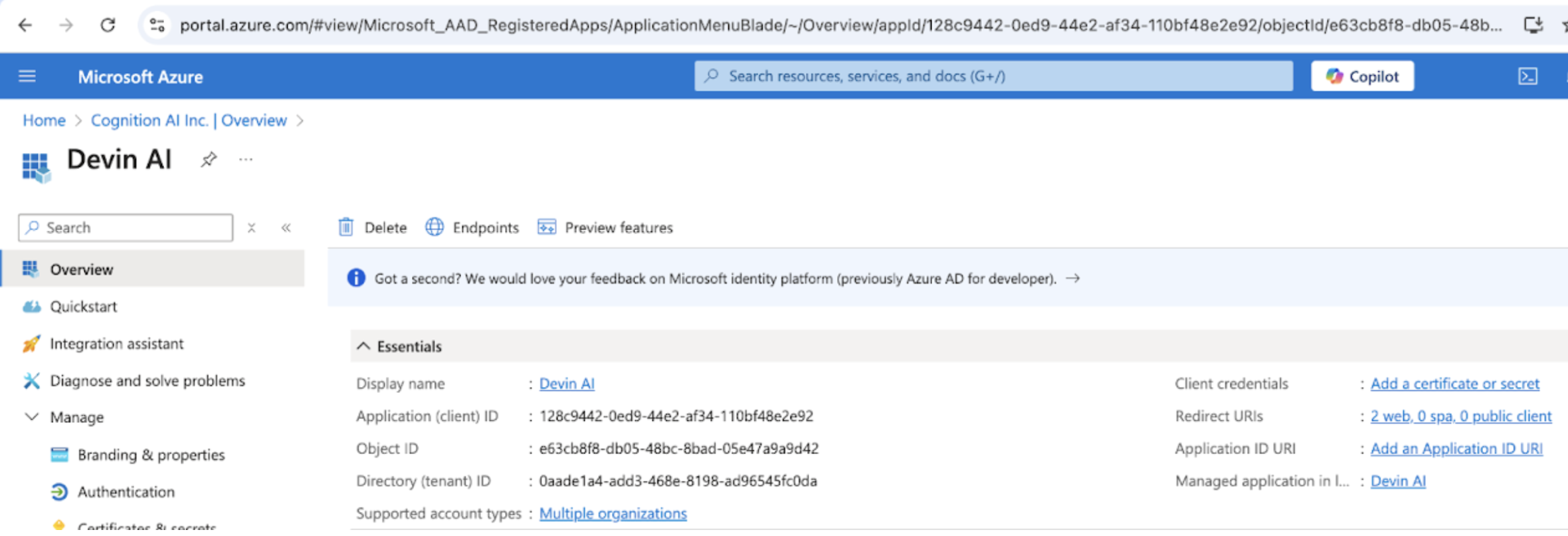
You can get the Client ID and Tenant ID from the Overview page.
## Collecting the Required Values
You can get the Client ID and Tenant ID from the Overview page.
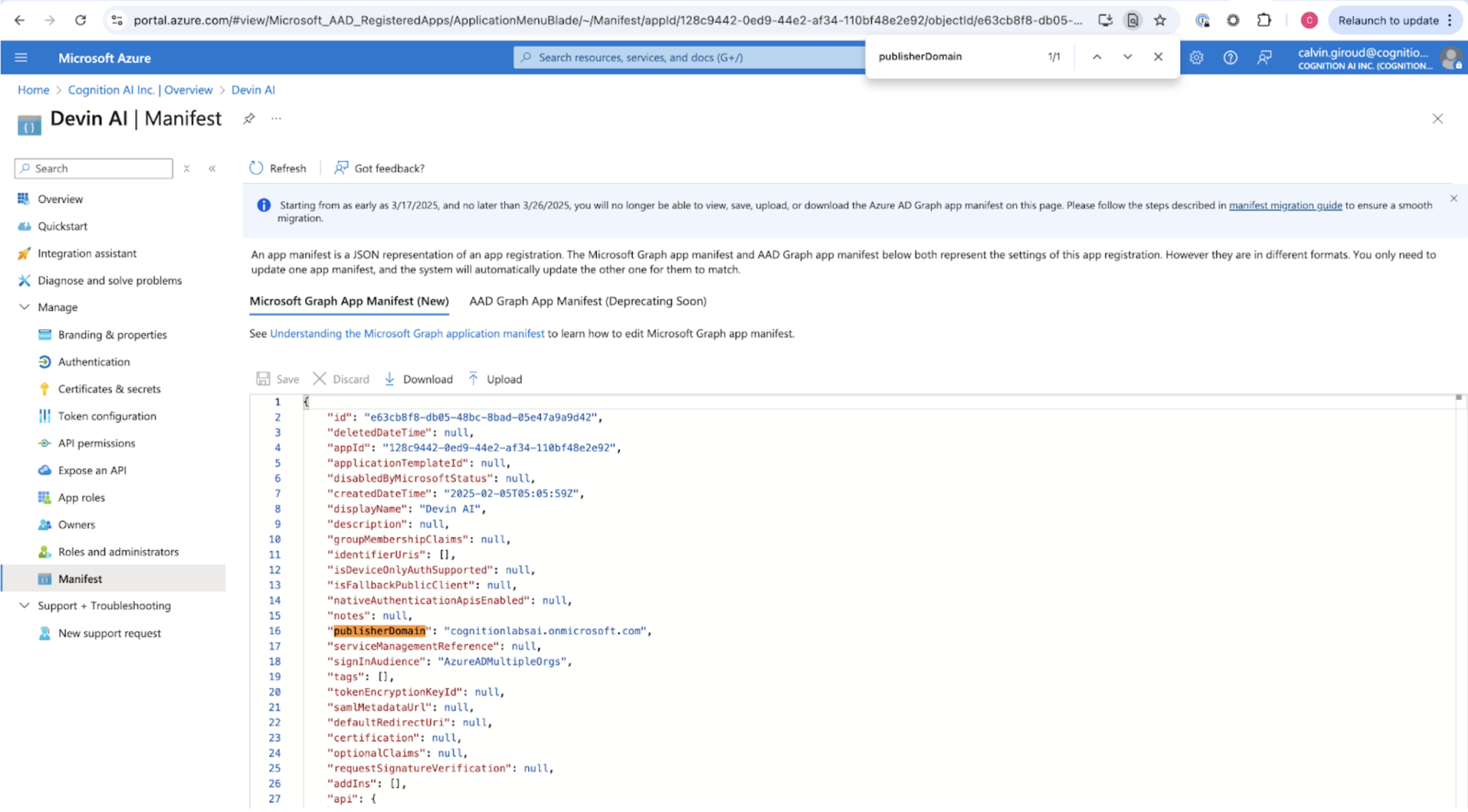
 The Microsoft AD Domain can be found by selecting the "Manifest" page and looking for "publisherDomain"
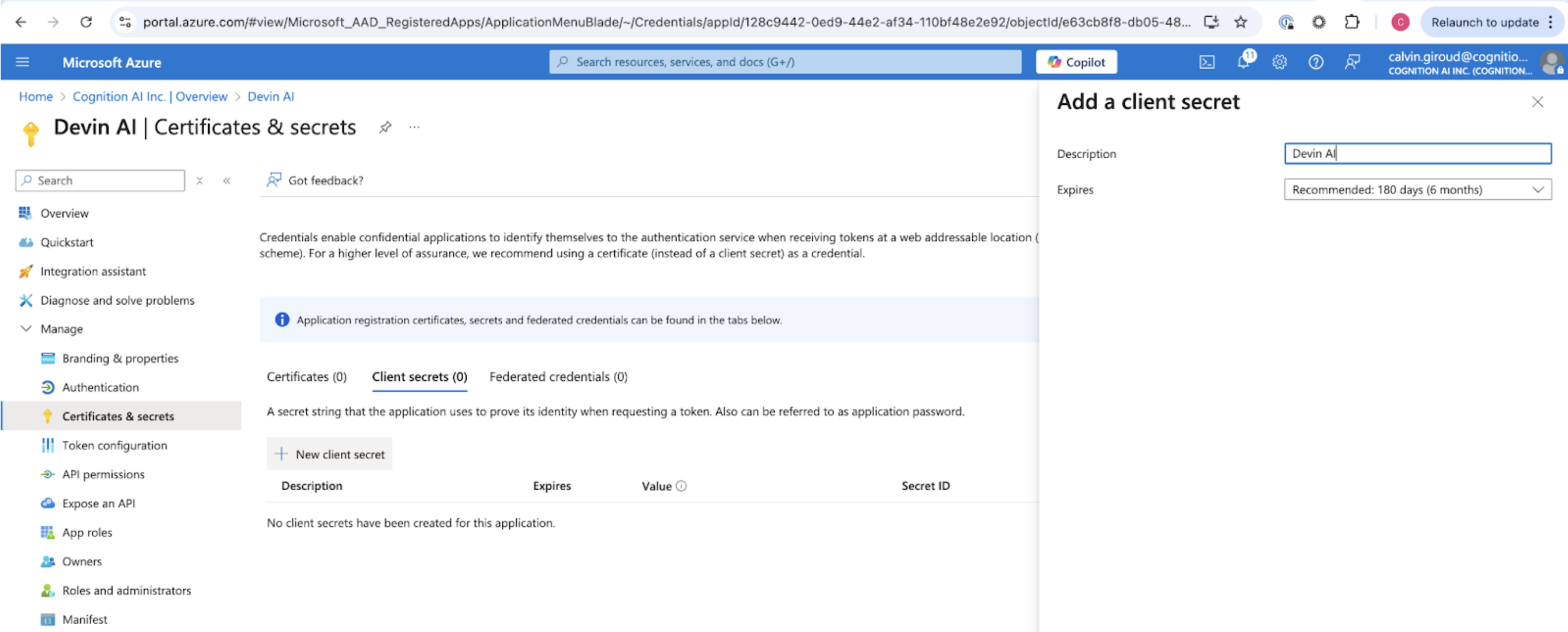
 Add a client secret by selecting "Certificates & secrets." Select "New client secret" and copy the secret VALUE (not the secret ID) as Client Secret
 ## Send to Cognition
Send the following values to Cognition:
* Client ID
* Tenant ID
* Client Secret
* Microsoft AD Domain
* Identity Provider Domains (i.e. all company email domains you'd like to support)
## Send to Cognition
Send the following values to Cognition:
* Client ID
* Tenant ID
* Client Secret
* Microsoft AD Domain
* Identity Provider Domains (i.e. all company email domains you'd like to support)