> ## Documentation Index
> Fetch the complete documentation index at: https://docs.devin.ai/llms.txt
> Use this file to discover all available pages before exploring further.
# Getting Started with Devin Enterprise
> Step-by-step guide for configuring Devin Enterprise, including organizations, user roles, SSO, and integrations.
## Overview
Devin Enterprise gives you fine-grained control over admin, security, and provisioning of individual users. This guide walks you through setting up Devin Enterprise, including environment configuration, tool integration, and account provisioning.
Devin's setup process mirrors the onboarding of a new engineer—it requires access to the same services and tools as your development team.
This guide does not cover **Devin's deployment**. For deployment details, refer to the [Deployment Guide](/enterprise/deployment/overview).
## Understanding Organizations
Organizations in Devin Enterprise are logical groupings that provide structure and boundaries for your development teams. Each organization operates as a self-contained unit with its own shared Devin machine, repository access, and member permissions.
Dive deeper into organization structure, planning patterns, and best practices for mapping your teams to Devin organizations.
### Creating Organizations
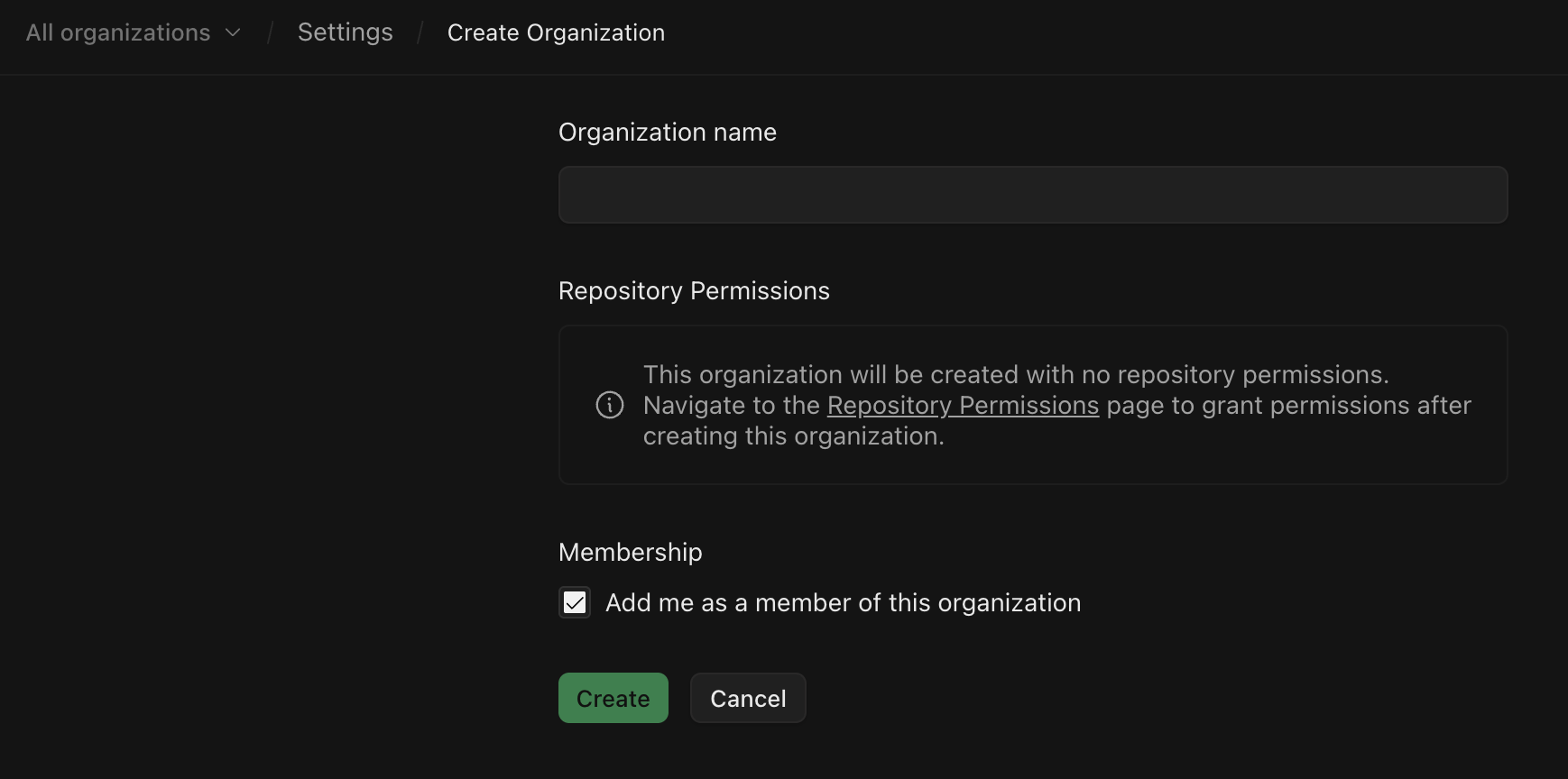
You can create multiple organizations within your enterprise to segment teams, projects, or departments.
To create an organization:
1. Go to **Enterprise Settings > Organizations**
2. Click **Add Organization**
3. Provide a name and click **Add**
 ## Members and Roles
### User Roles
There are three types of default users on Devin Enterprise, each with varying levels of permissions.
| **Role** | **Permissions** |
| :---------------------- | :---------------------------------------------------------------------------------------------------------------------------------------------------------------------------------------------- |
| **Enterprise Admins** | - Full access to all enterprise settings
## Members and Roles
### User Roles
There are three types of default users on Devin Enterprise, each with varying levels of permissions.
| **Role** | **Permissions** |
| :---------------------- | :---------------------------------------------------------------------------------------------------------------------------------------------------------------------------------------------- |
| **Enterprise Admins** | - Full access to all enterprise settings
- Create organizations
- Invite individuals to organizations
- Connect source code repository to account
- Manage billing |
| **Organization Admins** | - Invite members to their organization |
| **Members** | - Use Devin and have full access within their organization
- Execute Devin sessions |
### Custom Roles
For more granular access control, Devin Enterprise supports [Custom Roles & RBAC](/enterprise/security-access/custom-roles). You can create custom roles with specific permissions at both the organization level (controlling access within a specific organization) and account level (applying across the entire enterprise).
### IdP Groups
Custom roles can be automatically assigned based on SSO IdP group membership. See [IdP Group Integration](/enterprise/security-access/idp-groups) for detailed configuration steps.
### Adding Members
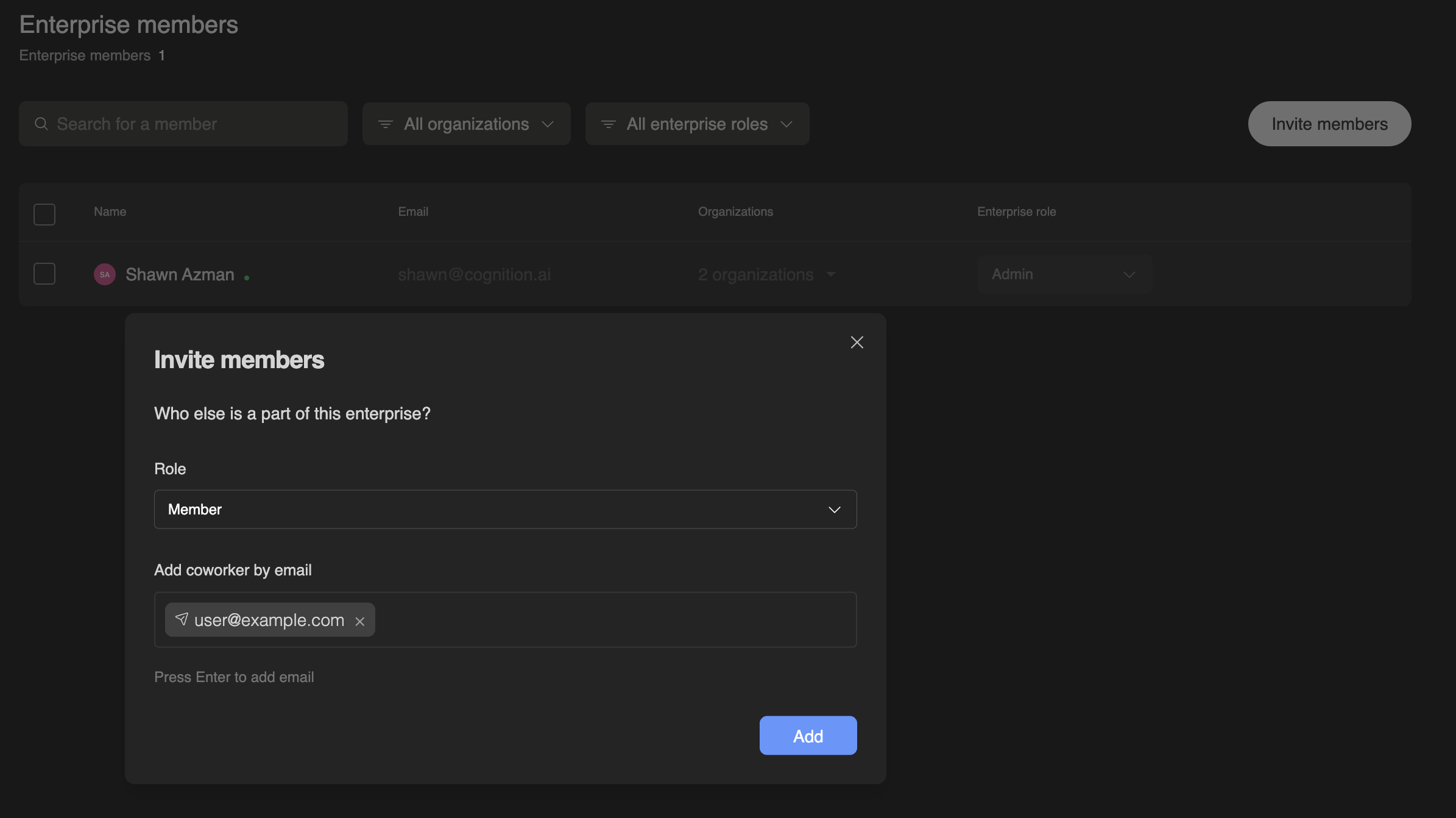
After creating an organization, you can add members and assign them to specific organizations.
1. Navigate to **Enterprise Settings > Members**
2. Click **Add Members**
3. Enter the email address of each user you'd like to invite
Users will receive an email invitation to join your Devin organization.
 ### Managing Member Access
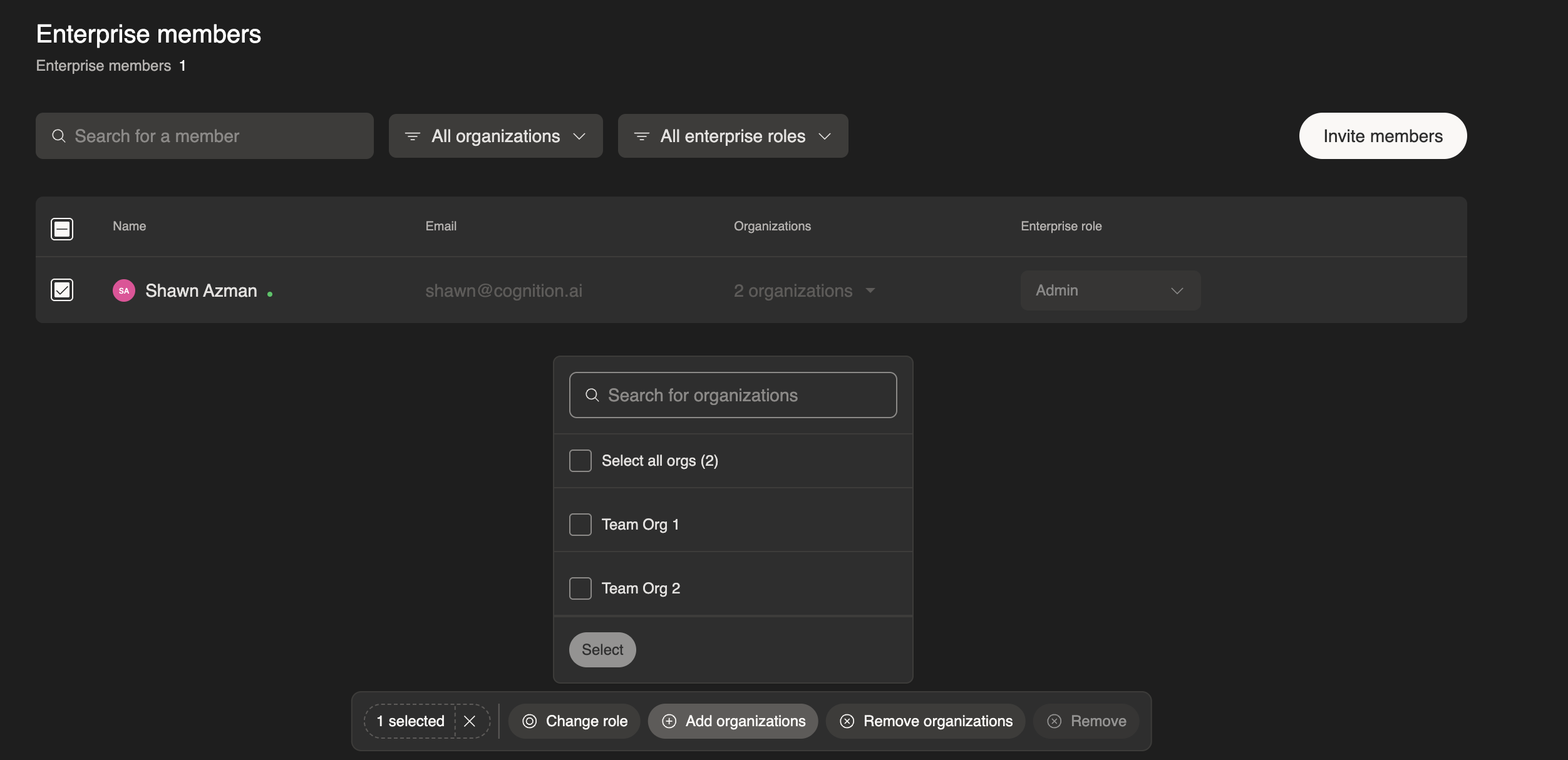
To manage member access to organizations:
1. Go to **Enterprise Settings > Members**
2. Use the checkbox next to a user's name to select one or more users
3. Use the action buttons at the bottom of the page (**Change role**, **Add organizations**, **Remove organizations**, or **Remove**) to manage the selected users
### Managing Member Access
To manage member access to organizations:
1. Go to **Enterprise Settings > Members**
2. Use the checkbox next to a user's name to select one or more users
3. Use the action buttons at the bottom of the page (**Change role**, **Add organizations**, **Remove organizations**, or **Remove**) to manage the selected users
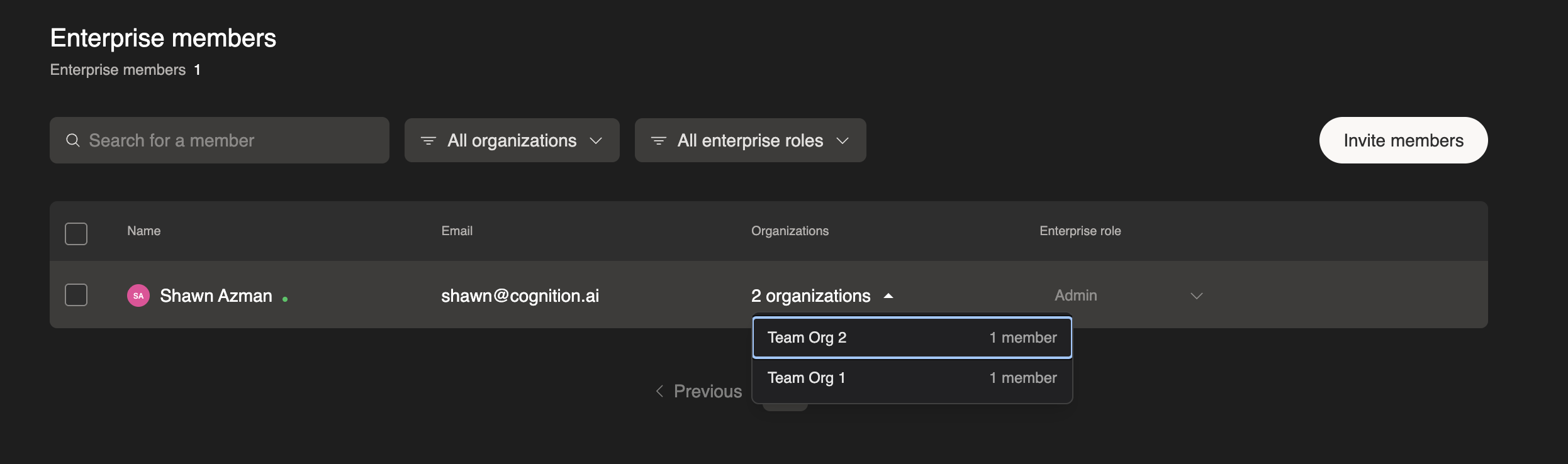
 To verify which organizations a user belongs to, click the organization count (e.g., "2 organizations") in the table to expand and view their organization memberships.
 ## Single Sign-On (SSO)
Your enterprise admin can set up authentication to Devin via SSO. We support:
* [Okta](/enterprise/security-access/sso/okta)
* [Microsoft Entra ID](/enterprise/security-access/sso/azure)
* [SAML](/enterprise/security-access/sso/saml)
* [OIDC (Generic)](/enterprise/security-access/sso/oidc)
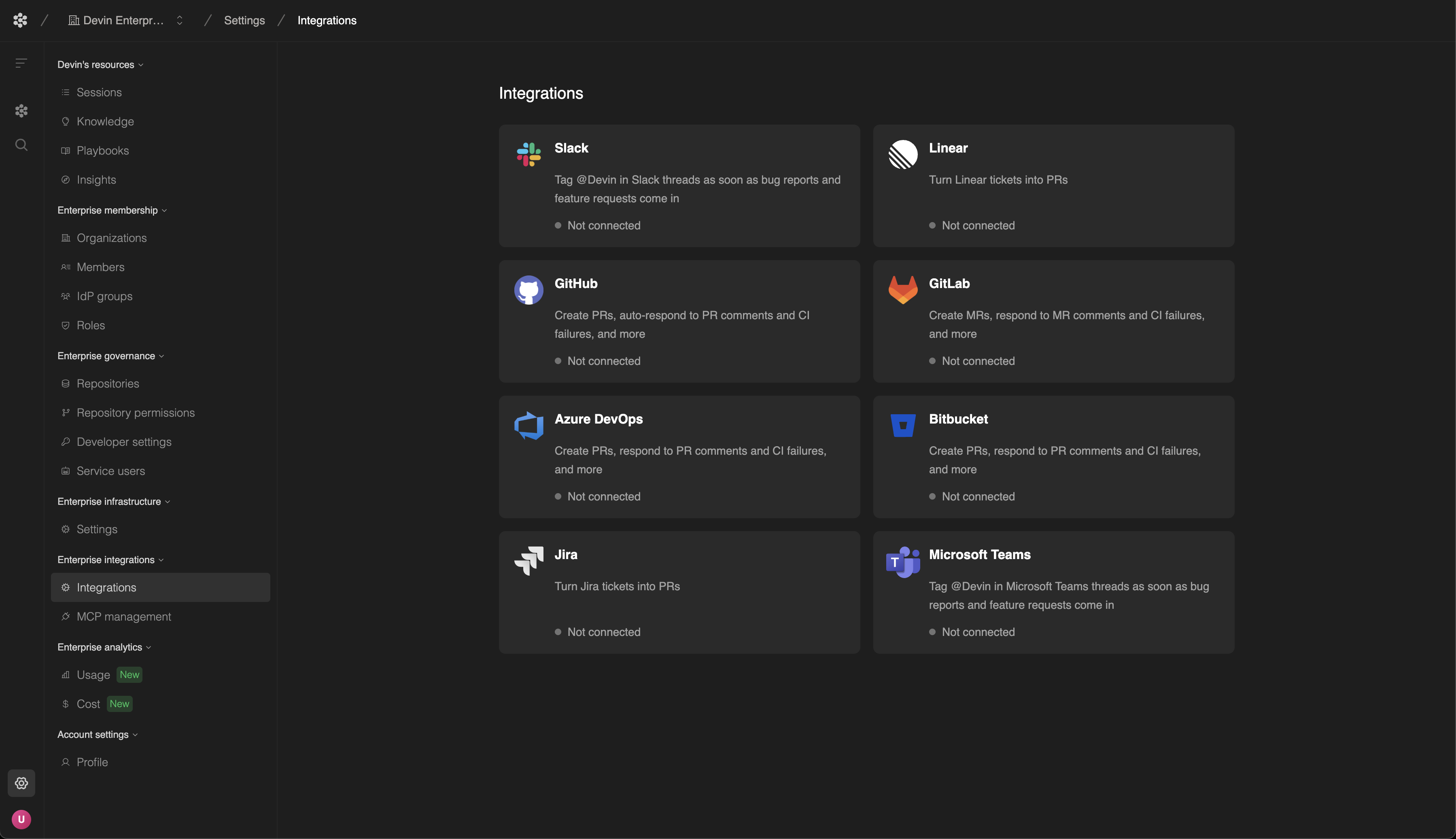
## Integrations
### Source Code Access
Your enterprise admin must connect source code using one of our supported integrations. This can be done in **Enterprise Settings > Connected Accounts**:
* [GitHub](/integrations/gh)
* [GitHub Enterprise](/enterprise/integrations/github-enterprise-server)
* [GitLab](/integrations/gitlab)
* [Bitbucket](/integrations/bitbucket)
* [Azure DevOps](/enterprise/integrations/azure-devops)
## Single Sign-On (SSO)
Your enterprise admin can set up authentication to Devin via SSO. We support:
* [Okta](/enterprise/security-access/sso/okta)
* [Microsoft Entra ID](/enterprise/security-access/sso/azure)
* [SAML](/enterprise/security-access/sso/saml)
* [OIDC (Generic)](/enterprise/security-access/sso/oidc)
## Integrations
### Source Code Access
Your enterprise admin must connect source code using one of our supported integrations. This can be done in **Enterprise Settings > Connected Accounts**:
* [GitHub](/integrations/gh)
* [GitHub Enterprise](/enterprise/integrations/github-enterprise-server)
* [GitLab](/integrations/gitlab)
* [Bitbucket](/integrations/bitbucket)
* [Azure DevOps](/enterprise/integrations/azure-devops)
 Learn how to grant organizations access to specific repositories or entire GitHub groups using Group and Repository Permissions.
### Slack & Microsoft Teams Integration
Tag @Devin directly in Slack channels or Microsoft Teams to start sessions, ask questions, and collaborate with your team. Devin responds in-thread with updates and can be controlled using inline keywords like `!ask`, `mute`, and `sleep`. See the [Slack integration guide](/integrations/slack) or [Microsoft Teams integration guide](/integrations/microsoft-teams) for setup instructions.
## Next Steps
Explore deployment models including Enterprise Cloud and Customer Dedicated Deployment.
Learn about Devin's security practices, data privacy, and compliance certifications.
Browse practical examples across engineering workflows.
For enterprise-level setup and support, contact our [Enterprise Sales Team](mailto:enterprise@cognition.ai).
Learn how to grant organizations access to specific repositories or entire GitHub groups using Group and Repository Permissions.
### Slack & Microsoft Teams Integration
Tag @Devin directly in Slack channels or Microsoft Teams to start sessions, ask questions, and collaborate with your team. Devin responds in-thread with updates and can be controlled using inline keywords like `!ask`, `mute`, and `sleep`. See the [Slack integration guide](/integrations/slack) or [Microsoft Teams integration guide](/integrations/microsoft-teams) for setup instructions.
## Next Steps
Explore deployment models including Enterprise Cloud and Customer Dedicated Deployment.
Learn about Devin's security practices, data privacy, and compliance certifications.
Browse practical examples across engineering workflows.
For enterprise-level setup and support, contact our [Enterprise Sales Team](mailto:enterprise@cognition.ai).