> ## Documentation Index
> Fetch the complete documentation index at: https://docs.devin.ai/llms.txt
> Use this file to discover all available pages before exploring further.
# Code Lenses
> Use Devin Desktop code lenses for quick Explain, Refactor, and Docstring operations on functions and classes directly in the editor.
## Explain, Refactor, and Add Docstring
At the top of the text editor, Devin Desktop exposes *code lenses* on functions and classes.
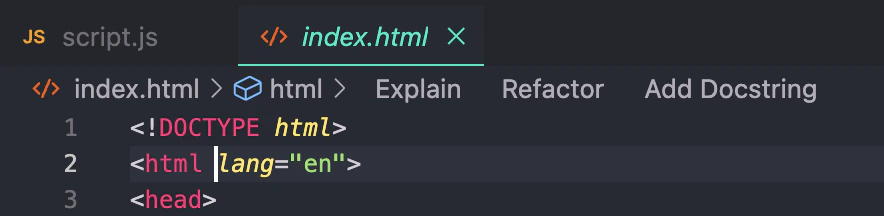 The `Explain` code lens will invoke Cascade, which will simply explain what the function or class does and how it works.
The `Refactor` and `Docstring` code lenses in particular will invoke Command.
* If you click `Refactor`, Devin Desktop will prompt you with a dropdown of selectable, pre-populated
instructions that you can choose from. You can also write your own. This is equivalent to highlighting the function and invoking Command.
* If you click `Docstring`, Devin Desktop will generate a docstring for you above the function header.
(In Python, the docstring will be correctly generated *underneath* the function header.)
The `Explain` code lens will invoke Cascade, which will simply explain what the function or class does and how it works.
The `Refactor` and `Docstring` code lenses in particular will invoke Command.
* If you click `Refactor`, Devin Desktop will prompt you with a dropdown of selectable, pre-populated
instructions that you can choose from. You can also write your own. This is equivalent to highlighting the function and invoking Command.
* If you click `Docstring`, Devin Desktop will generate a docstring for you above the function header.
(In Python, the docstring will be correctly generated *underneath* the function header.)