> ## Documentation Index
> Fetch the complete documentation index at: https://docs.devin.ai/llms.txt
> Use this file to discover all available pages before exploring further.

# Okta-SSO-Einrichtung

> Single Sign-On mit Okta einrichten

Um Okta als Anmeldeoption für Ihre Devin-Benutzer einzurichten, können Sie dieses Dokument an Ihren Okta-Administrator und/oder ein Mitglied Ihres IT-Teams weitergeben.

<div id="create-a-new-application-in-okta">
  ## Erstellen Sie eine neue Anwendung in Okta
</div>

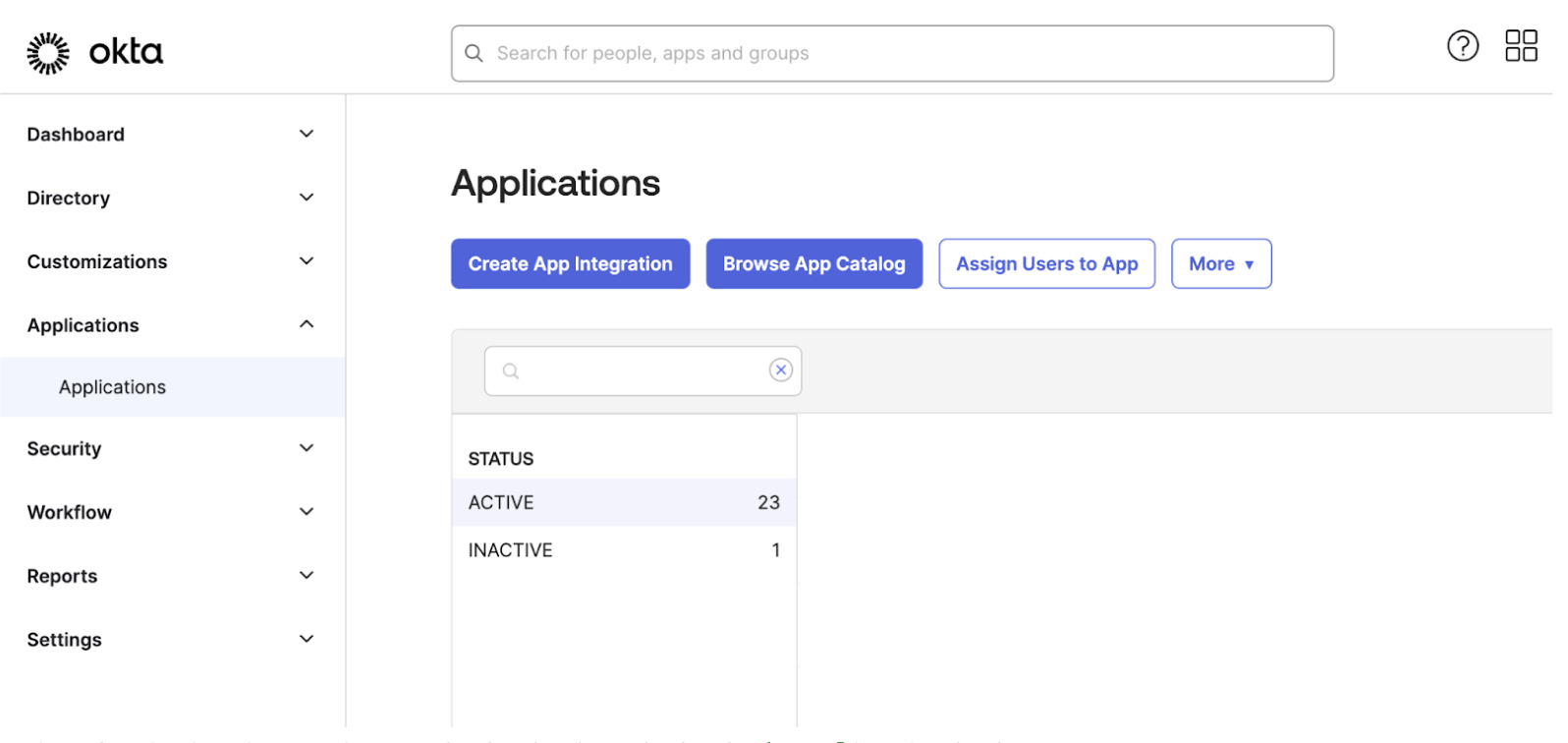
1. Gehen Sie in Ihrer Okta-Admin-Konsole zu `Applications` > `Create App Integration`

<Frame>
  <img src="https://mintcdn.com/cognitionai/s_eAbNGhbOgn5ZqZ/images/okta-application-1.png?fit=max&auto=format&n=s_eAbNGhbOgn5ZqZ&q=85&s=23af89ed666db6134b90a6e29c1c16cf" alt="Okta Application Creation Step 1" width="1596" height="756" data-path="images/okta-application-1.png" />
</Frame>

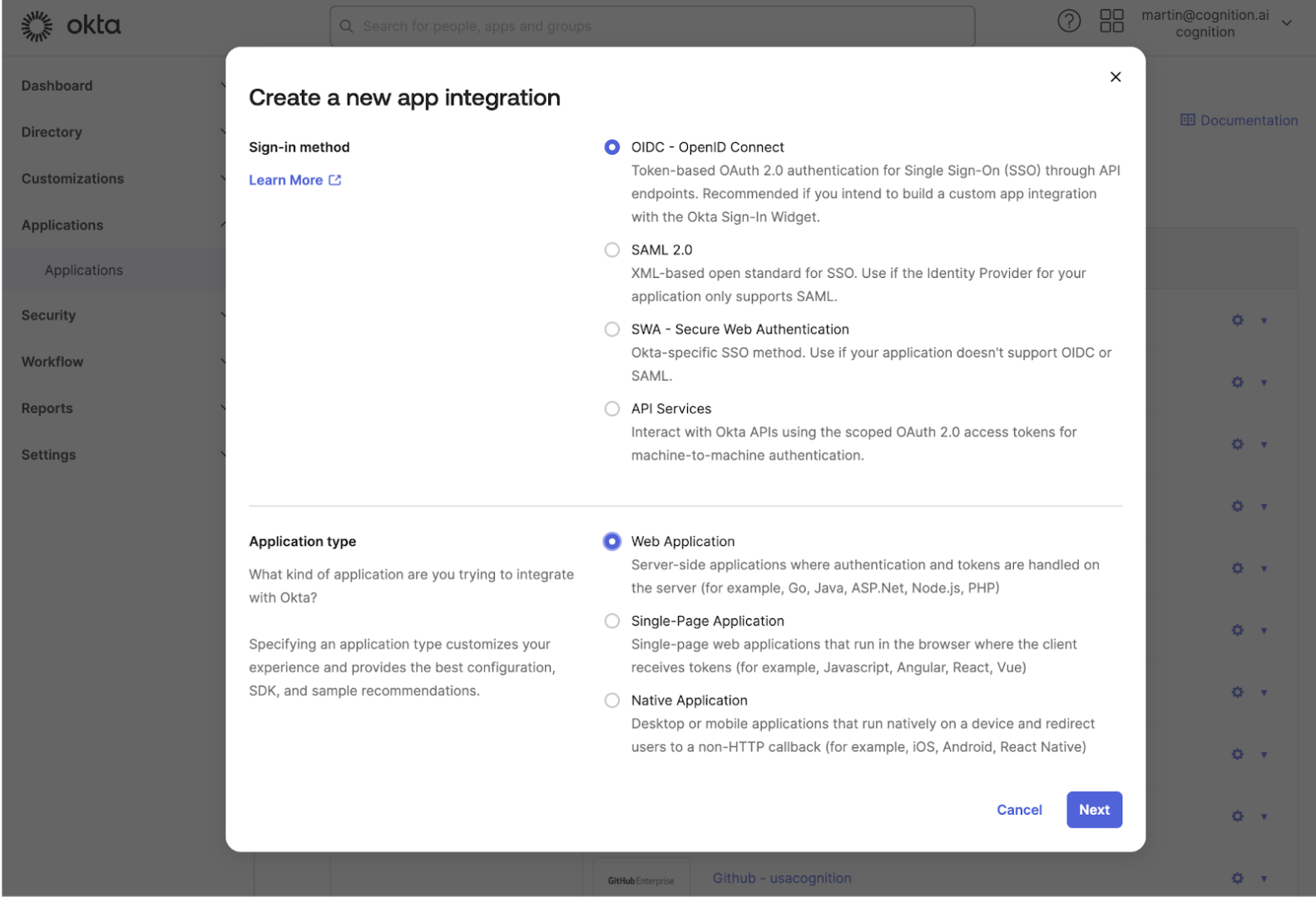
2. Wählen Sie `OIDC - OpenID Connect` für die Sign-in-Methode und `Web Application` für den `Application Type`
<Frame>
  <img src="https://mintcdn.com/cognitionai/s_eAbNGhbOgn5ZqZ/images/okta-application-2.png?fit=max&auto=format&n=s_eAbNGhbOgn5ZqZ&q=85&s=7495dd25e50c17e393ce95c91a088e6c" alt="Okta Application Creation Step 2" width="1582" height="1078" data-path="images/okta-application-2.png" />
</Frame>

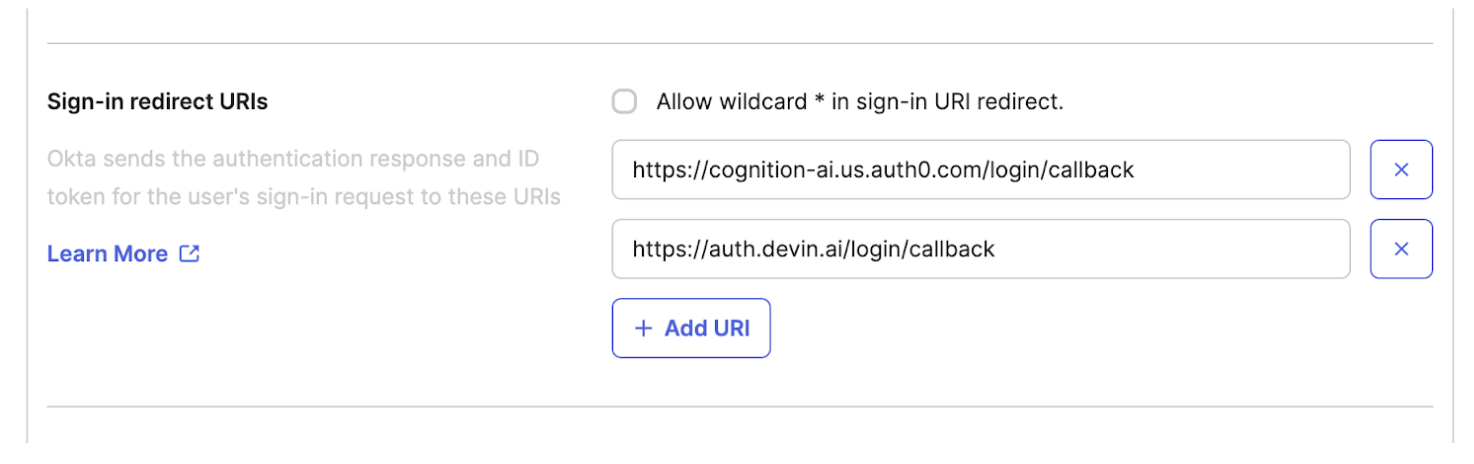
3. Geben Sie für `Sign-in redirect URIs` den folgenden Wert ein
<Note>
  [https://auth.devin.ai/login/callback](https://auth.devin.ai/login/callback)
</Note>

<Frame>
  <img src="https://mintcdn.com/cognitionai/s_eAbNGhbOgn5ZqZ/images/okta-redirect.png?fit=max&auto=format&n=s_eAbNGhbOgn5ZqZ&q=85&s=906cbe108e586cf59f2641b7d03af388" alt="Okta Redirect URIs" width="1474" height="464" data-path="images/okta-redirect.png" />
</Frame>

4. Lassen Sie `Sign-out redirect URIs` leer

<div id="share-your-application-credentials-with-cognition">
  ## Gib die Anmeldeinformationen deiner Anwendung an Cognition weiter
</div>

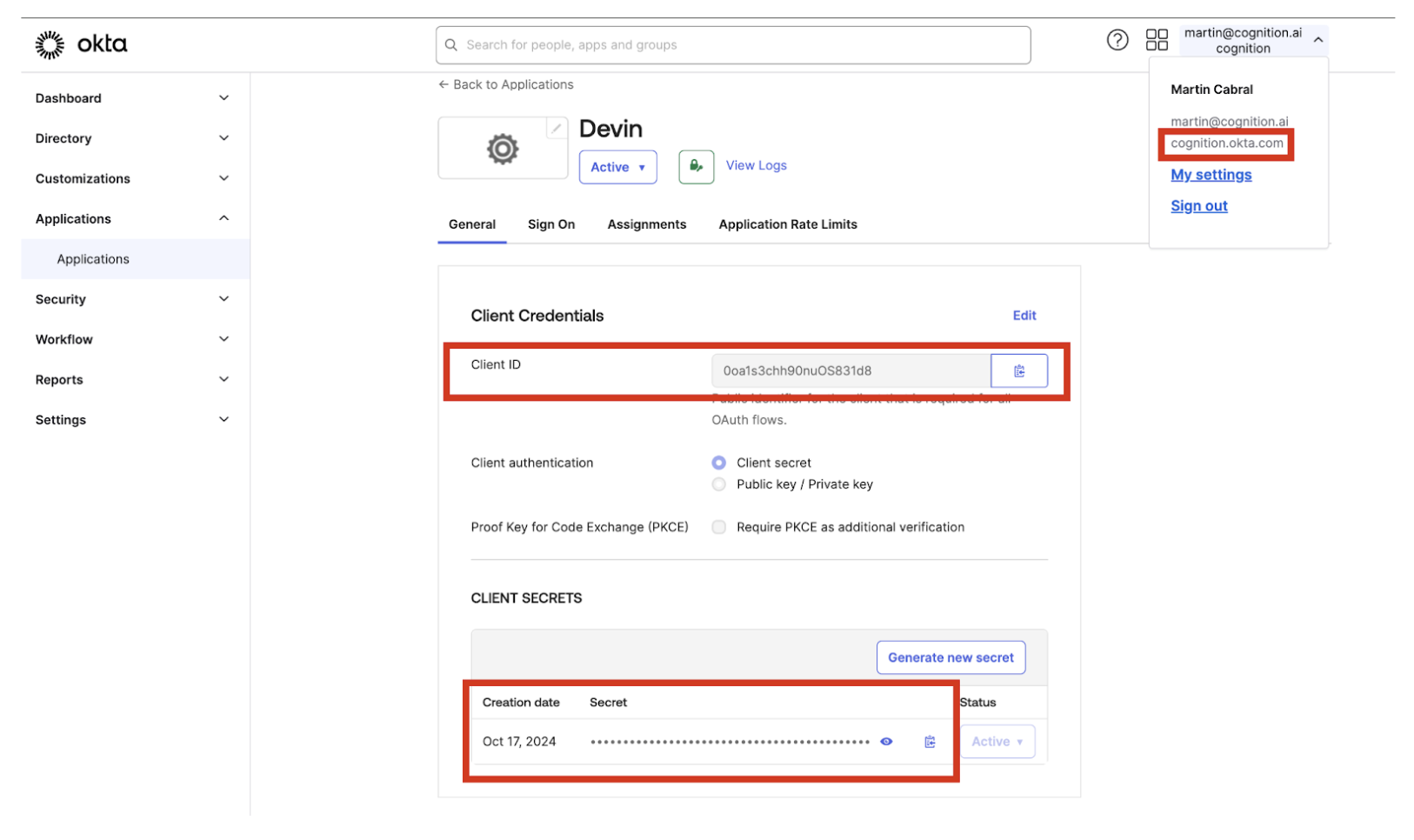
1. Sobald die Anwendung erstellt wurde, musst du Cognition die folgenden Informationen bereitstellen:
   1. Client ID
   2. Client Secret
   3. Deine Okta-Domain (kann aus dem Benutzermenü unterhalb deiner E-Mail-Adresse abgerufen werden)
<Frame>
  <img src="https://mintcdn.com/cognitionai/s_eAbNGhbOgn5ZqZ/images/okta-client-creds.png?fit=max&auto=format&n=s_eAbNGhbOgn5ZqZ&q=85&s=03aa71a5024f189a8737bda5d516b430" alt="Okta Client Credentials" width="1626" height="966" data-path="images/okta-client-creds.png" />
</Frame>

<div id="optional">
  ## Optional
</div>

Sie können die Anwendung mit der folgenden Konfiguration als Symbol im Dashboard Ihrer Benutzer aktivieren:

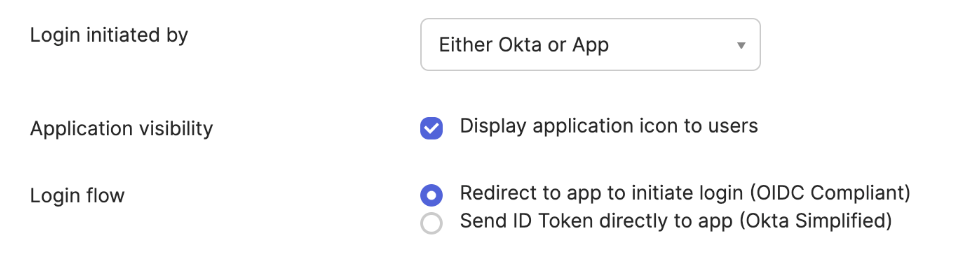
1. Wählen Sie **Either OKTA or App** für `Login initiated by`.
2. Aktivieren Sie **Display application icon to users**.
3. Wählen Sie **Redirect to app to initiate login (OIDC Compliant)** als Wert für den Anmeldefluss.
4. Legen Sie als URI zum Initiieren der Anmeldung Ihre Devin Enterprise-Anmelde-URL fest:

<Note>
  `https://<your_subdomain>.devinenterprise.com/login`
</Note>

<Frame>
  <img src="https://mintcdn.com/cognitionai/s_eAbNGhbOgn5ZqZ/images/okta-optional-step.png?fit=max&auto=format&n=s_eAbNGhbOgn5ZqZ&q=85&s=09cabf28f3712bad1cf2d96ff07dede7" alt="Okta optionale Einstellungen" width="968" height="258" data-path="images/okta-optional-step.png" />
</Frame>