> ## Documentation Index
> Fetch the complete documentation index at: https://docs.devin.ai/llms.txt
> Use this file to discover all available pages before exploring further.
# Quickstart
> Create an outpost and serve sessions from a single machine
* An organization with Outposts enabled
* A [v3 API token](/api-reference/v3/overview) with the appropriate Outposts scopes:
* `account.outposts.orchestrator` for orchestrators managing outposts (implies the machine scope)
* `account.outposts.machine` for workers reading the queue and claiming/releasing sessions
* A machine (VM or container) with:
* The Devin CLI installed
* The [machine dependencies](/cloud/outposts/overview#machine-dependencies)
* Your repositories cloned, with configured remotes
* Access to the build tools, package registries, secrets, and internal services your sessions need
Sessions execute directly on the machine with your user's permissions. We
recommend running the worker under a dedicated directory you're comfortable
letting an agent work in freely — or better yet, on a machine reserved for
long-running agentic work, like a Mac Mini on your desk.
Download and install the [Devin CLI](/cli):
```bash theme={null}
curl -fsSL https://cli.devin.ai/install.sh | bash
```
On [Devin Cloud](https://app.devin.ai) go to Settings → Environment → Outposts, and click on the "Create Outpost" button.
Give your Outpost a name, and choose the type of machines it will serve (e.g. Linux, Windows, or Mac). Then, click on the "Create" button.
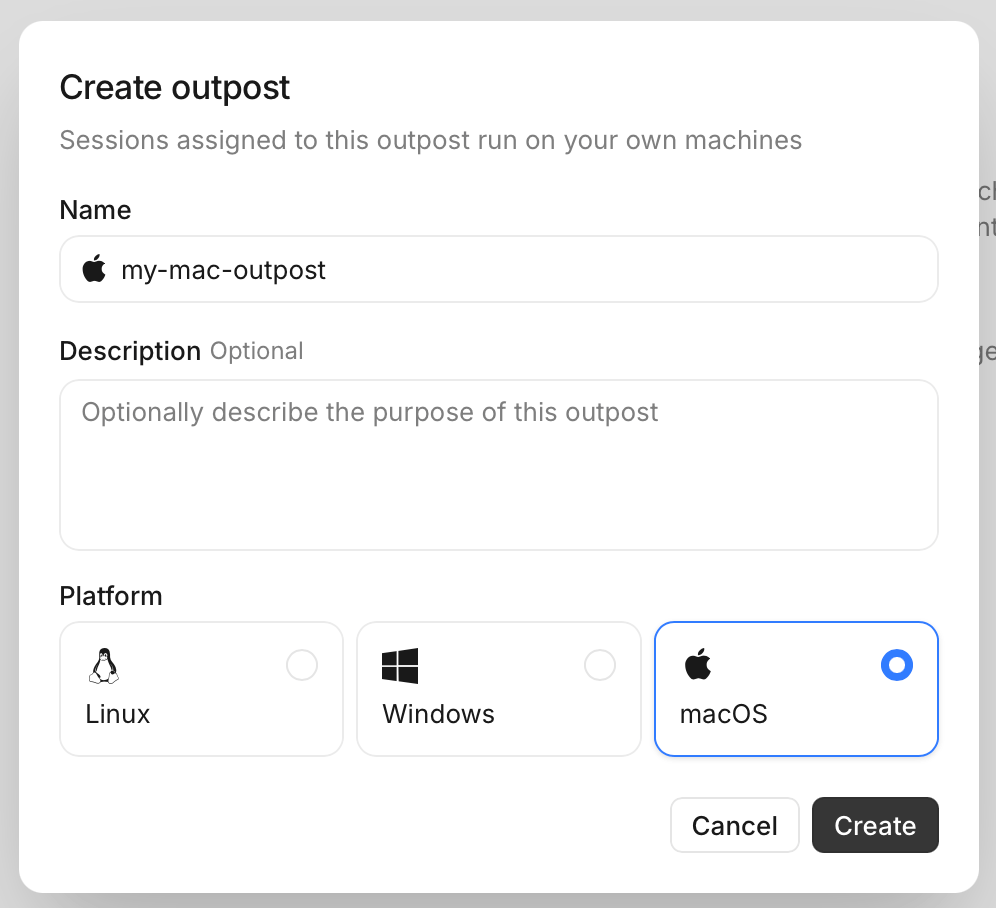 After creating your Outpost, you will get an Outpost token that workers you want to assign to it will use to authenticate with Devin.
Copy the token and save it in a secure place for future use. **The token will only be shown once when you create the Outpost**.
Navigate to a directory where you want your worker to run:
```bash theme={null}
cd /path/to/worker/directory
```
And run the `devin worker start` command with your Outpost's name and token you copied earlier:
```bash theme={null}
devin worker start --outpost= --token=
```
On [Devin Cloud](https://app.devin.ai), start a new session and configure it to run on your Outpost. Under "Configuration" → "Virtual environment", you will see your new Outpost listed. Select it to run your session on it.
Now you can ask Devin to start building on your machine! Try something simple like
```
Create a "hello world" python script for me
```
And watch the script appear in your worker's directory!
### Next steps
Start the worker in a directory where your code lives and ask Devin to build on top of it. Sessions see the repositories checked out under the worker's working directory. To serve more sessions concurrently, run the worker on more machines pointed at the same outpost: N workers serve N concurrent sessions, and the rest wait in the queue.
Provision machines automatically as sessions queue, instead of keeping long-lived workers around.
Run your outpost on the platform you already use — Namespace, Modal, E2B, and more.
On [Devin Cloud](https://app.devin.ai) go to Settings → Environment → Outposts, and click on the "Create Outpost" button.
Give your Outpost a name and choose Linux as its platform (your containers run Linux). Then, click on the "Create" button.
After creating your Outpost, you will get an Outpost token that workers you want to assign to it will use to authenticate with Devin.
Copy the token and save it in a secure place for future use. **The token will only be shown once when you create the Outpost**.
Navigate to a directory where you want your worker to run:
```bash theme={null}
cd /path/to/worker/directory
```
And run the `devin worker start` command with your Outpost's name and token you copied earlier:
```bash theme={null}
devin worker start --outpost= --token=
```
On [Devin Cloud](https://app.devin.ai), start a new session and configure it to run on your Outpost. Under "Configuration" → "Virtual environment", you will see your new Outpost listed. Select it to run your session on it.
Now you can ask Devin to start building on your machine! Try something simple like
```
Create a "hello world" python script for me
```
And watch the script appear in your worker's directory!
### Next steps
Start the worker in a directory where your code lives and ask Devin to build on top of it. Sessions see the repositories checked out under the worker's working directory. To serve more sessions concurrently, run the worker on more machines pointed at the same outpost: N workers serve N concurrent sessions, and the rest wait in the queue.
Provision machines automatically as sessions queue, instead of keeping long-lived workers around.
Run your outpost on the platform you already use — Namespace, Modal, E2B, and more.
On [Devin Cloud](https://app.devin.ai) go to Settings → Environment → Outposts, and click on the "Create Outpost" button.
Give your Outpost a name and choose Linux as its platform (your containers run Linux). Then, click on the "Create" button.
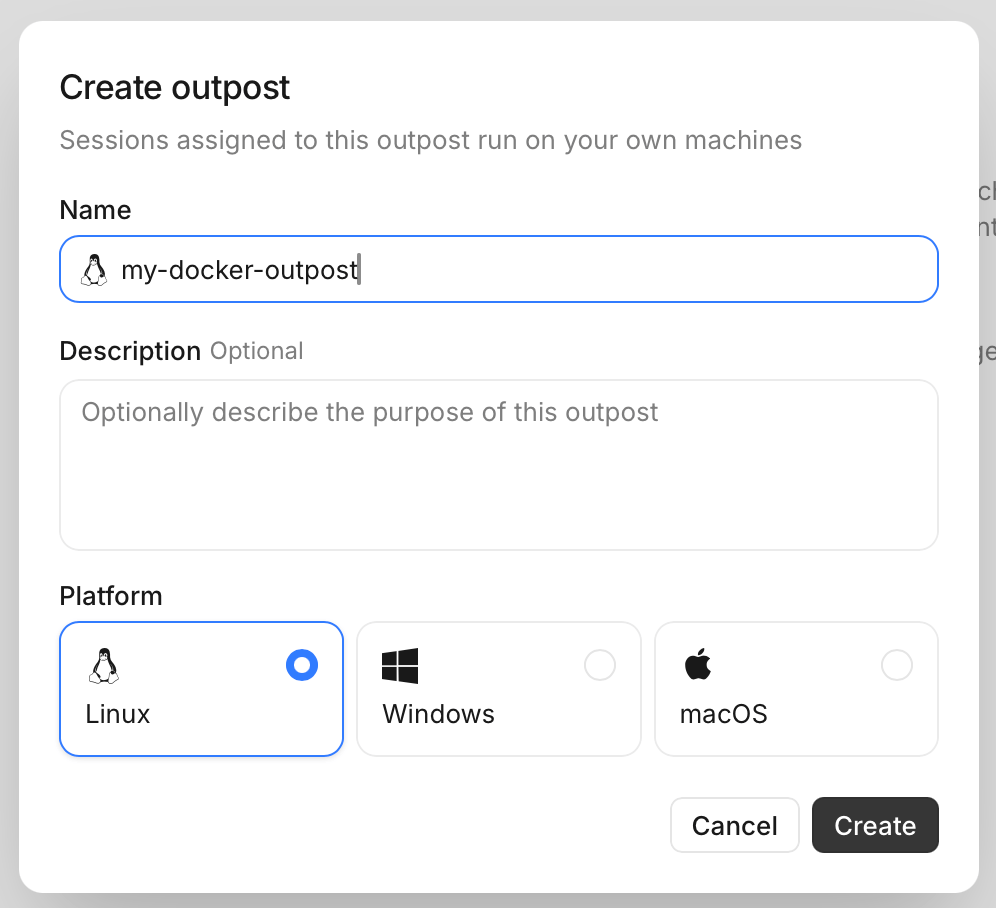 After creating your Outpost, you will get an Outpost token that workers you want to assign to it will use to authenticate with Devin.
Copy the token and save it in a secure place for future use. **The token will only be shown once when you create the Outpost**.
Build on the official Devin CLI image (`public.ecr.aws/e0h8a4b6/devin-cli`), adding the [machine dependencies](/cloud/outposts/overview#machine-dependencies) and any repositories or tools your sessions need:
```dockerfile Dockerfile theme={null}
# The Devin CLI is preinstalled and is the image's entrypoint.
# Use :stable, or pin a specific CLI version tag.
FROM public.ecr.aws/e0h8a4b6/devin-cli:stable
# git is required; ffmpeg unlocks screen-recording features
RUN apt-get update && apt-get install -y --no-install-recommends \
ca-certificates git ffmpeg \
&& rm -rf /var/lib/apt/lists/*
# The directory the worker runs in
WORKDIR /repos
# Optionally, check out the repositories your sessions need:
# RUN git clone https://github.com/your-org/app.git \
# && git clone https://github.com/your-org/infra.git
CMD ["worker", "start"]
```
Or tell Devin to make a Dockerfile for you:
```
Write a Dockerfile for a Devin Outposts worker image. Base it on
public.ecr.aws/e0h8a4b6/devin-cli:stable, which has the Devin CLI preinstalled
as the image's entrypoint. Install git and ffmpeg. Clone these repositories
into the working directory the worker runs in: . The default
command should be ["worker", "start"].
```
Browser features need Chrome or Chromium in the image, with
`DEVIN_CHROME_PATH` pointing at the binary. The base image is Ubuntu, and
Ubuntu's `chromium` apt package is a snap stub that does not work in
containers — for amd64 images, install Google Chrome instead:
```dockerfile theme={null}
RUN apt-get update && apt-get install -y --no-install-recommends curl \
&& curl -fsSL https://dl.google.com/linux/direct/google-chrome-stable_current_amd64.deb -o /tmp/chrome.deb \
&& apt-get install -y --no-install-recommends /tmp/chrome.deb \
&& rm /tmp/chrome.deb && rm -rf /var/lib/apt/lists/*
ENV DEVIN_CHROME_PATH=/usr/bin/google-chrome
```
For private repositories, bake in credentials with your preferred mechanism (e.g. [build secrets](https://docs.docker.com/build/building/secrets/)) so the clones and remotes work at runtime.
When you're happy with your Dockerfile, build the image:
```bash theme={null}
docker build -t devin-worker .
```
Run a container from your image with the `worker start` command, passing your Outpost's name and the token you copied earlier (the image's entrypoint is the Devin CLI, so arguments go straight to `devin`):
```bash theme={null}
docker run devin-worker \
worker start --outpost= --token=
```
On [Devin Cloud](https://app.devin.ai), start a new session and configure it to run on your Outpost. Under "Configuration" → "Virtual environment", you will see your new Outpost listed. Select it to run your session on it.
Now you can ask Devin to start building in your container! Try something simple like
```
Create a "hello world" python script for me
```
And watch the script appear in the container's working directory!
### Next steps
Bake the repositories you want Devin to work on into the image and ask Devin to build on top of them — sessions see the repositories checked out under the worker's working directory. To serve more sessions concurrently, run more containers pointed at the same outpost: N workers serve N concurrent sessions, and the rest wait in the queue.
Provision containers automatically as sessions queue, instead of keeping long-lived workers around.
Run your outpost on the platform you already use — Namespace, Modal, E2B, and more.
After creating your Outpost, you will get an Outpost token that workers you want to assign to it will use to authenticate with Devin.
Copy the token and save it in a secure place for future use. **The token will only be shown once when you create the Outpost**.
Build on the official Devin CLI image (`public.ecr.aws/e0h8a4b6/devin-cli`), adding the [machine dependencies](/cloud/outposts/overview#machine-dependencies) and any repositories or tools your sessions need:
```dockerfile Dockerfile theme={null}
# The Devin CLI is preinstalled and is the image's entrypoint.
# Use :stable, or pin a specific CLI version tag.
FROM public.ecr.aws/e0h8a4b6/devin-cli:stable
# git is required; ffmpeg unlocks screen-recording features
RUN apt-get update && apt-get install -y --no-install-recommends \
ca-certificates git ffmpeg \
&& rm -rf /var/lib/apt/lists/*
# The directory the worker runs in
WORKDIR /repos
# Optionally, check out the repositories your sessions need:
# RUN git clone https://github.com/your-org/app.git \
# && git clone https://github.com/your-org/infra.git
CMD ["worker", "start"]
```
Or tell Devin to make a Dockerfile for you:
```
Write a Dockerfile for a Devin Outposts worker image. Base it on
public.ecr.aws/e0h8a4b6/devin-cli:stable, which has the Devin CLI preinstalled
as the image's entrypoint. Install git and ffmpeg. Clone these repositories
into the working directory the worker runs in: . The default
command should be ["worker", "start"].
```
Browser features need Chrome or Chromium in the image, with
`DEVIN_CHROME_PATH` pointing at the binary. The base image is Ubuntu, and
Ubuntu's `chromium` apt package is a snap stub that does not work in
containers — for amd64 images, install Google Chrome instead:
```dockerfile theme={null}
RUN apt-get update && apt-get install -y --no-install-recommends curl \
&& curl -fsSL https://dl.google.com/linux/direct/google-chrome-stable_current_amd64.deb -o /tmp/chrome.deb \
&& apt-get install -y --no-install-recommends /tmp/chrome.deb \
&& rm /tmp/chrome.deb && rm -rf /var/lib/apt/lists/*
ENV DEVIN_CHROME_PATH=/usr/bin/google-chrome
```
For private repositories, bake in credentials with your preferred mechanism (e.g. [build secrets](https://docs.docker.com/build/building/secrets/)) so the clones and remotes work at runtime.
When you're happy with your Dockerfile, build the image:
```bash theme={null}
docker build -t devin-worker .
```
Run a container from your image with the `worker start` command, passing your Outpost's name and the token you copied earlier (the image's entrypoint is the Devin CLI, so arguments go straight to `devin`):
```bash theme={null}
docker run devin-worker \
worker start --outpost= --token=
```
On [Devin Cloud](https://app.devin.ai), start a new session and configure it to run on your Outpost. Under "Configuration" → "Virtual environment", you will see your new Outpost listed. Select it to run your session on it.
Now you can ask Devin to start building in your container! Try something simple like
```
Create a "hello world" python script for me
```
And watch the script appear in the container's working directory!
### Next steps
Bake the repositories you want Devin to work on into the image and ask Devin to build on top of them — sessions see the repositories checked out under the worker's working directory. To serve more sessions concurrently, run more containers pointed at the same outpost: N workers serve N concurrent sessions, and the rest wait in the queue.
Provision containers automatically as sessions queue, instead of keeping long-lived workers around.
Run your outpost on the platform you already use — Namespace, Modal, E2B, and more.