> ## Documentation Index
> Fetch the complete documentation index at: https://docs.devin.ai/llms.txt
> Use this file to discover all available pages before exploring further.
# Zed
> Run Devin CLI inside the Zed editor as a custom ACP agent in the Agent Panel.
[Zed](https://zed.dev/) has native support for the
[Agent Client Protocol (ACP)](https://agentclientprotocol.com/), so you can run
Devin CLI as a custom external agent directly inside Zed's **Agent Panel** —
with real-time editing, syntax highlighting, and agent following.
This integration uses Zed's built-in support for external ACP agents. For the
upstream reference, see the Zed docs on
[external agents](https://zed.dev/docs/ai/external-agents).
## Setup
Open the ACP registry with `zed: acp registry` from the command palette (Cmd+Shift+P on macOS and Ctrl+Shift+P on Windows). Search for "Devin" and install it.
On the top left corner of the Threads Sidebar, click on the agent dropdown menu and select "Devin".
In the new Devin thread, open the agent menu in the top right corner and select "Authenticate" (or "Reauthenticate"). Then on the bottom of the thread panel, click on "API Key". A browser window will open, where you can log into your Devin Cloud account and authenticate. If you don't have an account you can sign up for free!
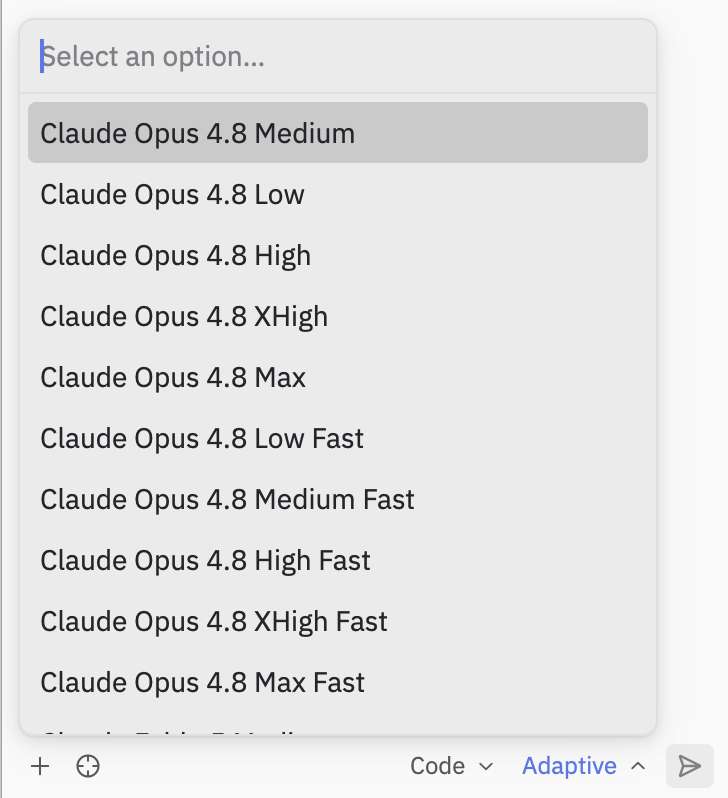
You can now start a conversation with Devin! By default, Devin will use Adaptive model selection, automatically choosing the best model for your task. You can also pick a specific model from the menu at the bottom of the thread panel.
 ## Notes and limitations
* Devin CLI's terminal/shell output is surfaced through Zed's ACP rendering,
which differs from the native Devin CLI terminal UI. Some richer interactions
are only available in the standalone CLI.
* The `devin acp` subcommand is intended to be launched by an ACP-aware client
(like Zed) as a subprocess — it speaks JSON-RPC over stdio and is not meant to
be run interactively. See
[`devin acp`](/cli/reference/commands#devin-acp) in the command reference.
## Notes and limitations
* Devin CLI's terminal/shell output is surfaced through Zed's ACP rendering,
which differs from the native Devin CLI terminal UI. Some richer interactions
are only available in the standalone CLI.
* The `devin acp` subcommand is intended to be launched by an ACP-aware client
(like Zed) as a subprocess — it speaks JSON-RPC over stdio and is not meant to
be run interactively. See
[`devin acp`](/cli/reference/commands#devin-acp) in the command reference.