> ## Documentation Index
> Fetch the complete documentation index at: https://docs.devin.ai/llms.txt
> Use this file to discover all available pages before exploring further.
# Common Issues
## I'm unable to connect my GitHub.com organization
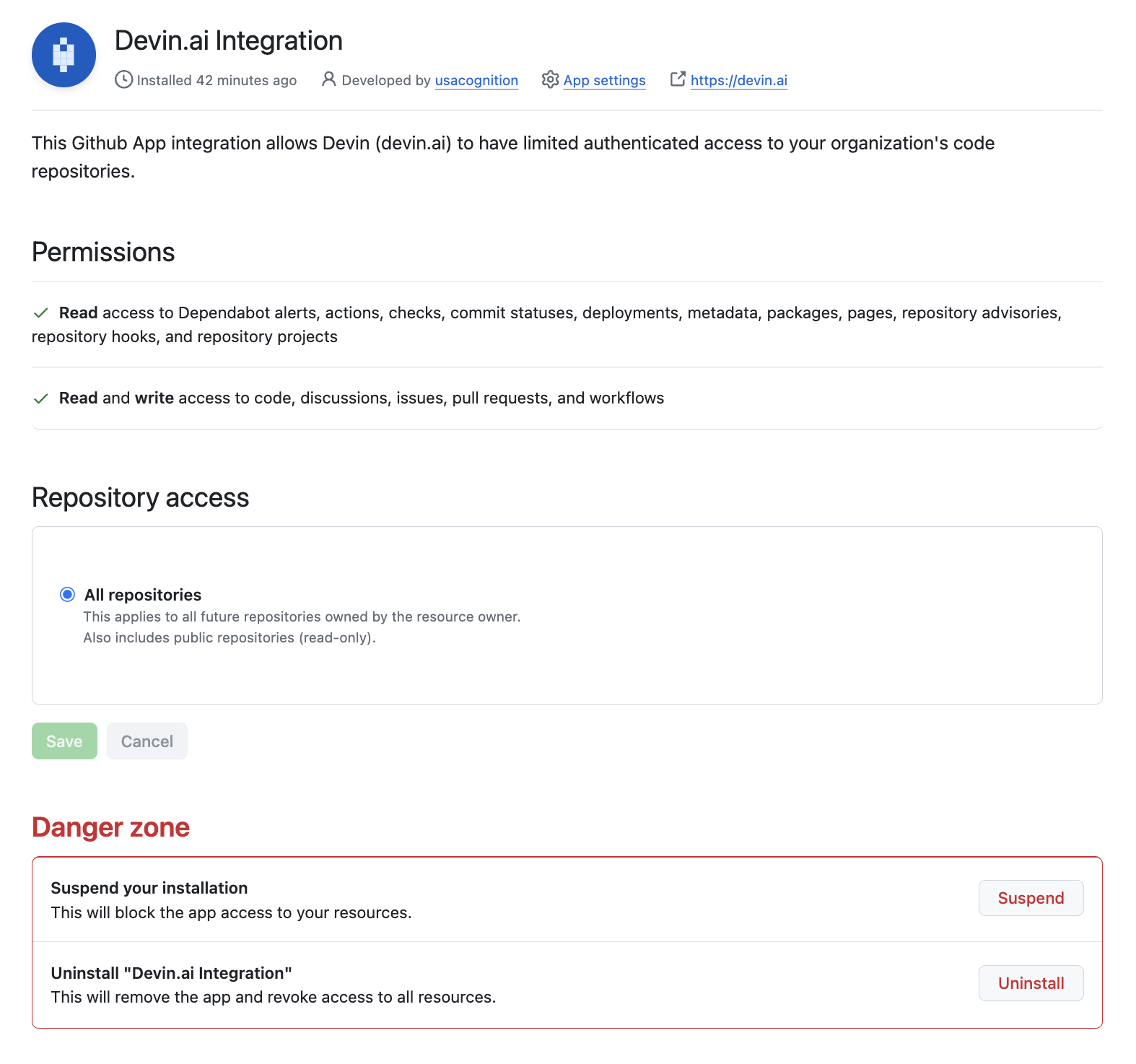
If you're unable to set up your integration or seeing "Configure" next to the organization you want to connect, you or one of your teammates has likely already connected your GitHub organization to another Devin account. **You will need to disconnect the existing integration before you can connect to your Devin account.**
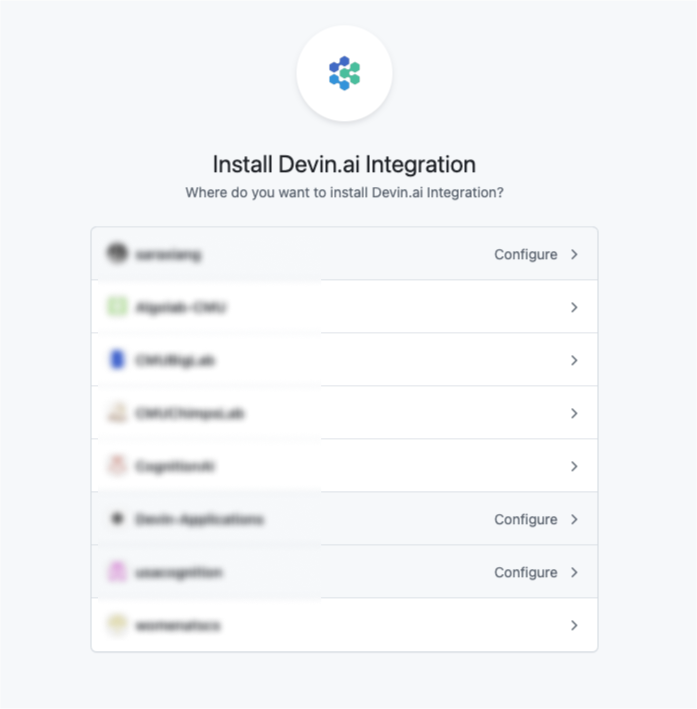 You can disconnect the existing integration by following these steps:
1. Navigate to the Devin Enterprise or Organization with the active integration
2. Navigate to the Integrations page
* If you are on an Enterprise account, navigate to [https://app.devin.ai/settings/connected-accounts](https://app.devin.ai/settings/connected-accounts) in Enterprise Settings
* If you are on a Teams account, navigate to [https://app.devin.ai/settings/integrations](https://app.devin.ai/settings/integrations) in Organization Settings
3. Click through on the GitHub integration card
4. Click "Disconnect" under the GitHub integration
Alternatively, you can disconnect the integration via GitHub:
1. Go to the [GitHub Integration settings](https://github.com/settings/installations)
2. Navigate to Devin.ai Integration and click "Configure"
3. Scroll to the "Danger zone" section to uninstall the integration
You can disconnect the existing integration by following these steps:
1. Navigate to the Devin Enterprise or Organization with the active integration
2. Navigate to the Integrations page
* If you are on an Enterprise account, navigate to [https://app.devin.ai/settings/connected-accounts](https://app.devin.ai/settings/connected-accounts) in Enterprise Settings
* If you are on a Teams account, navigate to [https://app.devin.ai/settings/integrations](https://app.devin.ai/settings/integrations) in Organization Settings
3. Click through on the GitHub integration card
4. Click "Disconnect" under the GitHub integration
Alternatively, you can disconnect the integration via GitHub:
1. Go to the [GitHub Integration settings](https://github.com/settings/installations)
2. Navigate to Devin.ai Integration and click "Configure"
3. Scroll to the "Danger zone" section to uninstall the integration
 ## I'm unable to connect my Slack organization
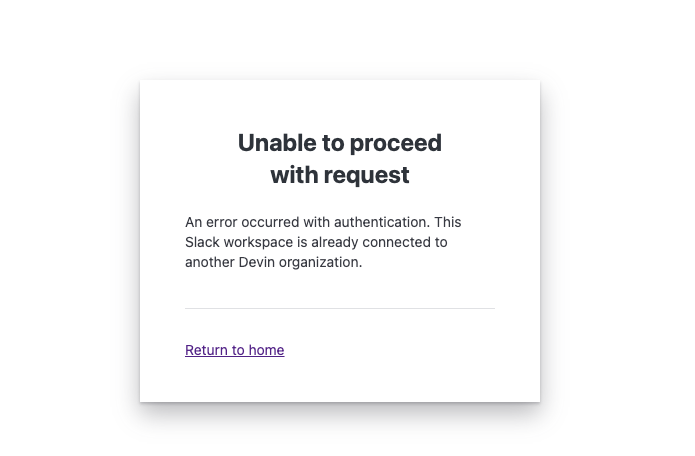
If you're seeing an "Unable to proceed with request" error, it means that you or one of your teammates has already connected your Slack organization to another Devin organization. **You will need to disconnect the existing integration before you can connect your new organization.**
## I'm unable to connect my Slack organization
If you're seeing an "Unable to proceed with request" error, it means that you or one of your teammates has already connected your Slack organization to another Devin organization. **You will need to disconnect the existing integration before you can connect your new organization.**
 You can disconnect the existing integration by following these steps:
1. Navigate to the Devin Enterprise or Organization with the active integration
2. Navigate to the Integrations page
* If you are on an Enterprise account, navigate to [https://app.devin.ai/settings/connected-accounts](https://app.devin.ai/settings/connected-accounts) in Enterprise Settings
* If you are on a Teams account, navigate to [https://app.devin.ai/settings/integrations](https://app.devin.ai/settings/integrations) in Organization Settings
3. Click through on the Slack integration card
4. Click "Disconnect" under the Slack integration
If you're unable to disconnect or find the existing organization, please reach out to [support@cognition.ai](mailto:support@cognition.ai)
## IP Whitelisting
If you need to whitelist Devin's services, please add the following IP addresses:
* 100.20.50.251
* 44.238.19.62
* 52.10.84.81
* 52.183.72.253
* 20.172.46.235
* 52.159.232.99
* 4.204.199.103
* 54.201.200.193
* 54.69.238.189
* 100.23.34.160
(Please note: While we intend to keep this list static, it is possible these IPs may change in future updates.)
## Session Expiration
Devin sessions can't be continued after 30 days. If you need to resume work after that window, start a new session and re-share any relevant context (for example: goals, requirements, key decisions, and any important files or links) so Devin can continue effectively.
You can disconnect the existing integration by following these steps:
1. Navigate to the Devin Enterprise or Organization with the active integration
2. Navigate to the Integrations page
* If you are on an Enterprise account, navigate to [https://app.devin.ai/settings/connected-accounts](https://app.devin.ai/settings/connected-accounts) in Enterprise Settings
* If you are on a Teams account, navigate to [https://app.devin.ai/settings/integrations](https://app.devin.ai/settings/integrations) in Organization Settings
3. Click through on the Slack integration card
4. Click "Disconnect" under the Slack integration
If you're unable to disconnect or find the existing organization, please reach out to [support@cognition.ai](mailto:support@cognition.ai)
## IP Whitelisting
If you need to whitelist Devin's services, please add the following IP addresses:
* 100.20.50.251
* 44.238.19.62
* 52.10.84.81
* 52.183.72.253
* 20.172.46.235
* 52.159.232.99
* 4.204.199.103
* 54.201.200.193
* 54.69.238.189
* 100.23.34.160
(Please note: While we intend to keep this list static, it is possible these IPs may change in future updates.)
## Session Expiration
Devin sessions can't be continued after 30 days. If you need to resume work after that window, start a new session and re-share any relevant context (for example: goals, requirements, key decisions, and any important files or links) so Devin can continue effectively.